
Rotate a PDF online in seconds
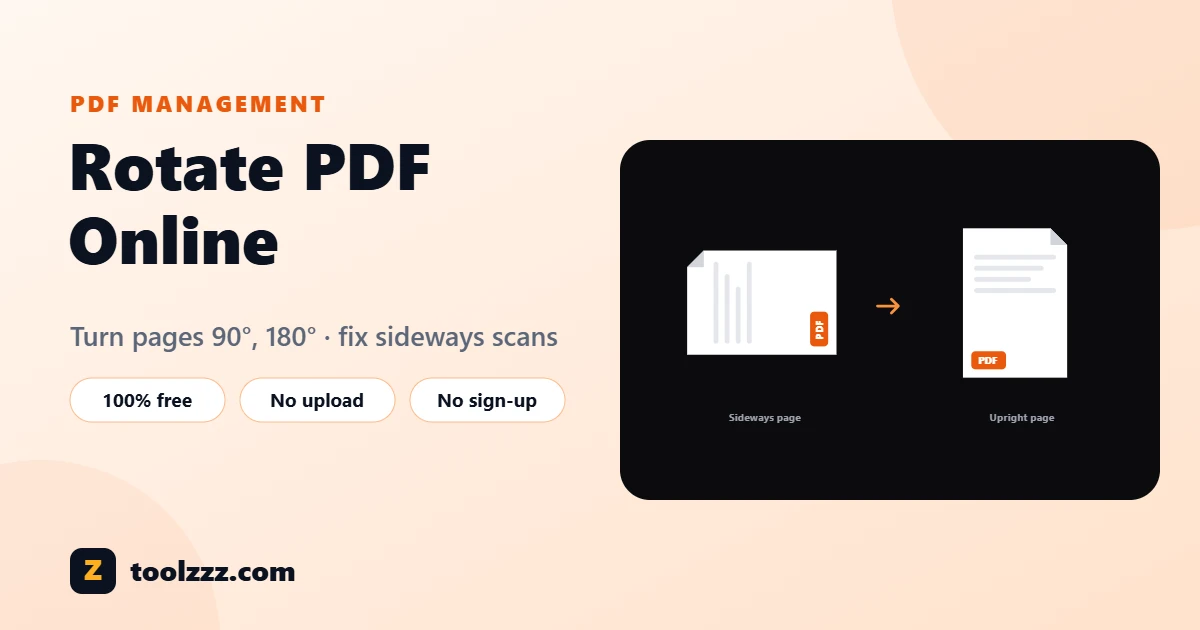
To rotate a PDF, upload it to Toolzzz Rotate PDF, click ↺ or ↻ under the pages you want to turn (or rotate all, odd or even pages at once), then press Download rotated PDF. The rotation is saved permanently in the file, the text stays selectable, and your PDF is never uploaded to a server.
- Rotate 90°, 180° or 270°
- 100% free, no sign-up
- Files never uploaded
- No file size limit
- Windows, Mac, iPhone & Android
- No watermark
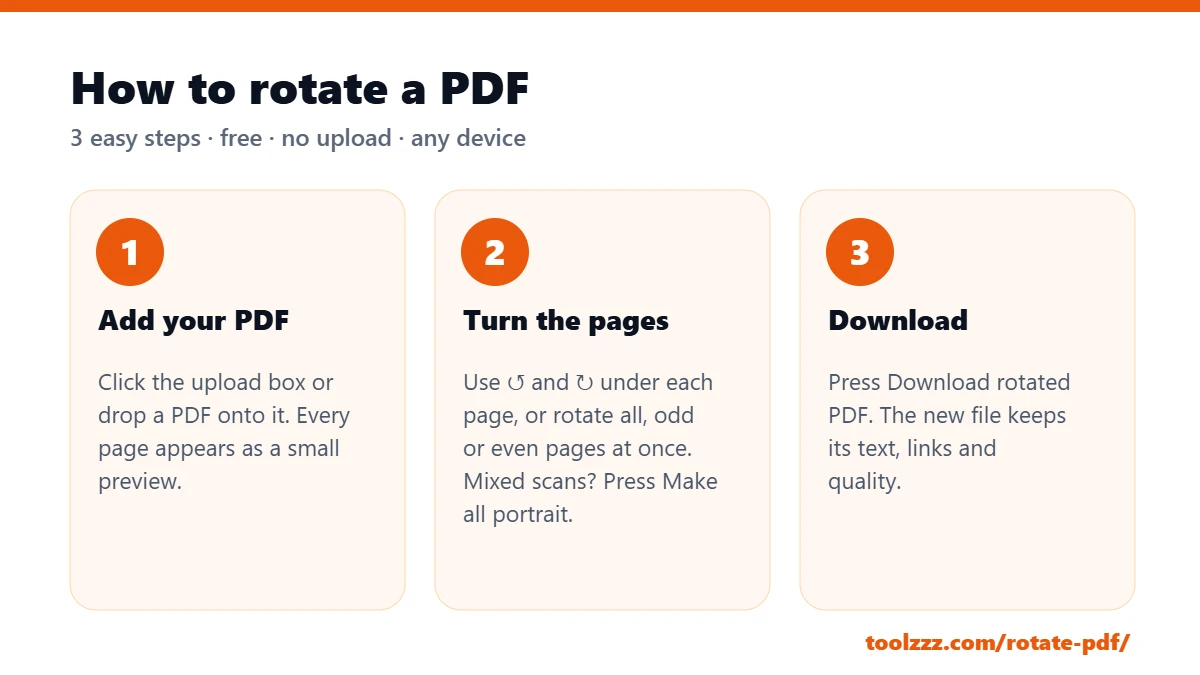
How to rotate a PDF
Fix pages that open sideways or upside down and save the PDF so it opens correctly on every device.
Add your PDF
Click the upload box or drop a PDF onto it. Every page appears as a small preview.
Turn the pages
Use ↺ and ↻ under each page, or rotate all, odd or even pages at once. Mixed scans? Press Make all portrait.
Download
Press Download rotated PDF. The new file keeps its text, links and quality.
Watch: rotate PDF pages and save them permanently
Popular ways to rotate PDF pages
Fix sideways scans
Scanners and phone apps often save some pages turned 90°. Rotate them so the document reads top to bottom.
Turn an upside-down page
One page fed into the scanner the wrong way? Rotate just that page by 180°.
Mixed portrait and landscape
Make every page portrait (or landscape) with one click, perfect for reports with wide tables.
Rotate odd or even pages
Double-sided scans often have every second page upside down. Rotate only the odd or even pages.
Read comfortably on phones
A landscape slide deck saved as PDF reads better on a phone when pages are upright.
Prepare for printing
Make sure every page faces the right way before you print, bind or send a document.
View rotation vs. saved rotation
Most PDF readers, like Adobe Acrobat Reader, Chrome and Edge, let you rotate the view. That only changes how the page looks on your screen right now. When you close the file or send it to someone else, the page is sideways again.
Toolzzz changes the page rotation stored inside the PDF. Every app and device will open the pages the right way up. Because only the rotation setting is changed, the content is not re-printed: text stays sharp and searchable, links keep working, and the file size stays almost the same.
Which way should I turn it?
| The page looks… | Press | Rotation |
|---|---|---|
| Lying on its right side (text reads top to bottom) | ↺ Left | 90° counter-clockwise |
| Lying on its left side (text reads bottom to top) | ↻ Right | 90° clockwise |
| Upside down | 180° | Half turn |
How to rotate a PDF on Windows, Mac, iPhone and Android
No app to install. The tool works in any modern browser, so the steps are almost the same everywhere.
On Windows
- Open toolzzz.com/rotate-pdf/ in Chrome, Edge or Firefox.
- Drag your PDF from File Explorer onto the upload box.
- Click ↺ or ↻ under the pages you want to turn, then press Download rotated PDF.
- The new PDF is saved to your Downloads folder.
On Mac
- Open the page in Safari, Chrome or Firefox.
- Drag the PDF from Finder onto the upload box.
- Click ↺ or ↻ under the pages you want to turn, then press Download rotated PDF.
- Find the new file in Downloads.
On iPhone and iPad
- Open the page in Safari.
- Tap the upload box, then Browse to pick the PDF from the Files app.
- Click ↺ or ↻ under the pages you want to turn, then press Download rotated PDF.
- Tap Download and find the file in Files → Downloads.
On Android
- Open the page in Chrome.
- Tap the upload box and pick the PDF from Files or Downloads.
- Click ↺ or ↻ under the pages you want to turn, then press Download rotated PDF.
- The new PDF is saved in your Downloads folder.
Toolzzz vs. typical online PDF tools
| Feature | Toolzzz Rotate PDF | Typical online PDF tools |
|---|---|---|
| Your file is uploaded to a server | Never. It is processed in your browser | Usually |
| File size and page limits | None, only your device memory | Often 10 to 100 MB, or a few files per day |
| Watermark on the result | Never | Sometimes on free plans |
| Account or e-mail needed | No | Often for larger files |
| Rotate only odd or even pages | Yes, one click | Rarely available |
| Auto-fix mixed portrait and landscape pages | Yes, "Make all portrait / landscape" | Usually manual, page by page |
| Price | Free | Free with limits, or a paid plan |
"Typical" describes common limits of free online PDF services. Plans and limits differ between sites.
Rotate PDF pages for good, without uploading
Private by design
Your PDF is changed in your browser and never leaves your device.
Per-page control
Turn any single page left, right or upside down.
Smart bulk rotation
Rotate all, odd or even pages, or make every page portrait or landscape.
Lossless
Only the page rotation changes. Text, images and links stay exactly the same.
No limits
Rotate PDFs with hundreds of pages. No file size cap, no daily limit.
Free, no watermark
No account, no watermark and no hidden paid step.
Tips for rotating PDFs
- Check the preview first. The thumbnails show each page as it will look in the saved file.
- Use odd/even for double-sided scans. If every second page is upside down, choose Even pages and press 180°.
- Combine with other tools. After rotating, you can reorder pages, compress the PDF or add page numbers.
Key terms explained
- Page rotation
- A setting stored in every PDF page that tells readers to show the page at 0°, 90°, 180° or 270°.
- Portrait / landscape
- Portrait pages are taller than wide (like a letter). Landscape pages are wider than tall (like a slide).
- Lossless rotation
- Turning a page by changing its rotation setting instead of re-drawing it, so no quality is lost.
Frequently asked questions
How do I rotate a PDF and save it?
Upload the PDF, turn the pages with ↺ or ↻ and press Download rotated PDF. The rotation is stored in the new file, so it stays fixed when you open or share it.
How do I rotate only one page in a PDF?
Use the ↺ or ↻ buttons under that single page. All other pages stay as they are.
How do I rotate all pages at once?
Choose All pages under "Rotate several pages at once" and press Left, Right or 180°.
Can I rotate a PDF permanently?
Yes. Unlike the rotate button in most PDF readers, Toolzzz saves the new orientation inside the file.
Does rotating a PDF reduce quality?
No. Only the rotation setting of each page changes. Text stays selectable and images keep their full quality.
How do I fix a PDF with mixed landscape and portrait pages?
Press Make all portrait or Make all landscape. Every page that does not match is turned for you.
Can I rotate a PDF on my iPhone or Android phone?
Yes. Open this page in Safari or Chrome, choose the PDF from your files, rotate and download. No app needed.
Is my PDF uploaded?
No. Rotation happens inside your browser, so your document stays on your device.