
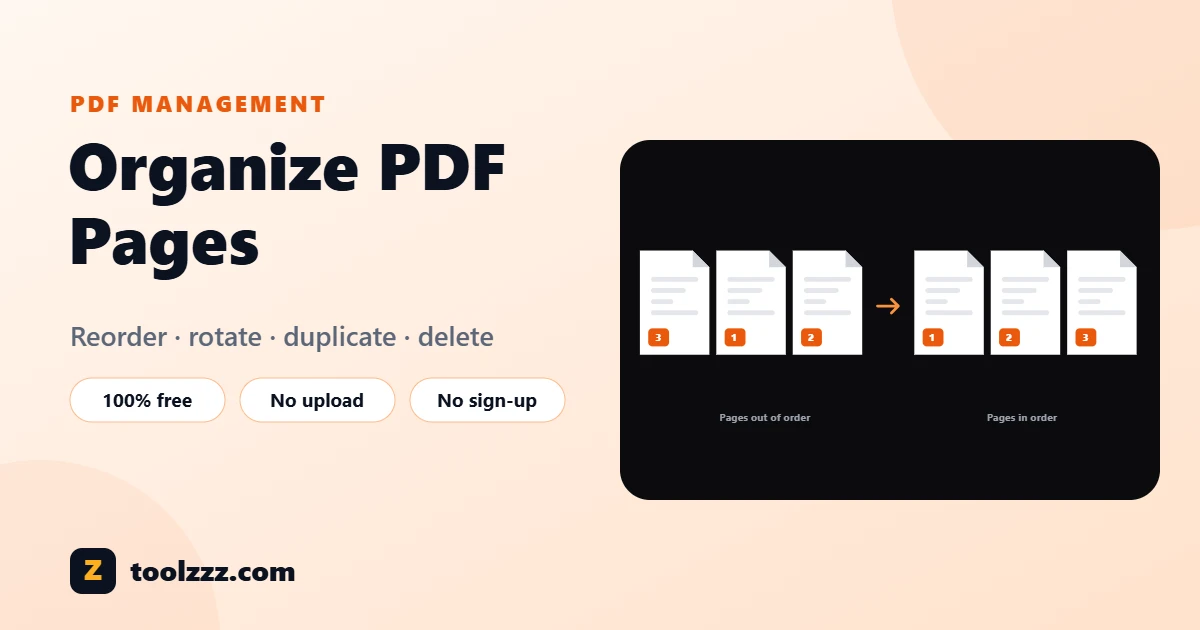
Rearrange PDF pages with drag and drop
To organize a PDF, upload it to Toolzzz Organize PDF, drag the page thumbnails into the order you want, use the buttons under each page to rotate, duplicate, delete or add a blank page, then press Download organized PDF. Everything runs in your browser, so the document is never uploaded.
- Drag & drop page order
- 100% free, no sign-up
- Files never uploaded
- No file size limit
- Windows, Mac, iPhone & Android
- No watermark
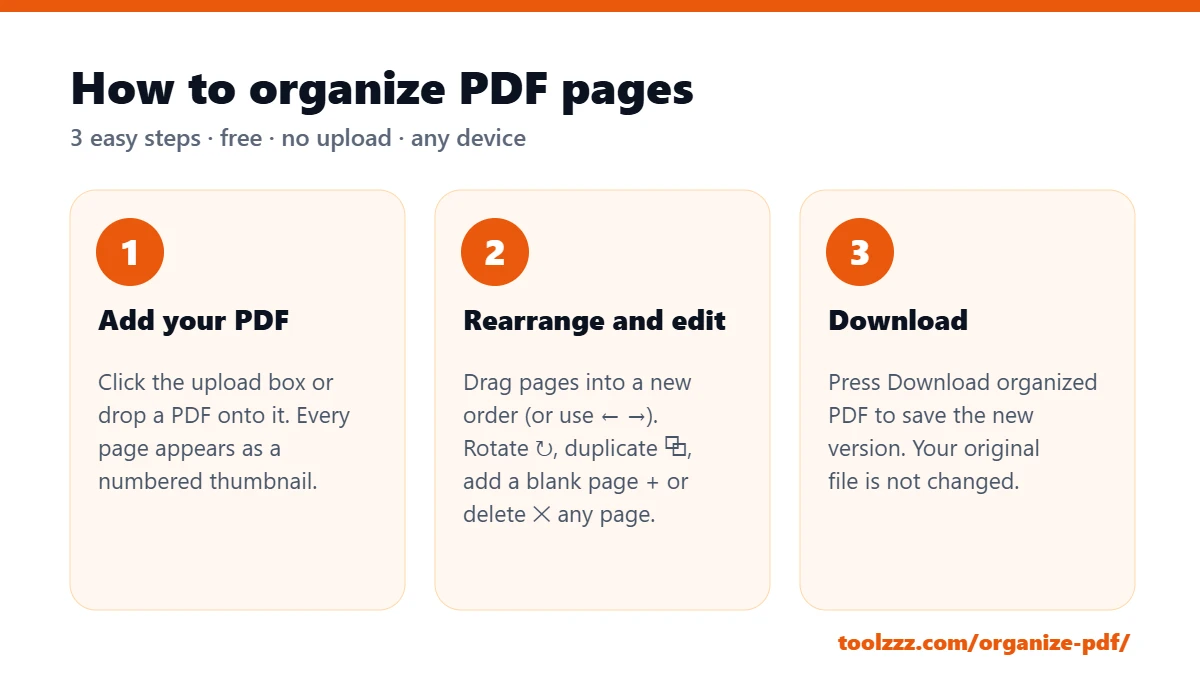
How to organize PDF pages
Put pages in the right order and tidy up a document in one place, without switching between tools.
Add your PDF
Click the upload box or drop a PDF onto it. Every page appears as a numbered thumbnail.
Rearrange and edit
Drag pages into a new order (or use ← →). Rotate ↻, duplicate ⧉, add a blank page + or delete ✕ any page.
Download
Press Download organized PDF to save the new version. Your original file is not changed.
Watch: reorder, rotate and delete PDF pages
Popular ways to organize a PDF
Fix the page order of a scan
Pages scanned in the wrong order? Drag them into place in seconds.
Reverse back-to-front scans
Feeding a stack upside down gives you the last page first. One click on Reverse order fixes it.
Duplicate a form or page
Need two copies of a sign-up sheet or a cover page? Duplicate it instead of scanning again.
Insert blank pages
Add blank pages for notes, or to make chapters start on a right-hand page when printing double-sided.
Remove unwanted pages
Delete adverts, empty pages or duplicates before you send the document.
Build a clean report
Reorder, rotate and trim a combined PDF after using Merge PDF.
Printing double-sided? Use blank pages
When a PDF is printed on both sides of the paper, every odd page lands on the front of a sheet. If a chapter or section should always start on a new sheet (a right-hand page in a bound report), insert a blank page before it whenever the previous section ends on an odd page.
- Count the pages of each section. If a section has an odd number of pages, add one blank page after it.
- Check the cover. Most reports need a blank page after the cover so the first chapter starts on the front of sheet two.
- Number the pages last. After organizing, add numbers with Add Page Numbers. Use "Skip first page" to leave the cover unnumbered.
How to rearrange PDF pages on Windows, Mac, iPhone and Android
No app to install. The tool works in any modern browser, so the steps are almost the same everywhere.
On Windows
- Open toolzzz.com/organize-pdf/ in Chrome, Edge or Firefox.
- Drag your PDF from File Explorer onto the upload box.
- Drag the pages into order (or use ← →), edit them with the buttons, then press Download organized PDF.
- The new PDF is saved to your Downloads folder.
On Mac
- Open the page in Safari, Chrome or Firefox.
- Drag the PDF from Finder onto the upload box.
- Drag the pages into order (or use ← →), edit them with the buttons, then press Download organized PDF.
- Find the new file in Downloads.
On iPhone and iPad
- Open the page in Safari.
- Tap the upload box, then Browse to pick the PDF from the Files app.
- Drag the pages into order (or use ← →), edit them with the buttons, then press Download organized PDF.
- Tap Download and find the file in Files → Downloads.
On Android
- Open the page in Chrome.
- Tap the upload box and pick the PDF from Files or Downloads.
- Drag the pages into order (or use ← →), edit them with the buttons, then press Download organized PDF.
- The new PDF is saved in your Downloads folder.
Toolzzz vs. typical online PDF tools
| Feature | Toolzzz Organize PDF | Typical online PDF tools |
|---|---|---|
| Your file is uploaded to a server | Never. It is processed in your browser | Usually |
| File size and page limits | None, only your device memory | Often 10 to 100 MB, or a few files per day |
| Watermark on the result | Never | Sometimes on free plans |
| Account or e-mail needed | No | Often for larger files |
| Duplicate pages and insert blank pages | Yes, in the same view | Often separate tools |
| Reverse page order in one click | Yes | Rarely available |
| Price | Free | Free with limits, or a paid plan |
"Typical" describes common limits of free online PDF services. Plans and limits differ between sites.
A simple PDF page organizer that keeps files private
Private by design
Pages are rearranged in your browser. Nothing is uploaded.
Drag and drop
Move pages with your mouse, or with arrow buttons on touch screens.
Duplicate and insert
Copy any page or add blank pages wherever you need them.
Rotate while you sort
Turn sideways pages without leaving the organizer.
Lossless
Pages are copied, not re-printed, so text and images stay sharp.
Free, no watermark
No sign-up, no page limit and no watermark.
Key terms explained
- Page order
- The sequence in which pages appear in a PDF. Changing it does not change the content of each page.
- Blank page
- An empty page with the same size as its neighbours, often used for notes or double-sided printing.
- Back-to-front scan
- A stack scanned in reverse, so the last page comes first. Fixed with Reverse order.
Frequently asked questions
How do I rearrange pages in a PDF?
Upload the PDF, drag the page thumbnails into the order you want and press Download organized PDF.
How do I move pages on a phone?
Drag and drop works best with a mouse. On phones and tablets, use the ← and → buttons under each page.
Can I duplicate a page in a PDF?
Yes. Press ⧉ under the page. The copy appears right after it and can be moved anywhere.
How do I add a blank page to a PDF?
Press + under the page that should come before the blank page, or use + Blank page at end. Blank pages use the same size as the page before them.
How do I reverse the order of PDF pages?
Press Reverse order. The last page becomes the first, which fixes stacks that were scanned back to front.
Can I delete pages here too?
Yes, press ✕ under a page. For removing many pages, or finding blank pages automatically, use Delete PDF Pages.
Will organizing change the quality?
No. Pages are copied exactly as they are. Only the order, rotation and number of pages change.
Is my PDF uploaded?
No. Everything happens in your browser, on your own device.