
Number PDF pages exactly the way you want
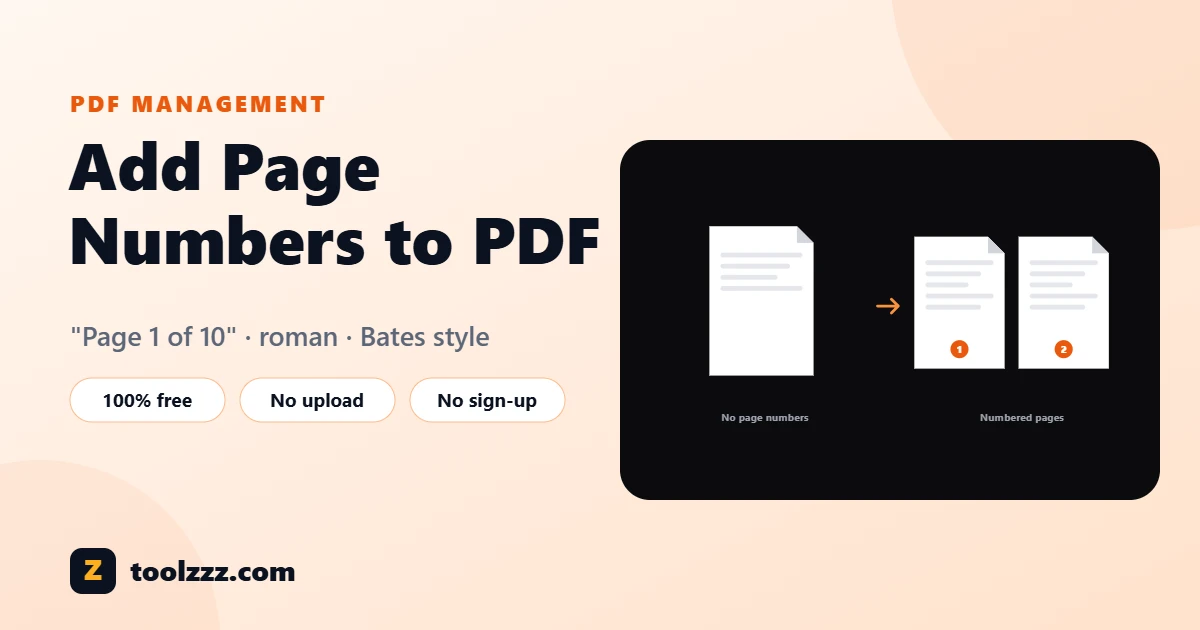
To add page numbers to a PDF, upload it to Toolzzz, choose a position (for example bottom centre) and a format such as "Page 1 of 10", optionally skip the cover page, and press Add numbers and download. A live preview shows the result on every page, and the PDF is processed in your browser without uploading.
- Live preview
- Bates-style numbering
- 100% free, no sign-up
- Files never uploaded
- No file size limit
- Windows, Mac, iPhone & Android
- No watermark
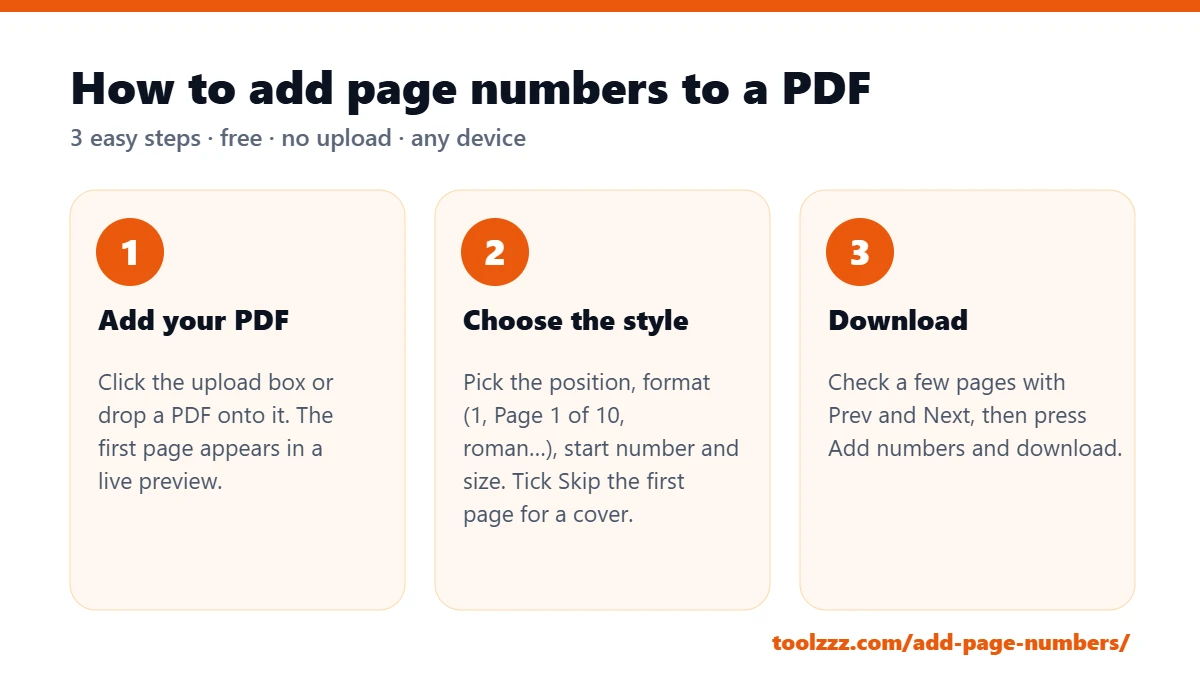
How to add page numbers to a PDF
Make long documents easy to navigate, print and reference by numbering every page.
Add your PDF
Click the upload box or drop a PDF onto it. The first page appears in a live preview.
Choose the style
Pick the position, format (1, Page 1 of 10, roman…), start number and size. Tick Skip the first page for a cover.
Download
Check a few pages with Prev and Next, then press Add numbers and download.
Watch: add page numbers to a PDF
Popular ways to number PDF pages
Theses and reports
Number chapters for universities, skip the title page and use roman numbers for the introduction.
Legal documents (Bates numbering)
Add a prefix and zero-padded numbers like ABC-000123 to label every page of evidence or discovery files.
Contracts
"Page 1 of 10" proves no page is missing when a contract is printed or signed.
Manuals and handbooks
Numbers make tables of contents and cross-references usable.
Merged documents
After merging PDFs, renumber everything in one continuous sequence.
Booklets and print-ready files
Mirror the numbers so they always sit on the outer edge of double-sided pages.
Page number formats explained
| Format | Looks like | Best for |
|---|---|---|
| Plain | 1, 2, 3 | Books, slides, simple documents |
| Page X of Y | Page 3 of 12 | Contracts, forms, anything printed |
| Slash | 3 / 12 | Presentations and handouts |
| Roman (lower) | i, ii, iii | Prefaces and front matter of theses |
| Bates style | ABC-000123 | Legal discovery and evidence files |
What does "mirror for book printing" do?
In a printed book, odd pages are on the right and even pages on the left. With mirroring switched on, a number set to the bottom right appears on the right of odd pages and on the left of even pages, so it is always on the outside edge where readers look. Numbers in the centre are not affected.
Need roman numbers for the first pages and normal numbers after? Use Split PDF to separate the parts, number each part, then merge them again.
How to add page numbers to a PDF on Windows, Mac, iPhone and Android
No app to install. The tool works in any modern browser, so the steps are almost the same everywhere.
On Windows
- Open toolzzz.com/add-page-numbers/ in Chrome, Edge or Firefox.
- Drag your PDF from File Explorer onto the upload box.
- Choose the position and format in the panel, check the preview, then press Add numbers and download.
- The new PDF is saved to your Downloads folder.
On Mac
- Open the page in Safari, Chrome or Firefox.
- Drag the PDF from Finder onto the upload box.
- Choose the position and format in the panel, check the preview, then press Add numbers and download.
- Find the new file in Downloads.
On iPhone and iPad
- Open the page in Safari.
- Tap the upload box, then Browse to pick the PDF from the Files app.
- Choose the position and format in the panel, check the preview, then press Add numbers and download.
- Tap Download and find the file in Files → Downloads.
On Android
- Open the page in Chrome.
- Tap the upload box and pick the PDF from Files or Downloads.
- Choose the position and format in the panel, check the preview, then press Add numbers and download.
- The new PDF is saved in your Downloads folder.
Toolzzz vs. typical online PDF tools
| Feature | Toolzzz Add Page Numbers | Typical online PDF tools |
|---|---|---|
| Your file is uploaded to a server | Never. It is processed in your browser | Usually |
| File size and page limits | None, only your device memory | Often 10 to 100 MB, or a few files per day |
| Watermark on the result | Never | Sometimes on free plans |
| Account or e-mail needed | No | Often for larger files |
| Live preview on every page | Yes, with Prev / Next | Often no preview |
| Bates-style prefix and zero-padding | Yes | Usually a paid feature |
| Mirrored numbers for double-sided printing | Yes | Rarely available |
| Price | Free | Free with limits, or a paid plan |
"Typical" describes common limits of free online PDF services. Plans and limits differ between sites.
A page numbering tool with real control
Live preview
See exactly where the number appears before you download.
6 positions
Any corner or the centre of the top or bottom edge.
7 formats
Plain, "Page 1 of 10", slash, dashes and roman numerals.
Book & legal options
Skip covers, mirror for printing, add prefixes and zero-padding.
Private by design
Your PDF is numbered in your browser, never uploaded.
Free, no watermark
No sign-up, no page limit and no watermark.
Tips for professional page numbers
- Keep them small. 10–11 pt in grey looks professional and does not distract from the content.
- Stay inside the safe area. Use Normal or Large margin if the document will be printed, so printers do not cut the number off.
- Number after organizing. Reorder, rotate and delete pages first with Organize PDF, then add numbers last.
Key terms explained
- Bates numbering
- A legal method of labelling every page with a unique, sequential number, often with a prefix such as ABC-000001.
- Front matter
- The pages before the main text of a book or thesis (title, contents, preface), often numbered with roman numerals.
- Mirrored margins
- Layout where left and right are swapped on even pages so elements sit on the outer edge in a printed book.
Frequently asked questions
How do I add page numbers to a PDF?
Upload the PDF, choose a position and format, then press Add numbers and download.
How do I add "Page 1 of 10" to a PDF?
Choose the Page 1 of 10 format. The total is counted automatically.
How do I skip the cover page?
Tick Skip the first page. Numbering then starts on page 2 with the start number you choose.
Can I start numbering from a different number?
Yes. Change Start at, for example to 5 if the PDF is part of a longer document.
How do I add Bates numbers to a PDF?
Open More options, type a prefix such as ABC- and choose 6 digits. Pages are numbered ABC-000001, ABC-000002 and so on.
Can I use roman numerals?
Yes. Choose i, ii, iii or I, II, III in the Format menu.
Will page numbers cover my text?
Numbers are placed in the margin. If a page has content right at the edge, choose a different position or a smaller margin and check the preview.
Is my PDF uploaded?
No. Numbers are added in your browser. The file never leaves your device.