
Remove pages from a PDF in seconds
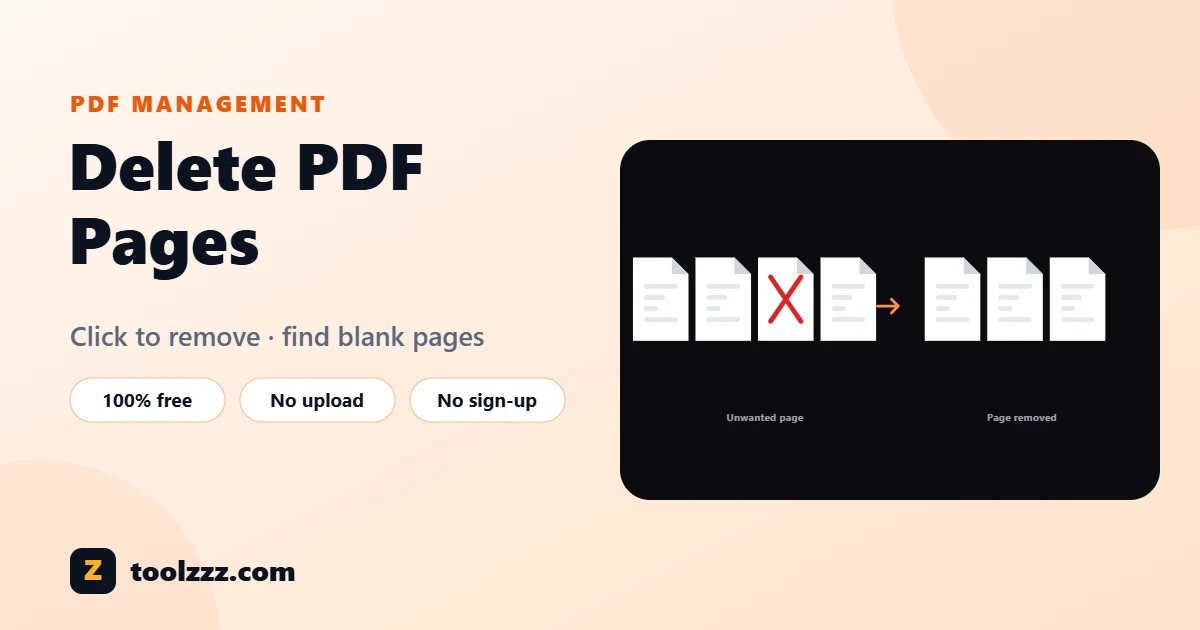
To delete pages from a PDF, upload it to Toolzzz Delete PDF Pages, click the pages you want to remove (or type page numbers like 2, 5-7), then press Delete pages and download. The Find blank pages button marks empty pages automatically. Your file is processed in your browser and never uploaded.
- Auto-detects blank pages
- 100% free, no sign-up
- Files never uploaded
- No file size limit
- Windows, Mac, iPhone & Android
- No watermark
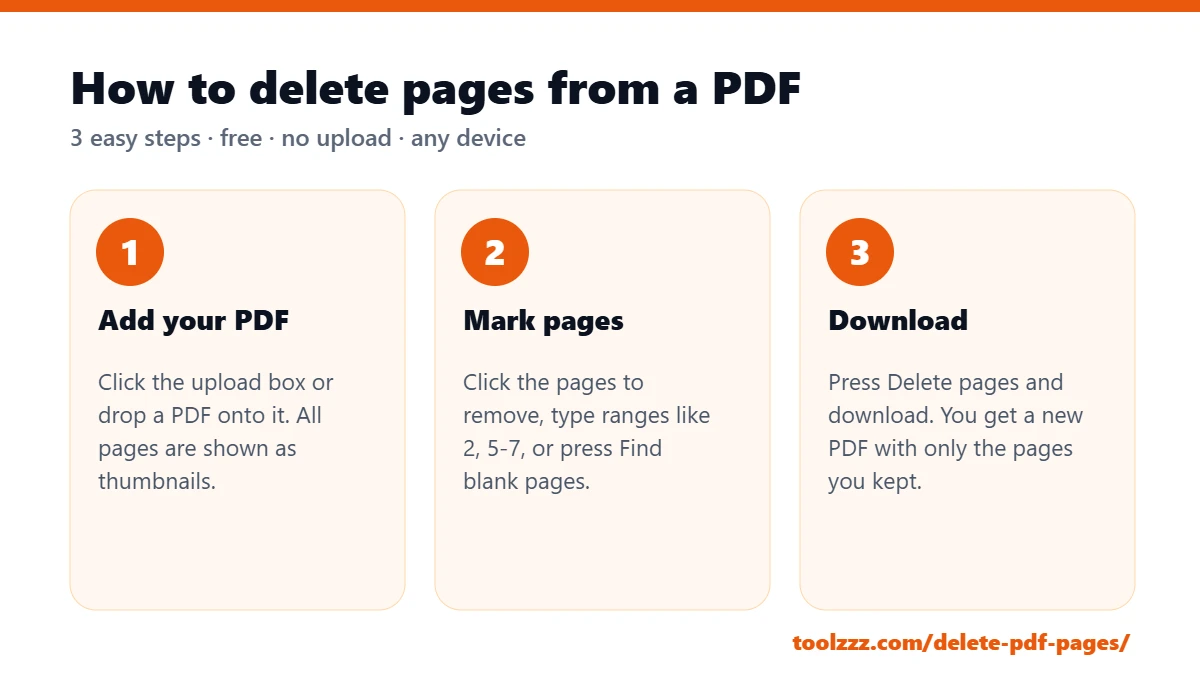
How to delete pages from a PDF
Get rid of pages you do not need, from a single blank page to whole chapters, and keep the rest exactly as it was.
Add your PDF
Click the upload box or drop a PDF onto it. All pages are shown as thumbnails.
Mark pages
Click the pages to remove, type ranges like 2, 5-7, or press Find blank pages.
Download
Press Delete pages and download. You get a new PDF with only the pages you kept.
Watch: remove pages and blank pages from a PDF
Popular reasons to delete PDF pages
Remove blank scanner pages
Double-sided scanning of single-sided paper creates empty pages. Find and remove them all at once.
Leave out private pages
Remove pages with personal or confidential details before you share a document.
Make the file smaller
Fewer pages means a smaller PDF that is easier to email or upload.
Drop cover and ad pages
Delete covers, adverts, terms and conditions or other pages nobody needs.
Remove duplicate pages
Scanned the same page twice? Mark the extra copy and delete it.
Keep only what matters
Send just the relevant pages of a long report, bill or contract.
How blank page detection works
When you press Find blank pages, each page is drawn at low resolution and the tool counts how many pixels are darker than near-white. Pages where less than about 0.4% of the area has any marks are marked as blank. This catches truly empty pages as well as scanned pages with a little dust or paper texture.
- Always check the result. A page with only a tiny page number or a faint stamp may be marked too. Click it to unmark it.
- Pages with light content are kept. A page with a short sentence or a signature has enough marks to count as not blank.
- Want to keep pages instead? To pull out only a few pages into a new file, Split PDF with "Select pages" is quicker.
How to delete pages from a PDF on Windows, Mac, iPhone and Android
No app to install. The tool works in any modern browser, so the steps are almost the same everywhere.
On Windows
- Open toolzzz.com/delete-pdf-pages/ in Chrome, Edge or Firefox.
- Drag your PDF from File Explorer onto the upload box.
- Click the pages to remove or press Find blank pages, then press Delete pages and download.
- The new PDF is saved to your Downloads folder.
On Mac
- Open the page in Safari, Chrome or Firefox.
- Drag the PDF from Finder onto the upload box.
- Click the pages to remove or press Find blank pages, then press Delete pages and download.
- Find the new file in Downloads.
On iPhone and iPad
- Open the page in Safari.
- Tap the upload box, then Browse to pick the PDF from the Files app.
- Click the pages to remove or press Find blank pages, then press Delete pages and download.
- Tap Download and find the file in Files → Downloads.
On Android
- Open the page in Chrome.
- Tap the upload box and pick the PDF from Files or Downloads.
- Click the pages to remove or press Find blank pages, then press Delete pages and download.
- The new PDF is saved in your Downloads folder.
Toolzzz vs. typical online PDF tools
| Feature | Toolzzz Delete PDF Pages | Typical online PDF tools |
|---|---|---|
| Your file is uploaded to a server | Never. It is processed in your browser | Usually |
| File size and page limits | None, only your device memory | Often 10 to 100 MB, or a few files per day |
| Watermark on the result | Never | Sometimes on free plans |
| Account or e-mail needed | No | Often for larger files |
| Find blank pages automatically | Yes, one click | Rarely available |
| Delete by typing page ranges | Yes, e.g. 2, 5-7, 10-end | Sometimes |
| Price | Free | Free with limits, or a paid plan |
"Typical" describes common limits of free online PDF services. Plans and limits differ between sites.
Delete PDF pages quickly and privately
Private by design
Confidential pages are removed on your own device. Nothing is uploaded.
Blank page finder
Detects empty and near-empty scanned pages automatically.
Visual selection
See every page and click to mark or unmark it.
Page ranges
Type 2, 5-7 or 10-end to mark many pages at once.
Lossless
The pages you keep are copied unchanged.
Free, no watermark
No sign-up, no page limit and no watermark.
Key terms explained
- Page range
- A short way to write several pages, such as 5-7 for pages 5, 6 and 7, or 10-end for page 10 to the last page.
- Blank page
- A page with no visible content. In scans it may still contain light noise or paper texture.
- Lossless removal
- Deleting pages by copying the other pages unchanged into a new file, so nothing else is altered.
Frequently asked questions
How do I delete pages from a PDF?
Upload the PDF, click the pages you want to remove and press Delete pages and download.
How do I delete blank pages from a scanned PDF?
Press Find blank pages. All empty pages are marked for you. Check them, then download.
Can I delete several pages at once?
Yes. Click as many pages as you like, or type ranges like 3-8, 12 and press Mark.
How do I delete a page from a PDF without Adobe Acrobat?
Use this free tool in any browser. There is nothing to install and no Adobe subscription needed.
Will the remaining pages lose quality?
No. The pages you keep are copied exactly as they are.
Can I undo a deletion?
Your original PDF is never changed. If you removed the wrong page, simply start again with the original file.
Can I delete pages on my phone?
Yes. Tap pages to mark them on Android or iPhone, then download the new PDF.
Is my PDF uploaded?
No. Pages are removed in your browser, so the document never leaves your device.