
How do I convert JSON to CSV?
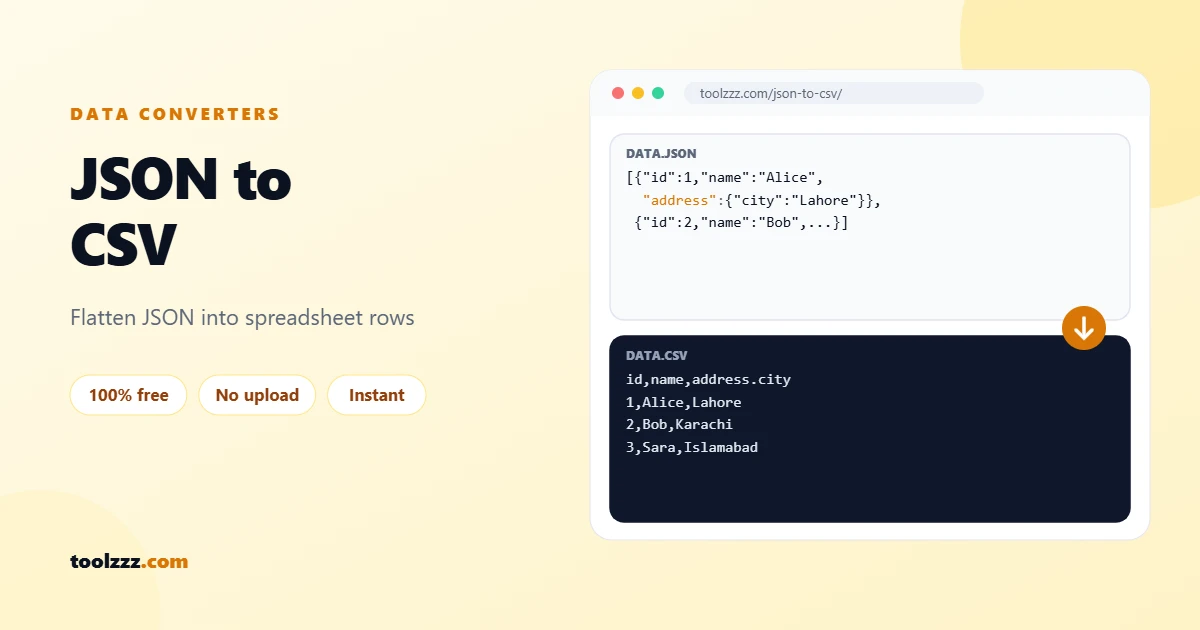
Paste a JSON array of objects into the left box. The Toolzzz JSON to CSV converter turns each object into a row and each key into a column. Nested objects become columns like address.city, and arrays are joined with semicolons. Then copy the CSV or download a .csv file.
- Each object becomes a row, each key a column
- Flattens nested objects into dot-notation columns
- Arrays of values are joined with "; "
- Comma, semicolon or tab delimiter
- Optional BOM so Excel reads UTF-8 correctly
- Finds the array inside a wrapper object automatically
- Quotes values that contain commas or line breaks
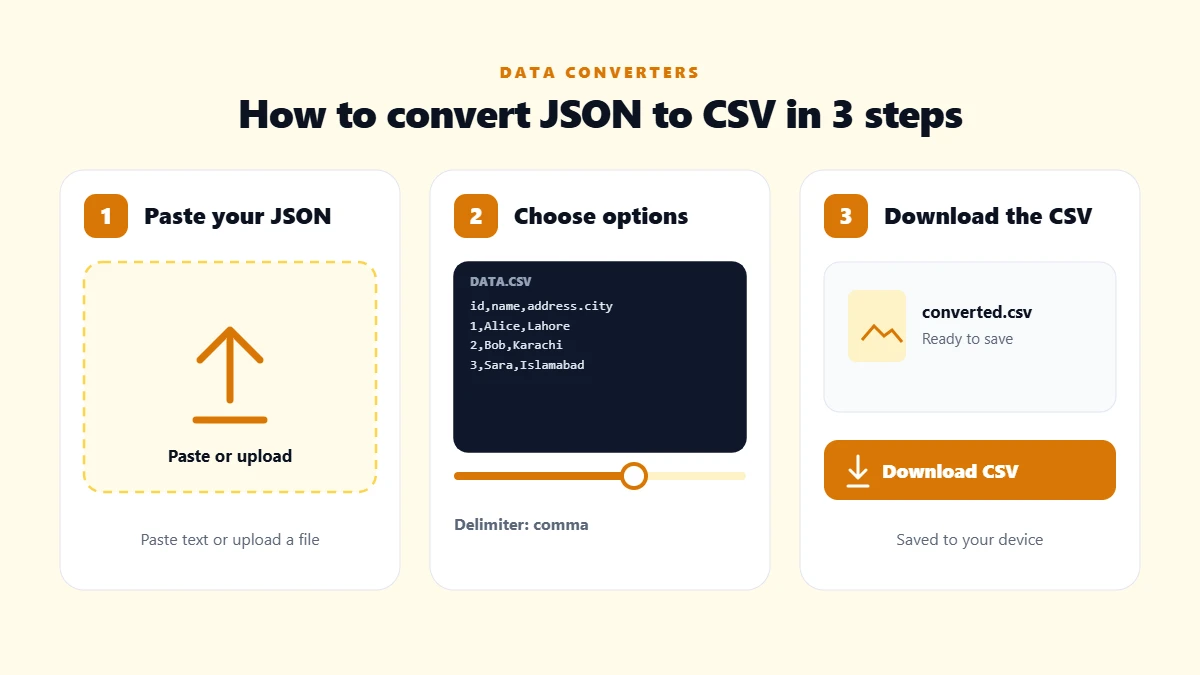
How to convert JSON to CSV in 3 steps
The CSV updates live, so you can try options and watch the result change.
Paste your JSON
Paste a JSON array, or press Upload to open a .json file.
Choose options
Pick the delimiter, keep Flatten nested objects on, and add a BOM if the file is for Excel.
Download the CSV
Press Download to save a .csv file, or Copy to paste it into a sheet.
Watch: how to use the free JSON to CSV
When to convert JSON to CSV
Open API data in Excel
Turn an API export into rows you can sort, filter and chart.
Google Sheets imports
Paste the CSV straight into a sheet or import the file.
Customer and order lists
Export users, orders or products for a report or mailing tool.
Database imports
Most databases and CRMs import CSV more easily than JSON.
Data cleaning
Spot gaps and duplicates in a table view.
Sharing with non-developers
Send data in a format everyone can open.
How to use the JSON to CSV on Windows, Mac, iPhone and Android
No app to install. The tool works in any modern browser, so the steps are almost the same everywhere.
On Windows
- Open toolzzz.com/json-to-csv/ in Chrome, Edge or Firefox.
- Paste (Ctrl+V) your JSON into the left box, or press Upload to open a file.
- Pick a delimiter and the flatten option.
- Press Copy to put the result on your clipboard, or Download CSV to save it. Files go to your Downloads folder.
On Mac
- Open toolzzz.com/json-to-csv/ in Safari or Chrome.
- Paste (Cmd+V) your JSON into the left box, or press Upload to open a file.
- Pick a delimiter and the flatten option.
- Press Copy to put the result on your clipboard, or Download CSV to save it.
On iPhone and iPad
- Open toolzzz.com/json-to-csv/ in Safari.
- Touch and hold the box, tap Paste to add your JSON into the left box, or tap Upload to open a file.
- Pick a delimiter and the flatten option.
- Tap Copy to put the result on your clipboard, or Download CSV to save it. Downloads appear in the Files app.
On Android
- Open toolzzz.com/json-to-csv/ in Chrome.
- Long-tap the box and tap Paste to add your JSON into the left box, or press Upload to open a file.
- Pick a delimiter and the flatten option.
- Tap Copy to put the result on your clipboard, or Download CSV to save it. Downloads go to the Downloads folder.
Toolzzz vs. other online converters
| Feature | Toolzzz JSON to CSV | Typical online converters |
|---|---|---|
| Price | Free, no limits | Free tier, then paid plans |
| Where your data goes | Stays in your browser | Often uploaded to a server |
| Sign-up | Not needed | Sometimes needed to download |
| Speed | Converts as you type | Upload, wait, then download |
| Size limit | Only your device memory | Often 1 to 10 MB on free plans |
| Error messages | Line and column shown | Often just "invalid input" |
"Typical" describes common limits of free online services. Plans and limits differ between sites.
Why convert data with Toolzzz
Private by design
Your data is converted by JavaScript in this tab. Nothing is sent to Toolzzz or anyone else.
Instant results
The output updates while you type or paste. There is no queue and no waiting.
Clear errors
Invalid input is flagged with the reason and, where possible, the exact line and column.
Copy or download
Copy the result in one click or save it as a ready-to-use file.
Works everywhere
Windows, Mac, Linux, iPhone, iPad and Android. Any modern browser will do.
Free forever
No account, no limits, no watermark and no trial period.
Tips for the best result
- If your JSON is an object with an array inside, such as
{"data":[...]}, the tool finds the array for you. - Use Semicolon as the delimiter if your Excel uses a comma as the decimal separator (common in Europe).
- Turn on Add BOM when names contain accents or non-Latin letters and the file will be opened in Excel.
- Rows with different keys are fine. Missing values are left empty.
- Need it as a real spreadsheet? Run the CSV through CSV to Excel.
Key terms explained
- CSV
- Comma-Separated Values: plain text where each line is a row and values are separated by a delimiter.
- Flattening
- Turning nested objects into single columns, such as
address.city. - BOM
- Byte Order Mark: an invisible marker at the start of a file that tells Excel the text is UTF-8.
Frequently asked questions
Is the JSON to CSV converter free?
Yes, it is free with no limits and no sign-up.
Is my data uploaded?
No. The conversion runs entirely in your browser, so private data never leaves your device.
How are nested objects handled?
With Flatten nested objects on, {"address":{"city":"Lahore"}} becomes a column named address.city. Turn it off to keep nested objects as JSON text in one cell.
What happens to arrays?
Arrays of simple values are joined with "; ". Arrays of objects are kept as JSON text inside the cell.
Why do accents look wrong in Excel?
Excel sometimes assumes an old encoding. Tick Add BOM for Excel and download again.
Can I use a semicolon or tab instead of a comma?
Yes. Choose Comma, Semicolon or Tab under Delimiter.
What if objects have different keys?
All keys are collected into the header. Rows that lack a key get an empty cell.
Can I convert CSV back to JSON?
Yes. Use the CSV to JSON converter.