
How do I convert CSV to XML?
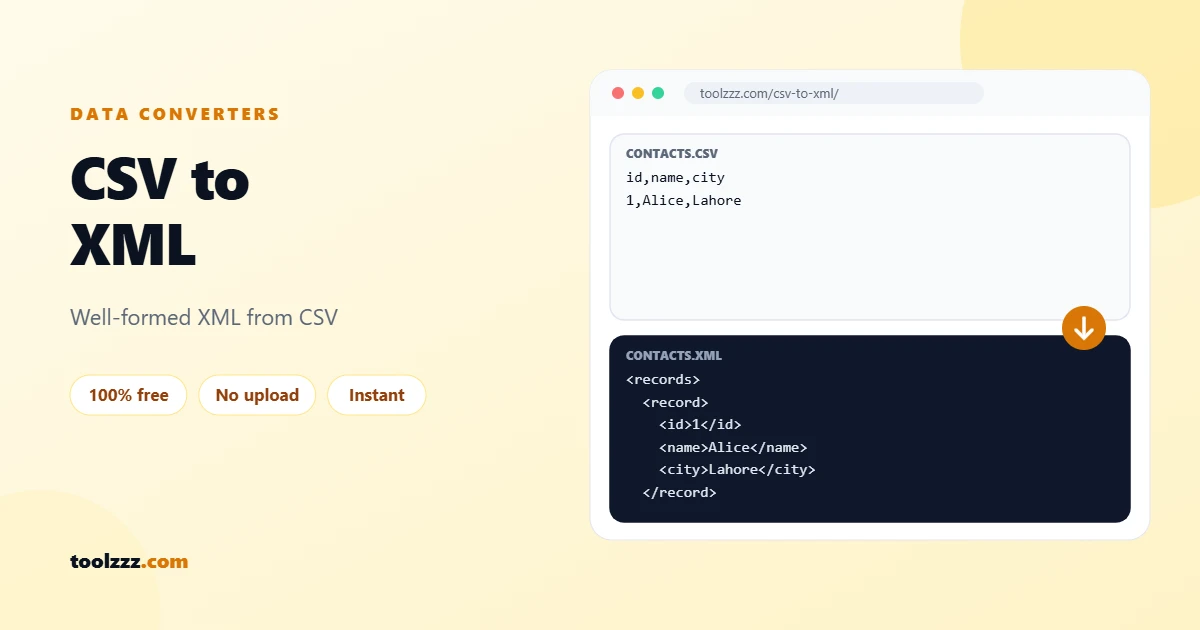
Paste your CSV into the left box. The Toolzzz CSV to XML converter wraps the data in a root element, writes one row element per line and turns each column into a child element. Special characters such as & and < are escaped, so the XML is always well-formed.
- Custom root and row element names
- Each column becomes a child element
- Header names cleaned into valid XML tags
- Escapes &, < and > safely
- Indented or minified output
- Optional XML declaration
- Auto-detects the CSV delimiter
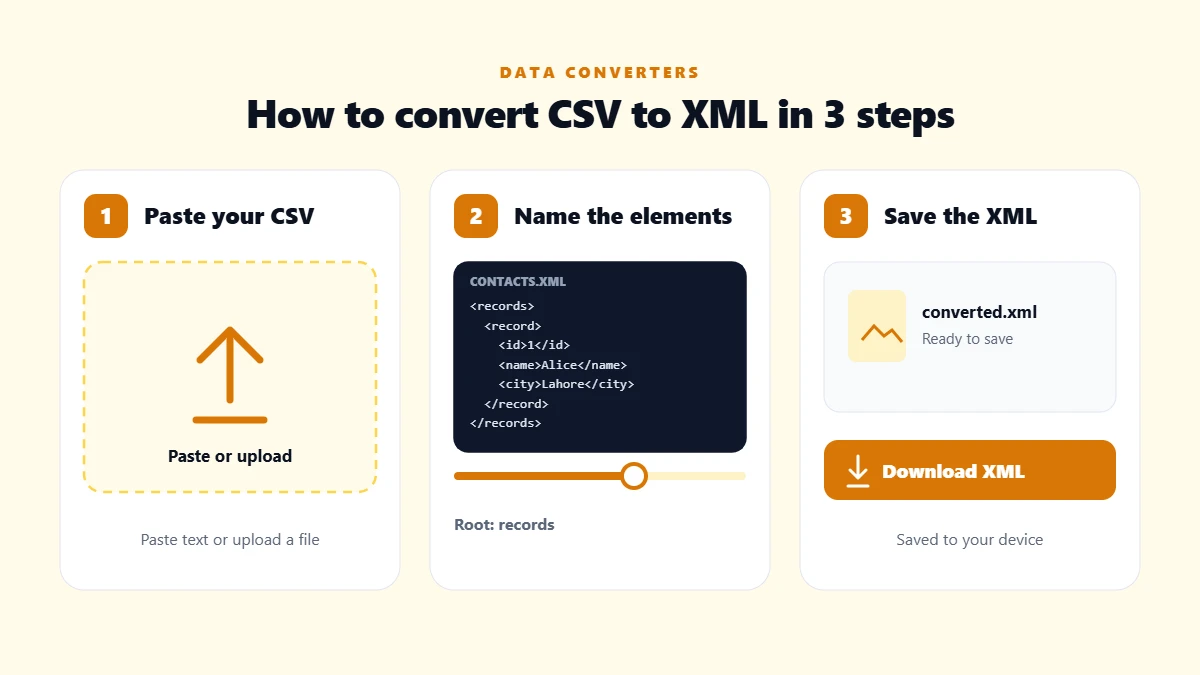
How to convert CSV to XML in 3 steps
The XML is regenerated each time you change the data or an option.
Paste your CSV
Paste it or press Upload to open a .csv file.
Name the elements
Set the root and row names, the indent and the XML declaration.
Save the XML
Press Copy, or Download to save a .xml file.
Watch: how to use the free CSV to XML
Common uses for CSV to XML
Product feeds
Build XML feeds for shops, marketplaces and comparison sites.
Legacy system imports
Older enterprise systems often accept only XML.
Office and publishing
Map spreadsheet data into XML templates.
Test fixtures
Create XML test data from a simple sheet.
Data exchange
Share data with partners who require XML.
Config files
Generate repetitive XML settings from a table.
How to use the CSV to XML on Windows, Mac, iPhone and Android
No app to install. The tool works in any modern browser, so the steps are almost the same everywhere.
On Windows
- Open toolzzz.com/csv-to-xml/ in Chrome, Edge or Firefox.
- Paste (Ctrl+V) your CSV into the left box, or press Upload to open a file.
- Set the root and row element names.
- Press Copy to put the result on your clipboard, or Download XML to save it. Files go to your Downloads folder.
On Mac
- Open toolzzz.com/csv-to-xml/ in Safari or Chrome.
- Paste (Cmd+V) your CSV into the left box, or press Upload to open a file.
- Set the root and row element names.
- Press Copy to put the result on your clipboard, or Download XML to save it.
On iPhone and iPad
- Open toolzzz.com/csv-to-xml/ in Safari.
- Touch and hold the box, tap Paste to add your CSV into the left box, or tap Upload to open a file.
- Set the root and row element names.
- Tap Copy to put the result on your clipboard, or Download XML to save it. Downloads appear in the Files app.
On Android
- Open toolzzz.com/csv-to-xml/ in Chrome.
- Long-tap the box and tap Paste to add your CSV into the left box, or press Upload to open a file.
- Set the root and row element names.
- Tap Copy to put the result on your clipboard, or Download XML to save it. Downloads go to the Downloads folder.
Toolzzz vs. other online converters
| Feature | Toolzzz CSV to XML | Typical online converters |
|---|---|---|
| Price | Free, no limits | Free tier, then paid plans |
| Where your data goes | Stays in your browser | Often uploaded to a server |
| Sign-up | Not needed | Sometimes needed to download |
| Speed | Converts as you type | Upload, wait, then download |
| Size limit | Only your device memory | Often 1 to 10 MB on free plans |
| Error messages | Line and column shown | Often just "invalid input" |
"Typical" describes common limits of free online services. Plans and limits differ between sites.
Why convert data with Toolzzz
Private by design
Your data is converted by JavaScript in this tab. Nothing is sent to Toolzzz or anyone else.
Instant results
The output updates while you type or paste. There is no queue and no waiting.
Clear errors
Invalid input is flagged with the reason and, where possible, the exact line and column.
Copy or download
Copy the result in one click or save it as a ready-to-use file.
Works everywhere
Windows, Mac, Linux, iPhone, iPad and Android. Any modern browser will do.
Free forever
No account, no limits, no watermark and no trial period.
Tips for the best result
- Header names with spaces become underscores, so "First Name" becomes <First_Name>.
- XML tags cannot start with a number, so "2026" becomes <_2026>.
- Use singular and plural names, such as products and product, for readable XML.
- Choose Minify for the smallest file.
- Check or reformat the result with the XML Formatter.
Key terms explained
- XML
- Extensible Markup Language: a text format that stores data in nested, named tags.
- Root element
- The single outer element that contains every other element in an XML document.
- Escaping
- Replacing characters like & and < with codes so they are not read as markup.
Frequently asked questions
Is CSV to XML free?
Yes. Free, unlimited and no sign-up.
Is my CSV uploaded?
No. Everything is converted in your browser.
Can I choose the element names?
Yes. Set the root and row names in the options. Column elements come from your header row.
What happens to invalid tag names?
They are cleaned automatically: spaces and symbols become underscores and a leading digit gets an underscore in front.
Are special characters safe?
Yes. &, < and > are escaped, so the XML stays well-formed.
Can I remove the XML declaration?
Yes. Untick XML declaration.
My CSV has no header. What then?
Untick First row is the header. Columns are named column1, column2 and so on.
Can I format existing XML?
Yes, with the XML Formatter.