
How do I convert CSV to an HTML table?
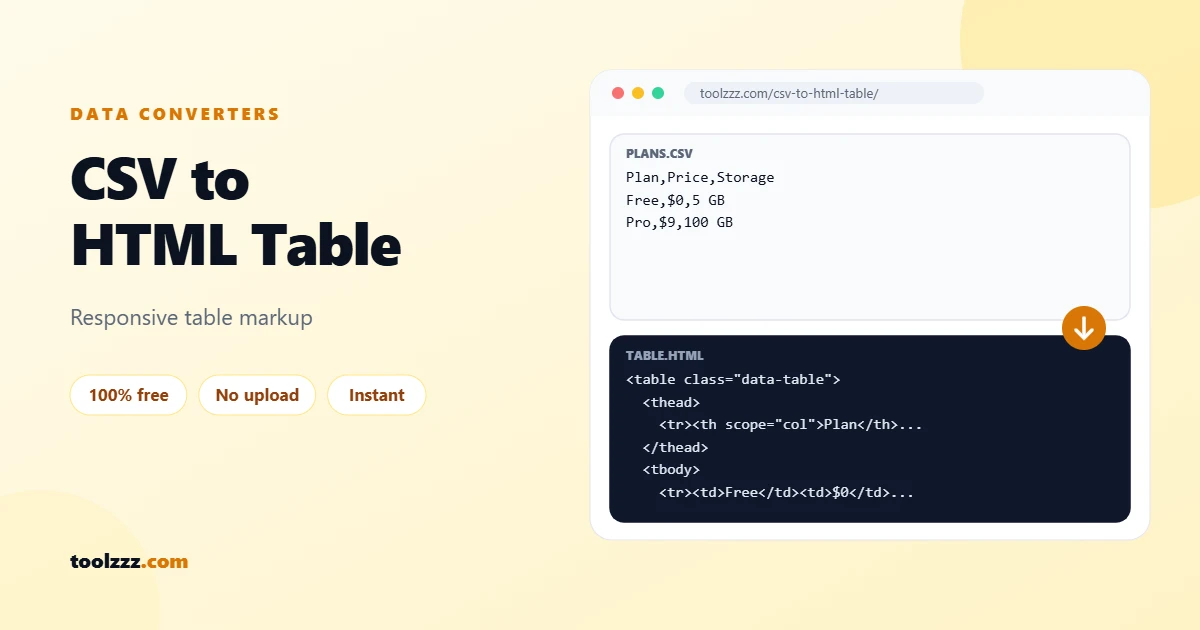
Paste your CSV into the left box. The Toolzzz CSV to HTML Table generator writes semantic table code with <thead>, <tbody> and scoped header cells, plus optional CSS. A live preview shows how it will look. Copy the code into WordPress, a website or an email.
- Semantic <thead> and <tbody> markup
- Header cells with scope="col" for accessibility
- Clean, striped or no CSS
- Responsive wrapper that scrolls on phones
- Custom class name and caption
- Live preview under the code
- All values HTML-escaped
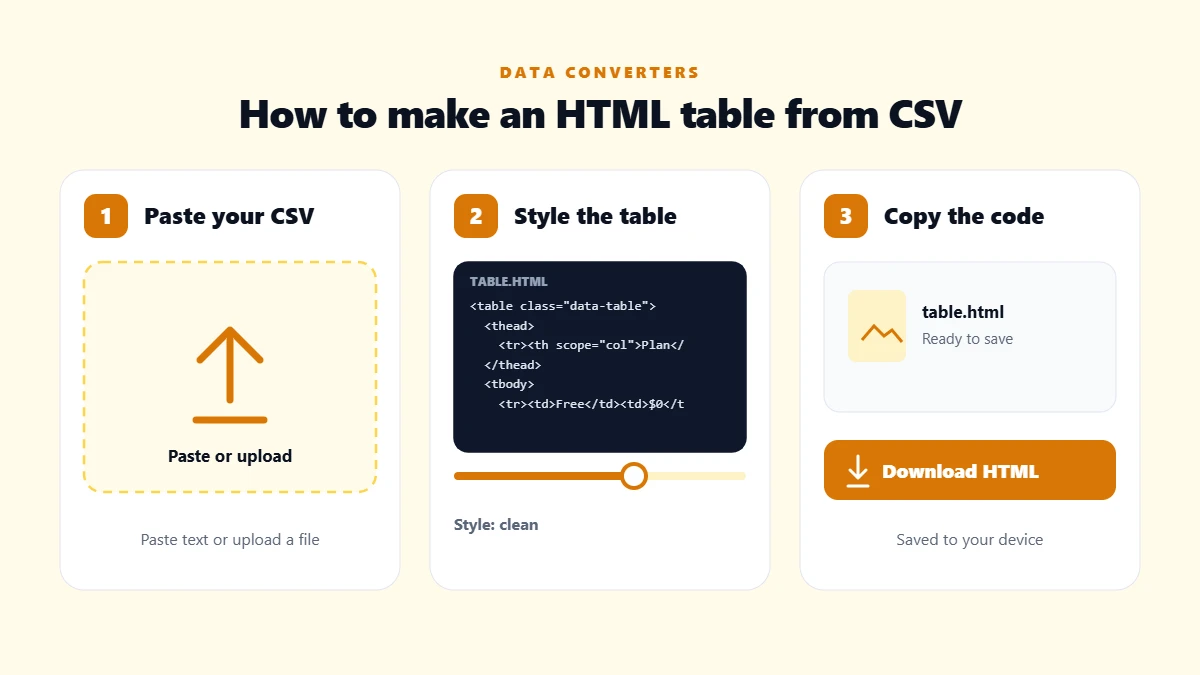
How to make an HTML table from CSV
The code and the preview update as you type.
Paste your CSV
Paste it or press Upload to open a .csv file.
Style the table
Choose Clean, Striped or No CSS, the responsive wrapper, a class and a caption.
Copy the code
Press Copy and paste it into your page, or Download an .html file.
Watch: how to use the free CSV to HTML Table
Where to use the table
WordPress posts
Paste into a Custom HTML block for a fast, plugin-free table.
Pricing and plans
Show prices, features or sizes clearly.
Documentation
Present reference data in docs and help centres.
Email newsletters
Use No CSS and add inline styles your email tool supports.
Data reports
Publish results and statistics on a page.
Prototypes
Mock tables quickly while building a site.
How to use the CSV to HTML Table on Windows, Mac, iPhone and Android
No app to install. The tool works in any modern browser, so the steps are almost the same everywhere.
On Windows
- Open toolzzz.com/csv-to-html-table/ in Chrome, Edge or Firefox.
- Paste (Ctrl+V) your CSV into the left box, or press Upload to open a file.
- Pick a style and check the live preview.
- Press Copy to put the result on your clipboard, or Download HTML to save it. Files go to your Downloads folder.
On Mac
- Open toolzzz.com/csv-to-html-table/ in Safari or Chrome.
- Paste (Cmd+V) your CSV into the left box, or press Upload to open a file.
- Pick a style and check the live preview.
- Press Copy to put the result on your clipboard, or Download HTML to save it.
On iPhone and iPad
- Open toolzzz.com/csv-to-html-table/ in Safari.
- Touch and hold the box, tap Paste to add your CSV into the left box, or tap Upload to open a file.
- Pick a style and check the live preview.
- Tap Copy to put the result on your clipboard, or Download HTML to save it. Downloads appear in the Files app.
On Android
- Open toolzzz.com/csv-to-html-table/ in Chrome.
- Long-tap the box and tap Paste to add your CSV into the left box, or press Upload to open a file.
- Pick a style and check the live preview.
- Tap Copy to put the result on your clipboard, or Download HTML to save it. Downloads go to the Downloads folder.
Toolzzz vs. other online converters
| Feature | Toolzzz CSV to HTML Table | Typical online converters |
|---|---|---|
| Price | Free, no limits | Free tier, then paid plans |
| Where your data goes | Stays in your browser | Often uploaded to a server |
| Sign-up | Not needed | Sometimes needed to download |
| Speed | Converts as you type | Upload, wait, then download |
| Size limit | Only your device memory | Often 1 to 10 MB on free plans |
| Error messages | Line and column shown | Often just "invalid input" |
"Typical" describes common limits of free online services. Plans and limits differ between sites.
Why convert data with Toolzzz
Private by design
Your data is converted by JavaScript in this tab. Nothing is sent to Toolzzz or anyone else.
Instant results
The output updates while you type or paste. There is no queue and no waiting.
Clear errors
Invalid input is flagged with the reason and, where possible, the exact line and column.
Copy or download
Copy the result in one click or save it as a ready-to-use file.
Works everywhere
Windows, Mac, Linux, iPhone, iPad and Android. Any modern browser will do.
Free forever
No account, no limits, no watermark and no trial period.
Tips for the best result
- In WordPress, paste the code into a Custom HTML block, not a Paragraph block.
- Keep the responsive wrapper on so wide tables scroll sideways on phones instead of breaking the layout.
- Choose No CSS if your theme already styles tables.
- A caption helps screen reader users understand the table.
- Need a spreadsheet file instead? Use CSV to Excel.
Key terms explained
- thead / tbody
- HTML elements that separate the header rows from the body rows of a table.
- scope="col"
- An attribute that tells screen readers a header cell describes a column.
- Responsive wrapper
- A container that lets a wide table scroll sideways on small screens.
Frequently asked questions
Is the CSV to HTML table tool free?
Yes, completely free.
Is my data uploaded?
No. The HTML is generated in your browser.
How do I add the table to WordPress?
Add a Custom HTML block, paste the code and update the post.
Is the table mobile-friendly?
Yes, with the responsive wrapper. Wide tables scroll horizontally on small screens.
Can I use my own CSS?
Yes. Choose No CSS and set your own class name.
Is the output safe from broken HTML?
Yes. Characters like < and & in your data are escaped.
Can I add a caption?
Yes. Type it in the Caption field.
Does it work for very large tables?
Yes, but huge tables are slow for visitors. Consider pagination for thousands of rows.