
How do I format XML online?
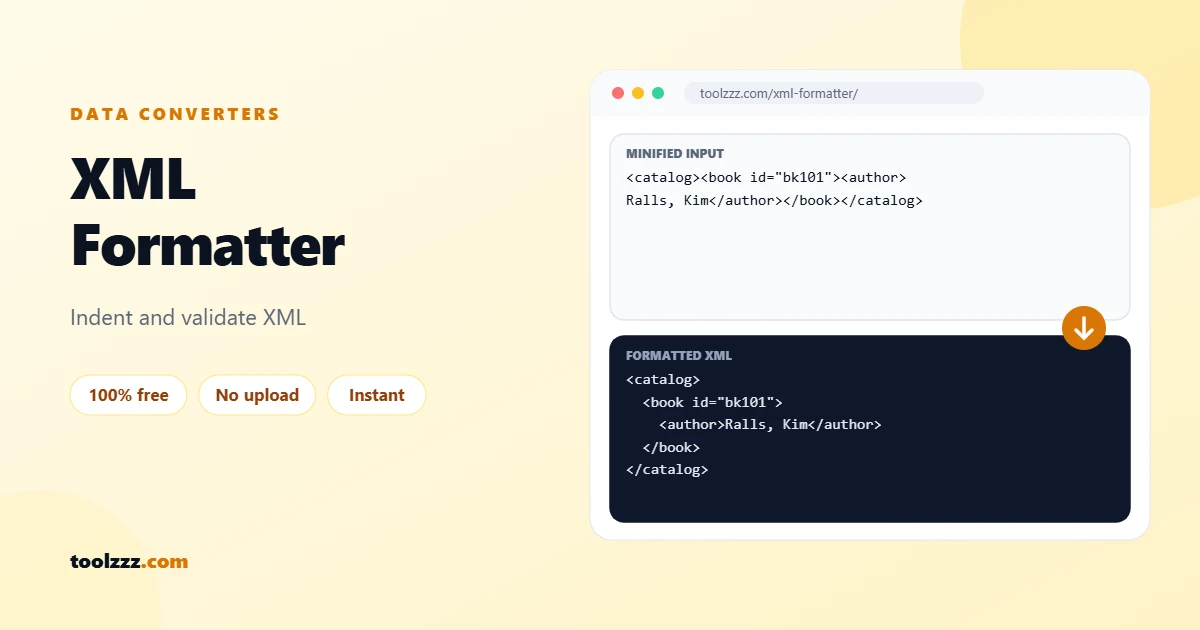
Paste your XML into the left box. The Toolzzz XML Formatter parses it with your browser’s XML parser, then re-indents every element with 2 spaces, 4 spaces or tabs, or minifies it. If the XML is not well-formed, you see the parser’s error message.
- Pretty print with 2 spaces, 4 spaces or tabs
- Minify XML to one line
- Validates that XML is well-formed
- Keeps attributes, CDATA and the declaration
- Option to keep or remove comments
- Short text stays on one line with its tag
- Counts the elements
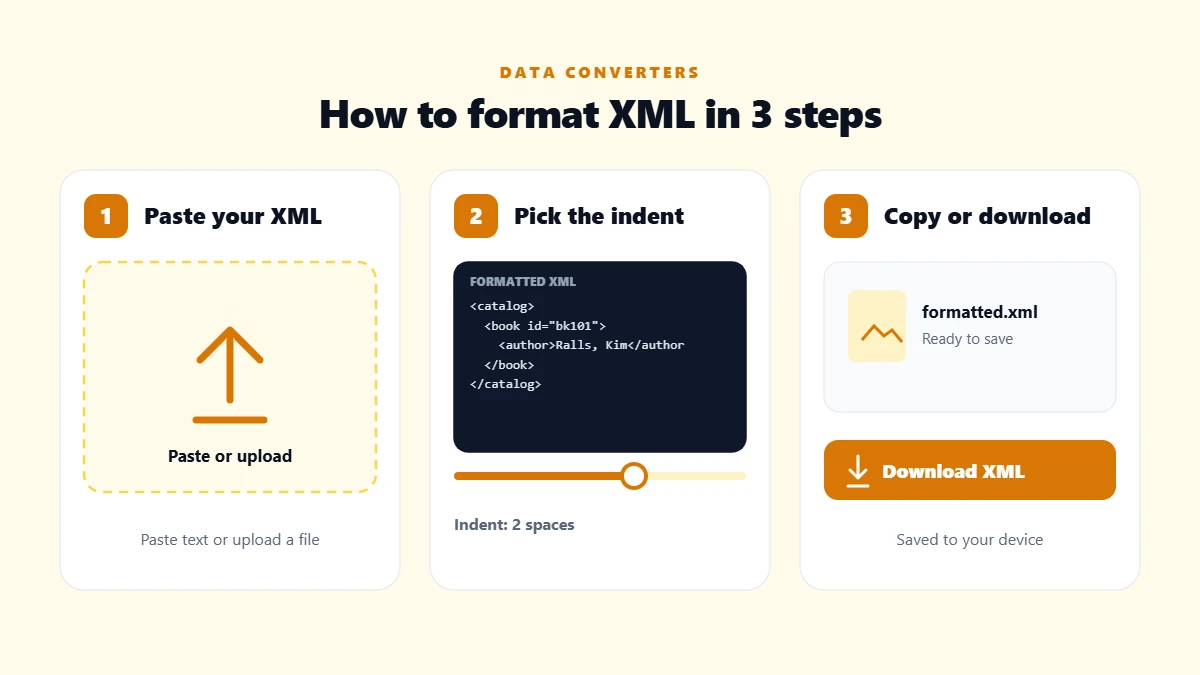
How to format XML in 3 steps
The formatted XML appears instantly.
Paste your XML
Paste it or press Upload to open an .xml file.
Pick the indent
Choose 2 spaces, 4 spaces, Tab or Minify, and whether to keep comments.
Copy or download
Press Copy, or Download to save an .xml file.
Watch: how to use the free XML Formatter
What the XML formatter helps with
Reading SOAP and API replies
Make one-line XML responses readable.
Finding errors
Spot unclosed tags and bad characters.
Sitemaps and RSS
Check sitemap.xml and feed files.
Config files
Tidy Maven, Android and .NET config files.
Office files
Read the XML inside .docx and .xlsx packages.
Minify for transfer
Shrink XML before sending it.
How to use the XML Formatter on Windows, Mac, iPhone and Android
No app to install. The tool works in any modern browser, so the steps are almost the same everywhere.
On Windows
- Open toolzzz.com/xml-formatter/ in Chrome, Edge or Firefox.
- Paste (Ctrl+V) your XML into the left box, or press Upload to open a file.
- Choose an indent size, or Minify.
- Press Copy to put the result on your clipboard, or Download XML to save it. Files go to your Downloads folder.
On Mac
- Open toolzzz.com/xml-formatter/ in Safari or Chrome.
- Paste (Cmd+V) your XML into the left box, or press Upload to open a file.
- Choose an indent size, or Minify.
- Press Copy to put the result on your clipboard, or Download XML to save it.
On iPhone and iPad
- Open toolzzz.com/xml-formatter/ in Safari.
- Touch and hold the box, tap Paste to add your XML into the left box, or tap Upload to open a file.
- Choose an indent size, or Minify.
- Tap Copy to put the result on your clipboard, or Download XML to save it. Downloads appear in the Files app.
On Android
- Open toolzzz.com/xml-formatter/ in Chrome.
- Long-tap the box and tap Paste to add your XML into the left box, or press Upload to open a file.
- Choose an indent size, or Minify.
- Tap Copy to put the result on your clipboard, or Download XML to save it. Downloads go to the Downloads folder.
Toolzzz vs. other online converters
| Feature | Toolzzz XML Formatter | Typical online converters |
|---|---|---|
| Price | Free, no limits | Free tier, then paid plans |
| Where your data goes | Stays in your browser | Often uploaded to a server |
| Sign-up | Not needed | Sometimes needed to download |
| Speed | Converts as you type | Upload, wait, then download |
| Size limit | Only your device memory | Often 1 to 10 MB on free plans |
| Error messages | Line and column shown | Often just "invalid input" |
"Typical" describes common limits of free online services. Plans and limits differ between sites.
Why convert data with Toolzzz
Private by design
Your data is converted by JavaScript in this tab. Nothing is sent to Toolzzz or anyone else.
Instant results
The output updates while you type or paste. There is no queue and no waiting.
Clear errors
Invalid input is flagged with the reason and, where possible, the exact line and column.
Copy or download
Copy the result in one click or save it as a ready-to-use file.
Works everywhere
Windows, Mac, Linux, iPhone, iPad and Android. Any modern browser will do.
Free forever
No account, no limits, no watermark and no trial period.
Tips for the best result
- An & in text must be written as &. A bare & makes XML invalid.
- Every opening tag needs a matching closing tag, or a self-closing form like <br/>.
- Tag names are case-sensitive: <Item> and <item> are different.
- There must be exactly one root element.
- Convert spreadsheet data into XML with CSV to XML.
Key terms explained
- Well-formed XML
- XML that follows the syntax rules: one root, matched tags, quoted attributes and escaped characters.
- CDATA
- A section whose content is treated as plain text, not markup.
- XML declaration
- The optional first line, such as <?xml version="1.0" encoding="UTF-8"?>.
Frequently asked questions
Is the XML formatter free?
Yes. It is free with no limits.
Is my XML uploaded?
No. Parsing and formatting happen in your browser.
Does it validate against a schema (XSD)?
No. It checks that XML is well-formed, which catches syntax errors. Schema validation needs the XSD file and a dedicated validator.
Are comments kept?
Yes by default. Untick Keep comments to remove them.
Is CDATA preserved?
Yes. CDATA sections are written back unchanged.
Can I minify XML?
Yes. Choose Minify under Indent.
Why do I get a parser error?
Common causes are an unescaped &, a missing closing tag, mismatched case or two root elements.
Can I format HTML with it?
Only XHTML. Regular HTML is often not well-formed XML.