
How do I count the words in my text?
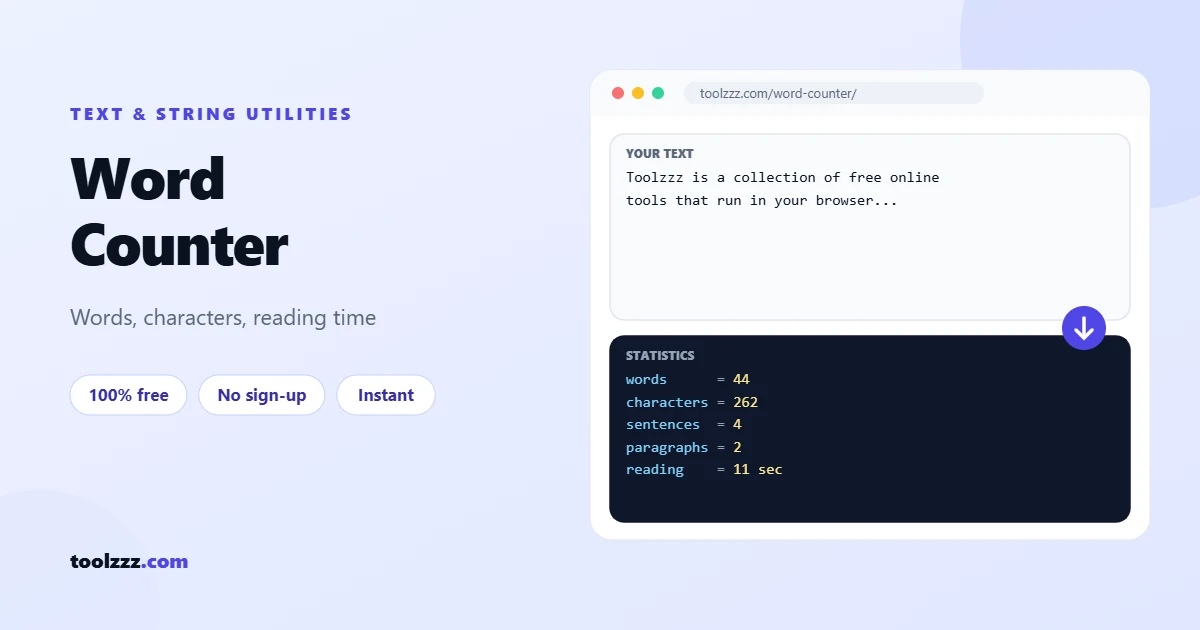
Paste or type your text into the box. The Toolzzz Word Counter shows the number of words, characters (with and without spaces), sentences, paragraphs and lines as you type. It also estimates reading and speaking time and lists your top keywords with their density.
- Live word and character count
- Characters with and without spaces
- Sentences, paragraphs and lines
- Reading time (238 wpm) and speaking time (140 wpm)
- Top 10 keywords with density
- Average word length and longest word
- Works with every language and emoji
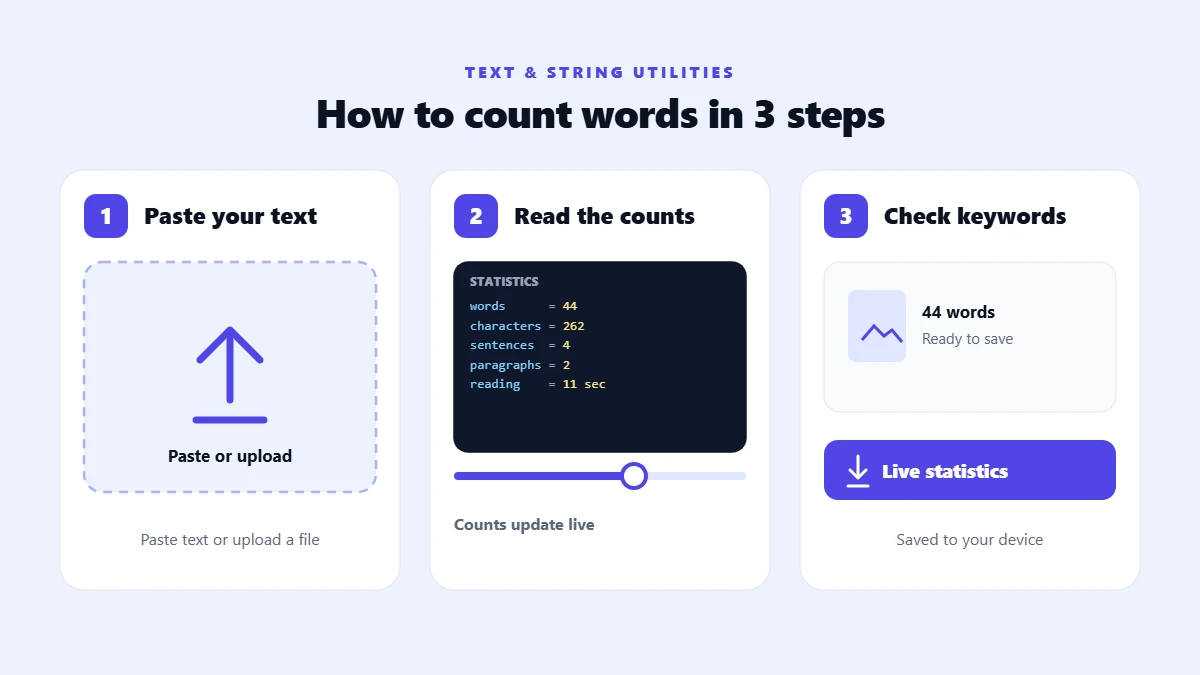
How to count words in 3 steps
The counts update with every keystroke.
Paste your text
Type, paste or press Upload to open a .txt file.
Read the counts
See words, characters, sentences, paragraphs and reading time on the right.
Check keywords
Scroll to Top keywords to see which words you repeat most.
Watch: how to use the free Word Counter
Who uses a word counter
Students and essays
Hit the word count for essays, assignments and applications.
Writers and bloggers
Track article length and reading time.
SEO content
Check length and keyword density of web copy.
Social media
Keep posts and bios within limits.
Job applications
Fit cover letters and personal statements to limits.
Speeches
Estimate how long a talk will take to deliver.
How to use the Word Counter on Windows, Mac, iPhone and Android
No app to install. The tool works in any modern browser, so the steps are almost the same everywhere.
On Windows
- Open toolzzz.com/word-counter/ in Chrome, Edge or Firefox.
- Paste (Ctrl+V) your text into the left box, or press Upload to open a file.
- Read the live counts on the right.
- The counts update instantly; nothing needs saving. Files go to your Downloads folder.
On Mac
- Open toolzzz.com/word-counter/ in Safari or Chrome.
- Paste (Cmd+V) your text into the left box, or press Upload to open a file.
- Read the live counts on the right.
- The counts update instantly; nothing needs saving.
On iPhone and iPad
- Open toolzzz.com/word-counter/ in Safari.
- Touch and hold the box, tap Paste to add your text into the left box, or tap Upload to open a file.
- Read the live counts on the right.
- The counts update instantly; nothing needs saving. Downloads appear in the Files app.
On Android
- Open toolzzz.com/word-counter/ in Chrome.
- Long-tap the box and tap Paste to add your text into the left box, or press Upload to open a file.
- Read the live counts on the right.
- The counts update instantly; nothing needs saving. Downloads go to the Downloads folder.
Toolzzz vs. other online text tools
| Feature | Toolzzz Word Counter | Typical online text tools |
|---|---|---|
| Price | Free, no limits | Free with ads or word limits |
| Where your text goes | Stays in your browser | Often sent to a server |
| Sign-up | Not needed | Sometimes needed for long texts |
| Speed | Updates as you type | Often needs a button press |
| Text length | Only your device memory | Often capped on free plans |
| Unicode and emoji | Fully supported | Sometimes broken or miscounted |
"Typical" describes common limits of free online services. Plans and limits differ between sites.
Why use Toolzzz for text
Your text stays private
Everything runs in this browser tab. Your words are never uploaded, stored or logged.
Live results
The result updates as you type, paste or change an option.
Every language
Built on Unicode, so accented letters, Arabic, Urdu, Chinese and emoji all work.
Copy or download
Copy the result to the clipboard or save it as a .txt file.
Any device
Works the same on desktop, tablet and phone browsers.
Free forever
No account, no word limits and no paywall.
Tips for the best result
- For character limits on X, SEO titles and SMS, use the Character Counter.
- Keyword density over 3% can read as repetitive. Vary your wording.
- Hyphenated words like "well-known" count as one word.
- Speaking time assumes a calm 140 words per minute. Fast speakers reach 160.
- Clean pasted text first with Remove Extra Spaces.
Key terms explained
- Word
- A run of letters or digits. Apostrophes and hyphens inside a word keep it as one word.
- Keyword density
- How often a word appears as a percentage of all words.
- Reading time
- Word count divided by the average adult silent reading speed of 238 words per minute.
Frequently asked questions
Is the word counter free?
Yes. It is free with no limits and no sign-up.
Is my text saved or uploaded?
No. Counting happens in your browser. Your text is never sent or stored.
How are words counted?
Any run of letters or numbers is a word. Contractions like "don’t" and hyphenated words count as one.
Does it count characters too?
Yes, with and without spaces. For limits per platform, see the Character Counter.
How is reading time calculated?
Words divided by 238, the average silent reading speed for adults in English.
Does it work for Urdu, Arabic or Chinese?
Yes. It uses Unicode letter rules. Chinese and Japanese have no spaces, so word counts there are approximate.
Can I upload a document?
You can upload plain text files. For Word files, copy the text and paste it in.
Does it work on mobile?
Yes, in any modern phone browser.