
Fix a flat photo in seconds
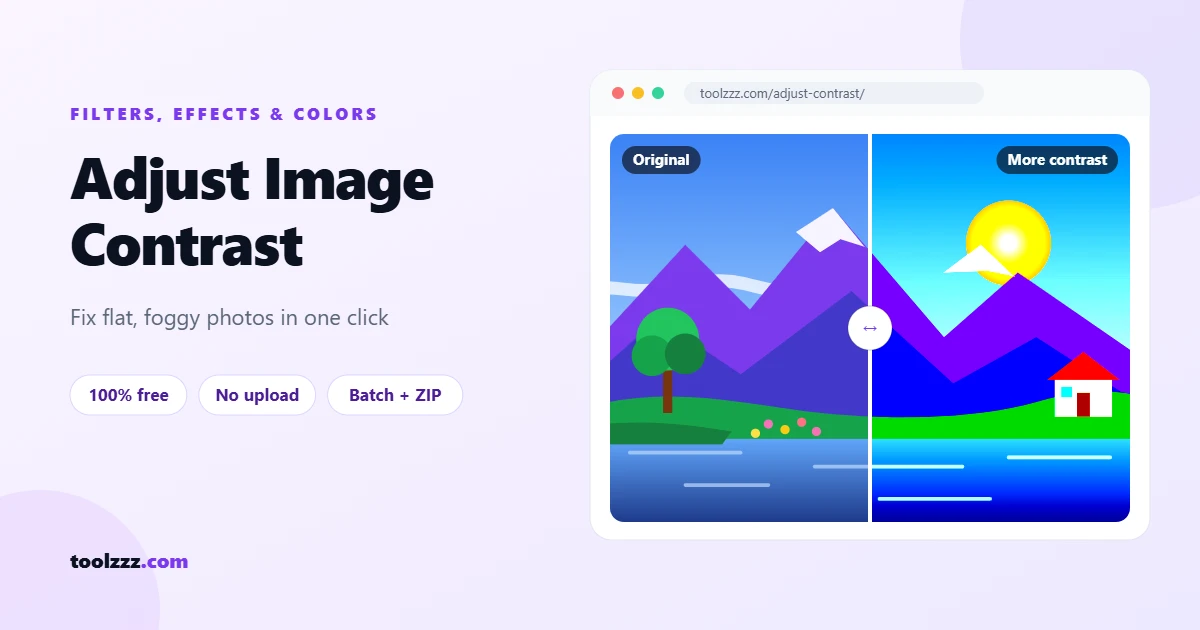
To change the contrast of an image, drop it into Toolzzz Adjust Contrast, choose Punchy, Dramatic, Soft or Auto fix, or drag the Contrast slider from -100 to +100. Tick Auto levels to stretch the darkest and lightest tones to true black and white. Press Download image when it looks right. Nothing is uploaded.
- Contrast -100 to +100
- Auto levels
- 4 presets
- Before/after slider
- Batch + ZIP
- 100% free, no sign-up
- No watermark
How to adjust the contrast of an image
Contrast is the difference between the light and dark parts of a picture. Low contrast looks flat, gray and foggy; high contrast looks bold and punchy. A small adjustment often makes the biggest visual difference.
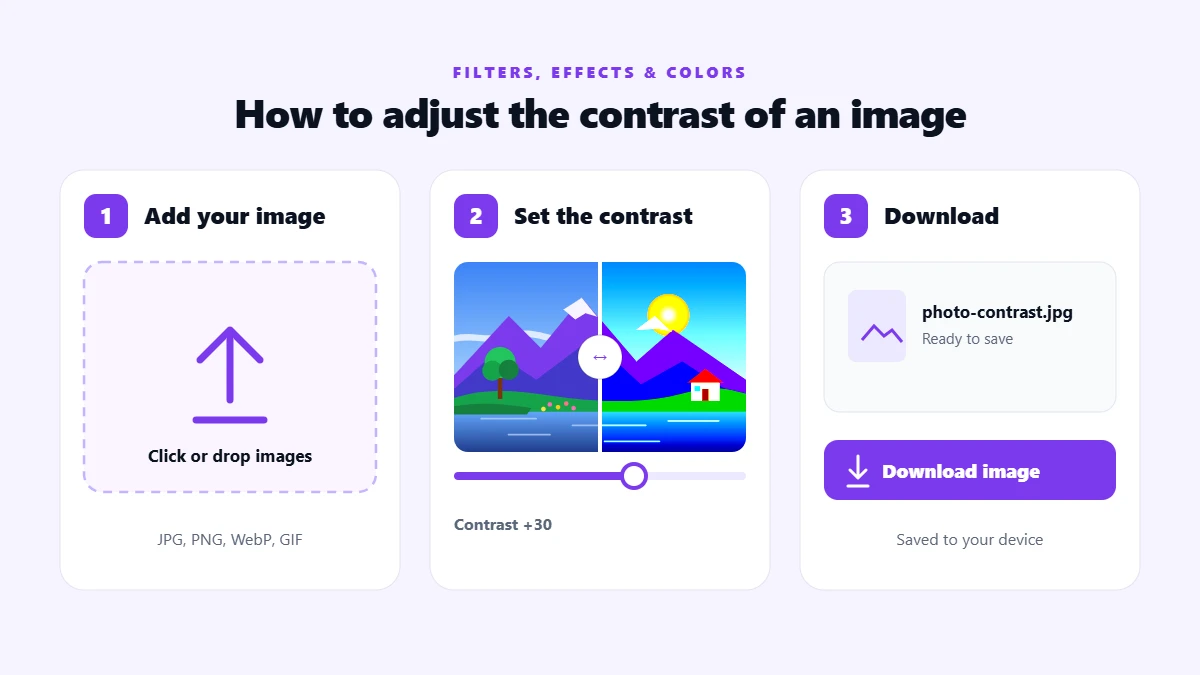
Add your image
Click the upload box or drop one or more JPG, PNG or WebP images.
Set the contrast
Pick a preset or drag Contrast. Turn on Auto levels to fix hazy photos that have no true blacks or whites.
Download
Compare with the before/after slider and press Download image or Download all (ZIP).
Watch: add contrast to a flat photo
Popular reasons to adjust contrast
Hazy or foggy photos
Landscapes shot through haze, windows or smog gain depth with Auto levels.
Faded scans
Old prints and documents look new when contrast brings back dark ink and white paper.
Bold social images
Punchy contrast makes thumbnails and posts stand out in busy feeds.
Softer portraits
Negative contrast reduces harsh shadows from midday sun or flash.
Product photos
Clear separation between product and background looks more professional.
Print preparation
Slightly higher contrast compensates for the flatter look of ink on paper.
Contrast presets compared
| Preset | Setting | Best for |
|---|---|---|
| Soft | Contrast -25 | Harsh sunlight, flash portraits |
| Punchy | Contrast +30 | Most everyday photos |
| Dramatic | Contrast +60 | Skies, architecture, black and white |
| Auto fix | Auto levels + contrast +10 | Hazy, faded or scanned images |
Auto levels finds the darkest and lightest 0.5% of the image and stretches them to pure black and white. This removes the gray veil that makes photos look washed out, without guessing at colors.
Know which slider to reach for
If a picture is too dark or too light overall, it needs brightness: use Adjust Brightness. If it has the right overall lightness but looks flat, gray or dull, it needs contrast. Raising contrast also makes colors look more saturated, while lowering it gives a soft, matte, film-like feel.
How to adjust the contrast of a photo on Windows, Mac, iPhone and Android
No app to install. The tool works in any modern browser, so the steps are almost the same everywhere.
On Windows
- Open toolzzz.com/adjust-contrast/ in Chrome, Edge or Firefox.
- Drag your photo from File Explorer onto the upload box.
- Pick a preset such as Punchy or move the Contrast slider, then press Download image.
- The new file is saved to your Downloads folder.
On Mac
- Open toolzzz.com/adjust-contrast/ in Safari or Chrome.
- Drag the photo from Finder or the Photos app onto the upload box.
- Pick a preset such as Punchy or move the Contrast slider, then press Download image.
- Find the result in Downloads (Safari asks first if set to).
On iPhone and iPad
- Open toolzzz.com/adjust-contrast/ in Safari.
- Tap the upload box and choose Photo Library, Take Photo or Choose File.
- Pick a preset such as Punchy or move the Contrast slider, then tap Download image.
- Tap Download, then open it from the Files app and choose Save Image to add it to Photos.
On Android
- Open toolzzz.com/adjust-contrast/ in Chrome.
- Tap the upload box and pick the photo from your Gallery, Files or camera.
- Pick a preset such as Punchy or move the Contrast slider, then tap Download image.
- The image appears in your Downloads folder and in Google Photos under Downloads.
Toolzzz vs. typical online photo editors
| Feature | Toolzzz Adjust Contrast | Typical online editors |
|---|---|---|
| Your image is uploaded to a server | Never. It is processed in your browser | Usually |
| Auto levels | Yes | Rare |
| Negative contrast for a soft look | Yes | Sometimes |
| Before/after slider | Yes | Rare |
| Batch processing + ZIP | Yes | Often paid |
| Full resolution output | Yes | Often reduced on free plans |
| Watermark or sign-up | None | Common |
"Typical" describes common limits of free online services. Plans and limits differ between sites.
Contrast control that fixes flat photos fast
Smooth contrast curve
A standard contrast formula around mid-gray keeps tones natural even at strong settings.
Auto levels
Stretches the real tonal range of your photo for instant clarity.
Before and after
See exactly what changed by dragging the comparison slider.
Batch + ZIP
Apply the same look to an entire set of photos.
Full resolution
No resizing, no watermark, lossless PNG output if you need it.
Private
Everything runs on your device. No upload.
Tips for the best result
- Start with Punchy. Most phone photos look better with +20 to +35 contrast.
- For haze, turn on Auto levels first, then add a little contrast.
- Very high contrast can clip highlights. Watch skies and white clothing in the preview.
- Black and white photos often love Dramatic. Convert with Photo to Black and White first.
- Finish with a light sharpen for crisp detail.
Key terms explained
- Contrast
- The difference in brightness between the light and dark areas of an image.
- Levels
- The range of tones from black to white. Stretching levels makes full use of that range.
- Clipping
- When tones are pushed past pure black or white and detail is lost.
Frequently asked questions
How do I increase contrast in a photo for free?
Upload the photo here, choose Punchy or Dramatic, or drag the Contrast slider to the right, and press Download image.
How do I fix a washed-out or hazy picture?
Turn on Auto levels or choose the Auto fix preset. It stretches the tones so blacks are black and whites are white.
Can I reduce contrast?
Yes. Drag the slider to the left or choose Soft for a gentle, matte look.
Does higher contrast change colors?
Colors look more saturated with higher contrast and more muted with lower contrast.
Will my photo lose quality?
The resolution is unchanged. Extreme settings can clip shadows or highlights, which the preview shows clearly.
Can I edit many photos at once?
Yes. Add several images and use Download all (ZIP).
Does it work on iPhone and Android?
Yes, in Safari, Chrome and other modern mobile browsers.
Are my images uploaded?
No. Your images are processed in your browser and never leave your device.