
Invert the colors of a picture in seconds
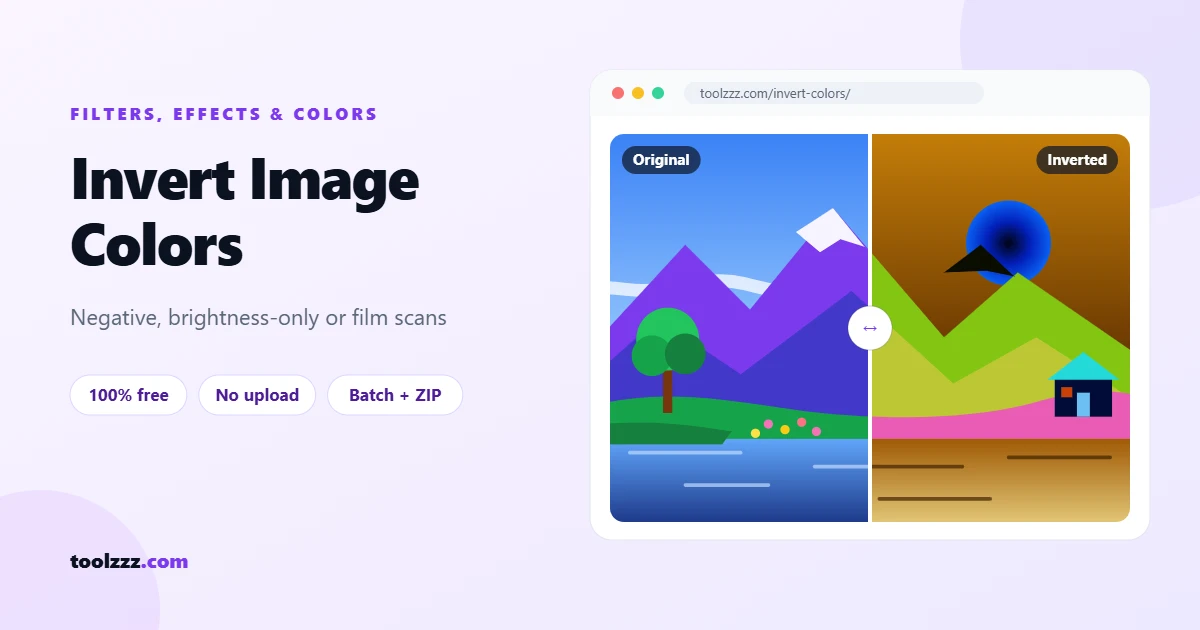
To invert an image, drop it into Toolzzz Invert Colors and keep Negative mode to flip every color (black becomes white, blue becomes orange). Choose Brightness only to swap light and dark while keeping hues, or Film negative to convert a scanned color negative into a normal photo. Press Download image. Nothing is uploaded.
- 3 invert modes
- Per-channel invert (R, G, B)
- Film negative to positive
- Keeps transparency
- Batch + ZIP
- 100% free, no sign-up
- No watermark
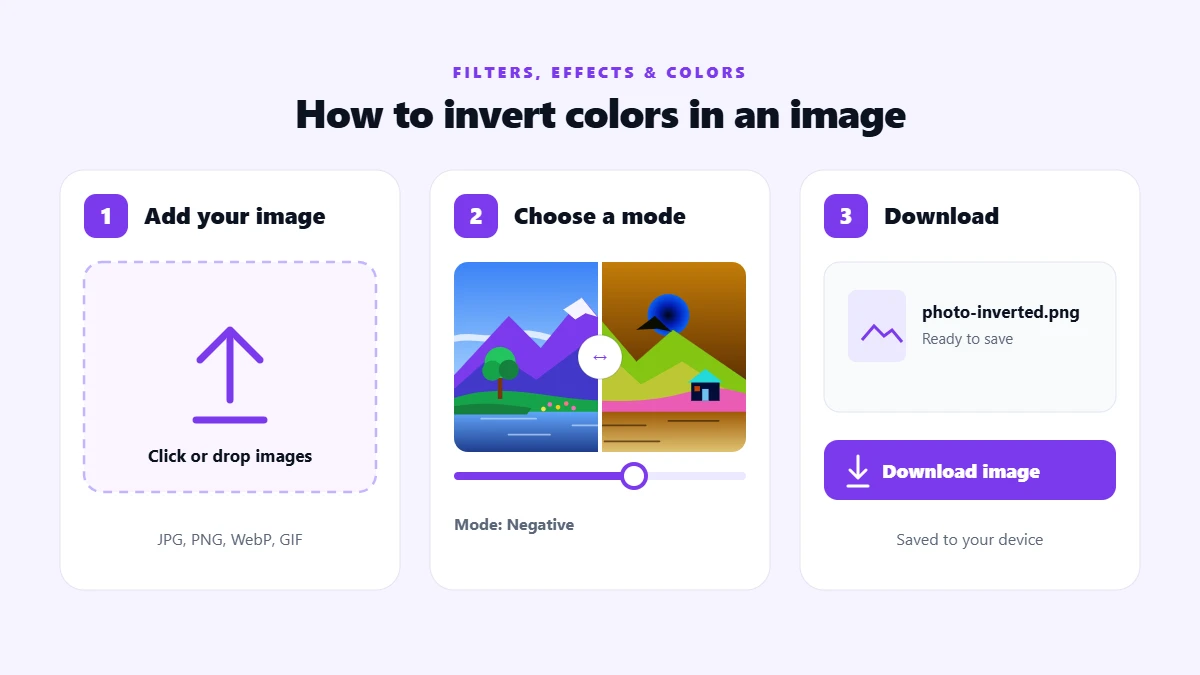
How to invert colors in an image
Inverting replaces each color with its opposite: a pixel value of 0 becomes 255 and vice versa. It creates striking negative art, helps read dark documents, and is the first step in digitizing film negatives.
Add your image
Click the upload box or drop one or many JPG, PNG, WebP or GIF images.
Choose a mode
Negative inverts all colors (or just the channels you tick). Brightness only keeps hues. Film negative also removes the orange film base.
Download
Compare with the slider and press Download image or Download all (ZIP).
Watch: invert colors and convert film negatives
Popular reasons to invert colors
Digitize film negatives
Photograph or scan color negatives and turn them into positive photos with the Film negative mode.
Dark-mode screenshots
Brightness only turns white documents and diagrams dark while keeping colored highlights recognizable.
Art and design
Negative images make bold posters, album art and surreal social media visuals.
Read faded documents
Inverting can reveal faint pencil marks and stamps, and white-on-black text is easier for some readers.
Accessibility checks
Designers invert interfaces to check contrast and layout without the distraction of color.
X-ray and science images
Swap black and white on X-rays, microscope and astronomy images to see structure more clearly.
Three ways to invert an image
| Mode | What happens | Best for |
|---|---|---|
| Negative | Each red, green and blue value becomes 255 minus the value. Untick channels to invert only some of them | Art, classic negative look |
| Brightness only | Lightness is flipped in HSL color space, but the hue stays the same, so a red logo stays red | Dark-mode screenshots, slides |
| Film negative | Inverts, then stretches each color channel separately to cancel the orange film mask | Scanned 35mm or 120 color negatives |
Turn color film negatives into photos
Color negative film has an orange base layer, so a simple invert gives a cold blue, washed-out picture. The Film negative mode measures the darkest and brightest tones of each channel and stretches them independently, which removes the orange cast automatically.
For best results, photograph negatives on a light box or a bright, evenly lit tablet screen, crop away the film border with Crop Image, then invert. Fine-tune afterwards with Adjust Brightness and Adjust Contrast.
How to invert the colors of an image on Windows, Mac, iPhone and Android
No app to install. The tool works in any modern browser, so the steps are almost the same everywhere.
On Windows
- Open toolzzz.com/invert-colors/ in Chrome, Edge or Firefox.
- Drag your image from File Explorer onto the upload box.
- Choose Negative, Brightness only or Film negative, then press Download image.
- The new file is saved to your Downloads folder.
On Mac
- Open toolzzz.com/invert-colors/ in Safari or Chrome.
- Drag the image from Finder or the Photos app onto the upload box.
- Choose Negative, Brightness only or Film negative, then press Download image.
- Find the result in Downloads (Safari asks first if set to).
On iPhone and iPad
- Open toolzzz.com/invert-colors/ in Safari.
- Tap the upload box and choose Photo Library, Take Photo or Choose File.
- Choose Negative, Brightness only or Film negative, then tap Download image.
- Tap Download, then open it from the Files app and choose Save Image to add it to Photos.
On Android
- Open toolzzz.com/invert-colors/ in Chrome.
- Tap the upload box and pick the image from your Gallery, Files or camera.
- Choose Negative, Brightness only or Film negative, then tap Download image.
- The image appears in your Downloads folder and in Google Photos under Downloads.
Toolzzz vs. typical online photo editors
| Feature | Toolzzz Invert Colors | Typical online editors |
|---|---|---|
| Your image is uploaded to a server | Never. It is processed in your browser | Usually |
| Invert modes | Negative, brightness only, film negative | Negative only |
| Per-channel invert | Yes (red, green, blue) | Rare |
| Film orange mask removal | Yes, automatic | Rare |
| Batch processing + ZIP | Yes | Often paid |
| Keeps transparency | Yes | Sometimes |
| Watermark or sign-up | None | Common |
"Typical" describes common limits of free online services. Plans and limits differ between sites.
More than a one-click negative
Three modes
Classic negative, hue-preserving brightness invert and film negative conversion in one tool.
Channel control
Invert only red, green or blue for creative color shifts.
Film scanner helper
Automatic orange-mask removal turns phone shots of negatives into usable photos.
Before and after
Drag the comparison slider to see original and inverted side by side.
Batch + ZIP
Convert a whole strip of negatives or a folder of images at once.
Private
Images never leave your device.
Tips for the best result
- For screenshots with white backgrounds, Brightness only looks much more natural than a full negative.
- When converting film, crop out the film border first so it does not confuse the automatic color balance.
- Invert only the Blue channel for an unusual yellow-and-purple art effect.
- Save as PNG to keep transparent areas transparent.
- Inverting twice returns the exact original in Negative mode.
Key terms explained
- Negative
- An image in which light and dark areas, and colors, are reversed.
- Color complement
- The opposite color on the color wheel, e.g. blue and orange or red and cyan.
- Orange mask
- The orange base layer of color negative film that corrects dye impurities.
Frequently asked questions
How do I invert the colors of a picture for free?
Upload the picture here, keep Negative mode and press Download image. There is no sign-up or watermark.
How do I turn a film negative into a positive photo?
Photograph or scan the negative, crop away the border, upload it and choose Film negative. The orange mask is removed automatically.
How can I make a screenshot dark mode?
Choose Brightness only. White backgrounds become dark while colors keep their hue.
Can I invert only one color channel?
Yes. In Negative mode, untick the channels you want to keep. For example, invert only Red and Green.
Does inverting change transparency?
No. Transparent areas stay transparent. Save as PNG or WebP to keep them.
Can I invert many images at once?
Yes. Add several images and press Download all (ZIP).
Does it work on my phone?
Yes, in Safari on iPhone and iPad and in Chrome on Android.
Are my images uploaded?
No. Inverting happens in your browser and your images never leave your device.