
Turn a photo into a pencil sketch in seconds
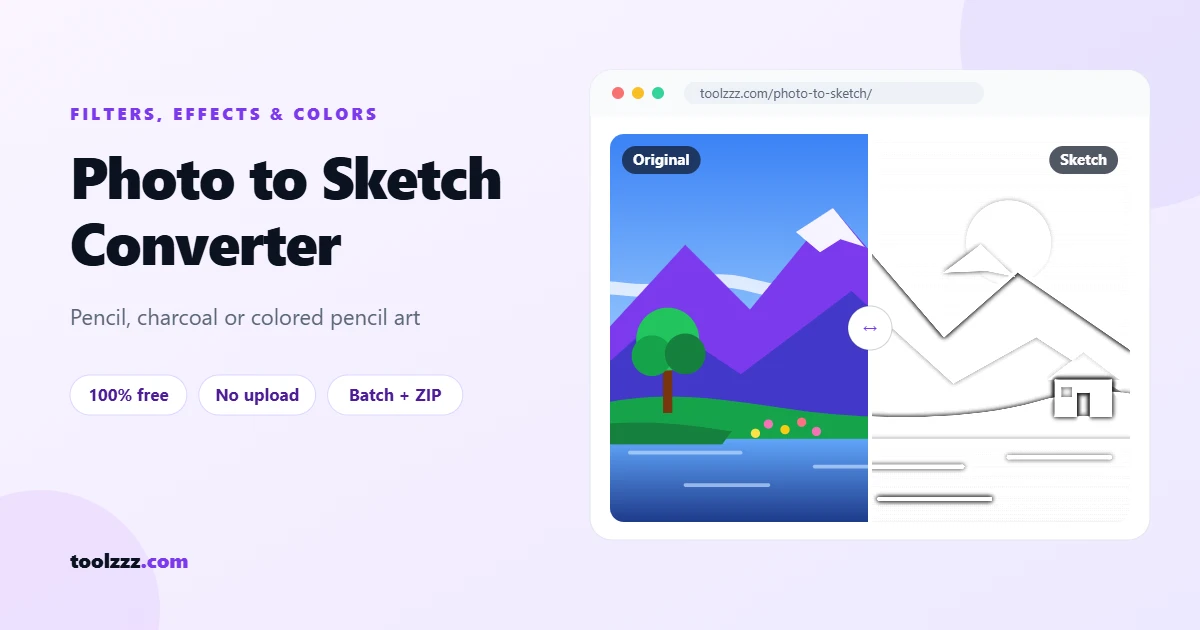
To convert a photo to a sketch, drop it into Toolzzz Photo to Sketch, choose Pencil, Charcoal or Colored, adjust Line thickness and Darkness, and press Download image. The tool uses the classic color-dodge sketch technique, so outlines and shading come from your actual photo. It runs in your browser with no upload.
- Pencil, charcoal, colored
- Line thickness 1 to 30
- Darkness control
- Batch + ZIP
- Full resolution
- 100% free, no sign-up
- No watermark
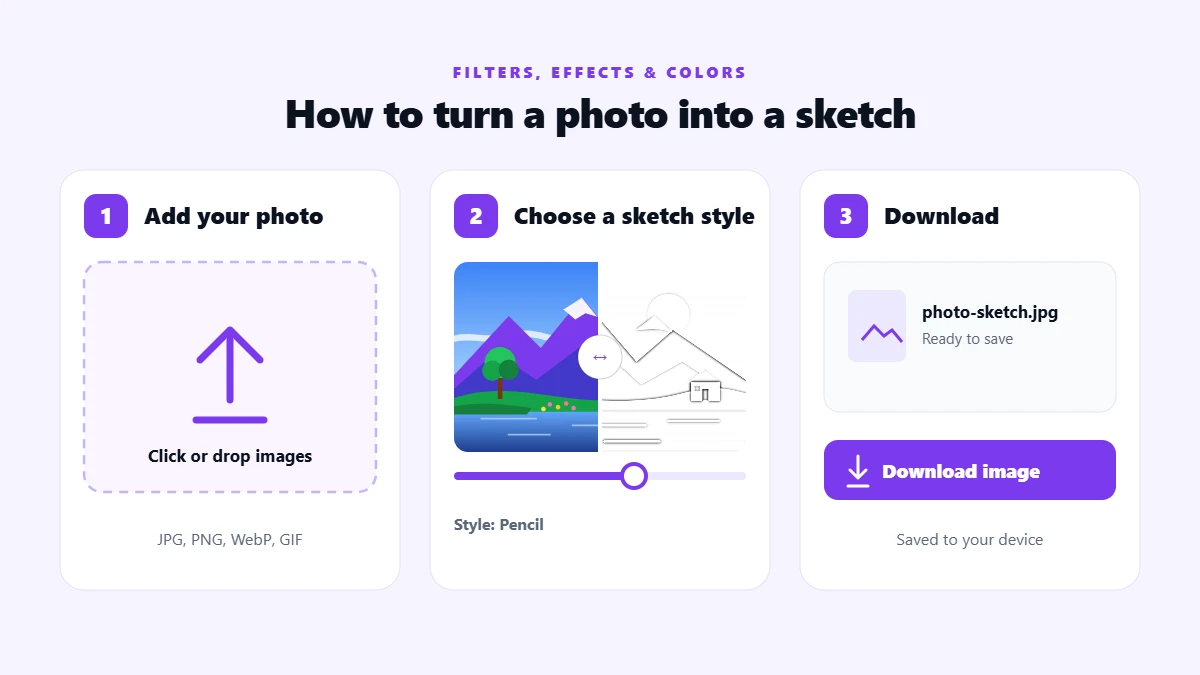
How to turn a photo into a sketch
A pencil sketch effect keeps the edges and shading of a photo and removes flat color areas, so the result looks hand drawn on white paper. Photos with a clear subject and good lighting give the best drawings.
Add your photo
Click the upload box or drop JPG, PNG or WebP photos. Portraits, pets and buildings work great.
Choose a sketch style
Pencil gives clean gray lines, Charcoal is darker and bolder, and Colored keeps soft colors like colored pencils. Adjust Line thickness and Darkness.
Download
Compare with the slider and press Download image or Download all (ZIP).
Watch: turn your photo into a pencil drawing
Popular reasons to turn photos into sketches
Personalized gifts
Print a sketch of a couple, family or pet on cards, mugs, canvas or a framed print.
Drawing reference
Artists use sketch outlines as a guide for tracing, painting or learning shading.
Coloring pages for kids
Pencil style with low darkness makes great printable coloring pages from family photos.
Artistic profile pictures
A sketch avatar looks unique on social media, forums and gaming profiles.
Blog and book illustrations
Hand-drawn style images fit stories, recipes, travel journals and children's books.
Architecture and real estate
Sketch versions of buildings make elegant brochures, invitations and logos.
Sketch styles and settings
| Setting | Effect | Try |
|---|---|---|
| Pencil | Gray graphite lines on white paper | Portraits, pets |
| Charcoal | Darker, heavier strokes with stronger shading | Dramatic portraits, buildings |
| Colored | Soft colors with pencil edges | Landscapes, flowers, food |
| Line thickness | Width of the outlines and shading | 5 to 10 for most photos |
| Darkness | How dark the lines and shadows are | 20 to 45 |
The color dodge sketch technique
The tool turns your photo into grayscale, makes an inverted and blurred copy, and blends the two with a color dodge. Areas with no edges cancel out to white paper, while edges and shadows stay as gray strokes. Line thickness controls the blur radius (scaled to your image size), and darkness applies a curve that deepens the strokes.
For the cleanest sketch, use a sharp photo with a simple background. Busy backgrounds turn into lots of lines; blur them first with Blur Photo Background or crop closer with Crop Image.
How to turn a photo into a sketch on Windows, Mac, iPhone and Android
No app to install. The tool works in any modern browser, so the steps are almost the same everywhere.
On Windows
- Open toolzzz.com/photo-to-sketch/ in Chrome, Edge or Firefox.
- Drag your photo from File Explorer onto the upload box.
- Pick Pencil, Charcoal or Colored and adjust the lines, then press Download image.
- The new file is saved to your Downloads folder.
On Mac
- Open toolzzz.com/photo-to-sketch/ in Safari or Chrome.
- Drag the photo from Finder or the Photos app onto the upload box.
- Pick Pencil, Charcoal or Colored and adjust the lines, then press Download image.
- Find the result in Downloads (Safari asks first if set to).
On iPhone and iPad
- Open toolzzz.com/photo-to-sketch/ in Safari.
- Tap the upload box and choose Photo Library, Take Photo or Choose File.
- Pick Pencil, Charcoal or Colored and adjust the lines, then tap Download image.
- Tap Download, then open it from the Files app and choose Save Image to add it to Photos.
On Android
- Open toolzzz.com/photo-to-sketch/ in Chrome.
- Tap the upload box and pick the photo from your Gallery, Files or camera.
- Pick Pencil, Charcoal or Colored and adjust the lines, then tap Download image.
- The image appears in your Downloads folder and in Google Photos under Downloads.
Toolzzz vs. typical online photo editors
| Feature | Toolzzz Photo to Sketch | Typical online editors |
|---|---|---|
| Your photo is uploaded to a server | Never. It is processed in your browser | Usually |
| Sketch styles | Pencil, charcoal and colored | Often one style |
| Line thickness and darkness | Yes | Rare |
| Before/after slider | Yes | Rare |
| Batch processing + ZIP | Yes | Often paid |
| Full resolution output | Yes | Often small or watermarked |
| Sign-up required | No | Common for AI sketch apps |
"Typical" describes common limits of free online services. Plans and limits differ between sites.
A photo to sketch converter with real control
Three drawing styles
Clean pencil, bold charcoal or soft colored pencil from the same photo.
Adjust the lines
Line thickness and darkness let you go from delicate to bold.
Before and after
Slide across the image to compare photo and drawing.
Batch + ZIP
Turn a whole album into sketches with the same settings.
Print quality
The sketch keeps your photo's full resolution for large prints.
Private
Your photos are processed on your device, never uploaded to an AI server.
Tips for the best result
- Use well-lit photos with a clear subject. Very dark photos give muddy sketches.
- For coloring pages, use Pencil with Darkness around 15 and print in grayscale.
- Raise Line thickness for small images or distant subjects, lower it for close-up portraits.
- Charcoal looks great on black-and-white portraits with strong side light.
- Add a name or date with Add Text to Image for a gift print.
Key terms explained
- Color dodge
- A blend mode that brightens the base layer based on the top layer, used to create sketch lines.
- Line art
- A drawing made only of lines, without shading or color fills.
- Charcoal
- A soft, dark drawing medium that gives bold strokes and deep shadows.
Frequently asked questions
How do I turn a photo into a sketch for free?
Upload your photo here, choose Pencil and press Download image. There is no sign-up and no watermark.
Which style looks most like a real pencil drawing?
Pencil with Line thickness 6 to 10 and Darkness 25 to 40 looks closest to graphite on paper.
Can I make a colored sketch?
Yes. Choose the Colored style to keep soft colors with pencil outlines.
Why does my sketch have too many lines?
The background is busy or the line thickness is high. Crop closer, blur the background or lower Line thickness.
Can I print the sketch?
Yes. The sketch keeps full resolution. Save as PNG for the cleanest print.
Is this an AI sketch generator?
No. It uses a classic image-processing technique in your browser, so it is fast, private and faithful to your photo.
Does it work on iPhone and Android?
Yes, in Safari, Chrome and other modern mobile browsers.
Are my photos uploaded?
No. The sketch is created on your device and your photos never leave it.