
How do I remove EXIF data from a photo?
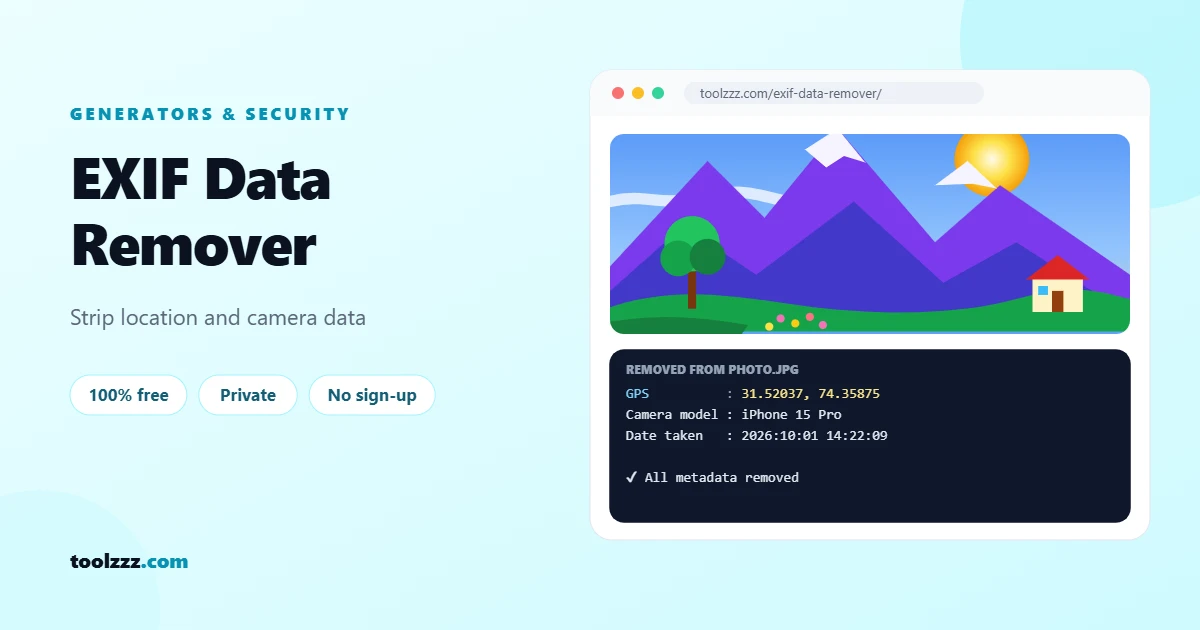
Drop your photos into the Toolzzz EXIF Data Remover. It shows the hidden data in each one, such as GPS location, camera model and date taken, then removes it. JPG files are cleaned without re-compressing, so quality stays exactly the same. Download one photo or all of them as a ZIP.
- Shows GPS location, camera, lens and date
- Removes EXIF, XMP, IPTC and comments
- Lossless for JPG: no quality loss
- Cleans PNG text and EXIF chunks
- Keeps the colour profile (optional)
- Keeps photos upright when rotation data is removed
- Batch with ZIP download, nothing uploaded
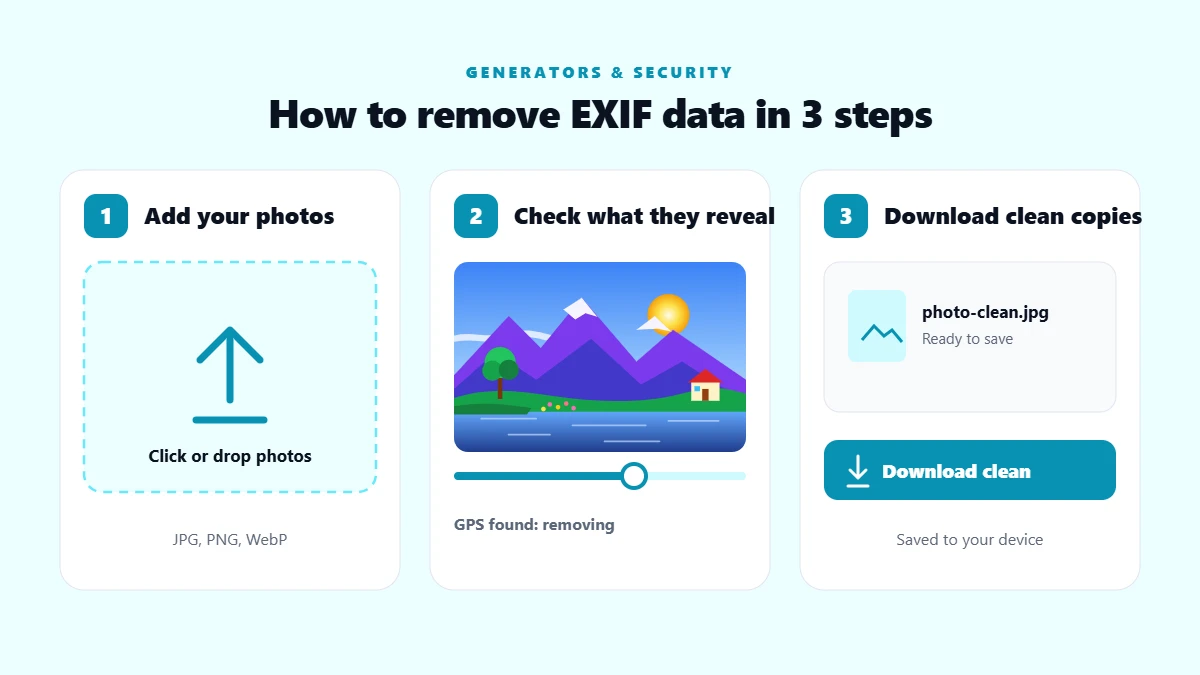
How to remove EXIF data in 3 steps
Your photos never leave your device.
Add your photos
Click or drop one or many JPG, PNG or WebP photos.
Check what they reveal
See GPS location, camera and dates for each photo.
Download clean copies
Press Download clean photos to save them, as a ZIP for several.
Watch: how to use the free EXIF Data Remover
Why remove photo metadata
Protect your home location
Phone photos can include exact GPS coordinates.
Selling online
Remove data before posting on marketplaces.
Social and forums
Some sites keep metadata on images.
Privacy for children
Avoid sharing where your family lives or plays.
Business documents
Strip author and software details.
Journalism and safety
Protect sources and identities.
How to use the EXIF Data Remover on Windows, Mac, iPhone and Android
No app to install. The tool works in any modern browser, so the steps are almost the same everywhere.
On Windows
- Open toolzzz.com/exif-data-remover/ in Chrome, Edge or Firefox.
- Drag your photo from File Explorer onto the upload box.
- Check the data found, then press Download clean.
- The new file is saved to your Downloads folder.
On Mac
- Open toolzzz.com/exif-data-remover/ in Safari or Chrome.
- Drag the photo from Finder or the Photos app onto the upload box.
- Check the data found, then press Download clean.
- Find the result in Downloads (Safari asks first if set to).
On iPhone and iPad
- Open toolzzz.com/exif-data-remover/ in Safari.
- Tap the upload box and choose Photo Library, Take Photo or Choose File.
- Check the data found, then tap Download clean.
- Tap Download, then open it from the Files app and choose Save Image to add it to Photos.
On Android
- Open toolzzz.com/exif-data-remover/ in Chrome.
- Tap the upload box and pick the photo from your Gallery, Files or camera.
- Check the data found, then tap Download clean.
- The image appears in your Downloads folder and in Google Photos under Downloads.
Toolzzz vs. other online generators
| Feature | Toolzzz EXIF Data Remover | Typical online generators |
|---|---|---|
| Price | Free, no limits | Free tier, then paid plans |
| Where it runs | In your browser only | Often on the provider’s server |
| Built on | Browser standards (Web Crypto, Canvas, SVG) | Often closed server-side code |
| Sign-up | Not needed | Sometimes needed for downloads |
| Tracking of results | None, nothing is stored | Results may be logged |
| Works offline once loaded | Yes | Usually not |
"Typical" describes common limits of free online services. Plans and limits differ between sites.
Why generate with Toolzzz
Private by design
Every value is created or checked inside your browser. Nothing is sent or stored.
Built on Web Crypto
Hashing, encryption and random values use the browser’s built-in, audited Web Crypto API.
Instant
Results appear immediately, even for thousands of values.
Copy or download
Copy in one click or save the result as a file.
Any device
Works in Chrome, Safari, Edge and Firefox on desktop and mobile.
Free forever
No account, no limits and no watermark.
Tips for the best result
- iPhone: you can also tap Options on the share sheet and turn off Location before sharing.
- Android: turn off location tags in your camera app settings to stop adding GPS.
- Screenshots normally contain no GPS data.
- Keep Keep color profile on so colours look the same.
- To shrink files at the same time, use our image compressor after cleaning.
Key terms explained
- EXIF
- Exchangeable Image File Format: data a camera stores inside a photo, such as settings, date and GPS.
- GPS tag
- The latitude and longitude where a photo was taken.
- Lossless
- Changed without re-encoding, so image quality is untouched.
Frequently asked questions
Is the EXIF remover free?
Yes, free with no limits.
Are my photos uploaded?
No. Photos are read and cleaned in your browser and never leave your device.
Does it reduce quality?
No for JPG and PNG: only metadata blocks are removed. Other formats are re-saved at high quality.
Does it remove GPS location?
Yes. All EXIF data, including GPS, is removed.
How do I see where a photo was taken?
If GPS is found, it is shown with a map link. That is exactly what others could see.
Will my photo end up sideways?
No. With Keep photo upright on, rotated photos are re-saved the right way up.
Can I clean many photos at once?
Yes. Add several and press Download clean photos to get a ZIP.
Do WhatsApp and Facebook remove EXIF?
Most big platforms strip it from public images, but email, cloud links and many forums do not. Cleaning first is safest.