
How do I encrypt an image with a password?
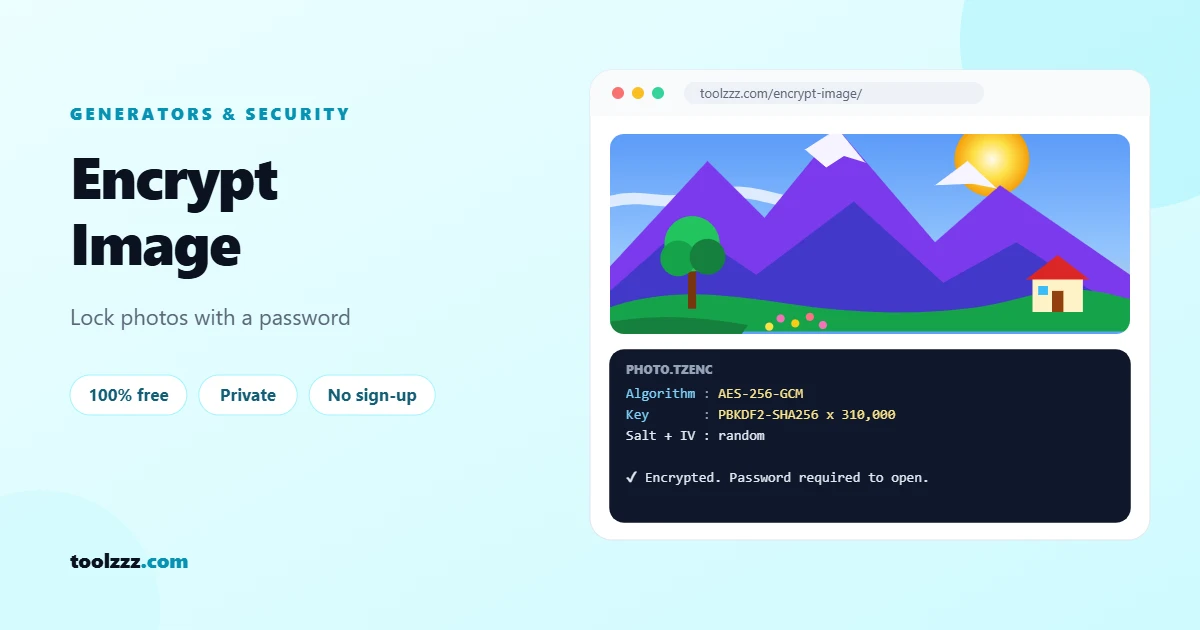
Drop your photo into the Toolzzz Encrypt Image tool, enter a password twice and press Encrypt and download. You get a .tzenc file locked with AES-256-GCM. To open it, come back, choose Decrypt, add the file and enter the same password: the original photo is restored exactly.
- AES-256-GCM encryption (Web Crypto)
- Key from your password with PBKDF2, 310,000 rounds
- Random salt and IV for every file
- Detects wrong passwords and tampering
- Restores the original file and name exactly
- Works with photos and any other file
- Runs in your browser, nothing uploaded
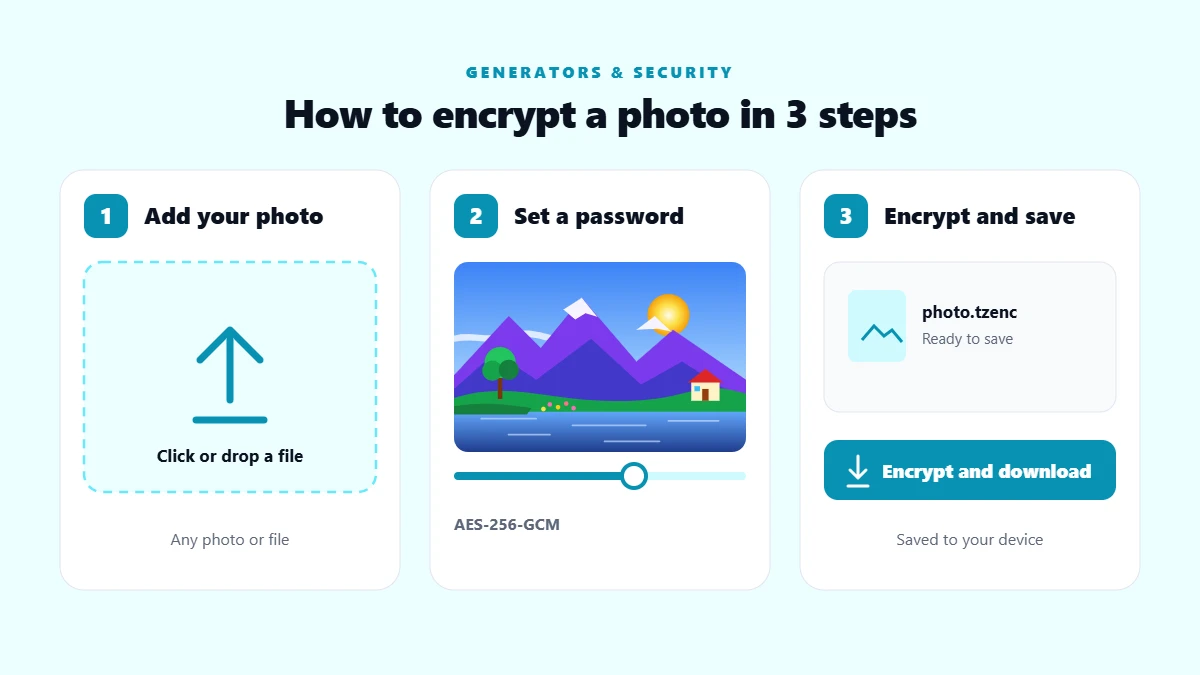
How to encrypt a photo in 3 steps
Encryption and decryption both happen on your device.
Add your photo
Click or drop the image (or any file) you want to protect.
Set a password
Enter a strong password twice. Write it down safely: it cannot be recovered.
Encrypt and save
Press Encrypt and download to save the locked .tzenc file.
Watch: how to use the free Encrypt Image
Why encrypt a photo
ID documents
Protect scans of passports and ID cards.
Private photos
Keep personal pictures safe in cloud storage.
Sensitive files
Lock contracts, medical or financial scans.
Sending securely
Share a file and send the password separately.
Backups
Encrypt files before storing them on USB drives.
Shared computers
Keep files unreadable to other users.
How to use the Encrypt Image on Windows, Mac, iPhone and Android
No app to install. The tool works in any modern browser, so the steps are almost the same everywhere.
On Windows
- Open toolzzz.com/encrypt-image/ in Chrome, Edge or Firefox.
- Drag your photo from File Explorer onto the upload box.
- Enter a password twice, then press Encrypt and download.
- The new file is saved to your Downloads folder.
On Mac
- Open toolzzz.com/encrypt-image/ in Safari or Chrome.
- Drag the photo from Finder or the Photos app onto the upload box.
- Enter a password twice, then press Encrypt and download.
- Find the result in Downloads (Safari asks first if set to).
On iPhone and iPad
- Open toolzzz.com/encrypt-image/ in Safari.
- Tap the upload box and choose Photo Library, Take Photo or Choose File.
- Enter a password twice, then tap Encrypt and download.
- Tap Download, then open it from the Files app and choose Save Image to add it to Photos.
On Android
- Open toolzzz.com/encrypt-image/ in Chrome.
- Tap the upload box and pick the photo from your Gallery, Files or camera.
- Enter a password twice, then tap Encrypt and download.
- The image appears in your Downloads folder and in Google Photos under Downloads.
Toolzzz vs. other online generators
| Feature | Toolzzz Encrypt Image | Typical online generators |
|---|---|---|
| Price | Free, no limits | Free tier, then paid plans |
| Where it runs | In your browser only | Often on the provider’s server |
| Built on | Browser standards (Web Crypto, Canvas, SVG) | Often closed server-side code |
| Sign-up | Not needed | Sometimes needed for downloads |
| Tracking of results | None, nothing is stored | Results may be logged |
| Works offline once loaded | Yes | Usually not |
"Typical" describes common limits of free online services. Plans and limits differ between sites.
Why generate with Toolzzz
Private by design
Every value is created or checked inside your browser. Nothing is sent or stored.
Built on Web Crypto
Hashing, encryption and random values use the browser’s built-in, audited Web Crypto API.
Instant
Results appear immediately, even for thousands of values.
Copy or download
Copy in one click or save the result as a file.
Any device
Works in Chrome, Safari, Edge and Firefox on desktop and mobile.
Free forever
No account, no limits and no watermark.
Tips for the best result
- Use a long, unique password. Make one with the Password Generator.
- There is no recovery. If you lose the password, the file cannot be opened.
- Send the password through a different channel than the file, for example by phone.
- Keep the original until you have tested decrypting the .tzenc file.
- To remove location data instead, use the EXIF Data Remover.
Key terms explained
- AES-256-GCM
- A modern encryption standard with a 256-bit key that also detects tampering.
- PBKDF2
- A method that turns a password into an encryption key by hashing it many times, slowing down guessing.
- Salt and IV
- Random values stored with the file so the same password and photo never produce the same output.
Frequently asked questions
Is encrypting images free?
Yes, free and unlimited.
Are my files uploaded?
No. Encryption and decryption run in your browser using the Web Crypto API.
How secure is it?
AES-256-GCM with a key from PBKDF2-SHA256 (310,000 rounds) is strong. Security depends on your password, so make it long.
How do I open the encrypted file?
Return to this page, choose Decrypt, add the .tzenc file and enter the password.
What if I forget the password?
The file cannot be recovered. Nobody, including Toolzzz, can open it.
Can I encrypt files other than images?
Yes. Any file type works, and the original name and type are restored.
Can others open .tzenc files elsewhere?
The format is specific to this tool, so decrypt it here. It works on any device with a modern browser.
Does it hide the image in another picture?
No. That is steganography. This tool encrypts the file, so it cannot be viewed without the password.