
Make a duotone image in seconds
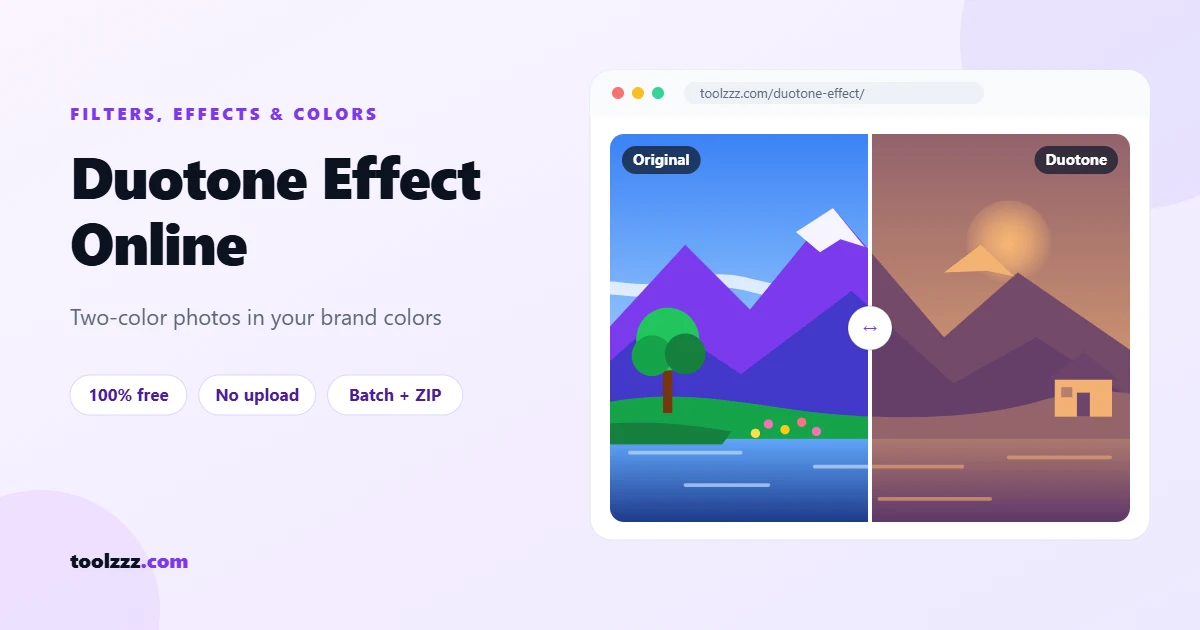
To create a duotone, drop a photo into Toolzzz Duotone Effect, pick a preset such as Violet + peach or Navy + pink, or set your own Shadows and Highlights colors with the color pickers. Adjust Contrast and Strength, then press Download image. Your photo never leaves your device.
- 6 color presets
- Any custom colors (HEX)
- Contrast + strength
- Batch + ZIP
- Full resolution
- 100% free, no sign-up
- No watermark
How to create a duotone image
A duotone image uses two colors instead of a full color range. The photo is first measured in brightness, then dark tones get the shadow color and light tones get the highlight color. The style became famous through music streaming campaigns and modern brand design.
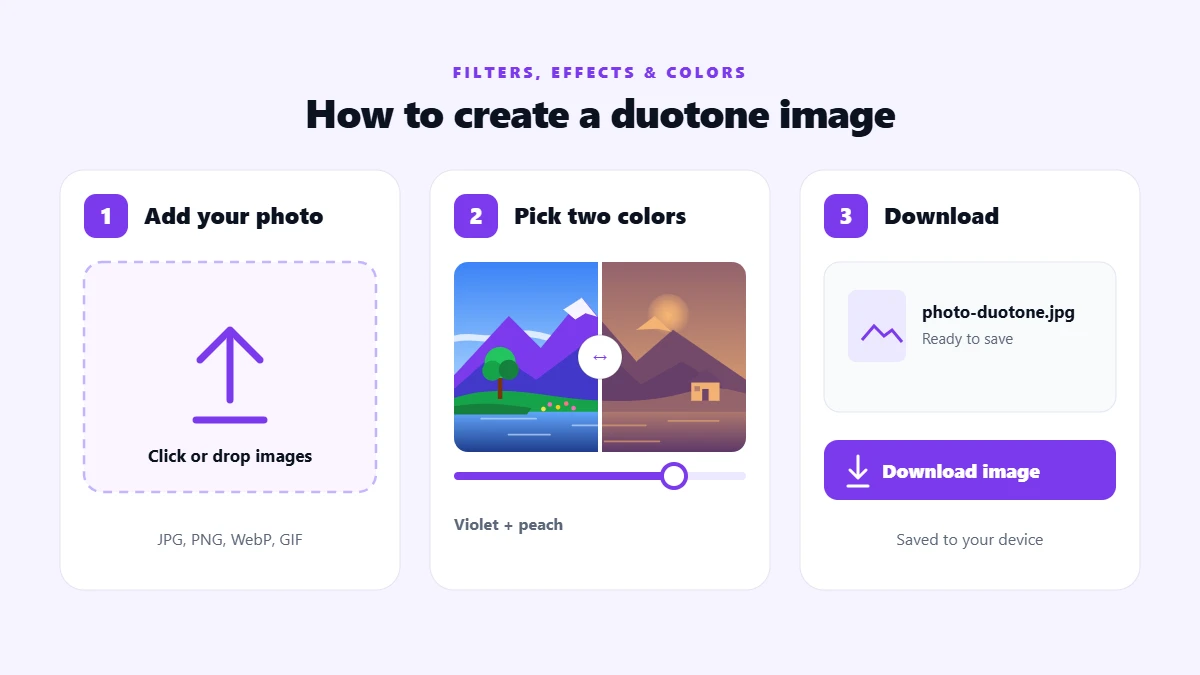
Add your photo
Click the upload box or drop JPG, PNG or WebP photos. Portraits and high-contrast shots work best.
Pick two colors
Choose a preset or set Shadows and Highlights. Use Contrast for punch and Strength to blend with the original.
Download
Compare with the before/after slider and press Download image or Download all (ZIP).
Watch: create a duotone photo in your brand colors
Popular reasons to use a duotone effect
On-brand graphics
Recolor any stock photo in your brand palette so blog headers and ads look consistent.
Social media campaigns
Duotone posts and stories stand out in feeds and work well with bold text.
Event and music posters
Two-color portraits are a classic look for concerts, festivals and album covers.
Website hero sections
A duotone background photo keeps headings readable and matches your color scheme.
Team and speaker photos
Give mismatched headshots a unified look on About and conference pages.
Print-ready designs
Two-color images suit screen printing, risograph and spot-color print jobs.
How to choose duotone colors
| Rule | Why | Example |
|---|---|---|
| Dark shadow color | Keeps the photo readable and detailed | Navy, deep violet, forest green |
| Light highlight color | Gives the image a bright, fresh feel | Peach, lemon, mint, cream |
| Contrasting hues | Creates energy and a modern look | Blue + pink, teal + yellow |
| Similar hues | Calm, elegant, monochrome-like | Wine + cream, black + gray |
Need exact brand colors? Grab them from your logo with the Image Color Picker or Color Palette from Image, then paste the HEX codes into the color fields.
Duotone, monotone and tritone
Monotone uses one color plus white or black, like sepia. Duotone maps the full tonal range between two colors, so both shadows and highlights are tinted. Tritone adds a third color for the midtones. In print, duotones were originally made with two inks to add depth to black-and-white photos; today the term mostly means the bold, graphic two-color style used in digital design.
Lower the Strength slider to blend the duotone with the original colors for a subtle color grade instead of a full graphic effect.
How to create a duotone image on Windows, Mac, iPhone and Android
No app to install. The tool works in any modern browser, so the steps are almost the same everywhere.
On Windows
- Open toolzzz.com/duotone-effect/ in Chrome, Edge or Firefox.
- Drag your photo from File Explorer onto the upload box.
- Pick a color preset or choose your Shadows and Highlights colors, then press Download image.
- The new file is saved to your Downloads folder.
On Mac
- Open toolzzz.com/duotone-effect/ in Safari or Chrome.
- Drag the photo from Finder or the Photos app onto the upload box.
- Pick a color preset or choose your Shadows and Highlights colors, then press Download image.
- Find the result in Downloads (Safari asks first if set to).
On iPhone and iPad
- Open toolzzz.com/duotone-effect/ in Safari.
- Tap the upload box and choose Photo Library, Take Photo or Choose File.
- Pick a color preset or choose your Shadows and Highlights colors, then tap Download image.
- Tap Download, then open it from the Files app and choose Save Image to add it to Photos.
On Android
- Open toolzzz.com/duotone-effect/ in Chrome.
- Tap the upload box and pick the photo from your Gallery, Files or camera.
- Pick a color preset or choose your Shadows and Highlights colors, then tap Download image.
- The image appears in your Downloads folder and in Google Photos under Downloads.
Toolzzz vs. typical online photo editors
| Feature | Toolzzz Duotone Effect | Typical online editors |
|---|---|---|
| Your photo is uploaded to a server | Never. It is processed in your browser | Usually |
| Custom shadow and highlight colors | Yes, any HEX color | Often presets only |
| Contrast and strength controls | Yes | Rare |
| Before/after slider | Yes | Rare |
| Batch processing + ZIP | Yes | Often paid |
| Full resolution output | Yes | Often reduced on free plans |
| Watermark or sign-up | None | Common |
"Typical" describes common limits of free online services. Plans and limits differ between sites.
A duotone generator for designers and creators
Any two colors
Use presets or pick exact colors for shadows and highlights.
Brand-ready
Match your brand palette by entering HEX codes in the color pickers.
Contrast + strength
Fine-tune punch and how much of the original color shows through.
Batch + ZIP
Apply the same duotone to a whole set of team or product photos.
Before and after
Compare the duotone with the original using the slider.
Private
Your photos are processed on your device and never uploaded.
Tips for the best result
- Keep the shadow color dark and the highlight color light for the clearest images.
- Flat photos benefit from Contrast +15 to +30.
- For a subtle color grade, set Strength to 40 to 60%.
- Use the same two colors across all images in a campaign for instant consistency.
- Remove busy backgrounds first for cleaner portraits, or blur them with Blur Photo Background.
Key terms explained
- Duotone
- An image made from two colors, one for the dark tones and one for the light tones.
- Gradient map
- A technique that replaces each brightness level with a color from a gradient.
- HEX code
- A six-digit code such as #7C3AED that defines a color for the web.
Frequently asked questions
How do I make a duotone image for free?
Upload a photo here, choose a color preset and press Download image. No sign-up and no watermark.
Can I use my own brand colors?
Yes. Click Shadows and Highlights to pick any color or enter its HEX code.
Which photos work best for duotone?
Portraits, architecture and photos with clear light and dark areas. Very flat photos may need more contrast.
How do I make a Spotify-style duotone?
Use bold contrasting colors such as Navy + pink or Teal + lemon, and raise Contrast slightly.
Can I keep some of the original color?
Yes. Lower the Strength slider to blend the duotone with the original photo.
Can I apply duotone to many images?
Yes. Add several photos and press Download all (ZIP).
Does it work on mobile?
Yes, on iPhone, iPad and Android in any modern browser.
Are my photos uploaded?
No. The duotone effect runs entirely in your browser.