
Get the HEX code of any color in an image
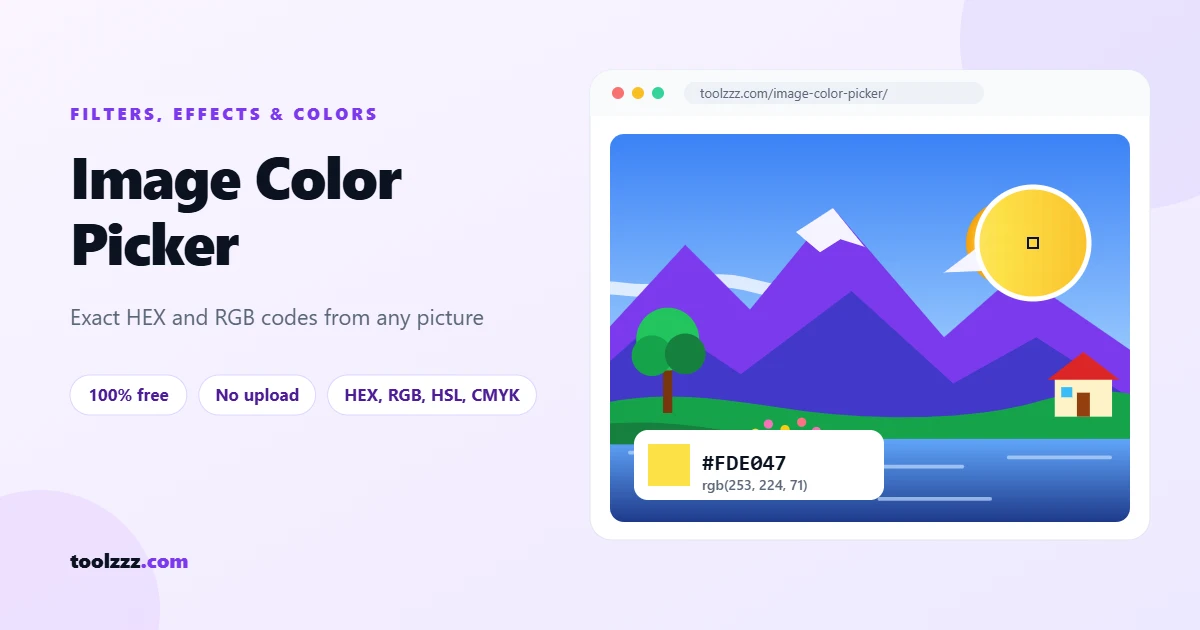
To find a color code from an image, drop the picture (or paste a screenshot) into Toolzzz Image Color Picker and click the color you want. The zoom loupe shows the exact pixel, and you instantly get the HEX, RGB, HSL, HSV and CMYK values with one-click copy buttons. Use Pick from screen to grab colors outside the image in Chrome and Edge. Nothing is uploaded.
- HEX, RGB, HSL, HSV, CMYK
- Pixel zoom loupe
- Average 3x3 to 11x11
- Screen eyedropper
- Color history
- 100% free, no sign-up
- Works offline after load
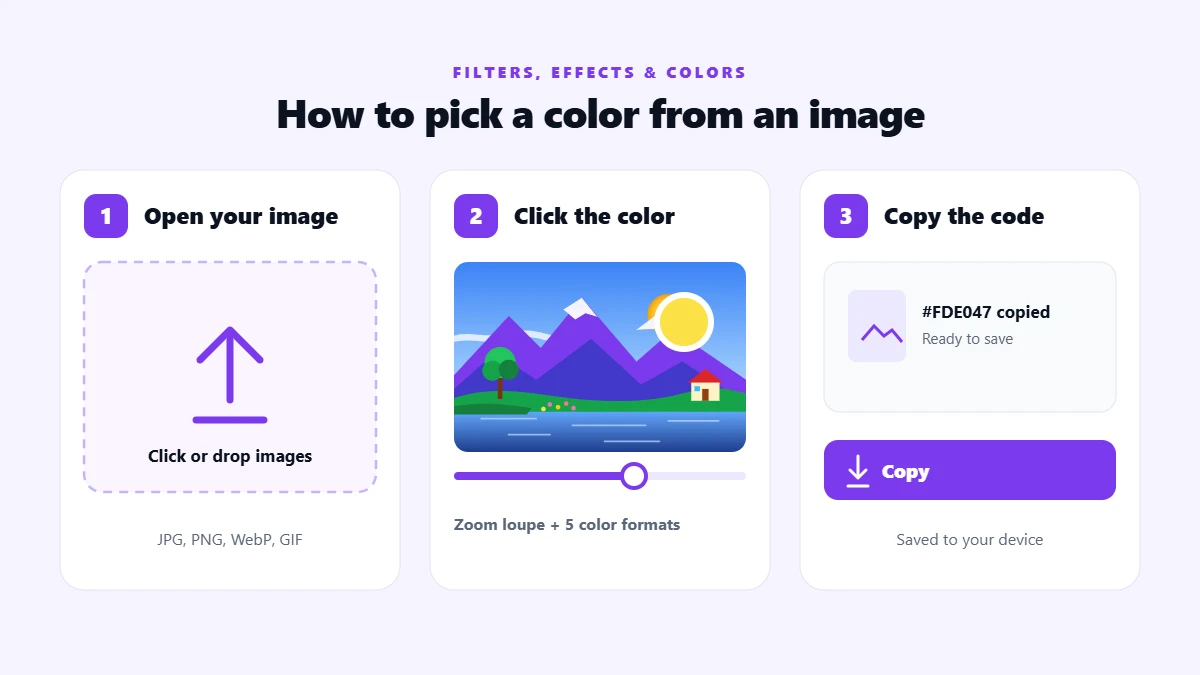
How to pick a color from an image
An image color picker (also called an eyedropper) reads the exact color value of a pixel. Designers use it to match brand colors, developers to copy CSS values and artists to sample real-world palettes.
Open your image
Click the upload box, drop an image, or paste a screenshot with Ctrl + V (Cmd + V on Mac).
Click the color
Move over the image to see the zoom loupe, then click the exact pixel. Use Sample size to average noisy photos.
Copy the code
Press Copy next to HEX, RGB, HSL, HSV or CMYK. Your picks are saved in Recent colors.
Watch: get the HEX code of any color in a picture
Popular reasons to pick colors from images
Match brand colors
Read the exact HEX value of a logo color from a PNG, screenshot or PDF export.
Web and CSS development
Copy RGB or HSL values straight into CSS, Tailwind or design tokens.
Design inspiration
Sample colors from photos, paintings and nature to build your own palettes.
Print and CMYK
Get approximate CMYK values for print briefs, signage and merchandise.
Product color names
Identify the exact shade of clothing, paint or furniture from a product photo.
Accessibility checks
Pick text and background colors to test contrast ratios for WCAG compliance.
Color code formats explained
| Format | Example | Used in |
|---|---|---|
| HEX | #7C3AED | Web, CSS, Figma, Canva |
| RGB | rgb(124, 58, 237) | CSS, screens, video |
| HSL | hsl(262, 83%, 58%) | CSS theming, color tweaking |
| HSV / HSB | hsv(262, 76%, 93%) | Photoshop, Procreate, color pickers |
| CMYK | cmyk(48%, 76%, 0%, 7%) | Print design (approximate) |
CMYK values are a mathematical conversion from sRGB. For professional print, confirm with your printer's color profile.
How to pick the right color every time
Photos contain noise, gradients and compression artifacts, so neighboring pixels can differ slightly. Set Sample size to 5 x 5 average to get the typical color of an area instead of one random pixel. For logos and flat graphics, use 1 pixel (exact).
Need the main colors of the whole picture instead of one spot? Use Color Palette from Image to extract 2 to 16 dominant colors at once.
How to pick a color from an image on Windows, Mac, iPhone and Android
No app to install. The tool works in any modern browser, so the steps are almost the same everywhere.
On Windows
- Open toolzzz.com/image-color-picker/ in Chrome, Edge or Firefox.
- Drag your image from File Explorer onto the upload box.
- Click the exact spot in the image (the zoom loupe helps), then press Copy.
- The new file is saved to your Downloads folder.
On Mac
- Open toolzzz.com/image-color-picker/ in Safari or Chrome.
- Drag the image from Finder or the Photos app onto the upload box.
- Click the exact spot in the image (the zoom loupe helps), then press Copy.
- Find the result in Downloads (Safari asks first if set to).
On iPhone and iPad
- Open toolzzz.com/image-color-picker/ in Safari.
- Tap the upload box and choose Photo Library, Take Photo or Choose File.
- Click the exact spot in the image (the zoom loupe helps), then tap Copy.
- Tap Download, then open it from the Files app and choose Save Image to add it to Photos.
On Android
- Open toolzzz.com/image-color-picker/ in Chrome.
- Tap the upload box and pick the image from your Gallery, Files or camera.
- Click the exact spot in the image (the zoom loupe helps), then tap Copy.
- The image appears in your Downloads folder and in Google Photos under Downloads.
Toolzzz vs. typical online photo editors
| Feature | Toolzzz Image Color Picker | Typical online editors |
|---|---|---|
| Your image is uploaded to a server | Never. It is read in your browser | Usually |
| Color formats | HEX, RGB, HSL, HSV and CMYK | Often HEX and RGB only |
| Pixel zoom loupe | Yes | Sometimes |
| Averaged sampling | 1x1 up to 11x11 | Rare |
| Pick from anywhere on screen | Yes, in Chrome and Edge | Rare |
| Paste a screenshot | Yes (Ctrl + V) | Sometimes |
| Ads or sign-up | None | Common |
"Typical" describes common limits of free online services. Plans and limits differ between sites.
A color picker designers actually enjoy
Pixel-perfect loupe
A magnified view of 11 x 11 pixels shows exactly which pixel you are picking.
Five formats
HEX, RGB, HSL, HSV and CMYK, each with a one-click copy button.
Averaged sampling
Smooth out noise in photos with 3x3, 5x5 or 11x11 averaging.
Recent colors
Your last 16 picks are saved on this device for quick reuse.
Screen eyedropper
Pick colors from other windows, apps or websites in Chrome and Edge.
Private
Images are read locally. Nothing is uploaded or stored on a server.
Tips for the best result
- Paste a screenshot directly with Ctrl + V. There is no need to save it first.
- On touch screens, press and drag to move the loupe, then lift your finger to pick.
- Use 5 x 5 average for photos and 1 pixel for logos and icons.
- Click a swatch in Recent colors to see its codes again and copy its HEX.
- Combine with Duotone Effect to recolor photos in the exact colors you picked.
Key terms explained
- Eyedropper
- A tool that reads the color of a single point on the screen or in an image.
- HEX code
- A six-digit hexadecimal color such as #FF5733, combining red, green and blue values.
- Color space
- A defined range of colors, such as sRGB for screens or CMYK for print.
Frequently asked questions
How do I find the color code of an image for free?
Upload the image here and click the color. The HEX, RGB, HSL, HSV and CMYK codes appear instantly with copy buttons.
How do I get the HEX code of a color in a screenshot?
Take the screenshot, then press Ctrl + V (Cmd + V on Mac) on this page and click the color.
Can I pick a color from my screen, not just an image?
Yes, in Chrome and Edge. Press Pick from screen and click anywhere on your screen.
Why do I get slightly different colors near the same spot?
Photos have noise and compression. Use a 5 x 5 or 11 x 11 average sample size for a stable result.
Are the CMYK values exact?
They are a standard conversion from RGB. Print results depend on paper and printer profiles.
Can I pick several colors and copy them all?
Yes. Every pick is saved in Recent colors. Press Copy all to copy every HEX code.
Does it work on iPhone and Android?
Yes. Tap and drag on the image to move the loupe, then lift your finger to pick.
Is my image uploaded?
No. The image is read in your browser and never leaves your device.