
How do I convert CSV to Excel?
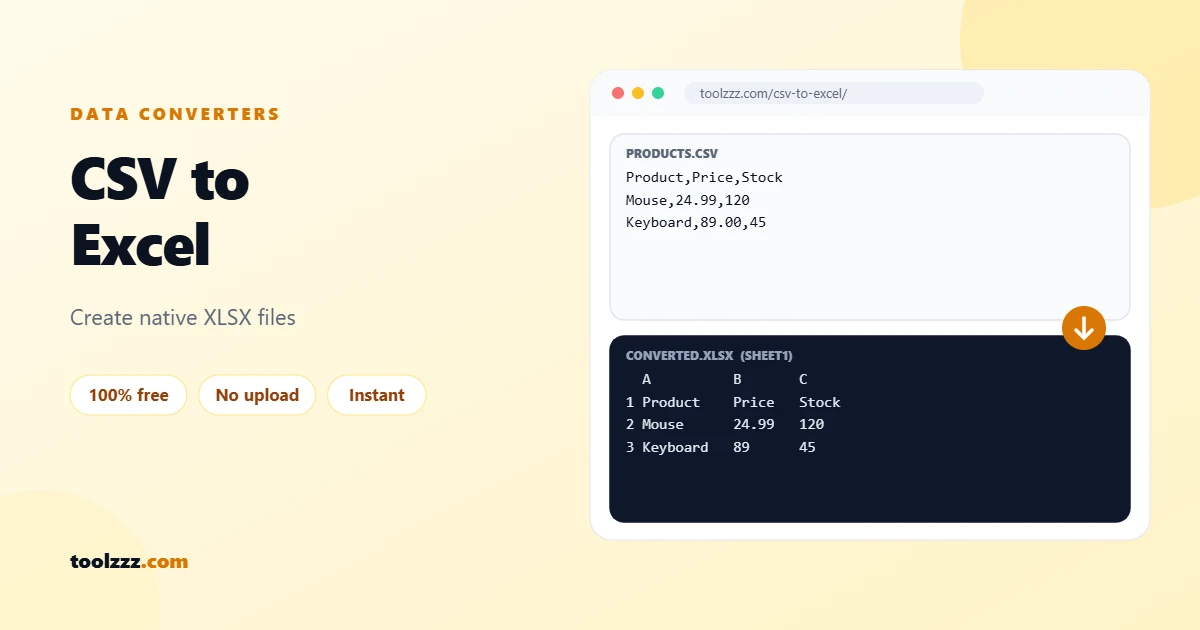
Paste your CSV or press Upload, then press Download. The Toolzzz CSV to Excel converter builds a native .xlsx file in your browser, with the header row in bold and frozen, filter buttons on every column, sensible column widths and numbers stored as numbers, not text.
- Creates a native .xlsx workbook
- Bold, frozen header row
- AutoFilter buttons on each column
- Columns sized to fit the content
- Numbers stored as real numbers
- Custom sheet name
- Opens in Excel, Google Sheets, Numbers and LibreOffice
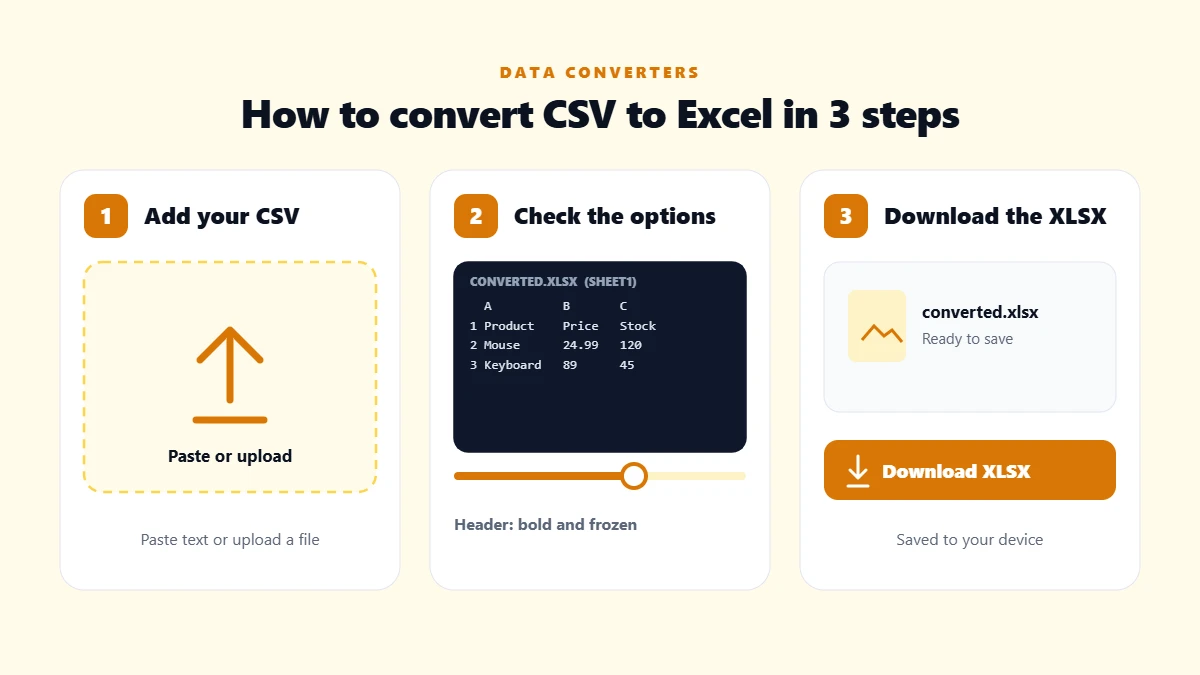
How to convert CSV to Excel in 3 steps
A preview of the first 50 rows appears on the right while you work.
Add your CSV
Paste it or press Upload to open a .csv file.
Check the options
Keep the header row on, name the sheet and choose whether to store numbers as numbers.
Download the XLSX
Press Download to save converted.xlsx and open it in Excel.
Watch: how to use the free CSV to Excel
Why turn CSV into XLSX
Reports for colleagues
Send a tidy workbook instead of a raw text file.
Product and price lists
Store prices as real numbers so formulas work.
Contact exports
Open CRM or mailing exports with filters ready.
Fix encoding issues
XLSX keeps accents and non-Latin text intact, unlike CSV in Excel.
Leading zeros
Untick number storage to keep codes like 00123 as text.
Archiving data
Keep a clean, formatted copy of exports.
How to use the CSV to Excel on Windows, Mac, iPhone and Android
No app to install. The tool works in any modern browser, so the steps are almost the same everywhere.
On Windows
- Open toolzzz.com/csv-to-excel/ in Chrome, Edge or Firefox.
- Paste (Ctrl+V) your CSV into the left box, or press Upload to open a file.
- Name the sheet and check the preview.
- Press Download to save the .xlsx workbook. Files go to your Downloads folder.
On Mac
- Open toolzzz.com/csv-to-excel/ in Safari or Chrome.
- Paste (Cmd+V) your CSV into the left box, or press Upload to open a file.
- Name the sheet and check the preview.
- Press Download to save the .xlsx workbook.
On iPhone and iPad
- Open toolzzz.com/csv-to-excel/ in Safari.
- Touch and hold the box, tap Paste to add your CSV into the left box, or tap Upload to open a file.
- Name the sheet and check the preview.
- Tap Download to save the .xlsx workbook. Downloads appear in the Files app.
On Android
- Open toolzzz.com/csv-to-excel/ in Chrome.
- Long-tap the box and tap Paste to add your CSV into the left box, or press Upload to open a file.
- Name the sheet and check the preview.
- Tap Download to save the .xlsx workbook. Downloads go to the Downloads folder.
Toolzzz vs. other online converters
| Feature | Toolzzz CSV to Excel | Typical online converters |
|---|---|---|
| Price | Free, no limits | Free tier, then paid plans |
| Where your data goes | Stays in your browser | Often uploaded to a server |
| Sign-up | Not needed | Sometimes needed to download |
| Speed | Converts as you type | Upload, wait, then download |
| Size limit | Only your device memory | Often 1 to 10 MB on free plans |
| Error messages | Line and column shown | Often just "invalid input" |
"Typical" describes common limits of free online services. Plans and limits differ between sites.
Why convert data with Toolzzz
Private by design
Your data is converted by JavaScript in this tab. Nothing is sent to Toolzzz or anyone else.
Instant results
The output updates while you type or paste. There is no queue and no waiting.
Clear errors
Invalid input is flagged with the reason and, where possible, the exact line and column.
Copy or download
Copy the result in one click or save it as a ready-to-use file.
Works everywhere
Windows, Mac, Linux, iPhone, iPad and Android. Any modern browser will do.
Free forever
No account, no limits, no watermark and no trial period.
Tips for the best result
- Excel often mangles CSV files with accents or long numbers. Converting to XLSX avoids that.
- Untick Store numbers as numbers for IDs, phone numbers and ZIP codes with leading zeros.
- Sheet names can be up to 31 characters and cannot contain \ / ? * [ ] :.
- Dates stay as text such as 2026-10-01, which Excel shows exactly as written.
- For web pages, use CSV to HTML Table instead.
Key terms explained
- XLSX
- The modern Excel workbook format: a ZIP of XML files that hold sheets, styles and settings.
- Frozen pane
- Rows or columns that stay visible while you scroll.
- AutoFilter
- The drop-down arrows in a header row that let you sort and filter.
Frequently asked questions
Is CSV to Excel free?
Yes. It is free, unlimited and needs no account.
Is my file uploaded?
No. The workbook is built in your browser and saved directly to your device.
Will it open in Google Sheets?
Yes. The .xlsx file opens in Excel, Google Sheets, Apple Numbers and LibreOffice.
Why are my numbers left-aligned in Excel?
That happens when numbers are stored as text. Keep Store numbers as numbers ticked.
How do I keep leading zeros?
Untick Store numbers as numbers, so every value stays text.
Can I use a semicolon CSV?
Yes. The delimiter is detected automatically, or you can set it.
Is there a row limit?
Excel allows 1,048,576 rows per sheet. The converter itself is limited only by your device memory.
Can I convert Excel to CSV?
In Excel or Google Sheets, use File, Save As or Download, then choose CSV.