
How do I encode or decode Base64?
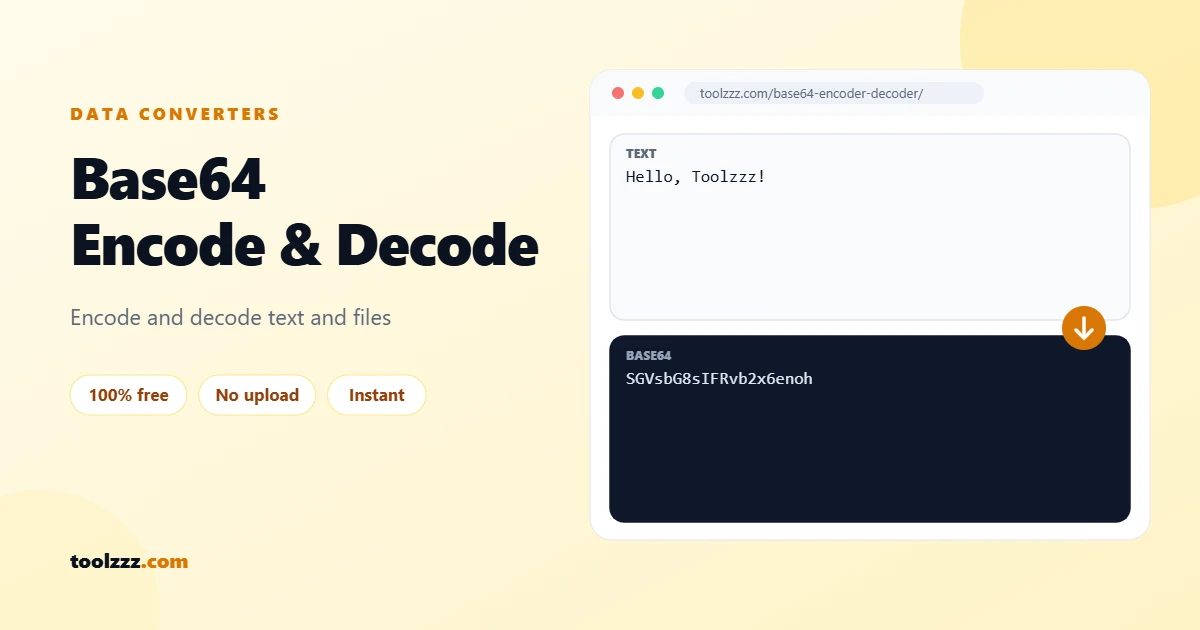
Choose Encode or Decode and paste your text. The Toolzzz Base64 tool converts it instantly with full UTF-8 support, so emoji and accents work. Press Upload to turn any file, such as an image, into a Base64 data URI. Decoded binary data can be downloaded as a file.
- Encode and decode in one tool
- Full UTF-8 support, including emoji
- URL-safe Base64 (base64url) option
- Encode any file to a data URI
- Decoded binary is offered as a download
- Optional 76-character line wrapping (MIME)
- Swap button to reverse the result
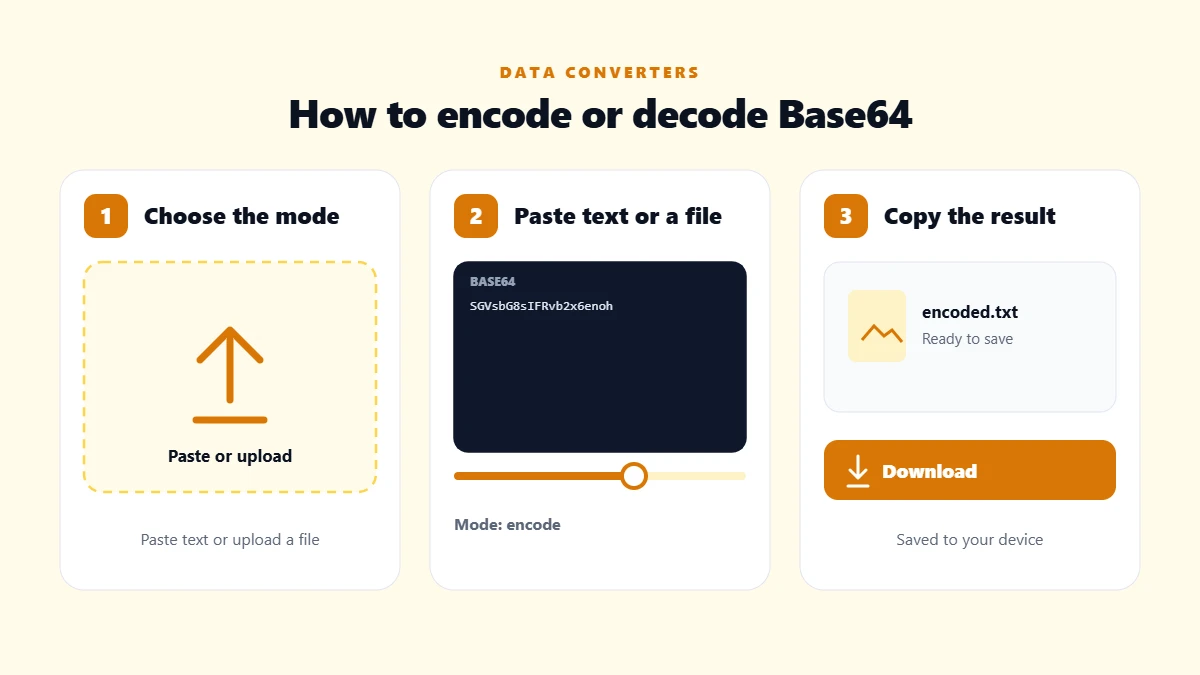
How to encode or decode Base64
The result updates as you type.
Choose the mode
Pick Encode or Decode, and tick URL-safe if you need base64url.
Paste text or a file
Paste text, or press Upload to encode a file such as an image.
Copy the result
Press Copy or Download. Use Swap to reverse it.
Watch: how to use the free Base64 Encoder / Decoder
Where Base64 is used
Images in HTML and CSS
Embed small icons as data URIs to save a request.
Email attachments
MIME email encodes attachments as Base64.
API authentication
Basic auth headers carry Base64 credentials.
JSON payloads
Send binary data inside JSON as text.
JWT tokens
JWT parts use URL-safe Base64.
Debugging
Decode encoded strings from logs and configs.
How to use the Base64 Encoder / Decoder on Windows, Mac, iPhone and Android
No app to install. The tool works in any modern browser, so the steps are almost the same everywhere.
On Windows
- Open toolzzz.com/base64-encoder-decoder/ in Chrome, Edge or Firefox.
- Paste (Ctrl+V) your text into the left box, or press Upload to open a file.
- Choose Encode or Decode.
- Press Copy to put the result on your clipboard, or Download to save it. Files go to your Downloads folder.
On Mac
- Open toolzzz.com/base64-encoder-decoder/ in Safari or Chrome.
- Paste (Cmd+V) your text into the left box, or press Upload to open a file.
- Choose Encode or Decode.
- Press Copy to put the result on your clipboard, or Download to save it.
On iPhone and iPad
- Open toolzzz.com/base64-encoder-decoder/ in Safari.
- Touch and hold the box, tap Paste to add your text into the left box, or tap Upload to open a file.
- Choose Encode or Decode.
- Tap Copy to put the result on your clipboard, or Download to save it. Downloads appear in the Files app.
On Android
- Open toolzzz.com/base64-encoder-decoder/ in Chrome.
- Long-tap the box and tap Paste to add your text into the left box, or press Upload to open a file.
- Choose Encode or Decode.
- Tap Copy to put the result on your clipboard, or Download to save it. Downloads go to the Downloads folder.
Toolzzz vs. other online converters
| Feature | Toolzzz Base64 Encoder / Decoder | Typical online converters |
|---|---|---|
| Price | Free, no limits | Free tier, then paid plans |
| Where your data goes | Stays in your browser | Often uploaded to a server |
| Sign-up | Not needed | Sometimes needed to download |
| Speed | Converts as you type | Upload, wait, then download |
| Size limit | Only your device memory | Often 1 to 10 MB on free plans |
| Error messages | Line and column shown | Often just "invalid input" |
"Typical" describes common limits of free online services. Plans and limits differ between sites.
Why convert data with Toolzzz
Private by design
Your data is converted by JavaScript in this tab. Nothing is sent to Toolzzz or anyone else.
Instant results
The output updates while you type or paste. There is no queue and no waiting.
Clear errors
Invalid input is flagged with the reason and, where possible, the exact line and column.
Copy or download
Copy the result in one click or save it as a ready-to-use file.
Works everywhere
Windows, Mac, Linux, iPhone, iPad and Android. Any modern browser will do.
Free forever
No account, no limits, no watermark and no trial period.
Tips for the best result
- Base64 is encoding, not encryption. Anyone can decode it, so never treat it as security.
- Base64 makes data about 33% larger.
- Use URL-safe for data in URLs and filenames: it uses - and _ instead of + and /.
- Only embed small images as data URIs. Large ones slow pages down.
- To read a JWT, use the JWT Decoder.
Key terms explained
- Base64
- An encoding that represents binary data with 64 printable characters: A-Z, a-z, 0-9, + and /.
- base64url
- A URL-safe variant that uses - and _ and usually drops the = padding.
- Data URI
- A link that contains the file itself, such as data:image/png;base64,...
Frequently asked questions
Is the Base64 tool free?
Yes, free and unlimited.
Is my data uploaded?
No. Encoding and decoding run in your browser.
Does it support emoji and accents?
Yes. Text is encoded as UTF-8 first, so every character round-trips correctly.
How do I encode an image to Base64?
Press Upload and choose the image. You get a data URI ready for HTML or CSS.
What if the decoded data is not text?
You get a note and can press Download to save the binary file.
What is URL-safe Base64?
A variant that replaces + with - and / with _, and drops padding, so it is safe in URLs.
Is Base64 secure?
No. It only changes the format. Use Encrypt Image or a password manager for secrets.
Why does my Base64 fail to decode?
It may contain invalid characters or be cut off. Whitespace and data: prefixes are removed automatically.