
How do I remove extra spaces from text?
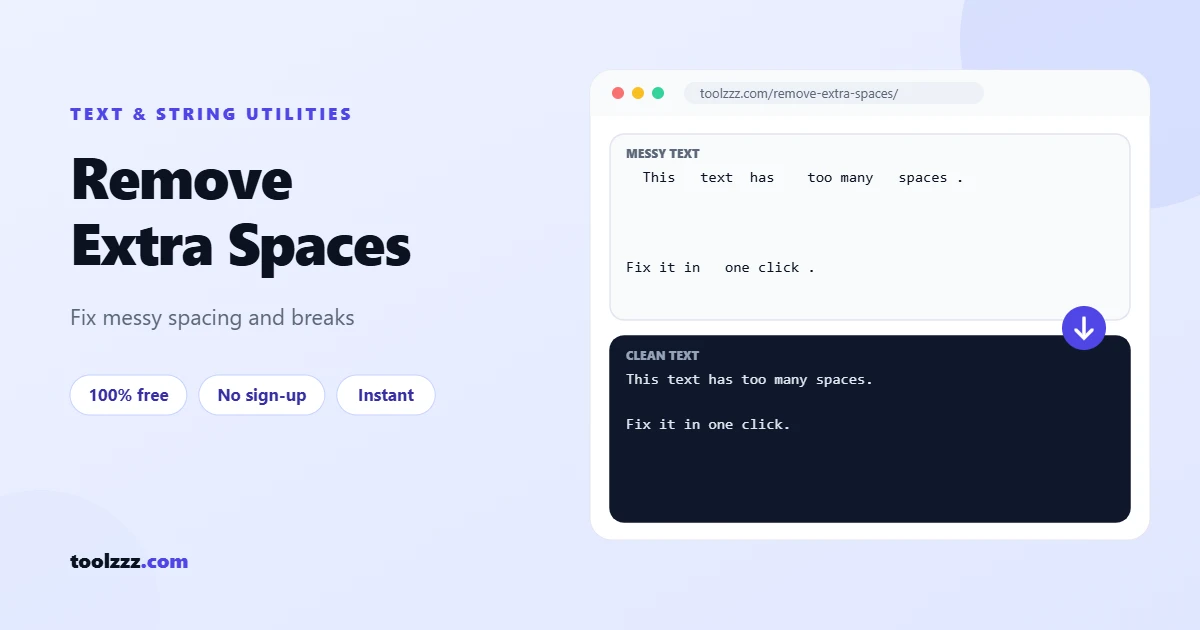
Paste your text. The Toolzzz Remove Extra Spaces tool collapses multiple spaces into one, trims spaces at the start and end of each line, turns tabs into spaces, reduces runs of blank lines and removes hidden characters like non-breaking and zero-width spaces. Each fix can be turned on or off.
- Collapse double and multiple spaces
- Trim spaces at line start and end
- Convert tabs to spaces
- Collapse blank lines to one
- Remove all line breaks to make one paragraph
- Remove non-breaking and zero-width spaces
- Remove space before punctuation
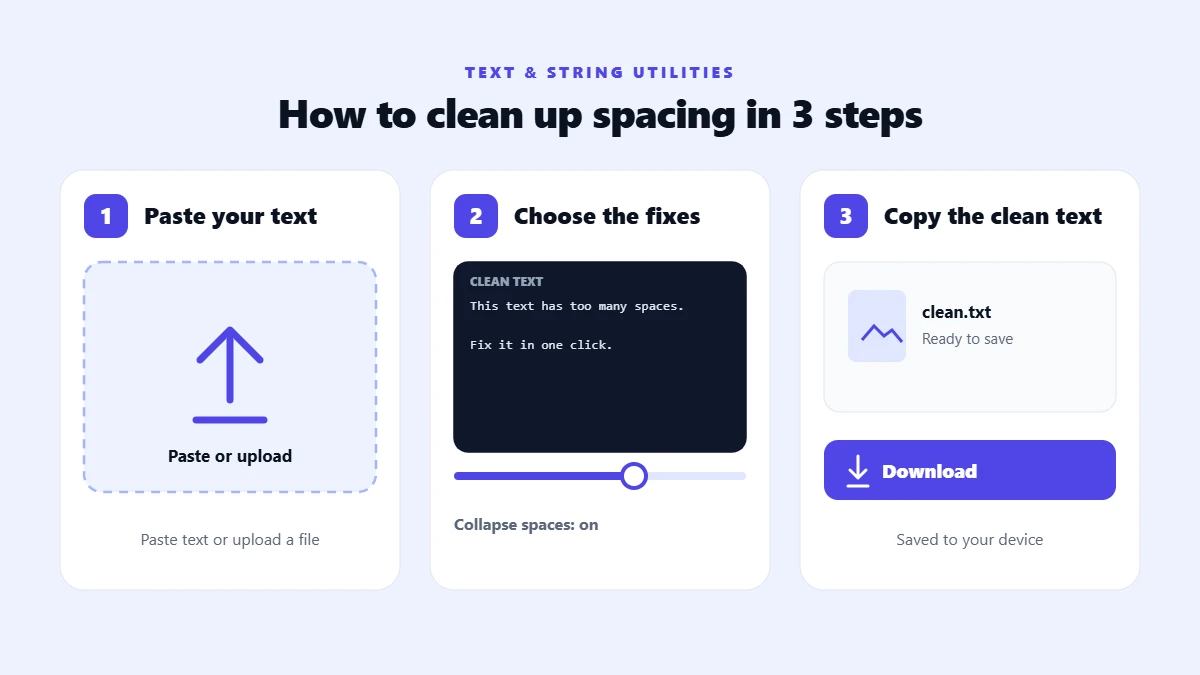
How to clean up spacing in 3 steps
Your clean text appears immediately.
Paste your text
Paste it or press Upload to open a .txt file.
Choose the fixes
Tick the clean-up options you need, such as collapsing spaces or removing line breaks.
Copy the clean text
Press Copy or Download.
Watch: how to use the free Remove Extra Spaces
When text needs cleaning
Text copied from PDFs
Fix broken lines and odd gaps from PDF copy and paste.
Web and CMS content
Remove hidden spaces that break layouts.
Emails and posts
Tidy text before sending or posting.
Data cleaning
Clean values before importing a CSV.
Documents
Fix double spaces after full stops.
Form input
Normalise names and addresses.
How to use the Remove Extra Spaces on Windows, Mac, iPhone and Android
No app to install. The tool works in any modern browser, so the steps are almost the same everywhere.
On Windows
- Open toolzzz.com/remove-extra-spaces/ in Chrome, Edge or Firefox.
- Paste (Ctrl+V) your text into the left box, or press Upload to open a file.
- Tick the clean-up options you need.
- Press Copy to put the result on your clipboard, or Download to save it. Files go to your Downloads folder.
On Mac
- Open toolzzz.com/remove-extra-spaces/ in Safari or Chrome.
- Paste (Cmd+V) your text into the left box, or press Upload to open a file.
- Tick the clean-up options you need.
- Press Copy to put the result on your clipboard, or Download to save it.
On iPhone and iPad
- Open toolzzz.com/remove-extra-spaces/ in Safari.
- Touch and hold the box, tap Paste to add your text into the left box, or tap Upload to open a file.
- Tick the clean-up options you need.
- Tap Copy to put the result on your clipboard, or Download to save it. Downloads appear in the Files app.
On Android
- Open toolzzz.com/remove-extra-spaces/ in Chrome.
- Long-tap the box and tap Paste to add your text into the left box, or press Upload to open a file.
- Tick the clean-up options you need.
- Tap Copy to put the result on your clipboard, or Download to save it. Downloads go to the Downloads folder.
Toolzzz vs. other online text tools
| Feature | Toolzzz Remove Extra Spaces | Typical online text tools |
|---|---|---|
| Price | Free, no limits | Free with ads or word limits |
| Where your text goes | Stays in your browser | Often sent to a server |
| Sign-up | Not needed | Sometimes needed for long texts |
| Speed | Updates as you type | Often needs a button press |
| Text length | Only your device memory | Often capped on free plans |
| Unicode and emoji | Fully supported | Sometimes broken or miscounted |
"Typical" describes common limits of free online services. Plans and limits differ between sites.
Why use Toolzzz for text
Your text stays private
Everything runs in this browser tab. Your words are never uploaded, stored or logged.
Live results
The result updates as you type, paste or change an option.
Every language
Built on Unicode, so accented letters, Arabic, Urdu, Chinese and emoji all work.
Copy or download
Copy the result to the clipboard or save it as a .txt file.
Any device
Works the same on desktop, tablet and phone browsers.
Free forever
No account, no word limits and no paywall.
Tips for the best result
- Text copied from a PDF often has a line break on every line. Tick Remove all line breaks to join it into paragraphs.
- Zero-width spaces are invisible but can break searches and URLs. Keep that option on.
- Do not use this on code where indentation matters, such as Python or YAML.
- Fix capitals afterwards with the Case Converter.
- Count the result with the Word Counter.
Key terms explained
- Non-breaking space
- A space that stops a line break between two words, often pasted from web pages and Word.
- Zero-width space
- An invisible character with no width that can hide inside copied text.
- Whitespace
- Spaces, tabs and line breaks.
Frequently asked questions
Is the tool free?
Yes, free and unlimited.
Is my text uploaded?
No. Cleaning runs in your browser.
Will it remove single spaces between words?
No. Only extra spaces are removed; single spaces stay.
How do I join lines into one paragraph?
Tick Remove all line breaks.
What are hidden characters?
Characters like non-breaking spaces and zero-width spaces that look like nothing but can cause problems. They are replaced or removed.
Does it keep paragraph breaks?
Yes. With Collapse blank lines, several empty lines become a single empty line.
Can I use it on code?
Be careful. Turn off trimming for languages where indentation matters.
Does it work on phones?
Yes. It works in any modern mobile browser.