
Compare two PDFs and see every change
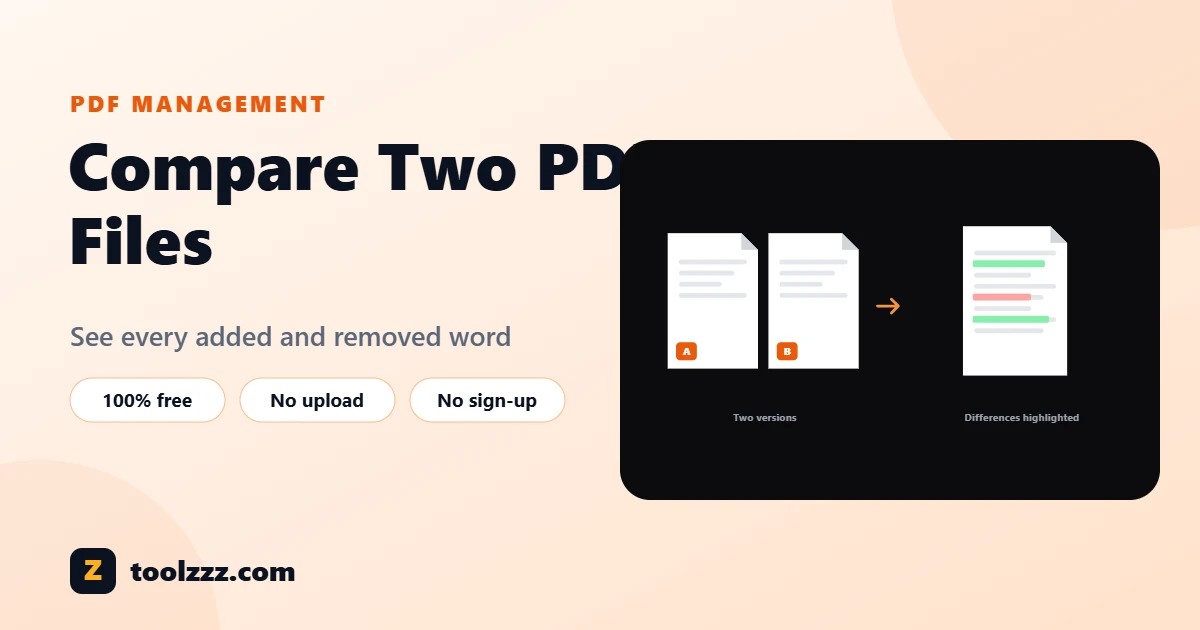
To compare two PDF files, upload the original and the new version to Toolzzz Compare PDF. Added words are highlighted in green and removed words in red, page by page. Switch to Visual overlay to spot layout and image changes, and download a comparison report. Both files are processed in your browser and never uploaded.
- Text + visual comparison
- Downloadable report
- 100% free, no sign-up
- Files never uploaded
- No file size limit
- Windows, Mac, iPhone & Android
- No watermark
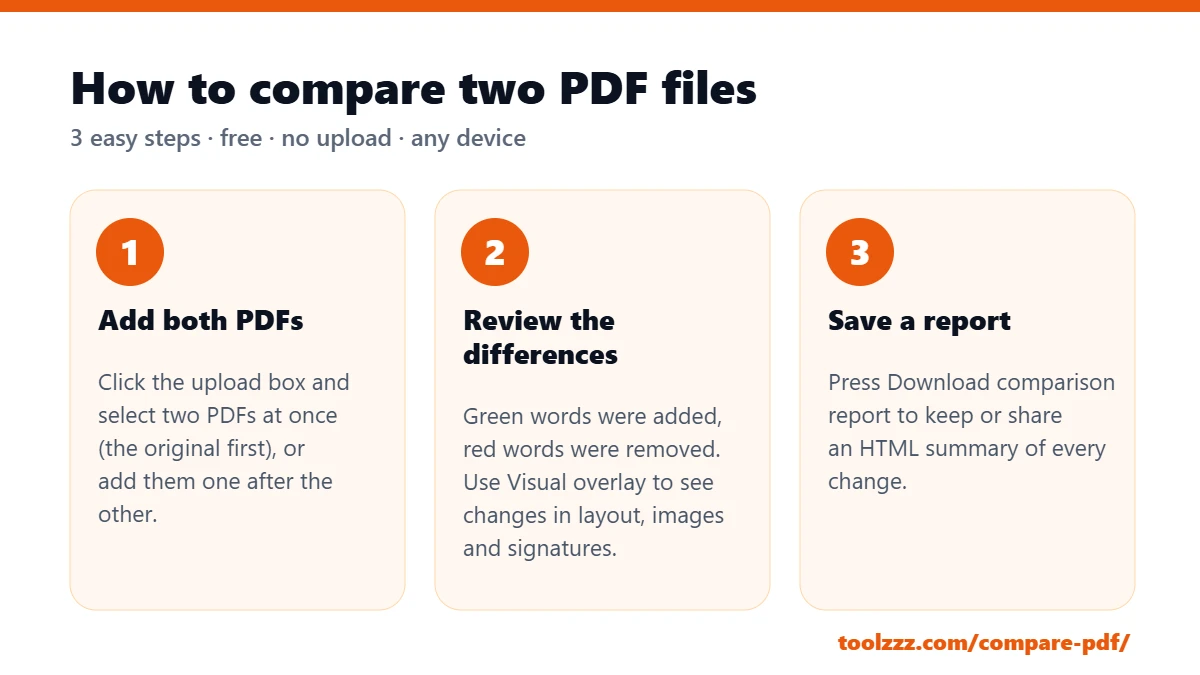
How to compare two PDF files
Find out exactly what changed between two versions of a contract, report or design, without reading both line by line.
Add both PDFs
Click the upload box and select two PDFs at once (the original first), or add them one after the other.
Review the differences
Green words were added, red words were removed. Use Visual overlay to see changes in layout, images and signatures.
Save a report
Press Download comparison report to keep or share an HTML summary of every change.
Watch: compare two versions of a PDF
When to compare PDFs
Contract revisions
See what the other party changed in a contract before you sign the new version.
Legal and policy updates
Check updated terms, policies or regulations against the previous version.
Academic and editorial work
Track edits between drafts of a thesis, article or book chapter.
Design and print proofs
Use the visual overlay to catch moved logos, changed colours or missing images in proofs.
Invoices and quotes
Compare an updated quote or invoice with the original to find changed prices or items.
Verify a document
Confirm a returned document is the same as the one you sent.
Text differences vs. visual overlay
| Mode | Finds | Best for |
|---|---|---|
| Text differences | Every added or removed word, even if the layout moved | Contracts, reports, policies |
| Visual overlay | Changes in images, logos, layout, signatures and scans | Design proofs, forms, scanned documents |
Good to know
- Pages are compared in order. Page 1 is compared with page 1, page 2 with page 2, and so on. If a page was inserted, later pages may show many changes. Use the text view, which compares the words.
- Scanned PDFs have no text. Use Visual overlay, or run OCR PDF on both files first.
- Spacing changes are ignored. The text comparison looks at words, so extra spaces and line breaks do not count as changes.
How to compare two PDF files on Windows, Mac, iPhone and Android
No app to install. The tool works in any modern browser, so the steps are almost the same everywhere.
On Windows
- Open toolzzz.com/compare-pdf/ in Chrome, Edge or Firefox.
- Drag your PDF from File Explorer onto the upload box.
- Choose both PDFs, review the highlighted differences, then press Download comparison report.
- The new PDF is saved to your Downloads folder.
On Mac
- Open the page in Safari, Chrome or Firefox.
- Drag the PDF from Finder onto the upload box.
- Choose both PDFs, review the highlighted differences, then press Download comparison report.
- Find the new file in Downloads.
On iPhone and iPad
- Open the page in Safari.
- Tap the upload box, then Browse to pick the PDF from the Files app.
- Choose both PDFs, review the highlighted differences, then press Download comparison report.
- Tap Download and find the file in Files → Downloads.
On Android
- Open the page in Chrome.
- Tap the upload box and pick the PDF from Files or Downloads.
- Choose both PDFs, review the highlighted differences, then press Download comparison report.
- The new PDF is saved in your Downloads folder.
Toolzzz vs. typical online PDF tools
| Feature | Toolzzz Compare PDF | Typical online PDF tools |
|---|---|---|
| Your file is uploaded to a server | Never. It is processed in your browser | Usually |
| File size and page limits | None, only your device memory | Often 10 to 100 MB, or a few files per day |
| Watermark on the result | Never | Sometimes on free plans |
| Account or e-mail needed | No | Often for larger files |
| Text and visual comparison in one tool | Yes | Often only one, or a paid feature |
| Downloadable comparison report | Yes, HTML | Sometimes |
| Confidential contracts uploaded to a server | Never | Usually |
| Price | Free | Free with limits, or a paid plan |
"Typical" describes common limits of free online PDF services. Plans and limits differ between sites.
Compare documents without sharing them
Never uploaded
Contracts and drafts are compared on your device. Nothing is sent anywhere.
Word-level differences
See exactly which words were added and removed on each page.
Visual overlay
Coloured overlay shows added, removed and changed areas on the page.
Comparison report
Download a clean HTML report you can keep or send.
Swap in one click
Switch original and new version to read the changes the other way round.
Free, no limits
No sign-up, no page limit and no watermark.
Key terms explained
- Diff
- A list of differences between two versions of a text, usually shown as added and removed parts.
- Redline
- A legal term for a document that shows changes, traditionally with additions underlined and deletions struck through.
- Visual overlay
- Placing two page images on top of each other so differences in pixels stand out in colour.
Frequently asked questions
How do I compare two PDF files?
Upload both PDFs (original first). Added words appear in green and removed words in red, page by page.
Can I compare PDFs for free online?
Yes. Toolzzz Compare PDF is free, with no sign-up and no page limit.
How do I see changes in images or layout?
Switch to Visual overlay. Green shows added content, red removed content and orange changed areas.
Can I compare scanned PDFs?
Use Visual overlay for scans. To compare their text, run OCR PDF on both files first.
Can I save the result?
Yes. Press Download comparison report to save an HTML file with all differences highlighted.
Why does almost every page show changes?
If pages were added or removed, the following pages shift. Look at the text view, which compares the words of each page.
Is this like a legal redline?
It is similar: it shows insertions and deletions between two versions. Always review important contracts carefully yourself.
Are my files uploaded?
No. Both PDFs are compared in your browser, on your own device.