
Convert an image to SVG in seconds
To convert an image to SVG, drop a PNG or JPG into Toolzzz Image to SVG, pick a preset (Logo, Illustration, Photo or Black & white), fine-tune Colors, Detail and Smoothing, compare with the before/after slider, and press Download SVG or Copy SVG code. Tracing runs in your browser with no upload.
- Real vector tracing
- 4 presets
- 2 to 64 colors
- Remove white background
- Copy SVG code
- 100% free, no sign-up
- No upload
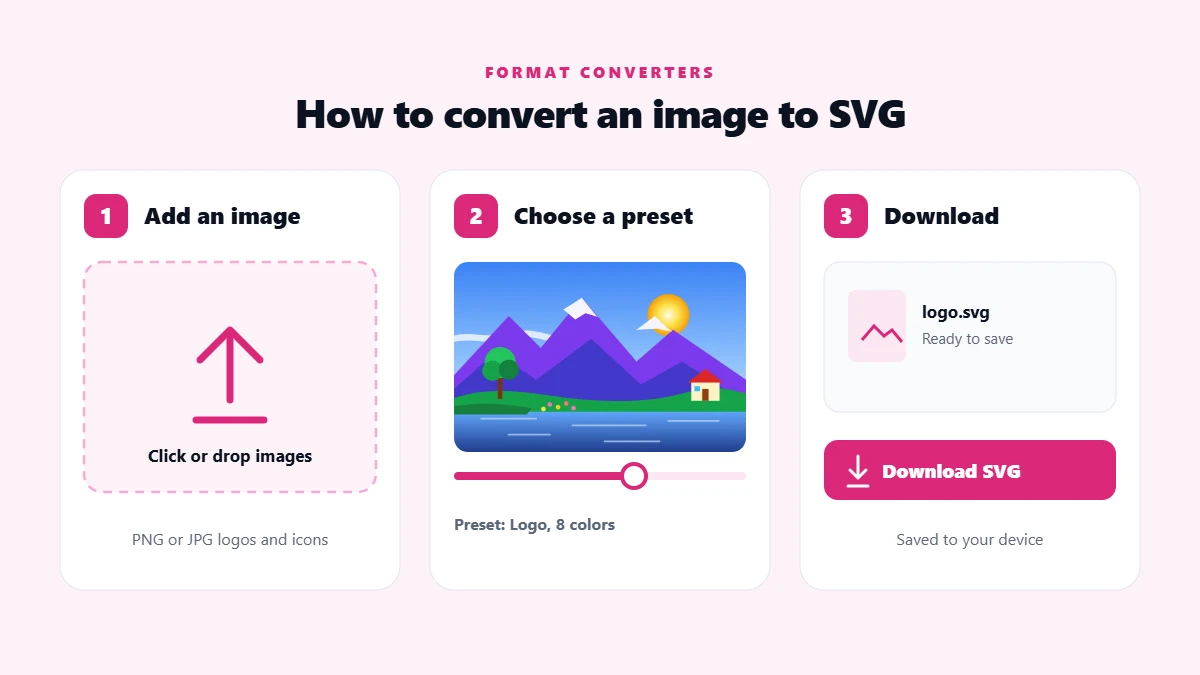
How to convert an image to SVG
Vectorizing (also called image tracing) analyzes the colored areas of a raster image and redraws them as smooth vector paths. The result is an SVG that stays sharp at any size, ideal for logos, icons, cutting machines and printing.
Add an image
Click the upload box or drop a PNG, JPG or WebP. Logos, icons and flat illustrations give the cleanest results.
Choose a preset
Logo uses 8 colors, Illustration 16, Photo 32, and Black & white makes a single-color vector. Adjust Colors and Detail if needed.
Download
Compare with the slider, then press Download SVG or Copy SVG code.
Watch: convert a PNG logo to SVG vector
Popular reasons to convert images to SVG
Recreate a logo
Turn an old PNG or JPG logo into a vector for signs, shirts and large prints.
Cricut and laser cutting
Black & white SVGs work with Cricut, Silhouette, laser cutters and vinyl plotters.
Sharp website icons
SVG icons look crisp on every screen and are often smaller than PNGs.
Large-format printing
Banners and billboards need vectors that scale without blur.
Merchandise
Embroidery and screen printing shops ask for vector artwork.
Illustration style
The Photo preset creates a posterized, illustrated look from photos.
Which preset should I use?
| Preset | Settings | Best for |
|---|---|---|
| Logo | 8 colors, detail 6 | Logos and flat icons |
| Illustration | 16 colors, detail 7 | Cartoons, clip art, drawings |
| Photo | 32 colors, detail 8, smoothing 1 | Artistic posterized photos |
| Black & white | 2 colors, white removed | Cricut, stencils, laser engraving, signatures |
More colors and detail give a more faithful SVG but a larger file with more paths.
How to get a clean vector
- Start with the largest, sharpest version of your image. Blurry or tiny images trace poorly.
- Crop away extra space first with Crop Image.
- Use the fewest colors that still look right; your logo probably uses 2 to 6.
- Turn on Remove white background to get a transparent SVG.
- Raise Smoothing for photos and noisy scans to avoid tiny specks.
The tracer is based on the open-source ImageTracer algorithm and runs entirely in your browser. Results are excellent for flat graphics; photos become stylized art rather than exact copies.
How to convert an image to SVG on Windows, Mac, iPhone and Android
No app to install. The tool works in any modern browser, so the steps are almost the same everywhere.
On Windows
- Open toolzzz.com/image-to-svg/ in Chrome, Edge or Firefox.
- Drag your image from File Explorer onto the upload box.
- Pick a preset such as Logo and adjust colors and detail, then press Download SVG.
- The new file is saved to your Downloads folder.
On Mac
- Open toolzzz.com/image-to-svg/ in Safari or Chrome.
- Drag the image from Finder or the Photos app onto the upload box.
- Pick a preset such as Logo and adjust colors and detail, then press Download SVG.
- Find the result in Downloads (Safari asks first if set to).
On iPhone and iPad
- Open toolzzz.com/image-to-svg/ in Safari.
- Tap the upload box and choose Photo Library, Take Photo or Choose File.
- Pick a preset such as Logo and adjust colors and detail, then tap Download SVG.
- Tap Download, then open it from the Files app and choose Save Image to add it to Photos.
On Android
- Open toolzzz.com/image-to-svg/ in Chrome.
- Tap the upload box and pick the image from your Gallery, Files or camera.
- Pick a preset such as Logo and adjust colors and detail, then tap Download SVG.
- The image appears in your Downloads folder and in Google Photos under Downloads.
Toolzzz vs. typical online vectorizers
| Feature | Toolzzz Image to SVG | Typical online vectorizers |
|---|---|---|
| Your image is uploaded to a server | Never. Traced in your browser | Usually |
| Presets and color control | 4 presets, 2 to 64 colors | Often one mode |
| Remove white background | Yes | Rare |
| Before/after comparison | Yes, slider | Rare |
| Copy SVG code | Yes | Rare |
| Free SVG download | Yes, unlimited | Often paid or watermarked |
| Sign-up required | No | Common |
"Typical" describes common limits of free online services. Plans and limits differ between sites.
A free vectorizer with real control
True vector paths
Every color area becomes a smooth SVG path that scales to any size.
Colors, detail, smoothing
Three sliders and a trace size control give you full control.
Before and after
Compare the SVG with the original pixel by pixel.
Transparent background
Drop near-white areas for a clean transparent SVG.
Copy SVG code
Paste the SVG straight into HTML, Figma or a code editor.
Private
Your artwork never leaves your device.
Key terms explained
- Vectorize
- To convert a pixel image into vector shapes defined by paths and curves.
- Path
- An SVG element that describes a shape with lines and curves.
- Posterize
- To reduce an image to a few flat color areas, the first step of color tracing.
Frequently asked questions
How do I convert a PNG to SVG for free?
Drop the PNG on this page, choose the Logo preset and press Download SVG. No sign-up and no watermark.
Will my logo be a true vector?
Yes. The SVG contains real vector paths, not an embedded PNG.
How do I make an SVG for Cricut?
Choose the Black & white preset with Remove white background, then download the SVG.
Why does my photo look posterized?
Tracing reduces images to flat color areas. Raise Colors and Detail for more realism; photos are better kept as JPG.
Can I get a transparent background?
Yes. Turn on Remove white background.
Why is my SVG file large?
Many colors and high detail create many paths. Lower Colors, Detail or Trace size.
Can I edit the SVG later?
Yes. Open it in Illustrator, Inkscape, Figma or any vector editor.
Are my images uploaded?
No. Tracing happens in your browser.