
Convert JPG to WebP in seconds
To convert JPG to WebP, drop your JPG or PNG images into Toolzzz JPG to WebP, set the Quality (80% is a great default for websites), optionally limit the size to 1920 px, and press Download WEBP. WebP files are usually 25 to 35% smaller than JPGs, which makes pages load faster. Works in Chrome, Edge and Firefox with no upload.
- 25 to 35% smaller files
- Quality 10 to 100%
- PNG transparency kept
- Resize for the web
- Batch convert + ZIP
- 100% free, no sign-up
- No watermark
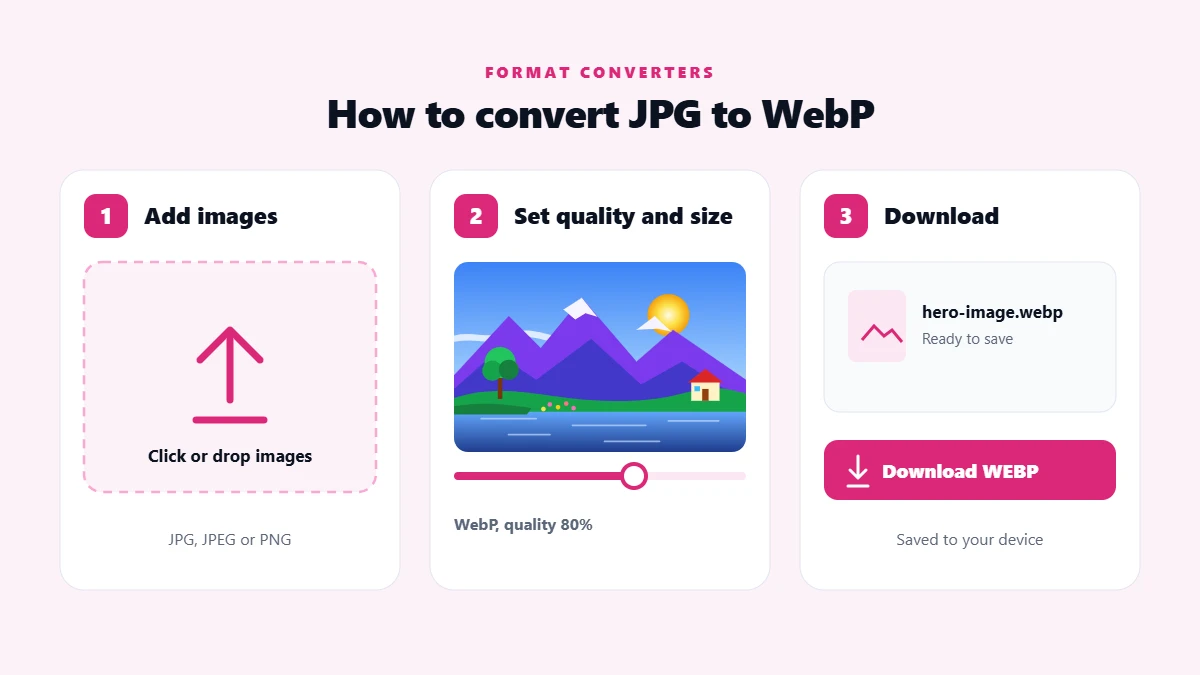
How to convert JPG to WebP
WebP is the image format recommended by Google PageSpeed Insights. Converting your JPG and PNG images to WebP reduces page weight, improves Largest Contentful Paint (LCP) and helps your site rank and convert better.
Add images
Click the upload box or drop JPG, JPEG or PNG files.
Set quality and size
Use 75 to 85% quality for web photos. Choose 1920 px for full-width banners or 1280 px for blog images.
Download
Check the new sizes in the table and press Download WEBP or Download all as WEBP (ZIP).
Watch: convert images to WebP for a faster website
Popular reasons to convert images to WebP
Faster page speed
Smaller images improve PageSpeed scores and Core Web Vitals such as LCP.
WordPress and Shopify
Upload WebP images directly to keep your media library light and fast.
Mobile visitors
Lighter pages load faster on mobile data and save visitors' bandwidth.
Product galleries
Large product galleries load much faster with WebP.
Email and docs
Smaller images keep newsletters and documents under size limits.
Transparent graphics
WebP keeps PNG transparency at a fraction of the file size.
Recommended WebP settings
| Use | Quality | Max size |
|---|---|---|
| Full-width hero banner | 75 to 82% | 1920 px |
| Blog and article images | 75 to 80% | 1280 px |
| Product photos | 82 to 90% | 2048 px |
| Thumbnails | 70 to 75% | 512 px |
| Logos with transparency (from PNG) | 90 to 100% | Keep original |
Can every browser create WebP?
Every modern browser can display WebP. To create WebP files, this tool uses your browser's built-in encoder, which is available in Chrome, Edge, Firefox, Opera and Samsung Internet. Safari on iPhone and Mac cannot encode WebP yet, so the tool shows a clear message there; use Chrome on those devices, or use Compress JPEG instead.
How to convert JPG to WebP on Windows, Mac, iPhone and Android
No app to install. The tool works in any modern browser, so the steps are almost the same everywhere.
On Windows
- Open toolzzz.com/jpg-to-webp/ in Chrome, Edge or Firefox.
- Drag your images from File Explorer onto the upload box.
- Set the Quality (75 to 85% for websites), then press Download WEBP.
- The new file is saved to your Downloads folder.
On Mac
- Open toolzzz.com/jpg-to-webp/ in Safari or Chrome.
- Drag the images from Finder or the Photos app onto the upload box.
- Set the Quality (75 to 85% for websites), then press Download WEBP.
- Find the result in Downloads (Safari asks first if set to).
On iPhone and iPad
- Open toolzzz.com/jpg-to-webp/ in Safari.
- Tap the upload box and choose Photo Library, Take Photo or Choose File.
- Set the Quality (75 to 85% for websites), then tap Download WEBP.
- Tap Download, then open it from the Files app and choose Save Image to add it to Photos.
On Android
- Open toolzzz.com/jpg-to-webp/ in Chrome.
- Tap the upload box and pick the images from your Gallery, Files or camera.
- Set the Quality (75 to 85% for websites), then tap Download WEBP.
- The image appears in your Downloads folder and in Google Photos under Downloads.
Toolzzz vs. typical online converters
| Feature | Toolzzz JPG to WebP | Typical online converters |
|---|---|---|
| Your files are uploaded to a server | Never. Converted in your browser | Usually |
| Quality control | 10 to 100% | Often fixed |
| Resize for the web | Yes, presets up to 4096 px | Rare |
| PNG transparency kept | Yes | Sometimes |
| See size savings per file | Yes | Rare |
| Batch conversion + ZIP | Unlimited | Often limited |
| Watermark or sign-up | None | Common |
"Typical" describes common limits of free online services. Plans and limits differ between sites.
A WebP converter built for web performance
Smaller pages
Typical savings of 25 to 35% over JPG, and far more over PNG.
Quality slider
Fine-tune the balance between sharpness and size.
Web sizes
One-click maximum sizes for banners, blogs and thumbnails.
Transparency kept
PNG logos and icons stay transparent in WebP.
Batch + ZIP
Convert an entire media library in one go.
Private
Images never leave your device.
Key terms explained
- WebP
- A modern image format with better compression than JPG and PNG, supported by all major browsers.
- LCP
- Largest Contentful Paint, a Core Web Vitals metric often dominated by the main image on a page.
- Lossy WebP
- WebP that discards some detail to reach small sizes, similar to JPG but more efficient.
Frequently asked questions
How do I convert JPG to WebP for free?
Drop the JPG on this page, choose a quality and press Download WEBP. No sign-up and no watermark.
What quality should I use for WebP?
75 to 85% for most website photos. Use 90% or more for product photos and graphics.
Is WebP better than JPG?
For websites, yes: WebP is smaller at the same quality and supports transparency. For printing and sharing, JPG is more compatible.
Can I convert PNG to WebP too?
Yes. PNG files are accepted and their transparency is preserved.
Why doesn't it work in Safari?
Safari cannot create WebP files yet. Use Chrome, Edge or Firefox to convert.
Can I convert many images at once?
Yes. Add them all and press Download all as WEBP (ZIP).
Does WordPress support WebP?
Yes. WordPress 5.8 and newer accept WebP uploads.
Are my images uploaded?
No. Everything happens in your browser.