
Brighten a dark photo in seconds
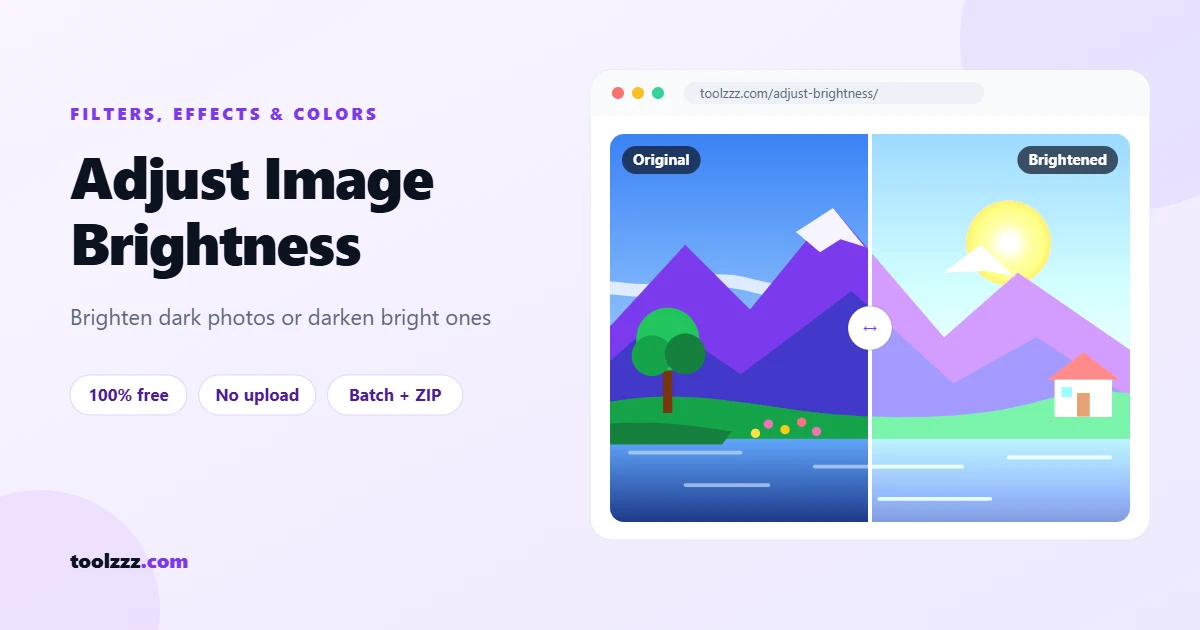
To change the brightness of an image, drop it into Toolzzz Adjust Brightness, press Auto brightness or move the Brightness slider (from -100 to +100), and use Midtones (gamma) to lift shadows without washing out highlights. Then press Download image. Photos are edited in your browser and never uploaded.
- Brightness -100 to +100
- Midtone (gamma) control
- One-click Auto brightness
- 4 presets
- Batch + ZIP
- 100% free, no sign-up
- No watermark
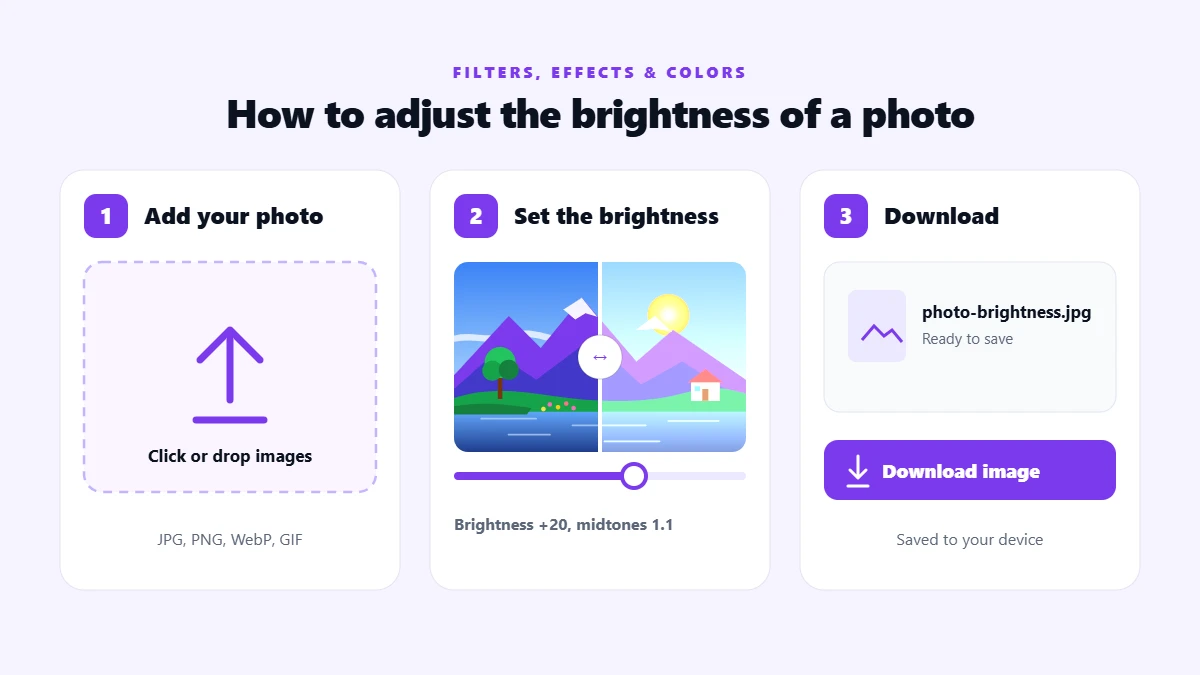
How to adjust the brightness of a photo
Brightness controls how light or dark an image looks. Underexposed photos from dim rooms, backlit portraits and night shots often need a boost, while overexposed images can be calmed down.
Add your photo
Click the upload box or drop JPG, PNG or WebP photos. Several at once are fine.
Set the brightness
Press Auto brightness for a quick fix, or drag Brightness. Use Midtones (gamma) to lighten shadows while keeping highlights.
Download
Check with the before/after slider and press Download image or Download all (ZIP).
Watch: brighten a dark photo online
Popular reasons to adjust brightness
Underexposed photos
Rescue pictures taken indoors, at dusk or with a backlit subject that came out too dark.
Backlit portraits
Lift the midtones to reveal faces against a bright window or sky.
Scans and documents
Brighten gray, shadowy document photos so the paper looks white again.
Product listings
Bright, evenly lit product photos look cleaner and convert better on marketplaces.
Website images
Darken a background photo so white headline text stays readable.
Before printing
Prints often look darker than screens. A small brightness boost compensates.
Brightness vs. midtones (gamma)
| Control | What it changes | Use it when |
|---|---|---|
| Brightness | Adds or removes the same amount of light everywhere, from shadows to highlights | The whole image is too dark or too bright |
| Midtones (gamma) | Lightens or darkens middle tones while keeping pure black and white | Shadows are too dark but the sky is already bright |
| Auto brightness | Measures the average luminance and sets brightness to reach a balanced level | You want a quick, one-click fix |
A gamma above 1.0 brightens midtones, below 1.0 darkens them. Most dark phone photos look best with brightness +10 to +25 and gamma 1.2 to 1.5.
Does your photo need brightness or contrast?
If the whole image looks too dark or too light, adjust brightness. If it looks gray, flat or foggy, with no deep blacks or clean whites, it needs contrast instead: use Adjust Contrast. Many photos benefit from a small change to both, done in that order: brightness first, then contrast.
How to adjust the brightness of a photo on Windows, Mac, iPhone and Android
No app to install. The tool works in any modern browser, so the steps are almost the same everywhere.
On Windows
- Open toolzzz.com/adjust-brightness/ in Chrome, Edge or Firefox.
- Drag your photo from File Explorer onto the upload box.
- Move the Brightness slider or press Auto brightness, then press Download image.
- The new file is saved to your Downloads folder.
On Mac
- Open toolzzz.com/adjust-brightness/ in Safari or Chrome.
- Drag the photo from Finder or the Photos app onto the upload box.
- Move the Brightness slider or press Auto brightness, then press Download image.
- Find the result in Downloads (Safari asks first if set to).
On iPhone and iPad
- Open toolzzz.com/adjust-brightness/ in Safari.
- Tap the upload box and choose Photo Library, Take Photo or Choose File.
- Move the Brightness slider or press Auto brightness, then tap Download image.
- Tap Download, then open it from the Files app and choose Save Image to add it to Photos.
On Android
- Open toolzzz.com/adjust-brightness/ in Chrome.
- Tap the upload box and pick the photo from your Gallery, Files or camera.
- Move the Brightness slider or press Auto brightness, then tap Download image.
- The image appears in your Downloads folder and in Google Photos under Downloads.
Toolzzz vs. typical online photo editors
| Feature | Toolzzz Adjust Brightness | Typical online editors |
|---|---|---|
| Your photo is uploaded to a server | Never. It is processed in your browser | Usually |
| Separate midtone (gamma) control | Yes | Rare |
| Auto brightness | Yes, one click | Sometimes |
| Before/after slider | Yes | Rare |
| Batch processing + ZIP | Yes | Often paid |
| Full resolution output | Yes | Often reduced on free plans |
| Watermark or sign-up | None | Common |
"Typical" describes common limits of free online services. Plans and limits differ between sites.
Brightness control that protects your highlights
Brightness + gamma
Two controls let you brighten shadows without blowing out skies and white clothes.
Auto brightness
One click analyzes the photo and sets a balanced brightness.
Before and after
Compare the edit with the original by dragging across the photo.
Batch + ZIP
Fix a whole set of dark event or holiday photos at once.
Full quality
The original resolution is kept, and PNG output is lossless.
Private
Photos are edited on your device and never uploaded.
Tips for the best result
- Start with Auto brightness, then fine-tune with the sliders.
- If the sky turns pure white, lower Brightness and raise Midtones instead.
- Very dark night photos may show noise after brightening. A light blur can hide it.
- Follow up with Adjust Contrast if the brighter photo looks flat.
- For screenshots and text, save as PNG for the sharpest result.
Key terms explained
- Brightness
- The overall lightness of an image. Raising it shifts every pixel toward white.
- Gamma
- A curve that lightens or darkens midtones while keeping the darkest and brightest points in place.
- Exposure
- How much light reached the camera sensor. Underexposed photos are too dark, overexposed ones too bright.
Frequently asked questions
How do I brighten a dark photo for free?
Upload it on this page and press Auto brightness, or move the Brightness slider to the right. Then press Download image.
How do I make a picture darker?
Move Brightness to the left or choose the Darken preset. Lowering Midtones below 1.0 darkens the middle tones only.
What is the difference between brightness and gamma?
Brightness shifts all tones equally. Gamma mainly changes the midtones and keeps pure black and white unchanged.
Will brightening reduce image quality?
The resolution stays the same. Very strong brightening can reveal noise in dark areas, so use Midtones for a cleaner result.
Can I brighten many photos at once?
Yes. Add several photos and press Download all (ZIP). All use the same settings.
Can I adjust brightness on my phone?
Yes. The tool works in Safari on iPhone and in Chrome on Android.
Does it keep transparent backgrounds?
Yes. PNG and WebP transparency is preserved. Save as PNG or WebP to keep it.
Are my photos uploaded?
No. All edits happen in your browser. Toolzzz never receives your photos.