
Pixelate a picture in seconds
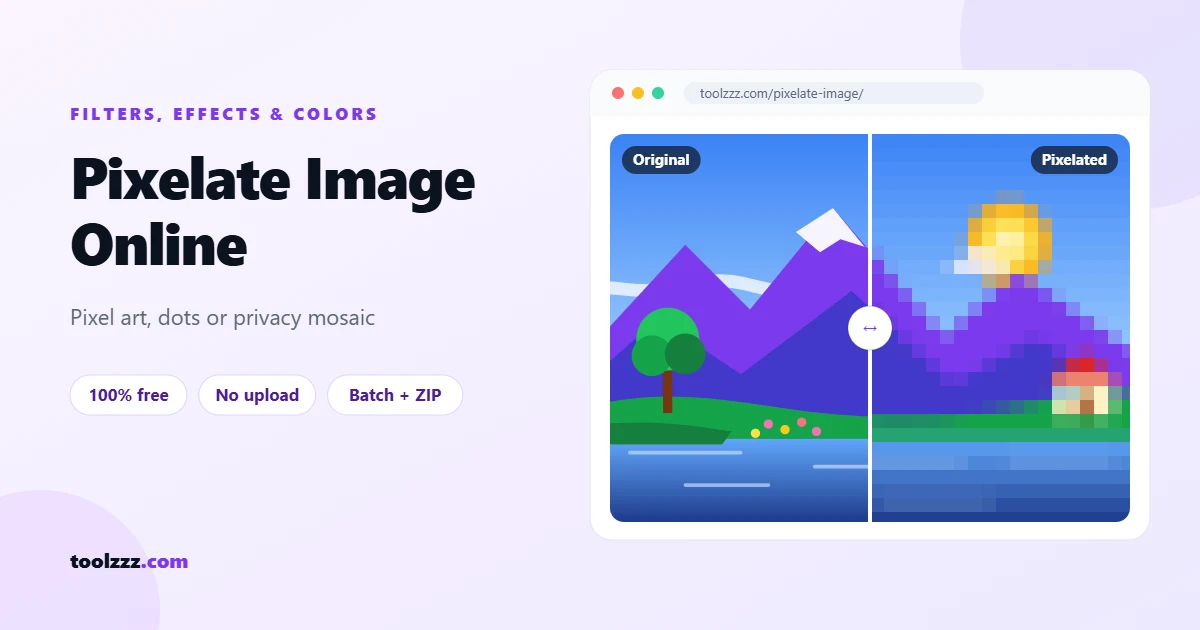
To pixelate an image, drop it into Toolzzz Pixelate Image, pick Light, Retro, Heavy or Privacy, or set the Pixel size from 2 to 100 px. Choose Squares for classic pixel art, Dots for a halftone look or Tiles for a mosaic, then press Download image. Everything runs in your browser.
- Pixel size 2 to 100 px
- Squares, dots or tiles
- White, black or transparent gaps
- Batch + ZIP
- Full resolution
- 100% free, no sign-up
- No watermark
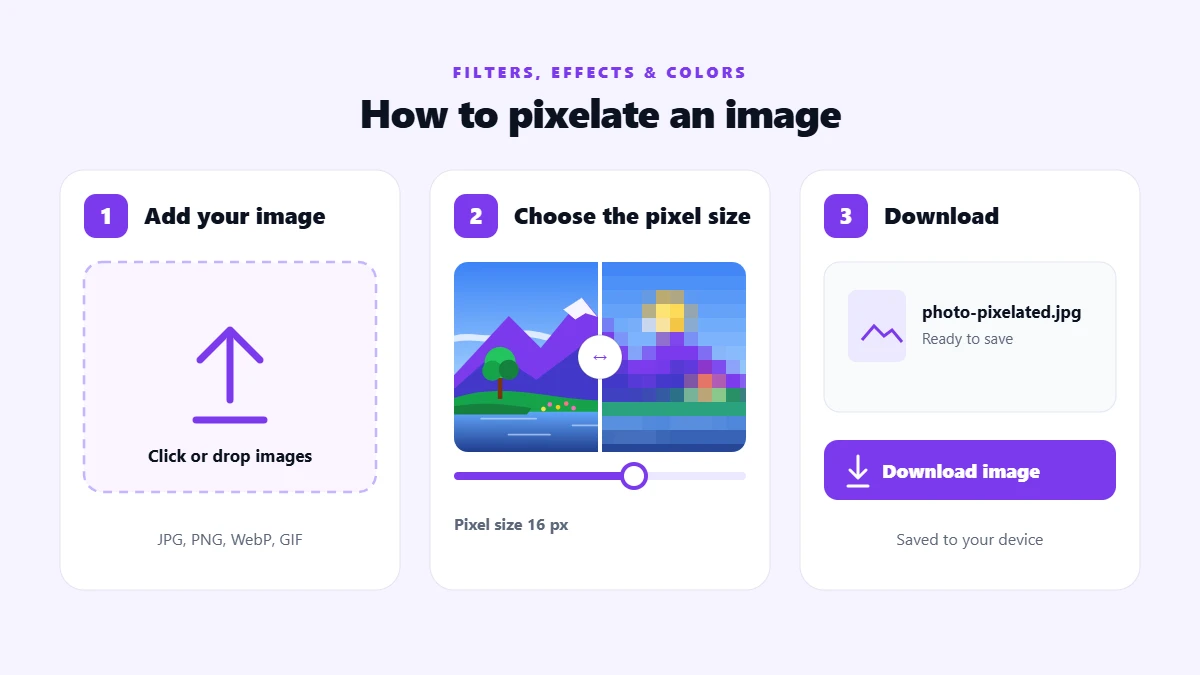
How to pixelate an image
Pixelation divides a picture into a grid of blocks and fills each block with the average color of the pixels inside it. Large blocks hide detail; small blocks give a retro 8-bit look.
Add your image
Click the upload box or drop JPG, PNG, WebP or GIF images.
Choose the pixel size
Pick a preset or drag Pixel size. Change Shape to Dots or Tiles and choose the background color for the gaps.
Download
Check the result with the slider and press Download image or Download all (ZIP).
Watch: turn any photo into pixel art
Popular reasons to pixelate images
Retro pixel art
Give photos an 8-bit or 16-bit video game look for avatars, posters and streams.
Hide private details
The Privacy preset turns faces, screens and documents into unreadable blocks.
Cross-stitch and mosaic patterns
Large tiles make great templates for cross-stitch, perler beads, LEGO mosaics and tile art.
Teasers and reveals
Post a pixelated image first and the sharp version later to build curiosity.
Halftone dot art
The Dots shape creates pop-art and LED-wall effects.
Creative backgrounds
Pixelated photos make bold, low-detail backgrounds for websites and slides.
Pixel size, shape and background
| Setting | Effect | Tip |
|---|---|---|
| Pixel size | Width of each block in pixels of the original image | 8 to 16 px for pixel art, 32+ px for privacy |
| Squares | Classic solid blocks | Most popular look |
| Dots | Round dots on a background | Pop-art, LED screens |
| Tiles | Blocks with thin grout lines | Mosaics, cross-stitch |
| Background | Color of the space around dots and tiles | Choose Transparent and save as PNG for overlays |
Is pixelation safe for hiding information?
Strong pixelation is a common way to hide faces and text, but very small blocks can sometimes be partly reversed, especially on printed text. For sensitive data, use a large pixel size (the Privacy preset or more) so that each block covers whole letters or facial features.
To pixelate only one area, such as a single face or a license plate, use Censor Image, which lets you draw boxes exactly where you need them. Pixelate Image is designed for applying the effect to the whole picture.
How to pixelate an image on Windows, Mac, iPhone and Android
No app to install. The tool works in any modern browser, so the steps are almost the same everywhere.
On Windows
- Open toolzzz.com/pixelate-image/ in Chrome, Edge or Firefox.
- Drag your image from File Explorer onto the upload box.
- Pick a preset such as Retro or set the Pixel size, then press Download image.
- The new file is saved to your Downloads folder.
On Mac
- Open toolzzz.com/pixelate-image/ in Safari or Chrome.
- Drag the image from Finder or the Photos app onto the upload box.
- Pick a preset such as Retro or set the Pixel size, then press Download image.
- Find the result in Downloads (Safari asks first if set to).
On iPhone and iPad
- Open toolzzz.com/pixelate-image/ in Safari.
- Tap the upload box and choose Photo Library, Take Photo or Choose File.
- Pick a preset such as Retro or set the Pixel size, then tap Download image.
- Tap Download, then open it from the Files app and choose Save Image to add it to Photos.
On Android
- Open toolzzz.com/pixelate-image/ in Chrome.
- Tap the upload box and pick the image from your Gallery, Files or camera.
- Pick a preset such as Retro or set the Pixel size, then tap Download image.
- The image appears in your Downloads folder and in Google Photos under Downloads.
Toolzzz vs. typical online photo editors
| Feature | Toolzzz Pixelate Image | Typical online editors |
|---|---|---|
| Your image is uploaded to a server | Never. It is processed in your browser | Usually |
| Shapes | Squares, dots and tiles | Squares only |
| Transparent background option | Yes | Rare |
| Before/after slider | Yes | Rare |
| Batch processing + ZIP | Yes | Often paid |
| Full resolution output | Yes | Often reduced on free plans |
| Watermark or sign-up | None | Common |
"Typical" describes common limits of free online services. Plans and limits differ between sites.
Pixel effects with more creative options
Three shapes
Squares, round dots and grouted tiles from one tool.
Exact pixel size
Set the block size in real pixels of your original image, from 2 to 100.
Before and after
Compare the pixelated result with the original instantly.
Batch + ZIP
Pixelate a whole set of images at the same block size.
Transparent gaps
Dots and tiles can sit on a transparent background for overlays and stickers.
Private
Pixelation runs on your device. Your image is never uploaded.
Tips for the best result
- For crisp pixel art, save as PNG. JPG compression blurs the block edges.
- Crop the photo to a square first with Crop Image for avatar-style pixel art.
- For a mosaic pattern, use Tiles with a black background.
- For privacy, choose a pixel size of at least 1/20 of the face or text height.
- Resize a pixel-art result without blur using nearest-neighbor scaling in an editor.
Key terms explained
- Pixelation
- An effect that replaces areas of an image with large single-color blocks.
- Mosaic
- A pattern made of small tiles with gaps between them.
- Halftone
- A technique that shows tones with dots of different sizes or colors, as in newspaper printing.
Frequently asked questions
How do I pixelate an image for free?
Upload the image here, pick the Retro preset and press Download image. No sign-up, no watermark.
How do I pixelate only a face or part of a photo?
Use Censor Image to pixelate a selected area. This tool pixelates the whole image.
What pixel size should I use?
8 to 16 px for pixel art, 24 to 32 px for a strong effect, and 48 px or more to hide faces and text.
Can I make pixel art with a transparent background?
Yes. Choose Dots or Tiles, set Background to Transparent and the tool saves a PNG.
Can pixelation be undone?
Not from the pixelated file. Keep your original if you might need it later.
Can I pixelate many images at once?
Yes. Add several images and press Download all (ZIP).
Does it work on mobile?
Yes, in Safari on iPhone and Chrome on Android.
Are my images uploaded?
No. All processing is done in your browser.