
How do I convert CSV to SQL?
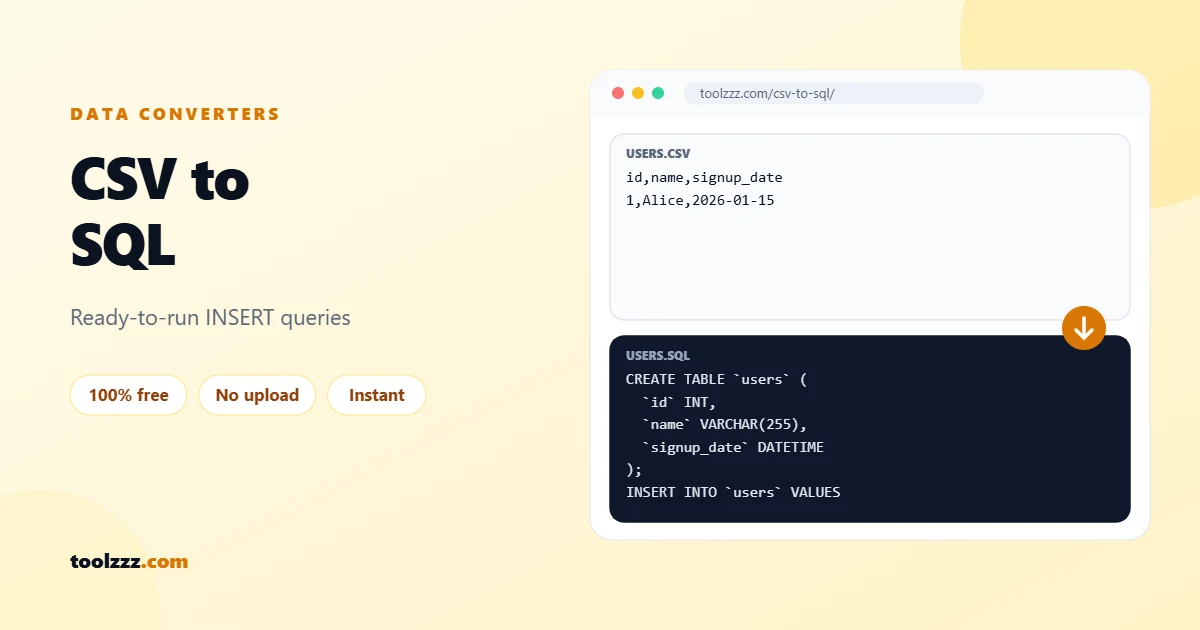
Paste your CSV with a header row. The Toolzzz CSV to SQL converter detects whether each column holds whole numbers, decimals, dates or text, writes a matching CREATE TABLE and creates INSERT statements in batches. Quotes are escaped and empty cells become NULL.
- MySQL, PostgreSQL, SQLite and SQL Server
- Detects INT, DECIMAL, DATE and text columns
- Optional CREATE TABLE statement
- Batched INSERTs: 1, 100 or all rows
- Escapes single quotes safely
- Empty cells become NULL
- Correct identifier quoting for each database
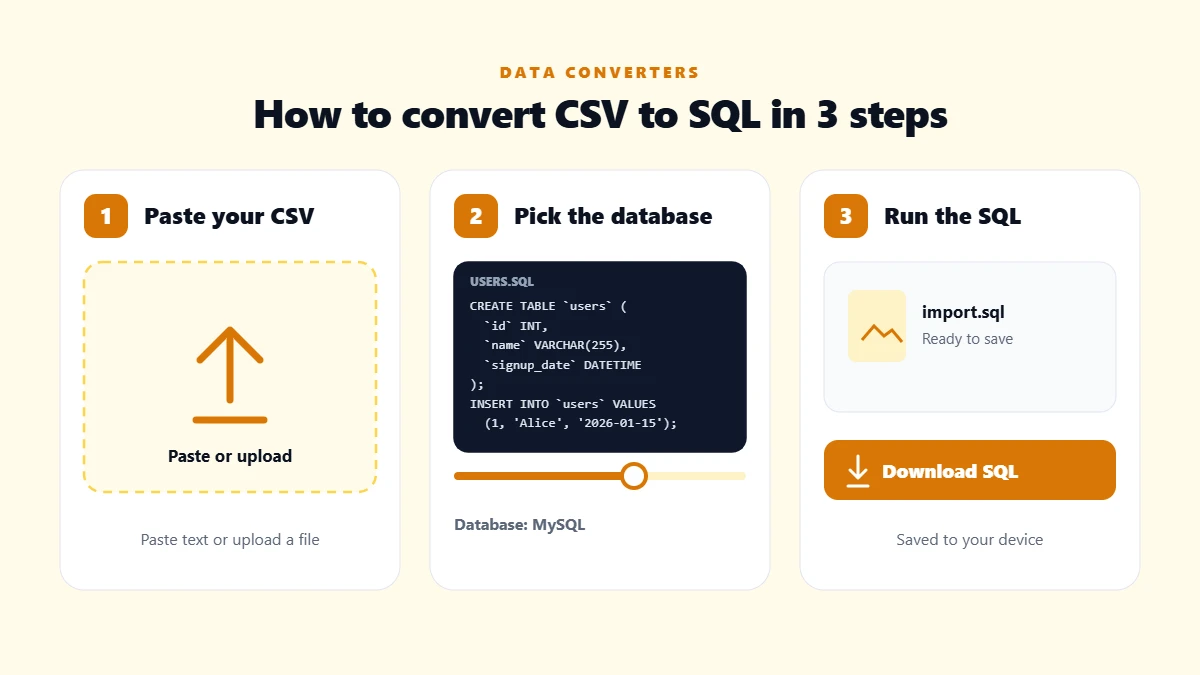
How to convert CSV to SQL in 3 steps
The SQL is rebuilt every time you edit the CSV or an option.
Paste your CSV
Paste it, including the header row, or press Upload.
Pick the database
Choose MySQL, PostgreSQL, SQLite or SQL Server, name the table and choose the INSERT style.
Run the SQL
Press Copy or Download a .sql file and run it in your database client.
Watch: how to use the free CSV to SQL
When to use CSV to SQL
Import spreadsheets
Load data from Excel or Google Sheets into a database.
Seed data
Create seed scripts for development and testing.
Quick migrations
Move small tables between systems without import wizards.
Lookup tables
Load countries, categories or price lists.
Review before import
Read the exact SQL before it touches your data.
Hosting panels
Run the script in phpMyAdmin or Adminer when uploads are limited.
How to use the CSV to SQL on Windows, Mac, iPhone and Android
No app to install. The tool works in any modern browser, so the steps are almost the same everywhere.
On Windows
- Open toolzzz.com/csv-to-sql/ in Chrome, Edge or Firefox.
- Paste (Ctrl+V) your CSV into the left box, or press Upload to open a file.
- Choose the database and table name.
- Press Copy to put the result on your clipboard, or Download SQL to save it. Files go to your Downloads folder.
On Mac
- Open toolzzz.com/csv-to-sql/ in Safari or Chrome.
- Paste (Cmd+V) your CSV into the left box, or press Upload to open a file.
- Choose the database and table name.
- Press Copy to put the result on your clipboard, or Download SQL to save it.
On iPhone and iPad
- Open toolzzz.com/csv-to-sql/ in Safari.
- Touch and hold the box, tap Paste to add your CSV into the left box, or tap Upload to open a file.
- Choose the database and table name.
- Tap Copy to put the result on your clipboard, or Download SQL to save it. Downloads appear in the Files app.
On Android
- Open toolzzz.com/csv-to-sql/ in Chrome.
- Long-tap the box and tap Paste to add your CSV into the left box, or press Upload to open a file.
- Choose the database and table name.
- Tap Copy to put the result on your clipboard, or Download SQL to save it. Downloads go to the Downloads folder.
Toolzzz vs. other online converters
| Feature | Toolzzz CSV to SQL | Typical online converters |
|---|---|---|
| Price | Free, no limits | Free tier, then paid plans |
| Where your data goes | Stays in your browser | Often uploaded to a server |
| Sign-up | Not needed | Sometimes needed to download |
| Speed | Converts as you type | Upload, wait, then download |
| Size limit | Only your device memory | Often 1 to 10 MB on free plans |
| Error messages | Line and column shown | Often just "invalid input" |
"Typical" describes common limits of free online services. Plans and limits differ between sites.
Why convert data with Toolzzz
Private by design
Your data is converted by JavaScript in this tab. Nothing is sent to Toolzzz or anyone else.
Instant results
The output updates while you type or paste. There is no queue and no waiting.
Clear errors
Invalid input is flagged with the reason and, where possible, the exact line and column.
Copy or download
Copy the result in one click or save it as a ready-to-use file.
Works everywhere
Windows, Mac, Linux, iPhone, iPad and Android. Any modern browser will do.
Free forever
No account, no limits, no watermark and no trial period.
Tips for the best result
- Check the detected types in the status line and adjust the CREATE TABLE if you need a different size or a primary key.
- Use 100 rows per INSERT for a good balance of speed and query size.
- For very large files, your database’s bulk loader (LOAD DATA, COPY) is faster.
- Column names with spaces are quoted correctly for your database.
- Test on a copy of your database first.
Key terms explained
- INSERT statement
- SQL that adds rows to a table: INSERT INTO table (columns) VALUES (...).
- Identifier quoting
- Wrapping table and column names in `backticks`, "double quotes" or [brackets] so any name is allowed.
- NULL
- A database value that means "no value", different from an empty string.
Frequently asked questions
Is CSV to SQL free?
Yes. It is free with no limits.
Is my data uploaded?
No. The SQL is generated in your browser.
Which databases are supported?
MySQL and MariaDB, PostgreSQL, SQLite and Microsoft SQL Server.
How are column types chosen?
Each column is checked: all whole numbers become INT, decimals become DECIMAL or NUMERIC, ISO dates become DATETIME, and anything else becomes text.
How are apostrophes handled?
Single quotes are doubled, so O'Brien is written as 'O''Brien'.
What happens to empty cells?
They are written as NULL.
Can I skip CREATE TABLE?
Yes. Untick Include CREATE TABLE to insert into an existing table.
Can I add a primary key?
Edit the CREATE TABLE line after copying, for example: id INT PRIMARY KEY.