
How do I extract email addresses from text?
Paste any text, such as an email thread, a web page or a document. The Toolzzz Email Extractor finds every address, removes duplicates and lists them one per line or separated by commas. You can lowercase, sort and keep only addresses from one domain.
- Finds every email address in any text
- Removes duplicates (case-insensitive)
- Lowercase and sort options
- Filter by domain (e.g. gmail.com)
- New line, comma or semicolon output
- Shows found and kept counts
- Works on pasted text and uploaded files
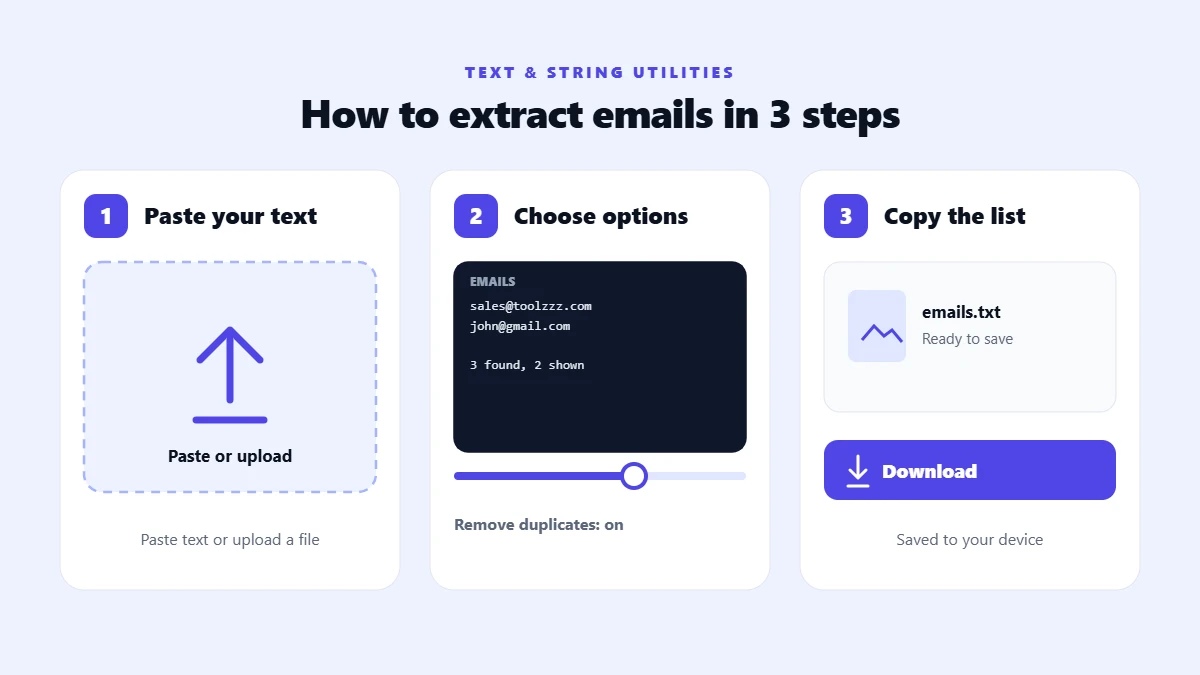
How to extract emails in 3 steps
Addresses are found as soon as you paste.
Paste your text
Paste anything that contains addresses, or press Upload to open a file.
Choose options
Remove duplicates, lowercase, sort, pick a separator or filter by domain.
Copy the list
Press Copy or Download.
Watch: how to use the free Extract Emails from Text
When to extract emails
Email threads
Collect everyone from a long CC chain.
Contact lists
Pull addresses from exported documents.
Sign-up sheets
Turn messy form exports into a clean list.
CRM cleanup
Find addresses in notes before importing.
Checking lists
Spot duplicates and typos.
Domain filters
Keep only company addresses for one domain.
How to use the Extract Emails from Text on Windows, Mac, iPhone and Android
No app to install. The tool works in any modern browser, so the steps are almost the same everywhere.
On Windows
- Open toolzzz.com/extract-emails-from-text/ in Chrome, Edge or Firefox.
- Paste (Ctrl+V) your text into the left box, or press Upload to open a file.
- Choose dedupe, sort and separator options.
- Press Copy to put the result on your clipboard, or Download to save it. Files go to your Downloads folder.
On Mac
- Open toolzzz.com/extract-emails-from-text/ in Safari or Chrome.
- Paste (Cmd+V) your text into the left box, or press Upload to open a file.
- Choose dedupe, sort and separator options.
- Press Copy to put the result on your clipboard, or Download to save it.
On iPhone and iPad
- Open toolzzz.com/extract-emails-from-text/ in Safari.
- Touch and hold the box, tap Paste to add your text into the left box, or tap Upload to open a file.
- Choose dedupe, sort and separator options.
- Tap Copy to put the result on your clipboard, or Download to save it. Downloads appear in the Files app.
On Android
- Open toolzzz.com/extract-emails-from-text/ in Chrome.
- Long-tap the box and tap Paste to add your text into the left box, or press Upload to open a file.
- Choose dedupe, sort and separator options.
- Tap Copy to put the result on your clipboard, or Download to save it. Downloads go to the Downloads folder.
Toolzzz vs. other online text tools
| Feature | Toolzzz Extract Emails from Text | Typical online text tools |
|---|---|---|
| Price | Free, no limits | Free with ads or word limits |
| Where your text goes | Stays in your browser | Often sent to a server |
| Sign-up | Not needed | Sometimes needed for long texts |
| Speed | Updates as you type | Often needs a button press |
| Text length | Only your device memory | Often capped on free plans |
| Unicode and emoji | Fully supported | Sometimes broken or miscounted |
"Typical" describes common limits of free online services. Plans and limits differ between sites.
Why use Toolzzz for text
Your text stays private
Everything runs in this browser tab. Your words are never uploaded, stored or logged.
Live results
The result updates as you type, paste or change an option.
Every language
Built on Unicode, so accented letters, Arabic, Urdu, Chinese and emoji all work.
Copy or download
Copy the result to the clipboard or save it as a .txt file.
Any device
Works the same on desktop, tablet and phone browsers.
Free forever
No account, no word limits and no paywall.
Tips for the best result
- Only email people who have agreed to hear from you. Anti-spam laws such as GDPR and CAN-SPAM apply.
- Use the domain filter to keep, for example, only addresses from your company.
- Lowercasing helps dedupe, since email domains are not case-sensitive.
- Paste a comma-separated result straight into the To field of your email app.
- Clean other lists with Remove Duplicate Lines.
Key terms explained
- Email address
- A local part, an @ sign and a domain, such as name@example.com.
- Domain
- The part after the @, such as gmail.com.
- Deduplication
- Removing repeated entries so each address appears once.
Frequently asked questions
Is the email extractor free?
Yes, free with no limits.
Is my text uploaded?
No. Extraction runs in your browser, so contact data stays private.
Does it remove duplicates?
Yes, when Remove duplicates is on. Matching ignores case.
Can I get a comma-separated list?
Yes. Choose Comma or Semicolon under Separate with.
Can I keep only one domain?
Yes. Type the domain, such as gmail.com, in the domain field.
Does it check that addresses exist?
No. It finds addresses that look valid. It does not contact any mail server.
Can I extract from a PDF or Word file?
Copy the text out of the file and paste it in.
Can it find obfuscated emails like "name at domain dot com"?
No. Only standard addresses with an @ are found.