

You saved a picture from a website and it came down as a .webp file. Your email client will not attach it, your old photo editor cannot open it, or the upload form on a job portal rejects it. The picture itself is fine. The format is the problem. WebP is the format most websites serve now, because it is smaller and loads faster, but plenty of software outside the browser still expects a JPG.
Short answer: To convert webp to jpg online free, open the Toolzzz WebP to JPG converter, drop in your WebP file, keep the quality at 90 percent, then press Download JPG. The conversion runs in your browser, so nothing is uploaded, and the JPG opens everywhere. This guide shows the steps and a real conversion with exact file sizes.
WebP was created by Google in 2010 to make web pages faster. A WebP file is typically 25 to 35 percent smaller than a JPG of the same quality, which is why sites like Google, YouTube, Shopify and WordPress serve WebP by default. Google’s own WebP documentation explains the format’s design, and the WebP article on Wikipedia covers its history and features. The smaller size is great for websites, but it turns into a chore the moment you need the picture somewhere else. That is the whole reason to convert.
How do I convert WebP to JPG online free?
The fastest way is a converter that works in the browser. There is no file to upload and nothing to install. These are the steps on the Toolzzz WebP to JPG converter, and the same steps work on most free converters.
- Open the converter. Go to the Toolzzz WebP to JPG page in any modern browser. It works on Windows, Mac, iPhone and Android with no app.
- Add your WebP files. Drag them into the upload box or click to browse. You can add one file or many at once.
- Set the quality. Leave it at the default of 90 percent unless you have a reason to change it. At 90 percent the JPG looks the same as the WebP to most eyes. Pick a background colour if your WebP has transparent areas, and set a maximum size if you want the picture resized at the same time.
- Download the JPG. Press Download JPG for one file, or Download all as JPG (ZIP) for a batch. The file saves to your Downloads folder.
- Check the result. Open the JPG and look at it at full size. Check the dimensions match the original and the picture looks right before you send it on.
That is the whole process. The tool asks for no email address, sets no trial clock, and puts no watermark on the picture. Everything runs in your browser, so the photo never leaves your device.
What happened when I converted a real WebP photo?
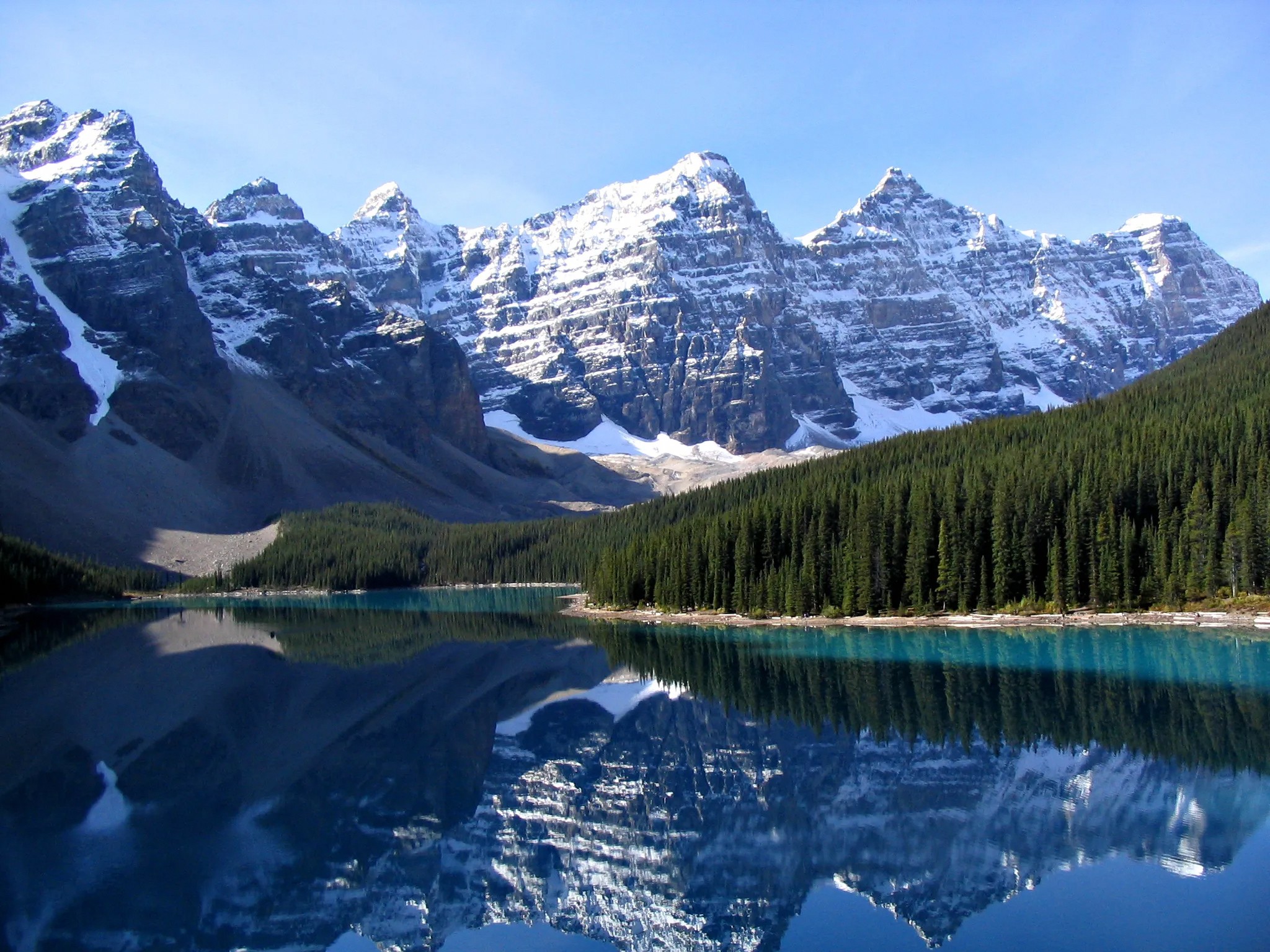
To write this guide, I converted a real photo on the Toolzzz tool and recorded exactly what came out. The source was a genuine photograph of Moraine Lake in Canada, saved as a WebP file at 2048 by 1536 pixels. I changed nothing except the format: quality stayed at the tool’s default of 90 percent, the background stayed white, and the size stayed original.
| Detail | Before (WebP) | After (JPG) |
|---|---|---|
| File name | worked-moraine.webp | worked-moraine.jpg |
| File size | 386,092 bytes (377 KB) | 720,959 bytes (721 KB) |
| Dimensions | 2048 by 1536 pixels | 2048 by 1536 pixels, unchanged |
| Quality setting | WebP quality 80 | JPG quality 90 |
| Time taken | Not applicable | Effectively instant, in the browser |
The JPG came out 86.7 percent larger than the WebP, 720,959 bytes against 386,092. That is normal, and it is the point most guides skip. WebP compresses better than JPG, so the same picture at the same visible quality takes more space as a JPG. You are not doing anything wrong. You are paying for universal compatibility with file size. The dimensions did not change, and the picture looks the same at normal viewing size. Here is the actual JPG that came out of the tool.
If the bigger file is a problem, that is a separate job, and it is covered near the end of this guide. Do not fix it by dropping the quality to a level that damages the picture.
What does the quality setting do to the file size?
The quality slider is the one control that matters most. It trades file size against visible detail, and the difference between settings is large. I converted the same Moraine Lake WebP three times on the Toolzzz tool, at 75, 90 and 100 percent, with nothing else changed. These are the real results.
| JPG quality | Output file size | What it is good for |
|---|---|---|
| 75 percent | 410,492 bytes (410 KB) | Small files for web pages and email attachments, where a little softness does not matter |
| 90 percent (default) | 720,959 bytes (721 KB) | General sharing, documents and presentations, the best balance for most people |
| 100 percent | 3,575,743 bytes (3.58 MB) | Archiving and print, where you want every bit of detail the WebP held |
The gap between settings is bigger than most people expect. The 75 percent file came out 43.1 percent smaller than the 90 percent file, while the 100 percent file came out 5 times larger than the 90 percent file, at 3,575,743 bytes for the same picture. Start at 90 percent and compare the result with the original. If you cannot see a difference, you are done. If you can see softness in fine detail, such as tree branches or text in the picture, move up to 95 or 100. Going below 75 saves space but starts to show blocky patches in smooth areas like sky and water, so keep low settings for thumbnails and previews only. One warning: converting back cannot restore quality that lossy compression already threw away. The WebP is your source. Keep it, and make new JPGs from it whenever you need them, instead of converting a JPG again.
WebP vs JPG: which one should you keep?
Converting is not always the right move. WebP is the better format for a website, and JPG is the better format for almost everything else. The table below is the quick way to decide.
| Feature | WebP | JPG |
|---|---|---|
| File size | 25 to 35 percent smaller at similar quality | Larger |
| Transparency | Yes, a real alpha channel | No |
| Animation | Yes | No |
| Compression | Lossy or lossless | Lossy only |
| Browser support | All modern browsers | Everything, everywhere |
| Editor and app support | Limited and growing | Universal, including very old software |
| Created by | Google, 2010 | JPEG Group, 1992 |
| Best for | Website images | Sharing, printing, editing anywhere |
The rule of thumb is simple. Keep WebP for images that will stay on a website. Convert to JPG when the picture has to leave the browser: an email attachment, an upload form, a print shop, an older editor, or a message to someone whose software you do not control. If your phone saves photos as HEIC instead of WebP, that is a different format with the same problem, and our guide to converting HEIC to JPG covers it. Once it is a JPG, you can also convert the photo to black and white when the job needs a clean two-tone version. If you have a JPG that needs to go the other way, our guide to converting JPG to WebP online free shows the exact saving at three quality settings, with a real 540 KB photo becoming a 113 KB WebP.
Which free converter should I use?
Most free converters make the same kind of JPG. They differ in file limits, batch handling, privacy, and whether they ask you to sign up. The table below covers the names Google’s AI Overview lists for this search, plus Toolzzz, so you can pick by the job rather than by the advert.
| Converter | Batch conversion | File limit | Sign-up | What stands out |
|---|---|---|---|---|
| Toolzzz WebP to JPG | Yes, with ZIP download | None stated, files never leave your device | No | Quality 10 to 100 percent, background colour, optional resize, all in the browser |
| iLoveIMG | Yes, multiple files at once | Not stated on the tool page | No | Import from Google Drive or Dropbox, verified on its own tool page |
| FreeConvert | Yes, with custom compression and resizing | Up to 1 GB per file, as listed in Google’s AI Overview | No | Handles animated WebP files |
| Canva | One at a time in the free converter | Not stated | Canva account | Edit or apply filters before you download the JPG |
| Convertio | Yes, multiple files at once | Not stated on the free tier | No | Fast cloud-based conversion |
| EZGIF | Yes | 200 MB | No | Quality sliders, handles static and animated WebP files |
If you only need one or a few pictures converted, use a converter that works in the browser, like Toolzzz, and you are done in under a minute with nothing uploaded. If your files already live in Google Drive or Dropbox, iLoveIMG saves you a download step. If you need to edit the picture before you save it, Canva is the natural choice, because the converter sits inside an editor. Cloud converters like FreeConvert and Convertio are fine for occasional use, but your file travels to their server and back, so do not send anything private through them.
What happens to transparent areas in a WebP?
JPG has no transparency, so any see-through part of a WebP has to become a solid colour. Most converters fill it with white, and Toolzzz does the same by default. You can pick a different background colour on the Toolzzz tool if white clashes with where the picture will sit, for example a dark page or a slide with a coloured background.
This matters most for logos, icons and product cutouts, where the transparent background is the whole point. If you need to keep the transparency, do not convert to JPG at all. Convert to PNG instead, which keeps the alpha channel. The Toolzzz JPG to PNG converter handles the reverse trip, and the same idea applies here: PNG keeps transparency, JPG does not. Our guide to converting JPG to PNG online free shows the reverse conversion on a real photo, including how much bigger the PNG gets. For a photograph, transparency never comes up, because photos have no transparent areas, so white fill is harmless.
Can I convert WebP to JPG on Windows, Mac, iPhone and Android?
Yes, and you do not need to install anything for the common cases. The browser tool above works the same everywhere, but each device also has a built-in route.
On Windows. On Windows 11, Paint opens WebP files. Open the picture in Paint, then use File, Save as, JPEG picture. Older versions of Paint cannot open WebP, so use the browser tool instead. The browser tool is also the better choice for a batch, because Paint converts one file at a time.
On Mac. Preview handles WebP natively on macOS Big Sur (11) and later. Double-click the WebP file to open it in Preview, go to File, Export, choose JPEG from the Format dropdown, set the quality slider, then click Save. On macOS Catalina (10.15) or earlier, Preview does not support WebP, so use the online converter or upgrade macOS.
On iPhone and iPad. On iOS 16 or newer, the Files app offers a Convert Image quick action. Find the WebP file in Files, long-press it, choose Quick Actions, then Convert Image, and pick JPEG. If that option does not appear on your version, open the Toolzzz converter in Safari and use the browser route, which works on any iPhone.
On Android. Most gallery apps open WebP but do not save a JPG copy, so the browser tool is the simplest route. Open the Toolzzz converter in Chrome, tap the upload box, pick the WebP from your Gallery or Files, then tap Download JPG. The result lands in your Downloads folder and appears in Google Photos under Downloads.
Can I convert many WebP files at once?
Yes. Batch conversion is where an online tool beats the built-in apps, because Paint and Preview handle one file at a time. On the Toolzzz tool, drop all the WebP files into the box at once, keep the quality at 90 percent, then press Download all as JPG (ZIP). You get one ZIP file with every converted JPG inside, each keeping its original name with the extension changed.
For very large batches, hundreds of files, the command line is faster and more reliable. ImageMagick converts a whole folder in one command, and the same command works on Windows, Mac and Linux once ImageMagick is installed. That is overkill for a handful of pictures, but it is the right tool if you are converting an entire folder of downloads. Whatever route you pick, convert from the original WebP files, not from JPGs you already made, so each output gets the best quality the source holds.
Does converting WebP to JPG lose quality?
A little, yes. Both formats use lossy compression, which throws away detail to save space, and converting from one lossy format to another loses a little more. At 90 percent quality the difference is invisible to most people in normal viewing. The loss shows up only if you look closely at fine detail or if you convert the same picture several times in a row, because each round throws away a little more.
Three habits keep the loss too small to notice. First, use a quality of 90 or higher for anything you will share or print. Second, keep the original WebP file, so you can always make a fresh JPG from the best source. Third, never convert a JPG back to WebP and then to JPG again to chase a smaller file. Each round costs detail and saves almost nothing.
Why do my saved images keep saving as WebP?
It is not your browser’s fault. The website itself sends WebP images to browsers that support them, because the format is smaller and the page loads faster. This is called content negotiation: the server checks what your browser can handle and serves the most efficient format. When you right-click and choose Save Image As, you get the format the site sent, which is usually WebP now.
One tip you will see online is to rename the file from .webp to .jpg. Do not do it. Renaming only changes the name. The file inside is still a WebP, and most apps will still reject it or open it with the wrong format. A real conversion rewrites the picture data into JPG format, which is what the tools in this guide do. If you keep getting WebP files from one site, check whether the image address has a format setting in it, such as ?format=webp, and change it to jpg before you save. That works on many sites, because they serve several formats through the same address.
What if the JPG is too big after converting?
The worked example above shows the usual surprise: the JPG came out 86.7 percent larger than the WebP. That is expected, because WebP compresses better. If the bigger file breaks an upload limit or an email attachment cap, shrink it after converting. Our guide to compressing an image to 100KB shows how to bring a JPG down to a target size, with the exact sizes from a real photo, and it covers the 20KB, 50KB and 200KB limits that visa, passport and job portals commonly ask for.
Two quick checks before you compress. First, look at the dimensions. A 2048 pixel wide photo is wider than most upload forms need, and resizing it down is often enough on its own. Second, check whether you actually need a JPG. If the picture is going back onto a website, the WebP you started with is the smaller file, and converting it to JPG was the wrong step.
Converting WebP to JPG is a small job, and it should stay small. Open a free converter, drop the file in, keep the quality at 90 percent, and download the JPG. The picture will open everywhere, which is the whole point. Keep the original WebP, check the result before you send it on, and use the Toolzzz home page to find the other free tools on this site if the next file needs a different format.
How do I convert WebP to JPG for free?
Open a free converter in your browser, drop in your WebP file, keep the quality at 90 percent, then press Download JPG. The Toolzzz converter needs no sign-up and nothing is uploaded, because the conversion runs in your browser. The JPG saves to your Downloads folder and opens in every app.
Does converting WebP to JPG lose quality?
A little, yes. Both formats use lossy compression, so converting loses a small amount of detail. At 90 percent quality the difference is invisible to most people. Keep the original WebP file, use 90 percent or higher, and never convert the same picture several times in a row.
What happens to transparent areas in a WebP?
JPG has no transparency, so transparent areas are filled with a solid colour, usually white. The Toolzzz tool lets you pick a different background colour. If you need to keep the transparency, convert to PNG instead, because PNG keeps the alpha channel that JPG cannot hold.
Can I convert an animated WebP to JPG?
Yes, but only the first frame is kept, because a JPG is a still image and cannot hold animation. If the animation matters, keep the WebP file or convert it to a GIF instead. A still JPG from an animated WebP is useful when you only need one frame, such as a thumbnail.
Can I convert many WebP files at once?
Yes. Drop all the WebP files into the Toolzzz converter at once, keep the quality at 90 percent, then press Download all as JPG (ZIP). You get one ZIP file with every converted JPG inside, each keeping its original name. Built-in apps like Paint and Preview convert one file at a time.
Why is the JPG bigger than the WebP?
WebP compresses 25 to 35 percent better than JPG at similar quality, so the same picture takes more space as a JPG. In the worked example in this guide, a 386,092 byte WebP became a 720,959 byte JPG, which is 86.7 percent larger. That is normal. You are paying for universal compatibility with file size.
