

Sharing a PDF feels safe. The file looks finished, the text sits still on the page, and nothing seems editable. But a PDF keeps more than what you see. Names, account numbers, addresses, and even text you thought you deleted can sit inside the file, ready to be copied out by anyone who opens it. That is why redaction matters, and why a black rectangle drawn in a normal editor is not redaction at all.
This guide shows you how to redact a PDF online free, using a tool that removes the hidden text for good instead of covering it. You will also see a real test, with exact file sizes, that proves the text is gone.
Short answer: To redact a PDF, open Toolzzz Redact PDF, upload your file, drag black boxes over the names, numbers and addresses you want to hide, then press Redact and download PDF. Pages with redactions are flattened into images, so the hidden text is removed from the file and cannot be copied or recovered. Nothing is uploaded, and there is no sign-up.
What does redacting a PDF actually mean?
Redaction means permanently removing content from a file, not hiding it. There is a big difference between the two, and it is the difference this whole guide turns on.
A black rectangle drawn in a normal PDF editor is only a drawing on top of the page. The text underneath stays in the file. Anyone can select it, copy it, delete the rectangle, or read it by opening the file in a text editor. This has caused real data leaks in court filings and government reports, where “redacted” names and figures were recovered in seconds by people who knew where to look.
True redaction removes the text from the file. The Toolzzz tool does it by flattening: every page that has at least one redaction is rendered as an image with the black boxes burned in, and that image replaces the original page. The original text, fonts and hidden layers of that page are not copied into the new file, so there is nothing left to recover.
Pages without redactions are copied unchanged, so they keep sharp, selectable text. That detail matters. Only the pages you mark lose their text layer. The rest of the document stays exactly as it was.
Redaction is also not the same as deleting a page, and not the same as password-protecting a file. A password stops people opening the file at all. Redaction lets them open it while keeping chosen details out. And if a whole page is sensitive, deleting the page is cleaner than blacking out every line on it, which you can do with our guide to deleting pages from a PDF.
How do I redact a PDF online free?
The steps take about two minutes. Here they are, using Toolzzz Redact PDF.
1. Open the tool and add your PDF
Click or drop your PDF into the upload box. The page states any PDF, no size limit, and that your files never leave your device. Everything happens in your browser, so the file is read into browser memory and never sent to a server.
2. Mark what to hide
Drag on the page to draw a black box over anything you want gone. You can move a box, resize it, or delete it with the small cross on its corner. There is no undo button, so the only way to start again is the Remove all boxes link, or deleting boxes one by one. In my test the first boxes landed one line too low, so I removed them all and drew again. Zoom in and check that each box covers the whole value, edge to edge, before you move on.
3. Use the finders for repeated details
Type a name or number in the Search and redact box and press Find, and every match on every page is boxed at once. Or press Emails, Phones or Card / account no. to find those patterns automatically. This is the step people skip, and it is the step that catches the second and third copy of a name hiding in a header or a footer.
4. Leave the metadata box ticked
“Also remove document properties (author, title…)” is on by default. Leave it on, so the author name and title do not travel with the file. Metadata is the detail most people forget, and it can name the very person you just hid from the visible pages.
5. Check every page before you download
Use Prev and Next to walk through the whole document. Sensitive details hide in headers, footers, cover pages and the last page. A quick scroll is not enough on a long file.
6. Press Redact and download PDF
The tool downloads the redacted copy and leaves your original file untouched on your device. The download is a new file, so your original stays safe, and the redaction cannot be undone from the new file. Keep the original somewhere only you can reach.
Does the Toolzzz tool really remove the text?
That is the question the whole article stands on, so I tested it instead of taking the tool page at its word. I made a one-page sample bank statement for this guide. It held four fake details: account holder John Sample, account number 12345678, sort code 12-34-56, and the address 12 Example Street, Sampletown AB1 2CD. No real person, account or address appears anywhere in it, so nothing sensitive was ever at risk.
The original file was 881 bytes, one page. I drew four boxes, one over each detail, and the tool reported “4 areas marked on 1 page”. I pressed Redact and download PDF, and it reported “4 areas redacted” and downloaded a file called sample-statement-redacted.pdf, shown as 156 KB.
Then I checked the downloaded file properly, instead of just looking at it. Here is what I found.
| Check | Result |
|---|---|
| Downloaded file size | 159,551 bytes (156 KB as shown), 1 page, same page size |
| Text extraction from the file | Zero text extracted, nothing at all |
| Search for “John Sample” | Not found |
| Search for “12345678” | Not found |
| Search for “12-34-56” and the address | Not found |
| Raw scan of the file for hidden strings | None of the four details anywhere in the file |
| What the page is now | One JPEG image, 1,700 by 2,200 pixels at 200 dpi, 155 KB |
| “Closing balance: GBP 2,789.55” | Visible as pixels only, not selectable or searchable |
The picture below shows the same page before and after. The four black boxes sit over the name, the account number, the sort code and the address, and everything else is untouched.
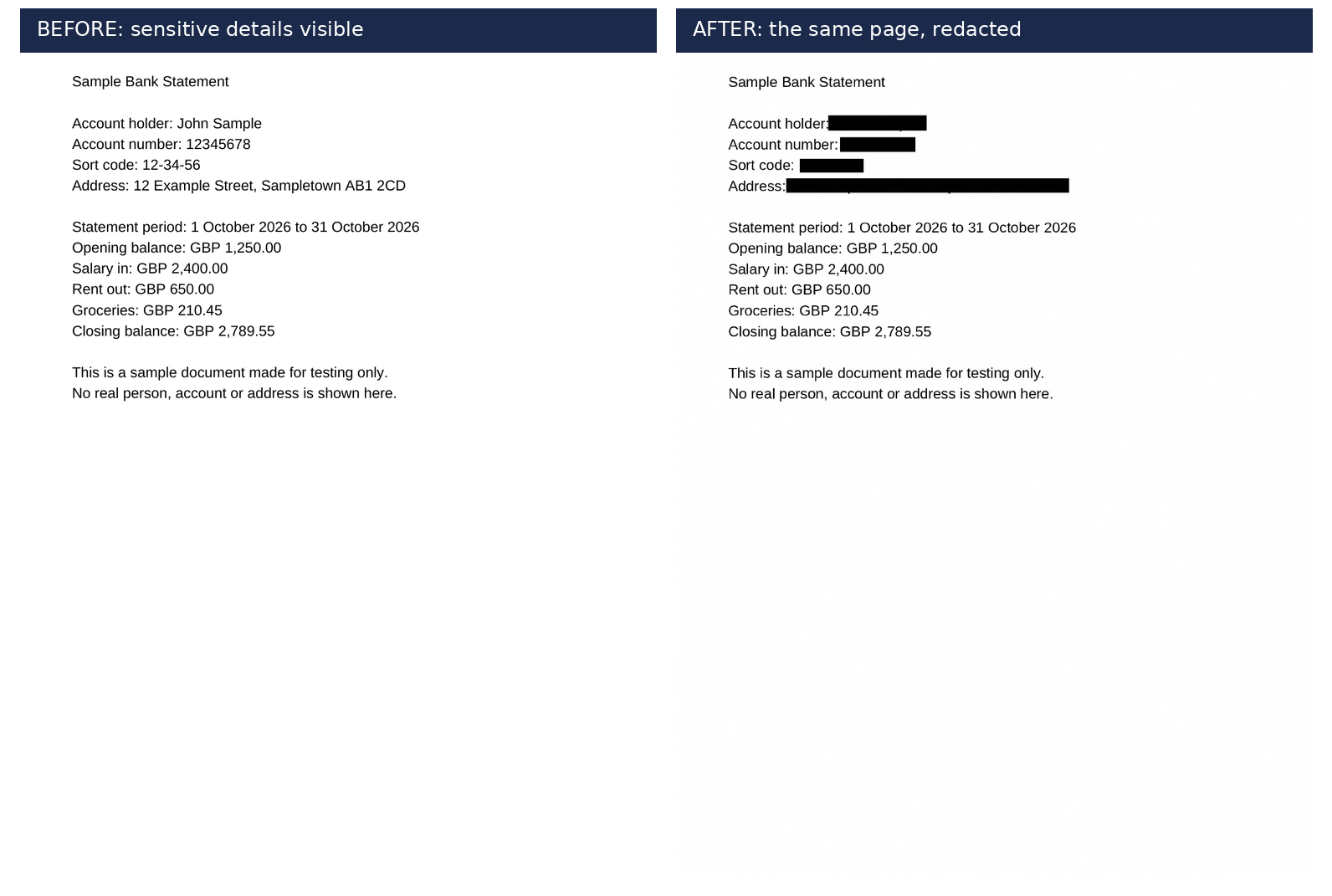
The verdict is yes, this is true redaction. The black boxes are burned into a picture of the page, and no text layer survives on that page. Nothing sits under the boxes to recover, because there is no text left to recover.
There is an honest trade-off, and you should know it before you redact anything. Flattening also takes the text you did not redact. The closing balance line is still readable on screen, but you cannot select it, copy it or search for it. That is the price of this kind of redaction, and it is the same trade-off other honest tools describe on their own pages. If you need the clean pages searchable again, the tool page itself suggests running OCR PDF afterwards, which reads the picture and adds a fresh text layer. The redacted words stay hidden, because the black boxes are part of the picture by then.
One more thing the numbers show. The file grew from 881 bytes to 159,551 bytes, because a picture of a page is heavier than text. Expect a redacted file to be bigger than the original, especially on a long document. That is normal, and it is not a sign that something went wrong.
What should I black out before I share a PDF?
Work through this list before you press download. Sensitive details rarely sit in one place.
- Names. Full names, first names on their own, initials, and every version of a name. A name can appear in the body, in a header on every page, and in a signature at the end.
- Account and card numbers. Bank accounts, card numbers, sort codes, and reference numbers. Cover the whole number, not just the middle digits.
- Addresses. Home addresses, work addresses, and email addresses. An email address identifies a person just as surely as a street address.
- Phone numbers and dates of birth. Both are used to confirm identity, so both belong under a box.
- Photos and signatures. A signature is an image, not text, and a photo in a scanned form can hold a face, a stamp or a handwritten note. Drag a box over them too.
- Case and reference numbers. On legal and medical documents, a reference number can lead straight back to a person even when the name is hidden.
- Headers, footers and cover pages. Names and numbers repeat here more than anywhere else. Check them last, when you think you are done.
- Metadata. Author, title and other document properties. Leave the removal checkbox on, as the steps above describe.
If a document holds the same detail in several places, the search box is your friend. Type the detail once, press Find, and check that every match is boxed before you download.
How do I redact the same name on every page?
Type the word in Search and redact and press Find. Every match on every page is boxed, so the same name or number is hidden everywhere at once. That is the feature to reach for on a long document, where a name might appear twenty times and your eyes will miss one.
The three automatic finders work the same way for common patterns. Emails finds every email address, Phones finds phone numbers, and Card / account no. finds card and account numbers. One press marks them all, and you can add more boxes by hand for anything the finder missed.
Do not trust a finder blindly. A number written with odd spacing, or split across a line break, can slip past it. After the finder runs, walk the pages with Prev and Next and look at each box. A finder is a first pass, not a final check.
Can I redact a photo or a signature?
Yes. Drag a box over any photo, stamp or signature, and those parts of the page are flattened along with the rest of it, so the image is covered permanently. This matters on scanned forms, where a signature or a photograph can identify someone just as clearly as a typed name.
Two things to know. First, the tool has no colour choice: boxes are black only, and there is no setting to change that. Second, a box over an image works the same as a box over text, because the whole page becomes a picture anyway. You do not need a separate step for images.
Why can I not select text after redacting?
Because the page is now a picture. Flattening turns the page into a single image, so text, layers and annotations can no longer be selected or edited. That is the point. If the text were still selectable, it would still be recoverable, and the redaction would be a black box again.
Only pages with redactions are flattened. Pages you did not mark are copied unchanged, so they keep sharp, selectable text. That is why a one-page document loses all of its text, while a ten-page document with one marked page keeps the text on the other nine.
If you need the redacted file searchable again, run it through OCR PDF afterwards. OCR reads the picture of the page and adds a fresh text layer, and the redacted words stay hidden because the black boxes are part of the picture now. If you want the text out of a PDF first, before you decide what to hide, our guide to converting a PDF to text shows how that works.
Which free PDF redaction tool should I use?
Most free tools in the search results do the same job in the same three steps: upload, mark, download. The differences are in the limits, in whether your file is uploaded, and in whether the text is really removed. This table uses each tool’s own page, checked on 23 November 2026.
| Tool | Price | How the text is removed | Limits and privacy |
|---|---|---|---|
| Toolzzz Redact PDF | Free, no sign-up | Redacted pages flattened to images, text gone | No file-size or page limit, only your device memory; nothing uploaded |
| Cloudinary PDF Redaction Helper | Free, no software | Mark in the browser and download; page does not state flattening | Max 20 MB; no watermark; also offers an API for bulk work |
| Starlight Tools Redact PDF | Free, no sign-up, no watermark | Burn-in process rebuilds each page so marked content is not carried over | No fixed page limit, browser memory is the practical limit; nothing uploaded |
| redact.dev PDF Redactor | Free, no sign-up | Search and mark every match, then save a checked copy | Up to 75 pages and 50 MB at a time; browser only; custom text on boxes, like WITHHELD |
| Ikalab Redact PDF | Free, no sign-up, no watermark | Every page rebuilt as a picture, so no original text, fonts or comments remain | No limit on uses; black or white fill, 200 or 300 dpi; text on every page becomes unselectable |
| Adobe Acrobat Pro | Paid desktop software | Redact text and images, then Apply, with an option to sanitize hidden information | The official route when a workplace already pays for Acrobat |
How to choose. If the document is sensitive, pick a tool that processes the file in your browser, so nothing is uploaded, and one that removes the text rather than covering it. Then run three checks on the download before you share it: search it for a word you redacted, try to select text under a black area, and select all and paste it into Notepad. The redacted content should be absent from all three. That check is the step that separates real redaction from a black box, and it takes less than a minute.
For the detail on Adobe’s side, Adobe’s own guide to removing sensitive content walks through its Redact tool and the sanitize option. For a second free browser tool to compare against ours, Cloudinary’s PDF Redaction Helper is free in the browser with a 20 MB limit and no watermark.
What mistakes make a redaction fail?
Most failed redactions fail in the same few ways. Avoid these and you avoid nearly all of them.
Drawing a black box in a normal editor and calling it redaction. The text stays in the file, selectable and copyable. If the tool you used cannot tell you how it removes the text, assume it only covers it.
Redacting one copy of a name and missing the others. Names repeat in headers, footers, cover pages and signatures. Use Search and redact for every name, then walk the pages.
Leaving the metadata on. Author and title can name the person you just hid. Leave the document-properties checkbox on.
Redacting your only copy. The redacted file is a new file, and the change cannot be undone from it. Keep the original somewhere safe before you start.
Trusting the preview. In the Toolzzz editor the boxes look semi-transparent, and the text shows faintly through them. That is only the preview. Check the downloaded file with the three tests above, not the preview.
Sharing the original by mistake. The download is a new file, usually with “-redacted” added to its name. Check the file name before you attach it to an email.
Is it safe to use an online redaction tool?
It depends on where your file goes. Some tools upload your PDF to a server, process it there, and delete it later. You have to trust their word on the deletion. Toolzzz processes the file in your browser: the file is read into browser memory and never sent anywhere, so there is nothing to intercept and nothing stored on a server. That is the safest shape for a sensitive document, and it is the shape to look for in any tool you choose.
Still, use common sense. Redact on your own device, not a shared computer. Check the downloaded file with the three tests before you share it. Keep the original somewhere only you can reach. And never paste a real password, a live secret, or a document you could not afford to lose into any online tool, including this one. The sample in this guide used fake details for exactly that reason.
Done right, redaction is simple: mark everything sensitive, check every page, verify the download, and share only the redacted copy. You can find the tool, and the rest of the free PDF tools, on the Toolzzz home page.
How do I redact a PDF for free?
Open Toolzzz Redact PDF in your browser and drop in your PDF. Drag black boxes over the names, numbers and addresses you want to hide, or use Search and redact to box every copy of a word at once. Press Redact and download PDF. There is no sign-up, no watermark, and your file never leaves your device.
Is the redacted text really removed, or just covered?
It is really removed. Pages with redactions are rebuilt as images with the black boxes burned in, so the original text is not in the new file at all. We tested this: a text search of the redacted file found none of the four hidden details. A black box drawn in a normal editor cannot promise this.
Can I redact the same word on every page at once?
Yes. Type the word in Search and redact and press Find, and every match on every page is boxed before you download. The Emails, Phones and Card / account no. buttons do the same for common patterns. Always review the boxes page by page first, because a finder can miss an oddly spaced number.
Why can I no longer select or search text after redacting?
Redacted pages are flattened into a single image, so the text layer is gone and nothing on that page can be selected, copied or searched. That is what makes the redaction safe. Pages without redactions keep their text. To make a redacted page searchable again, run it through an OCR tool afterwards.
Does redacting a PDF remove the author name and metadata?
Yes, if the checkbox is on. Also remove document properties (author, title…) strips the author, title and other details before saving, and it is on by default. Leave it on. Metadata is easy to forget, and it can name the very person you just hid from the visible pages.
Can I redact a photo or a signature in a PDF?
Yes. Drag a box over any photo, stamp or signature and it is flattened along with the rest of the page, so the image is covered permanently. This matters on scanned forms, where a signature or a photo can identify someone just as clearly as a typed name.
