

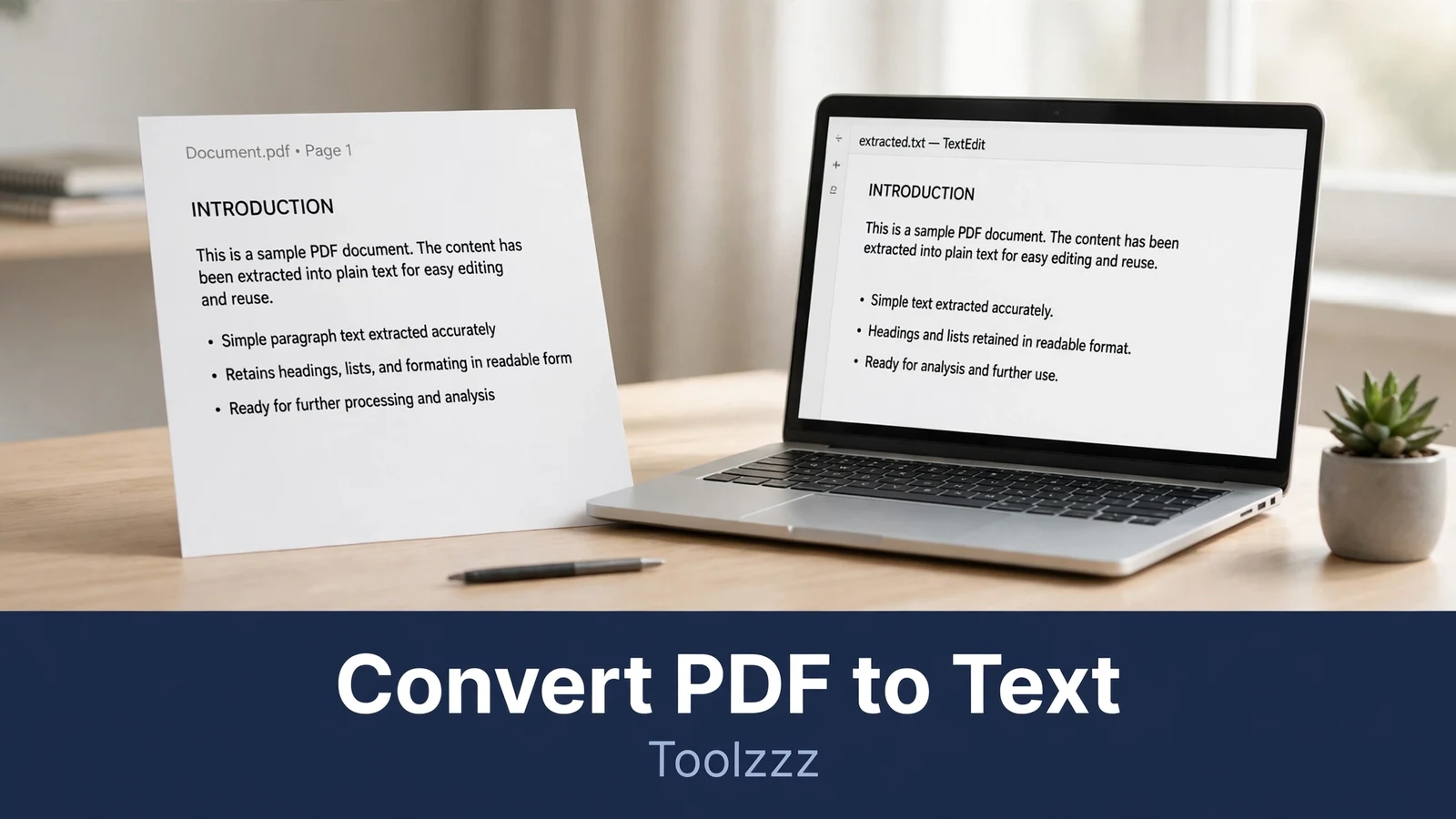
Most of us have met a PDF that will not give up its words. It might be a report you need to quote, a contract you want to search, or a letter you want to paste into an email. Copying straight from a PDF viewer often gives broken lines, missing spaces and lost paragraphs, so a proper converter does a better job. This guide shows you how to convert a PDF to text online free, with a real example run through the Toolzzz tool, and it explains the one case where no text converter can help: a scanned PDF.
Short answer: Open the Toolzzz PDF to Text tool, drop in your PDF, and copy the text or download it as a .txt file. It works in your browser, so nothing is uploaded, and there is no sign-up or page limit. It only works on PDFs with a text layer. A scanned PDF has no text to extract, so it needs OCR. If the PDF also has pages you want gone entirely, our guide to deleting pages from a PDF online free shows how to remove them before you extract the text.
How do I convert PDF to text online free?
You need nothing installed and no account. The steps below use the Toolzzz PDF to Text tool, which reads the PDF in your browser. This is the quickest way to convert pdf to text online free: no account, no install, and the text is ready to copy or download in seconds.
- Open the PDF to Text tool and click the upload box, or drop your PDF onto it. Files up to about 200 MB are accepted.
- The text appears in the box below straight away. There is no button to press and no waiting for an upload, because the file never leaves your device.
- Choose how the text should look. Keep lines preserves the line breaks of the original page, and Join into paragraphs merges the lines of each paragraph into one flowing line.
- Decide whether to show page numbers. The tool puts a line such as — Page 1 — between pages, so you can trace a quote back to its page.
- Press Copy text to paste the result anywhere, or Download .txt file to save it. The file opens in Notepad, TextEdit, Word and any text editor.
If you already have Adobe Acrobat Pro, Adobe publishes its own instructions for exporting a PDF to plain text, and a university guide walks through the same job in Acrobat and Word. See Adobe’s help page on converting a PDF to text and the CUNY guide to converting a PDF to text in Acrobat and Word. Both need paid software, which is why a free browser tool is the quicker route for a one-off job.
What is the difference between a text PDF and a scanned PDF?
There are two very different kinds of PDF, and they need different handling. Most PDFs made by a computer, such as documents saved from Word, invoices from an online shop, ebooks and reports, contain a text layer. The letters are stored as real characters with a position on the page, which is why you can select and search them in a PDF viewer. Reading that layer is fast and exact: every letter comes out as it was typed.
A scanned PDF is different. When paper goes through a scanner or is photographed with a phone, each page is stored as a picture. To a computer, that picture is a grid of dots with no letters in it. You cannot select a word, search finds nothing, and a normal converter returns an empty file. To get words out of such a page, the picture has to be looked at and the shapes of the letters recognised. That is called OCR, short for optical character recognition.
Many real files are a mix. A contract may have typed pages and a signed, scanned last page. A report may contain screenshots with text in them. A text extractor reads the typed pages and finds nothing on the picture pages, so you need to know which kind you are dealing with before you start.
There is a quick check. Open the PDF in any viewer and try to select a word with the mouse. If a word highlights, the page has a text layer. If the whole page highlights as one block, or nothing happens at all, it is a picture and needs OCR. That one test saves you from staring at an empty text box wondering what went wrong.
What happened when I converted a real PDF?
To test the tool properly, I made a real two-page PDF with a text layer: a village fete notice on page one and a short “What to bring” list on page two, 142 words in total. I dropped it into the Toolzzz PDF to Text tool on 21 November 2026. The tool read it at once and showed “sample-text.pdf, 2 pages, 2 KB” above the upload box.
The extracted text, with the default settings, was:
--- Page 1 ---
Village Fete - Saturday 12 July

The village fete opens at ten in the morning on the green.
Stalls sell cakes, jam and plants. The brass band plays at
noon, and the raffle is drawn at three. Entry costs two
pounds for adults. Children under twelve go in free.

Please bring cash. The card machine on the cake stall is
notoriously slow, and the queue for it gets very long.
Dogs are welcome on a lead. The tea tent serves a well-
known lemon drizzle cake that sells out every year.

--- Page 2 ---
What to bring

1. A folding chair if you want to sit near the band.
2. A bottle for the tombola stall.
3. Small change for the cake stall and the raffle.

The fete raises money for the village hall roof fund.
Last year it raised eight hundred and forty pounds.
The tool counted 142 words and 741 characters, which matches the source file exactly. The page markers, — Page 1 — and — Page 2 —, are not counted in that total. I pressed Download .txt file and got sample-text.txt, 793 bytes, with exactly the text shown above: the real output of this worked example, not a mock-up.
Switching to Join into paragraphs changed the output. The line breaks inside each paragraph disappeared and each paragraph became one long line, while the blank lines between paragraphs and the page markers stayed. The first paragraph came out as one line: “The village fete opens at ten in the morning on the green. Stalls sell cakes, jam and plants. The brass band plays at noon, and the raffle is drawn at three. Entry costs two pounds for adults. Children under twelve go in free.”
One detail is worth knowing. The source file splits the word “well-known” across two lines, with “well-” at the end of one line and “known” at the start of the next. In Keep lines mode the split stays exactly as printed. In Join into paragraphs mode the tool removes the hyphen as well as the line break, so the sentence comes out as “the tea tent serves a wellknown lemon drizzle cake”. The tool page says words split with a hyphen are joined again, and the line break is joined, but the hyphen itself is dropped, so a genuinely hyphenated word comes out misspelt. Check hyphenated words, names and numbers after converting, and fix any that lost their hyphen.
Turning off “Show page numbers between pages” removed both markers and nothing replaced them. The text then began directly with “Village Fete – Saturday 12 July”, and “What to bring” followed the first page after a blank line. The word count stayed at 142 words, which confirms the markers are labels, not part of your document.
What happens if the PDF is a scan?
For the second test I made a one-page PDF that contains only a picture of a typed letter, 67,705 bytes, with no text layer at all. This is what a scanner produces. I dropped it into the same tool, and the result was honest and immediate.
A pink banner appeared above the result box: “No text was found in this PDF. It is probably a scan (a picture of text). Use OCR PDF to read the text from scanned pages.” The result box held only the line — Page 1 — and was otherwise empty. No word count appeared under the box at all, which is itself a signal: when the tool finds text, it always shows the count.
That is the correct behaviour. There is no text in a scanned PDF to extract, so any tool that returns words from it is guessing, not reading. The Toolzzz page says the same thing in its own help note: “If the PDF is a scan, it has no selectable text. Try our OCR PDF tool, it reads letters from images.” If your document is a scan, use the Toolzzz OCR PDF tool instead, and read our guide OCR a PDF Online Free: Extract Text Fast first, so you know what OCR gets right and where it can misread a letter.
Do not try to fix a scan by converting it to a picture and back, or by re-saving it as a new PDF. None of that adds a text layer. Only OCR, or typing the text out, puts real words into the file.
Keep lines or join into paragraphs: which should I use?
The right setting depends on what the document is and what you plan to do with the text. The table below covers the common cases.
| Document | Best setting | Why |
|---|---|---|
| Articles, books, reports, letters | Join into paragraphs | Flowing text that wraps in any window |
| Text for AI tools or translation | Join into paragraphs | Whole sentences, no broken lines |
| Bank statements and invoices | Keep lines | Dates, items and amounts stay lined up |
| Forms and tables | Keep lines | Labels and values stay side by side |
| Code, poems, addresses | Keep lines | Every line break kept as printed |
| A long report you want to quote from | Join into paragraphs, page numbers on | Clean quotes with a page reference |
If you are not sure, convert once in each mode. The file stays loaded, so switching and reading the result again takes a moment, and you can keep whichever version reads better. For pasting into Word, Google Docs or an email, Join into paragraphs is usually the better choice, because hard line breaks from a PDF make paragraphs look ragged in a word processor. For anything where the layout carries meaning, such as a statement or a form, Keep lines is the safer choice.
One more tip from the worked example: whatever mode you pick, read the result once before you use it. The hyphen quirk above is a good example. A converter rebuilds lines in reading order and adds spaces where they belong, but it cannot know whether “well-known” was one word split across lines or two words that happen to sit near each other. Names, amounts, dates and account numbers deserve a second look against the original before you rely on them.
What does plain text keep, and what does it lose?
Converting a PDF to .txt strips away all fonts, colours, tables and page layouts. Bold, italics, headings, images and columns are all gone. What you keep is the words themselves, in reading order, and nothing else. That is the whole point of plain text: it is the simplest file there is, and it opens everywhere.
Tables are the biggest loss. A PDF stores text line by line with no idea of rows and columns, so a table comes out as a flat stream of words and numbers. The figures are all there, but the structure is not. If what you actually need is the data inside the PDF, such as a bank statement or a price list, plain text will frustrate you. That is a spreadsheet job, not a text job.
If you want to keep the layout, convert the file to Word (.docx) instead of plain text. Word keeps headings, bold text and tables in a form you can edit. Plain text is the right choice when you want the words only: quoting from a report, feeding a document into another program, searching inside a long file, or giving clean input to a translation tool or an AI assistant.
The .txt file itself is plain UTF-8 text, which every editor made in the last forty years can open. Notepad, TextEdit, Word, Google Docs, code editors and phone apps all read it without fuss. There is no formatting to break and no font to be missing, which is why plain text is still the safest way to move words between programs.
How does the Toolzzz tool compare with other free converters?
Google’s AI Overview for this search names four free tools alongside the usual advice: PDF24, FreeConvert, PDF2Go and OCR2Edit, with Reddit users also mentioning iLovePDF and Nanonets. The table below compares them on the points that matter, using each tool’s own stated limits, checked on 21 November 2026.
| Tool | Free file limit | Where the file is read | OCR for scans | Sign-up |
|---|---|---|---|---|
| Toolzzz PDF to Text | About 200 MB | In your browser, nothing uploaded | No, use the OCR PDF tool | None |
| PDF24 PDF to Text | Not stated on its tool page | On its servers, files auto-deleted | Yes, on its OCR pages | None |
| FreeConvert PDF to TEXT | 1 GB | On its servers, 256-bit SSL, deleted after 8 hours | Yes, on its OCR pages | None for the free tier |
| PDF2Go PDF to Text | 50 MB free without registration | On its servers | Yes, with OCR enabled | None for the free tier |
| OCR2Edit PDF to Text | Not stated on its tool page | On its servers | Yes, built in | None |
The real difference is where your file goes. Toolzzz reads the PDF on your own device, so a contract or a bank statement never leaves your computer. PDF24, FreeConvert and PDF2Go upload the file to their servers and delete it afterwards, which is fine for ordinary documents but worth knowing about before you send something private. FreeConvert states its files are protected with 256-bit SSL encryption and deleted after 8 hours. PDF24 says its files are automatically deleted from temporary server storage.
Size is the other difference. FreeConvert takes files up to 1 GB, which suits very large reports. Toolzzz takes files up to about 200 MB, which covers almost every normal document, and PDF2Go caps free files at 50 MB. If your file is a scan, pick a tool with OCR, or run it through the OCR PDF tool first: a plain text extractor will hand you an empty file and tell you so, as the worked example above showed.
Can I convert a PDF to text on a phone?
Yes. The Toolzzz tool runs in any modern browser on Windows, Mac, Linux, Chromebook, iPhone, iPad and Android, with nothing to install and no app to download. On a phone, tap the box to pick a PDF from the Files app, your downloads or a cloud drive, then copy the text or save the .txt file to the same place.
Because the work happens on your device, speed depends on it. A text PDF of a few hundred pages is usually read in seconds on any computer or phone. Very long files are more comfortable on a computer, and you should keep the tab open while the tool works. If your text is spread across several PDFs, merge the PDFs into one file first, then convert the merged file in a single pass instead of converting each file on its own.
Is it safe to convert a private PDF online?
It depends on where the conversion happens, and you should check before you upload a private document. A tool that works in your browser, like the Toolzzz PDF to Text tool, never sends your file anywhere: the page itself says “Your files never leave your device. Everything happens in your browser.” That makes it safe for contracts, statements, medical letters and anything else you would rather not hand to a random server.
A tool that uploads your file to a server is a different deal. Reputable ones delete the file after a stated time, such as FreeConvert after 8 hours, and use encrypted connections, but the file still leaves your device. For ordinary documents that does not matter. For a contract with names and amounts, a bank statement, or a legal letter, prefer a browser-based tool and keep the file on your own machine.
Whatever tool you use, never paste passwords, account numbers or one-time codes into a converter, and never convert a document on a shared or public computer if you can avoid it. The text you extract stays in the browser tab and in the .txt file you download, so close the tab and delete the download when you are done with it.
What can I do with the text once I have it?
Plain text is the most useful form words can take. Paste it into Word, Google Docs or an email and it arrives clean, with no stray formatting to fight. Feed it to a translation tool or an AI assistant and it reads as proper sentences instead of broken PDF lines. Search inside it with Ctrl+F, or drop it into a notes app and find it again in seconds.
It is also the right format for quoting. A quote copied from a PDF viewer often carries broken lines and missing spaces, which looks careless in a report or an article. Text from a converter, with lines joined into paragraphs and page markers kept, quotes cleanly and lets you cite the page it came from.
For longer jobs, the .txt file is a good starting point rather than the end. Open it in a text editor, fix any hyphen or spacing slips, then paste the cleaned text where it needs to go. That one read-through is the difference between text you can trust and text that quietly carries a converter’s mistake into your document. The Toolzzz homepage lists the rest of the free tools on the site, including the PDF tools that pair with this one, such as splitting a long PDF before converting only the pages you need.
How do I convert a PDF to text online free?
Open the Toolzzz PDF to Text tool, drop in your PDF, and copy the text or download it as a .txt file. The tool reads the PDF in your browser, so nothing is uploaded, and there is no sign-up, no page limit and no watermark. Files up to about 200 MB are accepted.
Why does my PDF convert to an empty text file?
The PDF is almost certainly a scan, which means each page is a picture of text with no letters stored inside. No text extractor can pull words that are not there. Check by trying to select a word in a PDF viewer: if nothing highlights, the page needs OCR, not extraction.
Can I convert a scanned PDF to text?
Not with a plain text extractor. A scanned PDF needs OCR, which looks at the picture of each page and recognises the letters. Use the Toolzzz OCR PDF tool for scanned pages. OCR is very good on clean printed pages and weaker on handwriting, faint copies and photos taken at an angle.
Does converting a PDF to text keep the formatting?
No. Plain text keeps the words only. Fonts, colours, bold text, tables, images and page layout are all stripped away, and tables come out as a flat stream of words. If you need to keep the layout, convert the PDF to Word (.docx) instead of plain text.
Is there a file size or page limit?
The Toolzzz PDF to Text tool accepts PDF files up to about 200 MB and states there is no page limit and no sign-up. Because the work happens in your browser, the practical limit is your device’s memory. Very long documents still extract in seconds on a normal computer.
Is my PDF uploaded to a server?
No. The Toolzzz tool extracts the text in your browser on your own device, and the page states that your files never leave your device. That makes it suitable for contracts, statements and other private documents. Always check this point before using any online converter.
