

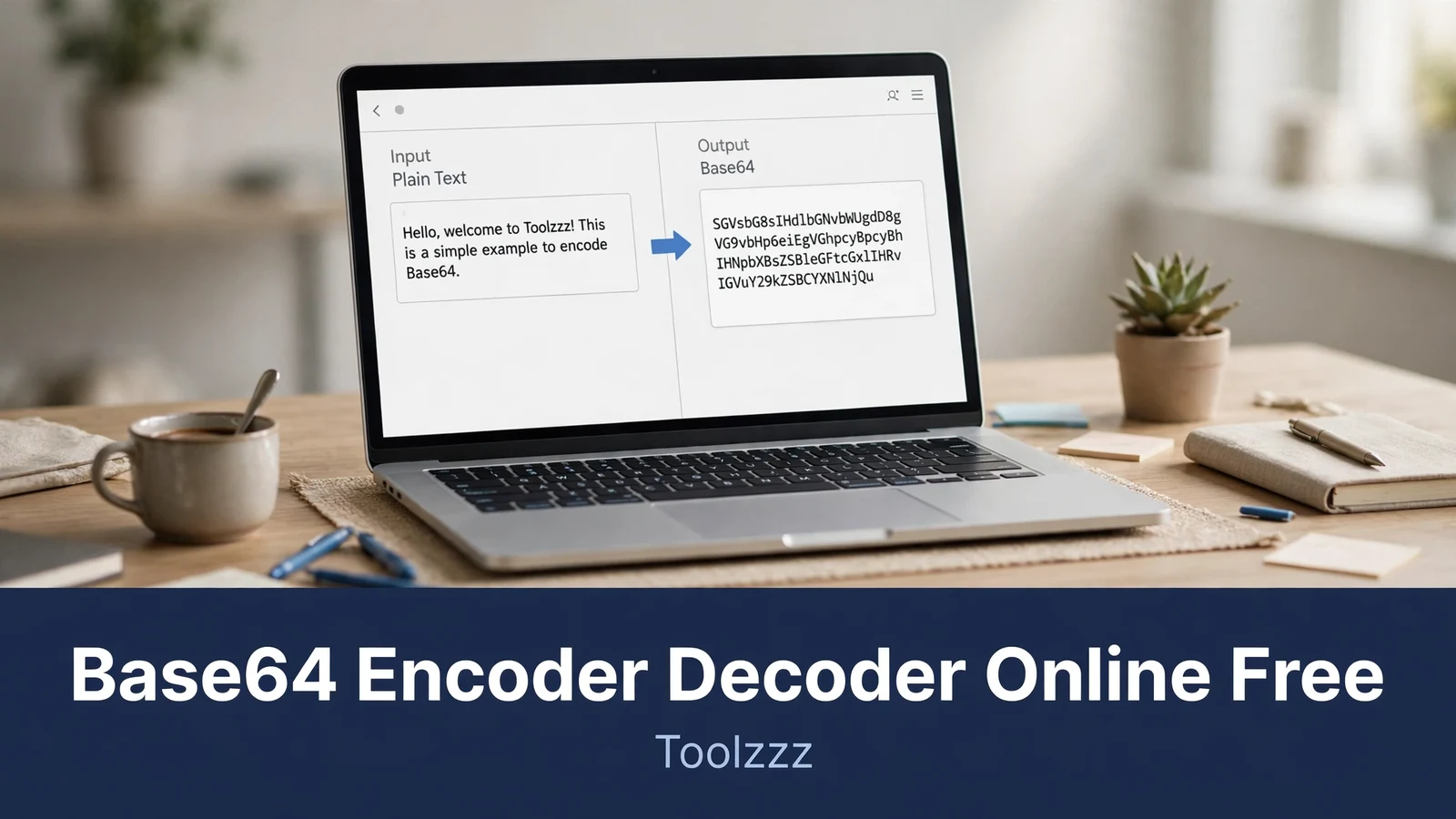
Sooner or later, almost everyone who works with the web meets a string that looks like alphabet soup. It might sit in an email attachment, a JSON payload, an API response, or a web address. It is usually Base64, and it is usually hiding something perfectly ordinary, such as a few words of text or a small image. This guide shows you how to use a base64 encoder decoder online free, with every step run for real on the Toolzzz tool, so you can see the exact result instead of taking my word for it.
Short answer: Paste your text into the Toolzzz Base64 encoder, pick Encode or Decode, and copy the result. It runs entirely in your browser, handles full UTF-8 including emoji, offers URL-safe output and file encoding to a data URI, and needs no account. Base64 is encoding, not encryption, so anyone can decode what you encode.
What is Base64 encoding?
Base64 is a way of writing any data, text or binary, using only 64 printable characters: the capital letters A to Z, the small letters a to z, the digits 0 to 9, and the two symbols + and /. A 65th character, the equals sign, appears only at the end as padding. The whole point is that the result is plain text, so it can travel through channels that were built for text only, such as email bodies, JSON documents and web addresses, without being mangled on the way.
The maths is simple once you see it. The encoder reads the input three bytes at a time, which is 24 bits, and splits those 24 bits into four groups of 6 bits. Each 6-bit group is a number from 0 to 63, and each number is looked up in the 64-character alphabet. Three bytes in, four characters out, every time. That is why the output is always about a third bigger than the input: four characters carry three bytes, so the size grows by a factor of four thirds, roughly 33 percent.
Padding handles the tail. When the input length is not a multiple of three, one or two bytes are left over at the end, and the encoder fills the last group with zero bits and marks the missing characters with equals signs. Two leftover bytes give one equals sign, one leftover byte gives two, and an input that divides evenly by three needs no padding at all. The classic example on the Base64 Decode and Encode site shows the word foo, three bytes, becoming Zm9v with no padding, while fo becomes Zm8= and the single letter f becomes Zg==. The standard that defines all of this is RFC 4648, the Base64 specification, and it is worth a look if you want the rules from the source rather than from a blog.
One thing to settle early: Base64 is not encryption and it is not compression. It hides nothing, because anyone with the string can decode it in a second, and it makes data bigger rather than smaller. It is a reversible change of shape, nothing more, and that is the entire job. If you need secrecy, you need real encryption. If you need smaller files, you need real compression. Base64 does neither, and any tool that hints otherwise is misleading you.
How do I encode text to Base64?
You need nothing installed and no account. The steps below use the Toolzzz Base64 Encoder and Decoder, which converts the text in your browser as you type, with no button to press.
- Open the tool and make sure Encode is selected. It is the default mode, so you can usually skip this step.
- Type or paste your text into the left hand box. The result appears in the right hand box at once, live as you type.
- Read the counter under the boxes. It tells you the input size in bytes and the output size in characters, so you can see the growth for yourself.
- Press Copy to put the result on your clipboard, or Download to save it as a text file.
Here is the worked example, run on the tool on 21 November 2026. I typed the sentence “The quick brown fox jumps over the lazy dog.” into the input box. The tool returned this output:
VGhlIHF1aWNrIGJyb3duIGZveCBqdW1wcyBvdmVyIHRoZSBsYXp5IGRvZy4=
The counter read “44 bytes to 60 characters”. The sentence is 44 bytes long, and 44 divided by 3 is 14 full groups with 2 bytes left over, so the output is 15 groups of 4 characters, which is 60, with one equals sign of padding at the end. The maths checks out exactly, and you can run the same check on any sentence you encode.
How do I decode Base64 back to text?
Decoding is the same process in reverse, and it takes the same few seconds.
- Open the tool and switch to Decode mode using the toggle at the top.
- Paste the Base64 string into the input box. The decoded text appears in the output box at once.
- Press Copy to take the text, or Download to save it.
I tested the round trip with the output from the previous section. Pasting VGhlIHF1aWNrIGJyb3duIGZveCBqdW1wcyBvdmVyIHRoZSBsYXp5IGRvZy4= into Decode mode returned “The quick brown fox jumps over the lazy dog.” exactly, and the counter read “44 bytes decoded”. Then I pressed the Swap button, which moves the output back into the input and flips the mode, and the tool re-encoded the sentence to the same 60-character string, character for character. A matching round trip is the quickest proof that nothing was lost: encode, decode, and compare the two ends.
Two details are worth knowing. First, the tool accepts Base64 with line breaks in it, which is handy when you copy a wrapped string out of an email. Second, in Decode mode the “Wrap lines at 76 characters” checkbox disappears, because wrapping only applies to output you are creating, not to input you are reading. Only the URL-safe checkbox stays visible.
Can Base64 handle emoji and other languages?
Yes, if the tool encodes text as UTF-8 first, and the Toolzzz tool does. This matters more than it sounds. Base64 itself works on bytes, not on letters, so a tool has to decide how to turn your text into bytes before it encodes anything. UTF-8 is the modern answer: plain English letters become one byte each, accented letters such as e with an accent become two bytes, and emoji become four bytes. A tool that skips this step and treats each character as one byte will either throw an error or silently produce the wrong output for anything beyond plain ASCII.
I tested this with the text “Hello, World!” followed by a space and the Earth globe emoji. The tool returned SGVsbG8sIFdvcmxkISDwn4yN and the counter read “18 bytes to 24 characters”. The 13 letters, comma, exclamation mark and spaces come to 14 bytes, and the emoji adds 4 bytes, which makes 18 in total. Decoding that string returns the emoji intact. The tool page states full UTF-8 support, and the result backs the claim up.
The same trap catches people who write code. JavaScript has built-in btoa and atob functions, but btoa only accepts characters that fit in a single byte, so it throws an error on emoji and on many accented letters. The MDN page for btoa() on MDN Web Docs explains this plainly and shows the fix: convert the text to UTF-8 bytes with TextEncoder first, then encode the bytes. If your code works on “Hello” and breaks on “Hello, World! Earth”, this is almost certainly why.
What is URL-safe Base64?
Standard Base64 has two characters that cause trouble in web addresses: the plus sign, which a web server often reads as a space, and the forward slash, which looks like a path separator. The URL-safe variant, usually written base64url, swaps those two characters: plus becomes a hyphen, and slash becomes an underscore. The padding is usually dropped as well, because the length of the string tells the decoder how much padding was there.
I tested this on the Toolzzz tool with the input “???>???”, three question marks, a greater-than sign, and three more question marks. With the standard alphabet the tool returned Pz8/Pj8/Pw==, 12 characters including two equals signs of padding. With the “URL-safe (base64url)” checkbox ticked, the same input returned Pz8_Pj8_Pw, 10 characters: the slash became an underscore and the padding disappeared. The input contains no plus sign, so the hyphen swap was not shown by this example, but the rule is the same in both directions.
Use the standard alphabet unless you have a reason not to. Reach for the URL-safe version when the encoded string has to live inside a web address, a file name, or a token. JSON Web Tokens are the best known example: each part of a token is base64url, which is why tokens never contain a plus, a slash, or an equals sign. Compact IDs travel the same way: an API will sometimes carry a UUID as base64url instead of the 36-character string, and a UUID generator makes the ID in the first place. If you ever need to read one, the Toolzzz JWT Decoder opens it up for you. One warning: never feed a base64url string to a standard decoder and expect it to work. The hyphen and underscore are not in the standard alphabet, so a strict decoder will reject the string and a lenient one will quietly return the wrong bytes.
Why does Base64 wrap lines at 76 characters?
You will often meet Base64 broken into short lines, and the habit comes from email. Old mail systems had limits on line length, so the MIME standard wrapped Base64 at 76 characters per line. The older PEM format, which carries certificates and keys, wrapped at 64. Modern guidance in RFC 4648 says the opposite: add no line breaks at all unless the format you are working with asks for them. In practice a decoder does not care, because a line break is not in the alphabet, so a wrapped string and one long unbroken string decode to the same bytes.
The Toolzzz tool offers the choice with a “Wrap lines at 76 characters” checkbox. I tested it with a 146-byte sentence about how Base64 works. With the box ticked, the output came out as 3 lines: two lines of 76 characters and a final line of 44, and the counter read “146 bytes to 198 characters”. The 196 Base64 characters plus 2 newline characters make 198, so the wrapping added exactly 2 characters to the output. Leave the box unticked unless you are pasting the result into an email or another place that needs short lines. For code, JSON, and web addresses, one long string is the right choice.
How do I encode a file to Base64?
Text is the easy half of the job. The other half is files: a small image for a web page, a PDF for an email attachment, or any binary data that has to travel as text. The Toolzzz tool handles this with the Upload button above the input box.
- Stay in Encode mode and press Upload, then pick any file from your device. The page suggests an image or a PDF, but any file works.
- The input box shows the file name and size, and the output box fills with a data URI: the file type, the words “base64”, and the encoded bytes.
- Press Copy to take the data URI, or Download to save it as a text file.
I tested this with a tiny red PNG image, 4 pixels by 4 pixels and 73 bytes, which I made for the test. The tool returned this data URI, 122 characters in total:
data:image/png;base64,iVBORw0KGgoAAAANSUhEUgAAAAQAAAAECAIAAAAmkwkpAAAAEElEQVR4nGP4z8AARwzEcQCukw/x0F8jngAAAABJRU5ErkJggg==
The counter read “File encoded: 73 bytes to 122 characters (data URI)”. The 22 characters of the “data:image/png;base64,” prefix plus the 100 characters of Base64 make 122, and 73 bytes encode to 100 characters because 73 bytes need 25 groups of 4 characters. The picture below is that same file, so you can see the image the data URI describes.

Decoding works the other way too, and this is where the tool proved itself. I pasted the Base64 part of that data URI into Decode mode, without the prefix, and the output box read “(binary data, 73 bytes: press Download to save it as a file)”. Pressing Download saved a 73-byte file, and comparing it with the original PNG byte for byte gave an identical match. The round trip is exact: the image you get back is the image you put in, not a lookalike. That is the test that matters for files, and it is the one worth running on any encoder you plan to trust with real work.
One honest note on size. The tool page says the size limit is “only your device memory”, which is another way of saying the tool sets no number of its own. That is fine for the small files Base64 is normally used for, but a data URI is a poor way to ship a large file: a 1 MB image becomes about 1.33 MB of text, and a browser tab will struggle with a string tens of megabytes long. Keep Base64 for small assets and use a proper file upload for anything large.
What happens when Base64 is not valid?
Sooner or later you will paste a string that is not clean Base64: a character that is not in the alphabet, a padding sign in the middle, or a length that cannot work. A good tool tells you straight away instead of guessing. I tested this by pasting SGVsbG8!!! into Decode mode, which is the encoding of “Hello” with three exclamation marks stuck on the end. The output box stayed empty and the tool showed this exact message: “This is not valid Base64.”
That is the right answer, but one detail deserves an honest note. The tool page says invalid input is flagged with the reason and “the exact line and column”, yet this test showed only the short message, with no line or column given. It may be that longer or multi-line input gets the fuller message, but on the input I tried, the page overstates what the tool shows. The fix is simple either way: check the string for characters outside the alphabet, check that the equals signs sit only at the very end, and check that the length divides by 4 or leaves a remainder of 2 or 3. A remainder of 1 is impossible, because one character carries only 6 bits and a byte needs 8.
Is Base64 encryption?
No, and this is the single most important point in the whole subject. Base64 has no key and no secret, and the change it makes is completely reversible by anyone. That is exactly what the Decode mode on the tool does in a fraction of a second. Calling a Base64 string “encrypted” is like calling a letter in an envelope “locked” when the envelope is made of glass.
That has a practical consequence for what you paste into an online tool. Never paste a real password, a live API token, a private key, or any secret into any Base64 encoder, including this one. The Toolzzz tool runs in your browser, so your text never leaves your device, and that is the safest setup there is. Even so, the encoded output is readable by anyone who sees it, so a secret that goes in encoded comes out just as exposed as it went in. For the worked examples in this guide I used throwaway sentences and a test image, and you should do the same. If you need a password, generate a fresh one with the Toolzzz Strong Password Generator instead of encoding one you already use, and keep it in a password manager.
A good score from a checker or a clean round trip through an encoder proves nothing about secrecy. A strong password can still be a leaked password, and a neat Base64 string can still be decoded by the first person who tries. Judge a secret by how it is stored and who can see it, not by how scrambled it looks. The guide Password Strength Checker Online Free tests five passwords on the Toolzzz checker and shows what each rating really means.
Where is Base64 actually used?
Base64 turns up in more places than most people realise, because so much of the web is text pretending to carry binary data. Here are the jobs the Toolzzz tool page lists, and each one is worth a sentence.
Images in HTML and CSS are the classic case. A small icon or logo can be embedded straight into a page as a data URI, which saves a separate file request. This only makes sense for small images, because the embedded text is a third bigger than the file, and a page full of large data URIs loads slowly. Email attachments work the same way: an attachment is Base64 text inside the message body, which is why a 1 MB file arrives as roughly 1.33 MB of email. API authentication uses it too: an HTTP Basic Auth header is the username and password, joined by a colon and Base64 encoded, which is exactly why that header must always travel over HTTPS and never over plain HTTP.
JSON payloads are another common home. JSON can only carry text, so binary data inside a JSON document has to be encoded first, and Base64 is the usual choice. If you work with JSON often, the Toolzzz CSV to JSON converter turns a spreadsheet-style table into the JSON you need, and Base64 fields slot into that output neatly. JWT tokens use the URL-safe variant, as covered above. Debugging rounds the list out: when an API returns a blob of Base64, decoding it is often the fastest way to see what the server actually sent.
Finally, a quiet word on where not to use it. Do not store large files as Base64 in a database, do not email large attachments when a link would do, and do not build a file format around it when a binary format exists. Base64 is a bridge for small payloads crossing text-only ground, and it works best when it is used that way.
How do I encode and decode Base64 in code?
If you write code, you will rarely need a web tool for this job, because every common language has Base64 built in. The table below shows the same round trip, encoding “Hello, World!” and decoding it back, in four places. I ran the JavaScript, Python, and command line versions on this machine and checked the output, which is SGVsbG8sIFdvcmxkIQ== in every case. The PHP version follows the same pattern and gives the same output.
| Language or tool | Encode | Decode |
|---|---|---|
| JavaScript (browser) | btoa(“Hello, World!”) | atob(“SGVsbG8sIFdvcmxkIQ==”) |
| Python | base64.b64encode(b”Hello, World!”) | base64.b64decode(“SGVsbG8sIFdvcmxkIQ==”) |
| PHP | base64_encode(“Hello, World!”) | base64_decode(“SGVsbG8sIFdvcmxkIQ==”) |
| Command line | echo -n ‘Hello, World!’ | base64 | echo ‘SGVsbG8sIFdvcmxkIQ==’ | base64 -d |
Two warnings travel with this table. In JavaScript, btoa throws an error on any character that does not fit in one byte, so for emoji or accented text you must convert to UTF-8 bytes with TextEncoder first, as the MDN page linked above shows. In Python, remember that b64encode works on bytes, not on a string, so you encode the string to bytes first with .encode() and decode the result back with .decode(). The command line version needs the -n flag on echo, or the newline at the end of your text gets encoded too, which is a classic source of strings that do not match.
How does the Toolzzz encoder compare with other free tools?
If you search for a base64 encoder decoder online free, the first results are all tools, not guides, which is why this article compares them on facts rather than on promises. Google’s AI Overview for this topic names three free tools, and each one has a different strength. The table below compares them on the points the Overview raises and on the facts I checked on each tool’s own page.
| Tool | Where your data goes | File support | Stands out for |
|---|---|---|---|
| Toolzzz Base64 Encoder and Decoder | Stays in your browser, nothing uploaded | Any file to a data URI, decoded binary as a download | URL-safe mode, 76-character wrapping, live conversion, no account, no stated size limit beyond device memory |
| Base64 Decode and Encode (base64decode.org) | Sent to the server unless live mode is on; uploads deleted after processing | File decode up to 100 MB, download the decoded file | Character set auto-detect, per-line decoding, live mode in the browser |
| Jam (jam.dev) | Free, open source and ad-free tool | Strings and images | Built for developers debugging API responses, with JavaScript examples on the page |
The Overview also names Free Formatter as a free option. The deciding difference between these tools is not the encoding, which is the same everywhere, but where your data goes. A tool that runs in your browser keeps your text on your own device, while a tool that uploads it to a server has to be trusted with whatever you paste, even if it deletes the file afterwards. For anything private, that difference matters more than any feature list. For a quick check of a harmless string, any of them will do.
Which mistakes catch people out?
Most Base64 problems are small and easy to fix once you know what to look for. The first is mixing up the two alphabets: a standard decoder given a base64url string will either reject it or return the wrong bytes, so check for hyphens and underscores and convert back before decoding. The second is padding: a string that is missing its equals signs may still decode in a lenient tool and fail in a strict one, so add the padding back when a decoder complains. The third is the JavaScript btoa trap covered above, which breaks on emoji and accented letters. The fourth is line breaks copied out of an email, which most decoders ignore but some do not, so strip them first and try again. The fifth is treating Base64 as security, which it is not. And the sixth is the quietest one: encoding text in the wrong character set, such as Windows-1252 instead of UTF-8, which produces a string that decodes to mojibake. When the decoded text looks like scrambled symbols, the character set is the first thing to check.
If you remember one sentence from this guide, make it this one: Base64 is a reversible way of writing bytes as text, it makes data about a third bigger, anyone can decode it, and the safest place to do it is in your own browser. The Toolzzz homepage has the encoder alongside more than a hundred other free tools for PDF, image, GIF, text and data jobs, and each one works the same way, in your browser, with no account.
Is the Base64 encoder free?
Yes. The Toolzzz Base64 Encoder and Decoder is free with no account, no sign-up, no watermark and no trial period. The tool page states there are no limits, and the practical limit is your device memory. Encoding and decoding happen in your browser, so there is nothing to pay for and nothing to install.
Is my data uploaded anywhere?
No. Everything runs in your browser on your own device, and the tool page states that your data never leaves your device and nothing is sent to Toolzzz or anyone else. That makes it suitable for work documents and private text. Always check this point before pasting anything into any online encoder.
Does it handle emoji and accents?
Yes. The tool encodes text as UTF-8, so accented letters and emoji survive the round trip. I tested Hello, World! with a globe emoji and it encoded to 24 characters from 18 bytes, with the emoji counting as 4 bytes, and decoded back exactly. Tools that skip UTF-8 fail on emoji, so test before trusting one.
How do I encode an image to Base64?
Open the tool in Encode mode, press Upload, and pick the image. The output is a data URI that starts with the image type, such as data:image/png;base64, followed by the encoded bytes. I encoded a 73-byte PNG and got a 122-character data URI. Copy it into your HTML or CSS, or press Download to save it.
What is URL-safe Base64?
URL-safe Base64, also called base64url, swaps the two standard characters that break web addresses: plus becomes a hyphen and slash becomes an underscore, and the equals padding is usually dropped. Use it for tokens, links and file names. JSON Web Tokens use this variant, which is why they never contain a plus, a slash or an equals sign.
Why does my Base64 fail to decode?
The usual causes are a character outside the alphabet, an equals sign in the middle of the string, missing padding, or a base64url string fed to a standard decoder. Check the characters and the padding first, then look for hyphens and underscores. The Toolzzz tool answers bad input with This is not valid Base64 and leaves the output empty.
