

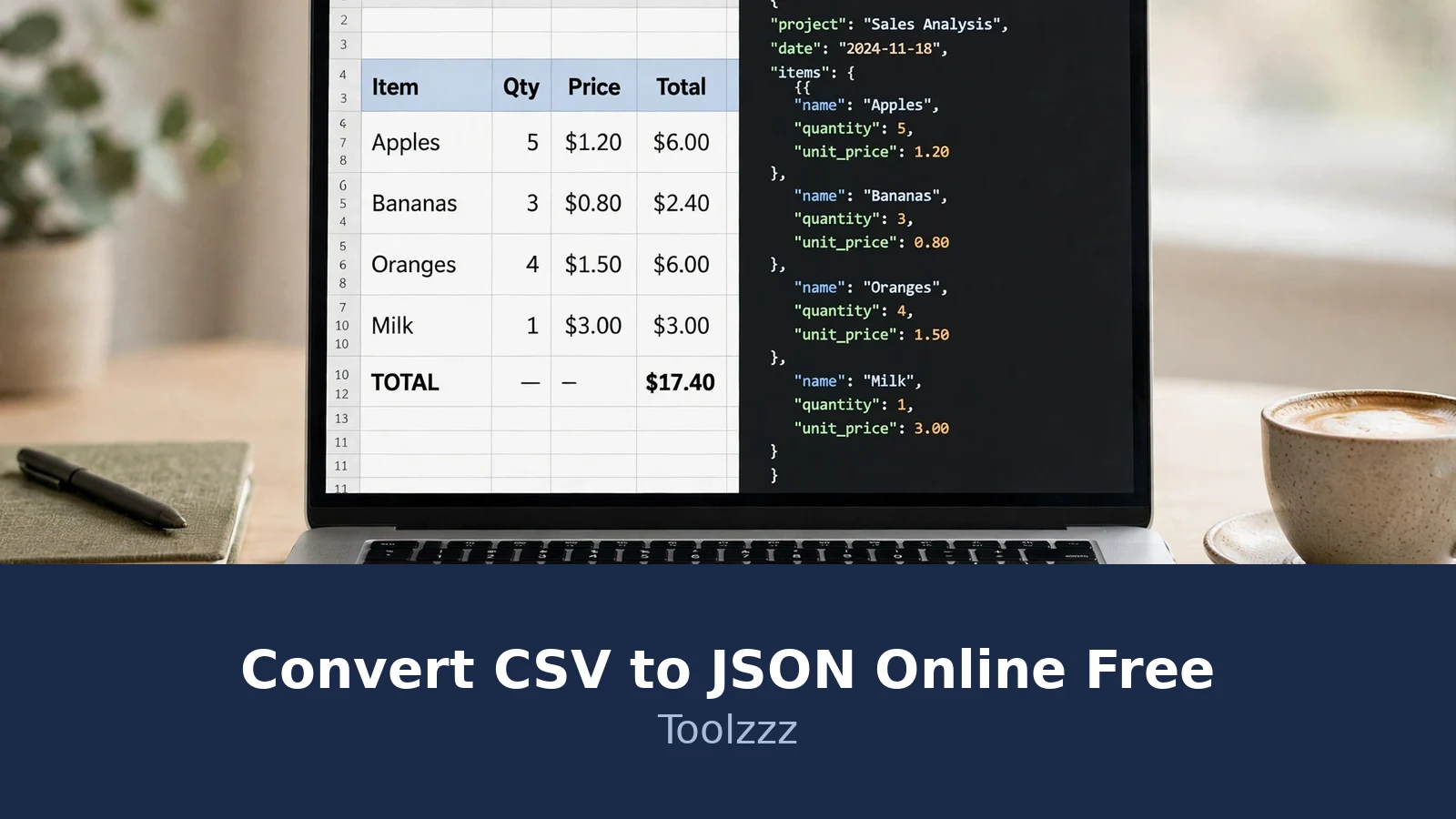
A spreadsheet exports as CSV. An API wants JSON. Between those two facts sits a small, fiddly job: turn rows and columns into objects with named keys, without breaking the data on the way. It is the kind of job developers, analysts and shop owners hit every week, and it takes minutes when the tool does the parsing for you.
This guide does the job on a real file, on the Toolzzz converter, and shows every step. You will see the exact CSV that went in, the exact JSON that came out, and the settings that shaped it. It also compares the free converters Google recommends, so you can judge which one fits your file.
To convert csv to json online, paste your CSV into the Toolzzz CSV to JSON tool, keep the first row as the header, and copy or download the JSON it builds. The conversion runs in your browser, numbers stay numbers, and quoted commas stay inside their fields. No account or install is needed.
How do I convert CSV to JSON online for free?
The quickest way is a free tool that runs in your browser. Here are the steps on the Toolzzz CSV to JSON tool, which needs no account and stores nothing on a server.
- Paste your CSV or upload the file. Click the upload box or drop a .csv file onto it. You can also paste rows straight from a spreadsheet: copied Excel or Google Sheets cells arrive tab separated, and the tool reads those too.
- Leave the delimiter on Auto. Auto sniffs whether your file uses commas, semicolons or tabs. If the preview looks wrong, pick the delimiter by hand instead of guessing twice.
- Keep “First row is the header” checked. The first row becomes the key names in each JSON object, so a column called price becomes “price” in every object. Uncheck it only if your file has no header row.
- Leave “Detect numbers and true/false” checked. This turns 24.99 into a JSON number instead of the text “24.99”, and true and false into real booleans. Turn it off if your data has codes with leading zeros, which must stay text.
- Copy or download the JSON. The output panel updates as you type, so there is no Convert button to press. Copy the text for a quick paste into code, or press Download to save a .json file.
There is no Convert button to press, and that catches people out the first time. The page rebuilds the JSON each time you type or change an option, so the output panel always matches the input. Change the indent from 2 spaces to Minify and the output shrinks at once. Change the output shape from an array of objects to keyed by first column and the whole structure changes in front of you.
What does the worked example look like?
The sample is a small shop stock list: five products, four columns, 186 bytes as a file. It is deliberately awkward in one place. One product name holds a comma inside quotes, “USB-C Cable, 2m”, which is exactly the case that breaks a careless parser. Here is the CSV as it was pasted into the tool.
name,price,stock,category
Wireless Mouse,24.99,150,Electronics
"USB-C Cable, 2m",9.99,320,Electronics
Coffee Mug,12.50,75,Kitchen
Notebook A5,4.99,200,Stationery
Desk Lamp,29.95,60,Home
The tool reported “5 rows, 4 columns” and produced this JSON, with its default settings: Auto delimiter, first row as header, number detection on, array of objects, 2 space indent. This is the exact output, copied from the tool, not retyped.
[
  {
    "name": "Wireless Mouse",
    "price": 24.99,
    "stock": 150,
    "category": "Electronics"
  },
  {
    "name": "USB-C Cable, 2m",
    "price": 9.99,
    "stock": 320,
    "category": "Electronics"
  },
  {
    "name": "Coffee Mug",
    "price": 12.5,
    "stock": 75,
    "category": "Kitchen"
  },
  {
    "name": "Notebook A5",
    "price": 4.99,
    "stock": 200,
    "category": "Stationery"
  },
  {
    "name": "Desk Lamp",
    "price": 29.95,
    "stock": 60,
    "category": "Home"
  }
]
| Measure | Before (CSV) | After (JSON) |
|---|---|---|
| Rows and records | 5 data rows | 5 objects |
| Columns and keys | 4 columns | 4 keys: name, price, stock, category |
| File size | 186 bytes | 509 bytes downloaded |
| Format | Plain text, comma separated | Array of objects, 2 space indent |
| Quoted comma | “USB-C Cable, 2m” in one field | One name value, not split |
Three checks matter, and all three passed. First, the quoted comma stayed inside its field: “USB-C Cable, 2m” came out as one name value, not two broken fields. Second, numbers stayed numbers. The JSON shows “price”: 24.99 and “stock”: 150 with no quotes, which is what an API expects. Third, the only change the tool made was 12.50 becoming 12.5, the same numeric value with the trailing zero dropped by number detection. Nothing else moved. The downloaded file was 509 bytes, which matches the indented output above.
The JSON file from this run is the real download from the tool, and the CSV above is the real input file. If you run the same five rows through the tool with the same defaults, you will get the same 509 bytes.
Which output format should I choose?
The tool offers three output shapes, and the right one depends on what eats the JSON next. Most people want the default, an array of objects, but the other two exist for real reasons.
| Output shape | What it produces | Best for |
|---|---|---|
| Array of objects | One object per row, header row becomes the keys | APIs, JavaScript, most apps |
| Array of arrays | Each row becomes a plain list, no keys | Simple grids, charts, messy headers |
| Keyed by first column | First column value becomes the key for each object | Lookups by ID, code or name |
An array of objects is the default because it is the shape most APIs and JavaScript code expect. Each row keeps its labels, so “price”: 24.99 is readable months later. An array of arrays is smaller and simpler, and it suits a chart library that only wants rows of values, or a file whose headers are missing or useless. Keyed by first column turns the first column into a lookup key, so a product code or user ID points straight at its record instead of forcing a search through the array.
Indent matters less, but it is still worth choosing on purpose. Two spaces is the default and the easiest to read. Four spaces suits a team style guide that uses four. Tab keeps files small when many people edit by hand. Minify strips all the spaces and line breaks, which is the right call when the JSON goes into a URL, a config string or a payload where size counts. The data is identical in all four cases. Only the whitespace changes. If the payload has to carry binary data, such as a small image, that data is usually Base64 encoded first, because JSON can only carry text.
What do the delimiter and header settings do?
Four settings sit above the output, and each one fixes a different class of mistake. They are worth understanding before you paste a big file, because a wrong setting can silently produce valid looking JSON with wrong data in it.
Delimiter. Auto is the default and it sniffs the file for commas, semicolons or tabs. Pick Comma for a normal CSV, Semicolon for exports from European versions of Excel, which use semicolons because commas are decimal separators there, and Tab for cells pasted straight from a spreadsheet. If your output shows one giant column instead of four, the delimiter is wrong. That is the first thing to check.
First row is the header. When checked, the first row becomes the key names. When unchecked, the tool treats the first row as data. A file with no header row needs the box unchecked, or the first product becomes a set of keys. A file with a header row needs it checked, or the header becomes a bogus first object with keys like “name” and values like “price”.
Detect numbers and true/false. When checked, 24.99 becomes a JSON number, 150 becomes a number, and true and false become booleans. Empty cells become null. When unchecked, every value stays a string, which is what you want for ZIP codes with leading zeros, product codes like 00721, and phone numbers. A ZIP code of 00721 turned into the number 721 is a classic silent error, and it is the main reason this checkbox exists.
The rules behind all of this are older than most of the tools. The CSV format itself is defined by RFC 4180, which sets out how quoted fields, commas inside quotes and line breaks inside fields are meant to work. A converter that follows those rules will handle the awkward cases. One that splits on every comma will not, and the quoted product name in the worked example above is a quick test for it: paste a quoted comma and see if it survives.
How does the Toolzzz converter compare with other free tools?
Google’s AI Overview for this query names four tools, and the top organic result is TableConvert. All four were checked against their own pages on 18 November 2026, along with the Toolzzz tool itself. The table below records what each one actually offers, not what its marketing promises.
| Tool | Free limits | Where it runs | Notable options |
|---|---|---|---|
| Toolzzz | Free, no limits; only limit is device memory | In your browser | Auto, comma, semicolon or tab delimiter; header row; number detection; 3 output shapes; 2 space, 4 space, tab or minified indent |
| CSVJSON | Free; no limit stated on its page | In your browser | Auto detect separator; parse numbers with leading zero values kept as strings; transpose; hash output; minify; also reads TSV and Markdown tables |
| ConvertCSV | Free; no limit stated on its page | Five step form on its site | Keyed JSON, JSON arrays, nested objects from slash headings, terse mode, JSON Lines mode, custom output templates, filtering and sorting |
| Jam | Named in the AI Overview | Not verified | Its tool page returned a 404 when checked, so its current options could not be verified |
| TableConvert | Free; files up to 10 MB | In your browser | Table editor with preview and editing; 30 plus formats; minify output; object arrays, 2D arrays, column arrays and key value formats |
The honest difference is scope against simplicity. TableConvert is the strongest if you want to edit the table before converting, with a full editor and thirty odd formats. ConvertCSV is the strongest if you need an unusual output shape, such as JSON Lines or a custom template. CSVJSON is the strongest if your input is not a plain CSV at all, since it reads TSV, Markdown tables and pasted spreadsheet cells. Toolzzz is the simplest of the five: paste, check the preview, download. Its page states the only size limit is your device memory, while TableConvert states a 10 MB cap on its own page. For a one off conversion of a normal file, that simplicity is the point. For a daily pipeline, the extra options elsewhere may earn their complexity.
One more check is worth doing on any converter before you trust it with real data. Paste a row with a quoted comma, a number with a leading zero, and a blank cell, then read the output. The worked example above does exactly that, and it is the fastest way to learn whether a tool parses CSV properly or just splits text on commas.
What usually goes wrong when CSV becomes JSON?
Most bad conversions are not tool failures. They are input problems that produce valid JSON with wrong data inside it, which is worse than an error message because nothing looks broken. These are the ones that come up most often.
The delimiter is wrong. A semicolon separated file parsed as comma separated comes out as one column per row. If your output has a single key holding the whole row, change the delimiter by hand instead of trusting Auto.
The header row becomes data. A file with a header row and the header box unchecked produces a first object whose keys are generic and whose values are the column names. A file with no header and the box checked loses its first row to become keys. Check the first object in the output, not just the first row of the input.
Leading zeros vanish. A ZIP code of 00721 or a product code of 0042 becomes 721 or 42 when number detection is on. Turn detection off when a column holds codes, not quantities. This is the single most common data loss in CSV to JSON conversion, and it is silent.
Quoted commas split fields. A naive converter splits on every comma, so “USB-C Cable, 2m” becomes two fields and every column after it shifts one place to the right. Use a converter that follows the quoted field rules, and test it with one quoted comma before you convert a thousand rows.
Blank rows become empty objects. Trailing blank lines in a spreadsheet export often turn into objects full of nulls. Delete blank rows at the bottom of the sheet before exporting, or check the end of the JSON for empty objects.
Duplicate header names collide. Two columns both called price produce one key, and the second value overwrites the first. Rename one of them, for example to price_gbp and price_usd, before converting.
Encoding scrambles characters. Accented letters and symbols turn into gibberish when a file saved in an old Windows encoding is read as UTF-8. Re-save the file as UTF-8 in your spreadsheet app and convert again.
Can I convert CSV to JSON with Python instead?
Yes, and for a repeated job it is the better choice. Python ships with both halves of the job built in: the csv module reads the file and the json module writes it. This short script does the same conversion as the worked example above, with the first row as keys and two space indent.
import csv, json

with open('stock.csv', newline='', encoding='utf-8') as f:
    rows = list(csv.DictReader(f))

with open('stock.json', 'w', encoding='utf-8') as f:
    json.dump(rows, f, indent=2)
DictReader does the same work as the header checkbox on the Toolzzz tool: it reads the first row and uses it as the key names for every row after it. The json.dump call writes the array of objects with two space indent, matching the tool’s default output. Run it from the folder that holds stock.csv and it writes stock.json beside it.
Choose the script when the conversion repeats: a weekly export, a folder of files, or a step inside a larger pipeline. Choose the online tool when the job is a one off, when Python is not installed, or when you want to eyeball the output before saving it. The AI Overview for this query offers the same trade off, asking whether the dataset is large or nested, and offering a quick script for local use. Both routes are valid. The script wins on repetition, the browser tool wins on speed for a single file.
Is it safe to paste my data into an online converter?
It depends on where the conversion happens. The Toolzzz tool runs entirely in your browser, and its page states that your data never leaves your device. CSVJSON and TableConvert state the same on their own pages: no upload, no server processing, no storage. A converter that works this way cannot leak your file, because the file never travels anywhere.
Not every converter works that way, and a tool that uploads your file to a server can keep a copy, log it, or process it under terms you never read. Before pasting anything sensitive, check the tool’s own page for the words “in your browser” or “never leaves your device”. If it does not say that, assume the file is uploaded.
Even with a browser only tool, keep good habits. Strip columns you do not need before converting, and never paste passwords, customer email addresses or payment details into any online tool. If an account needs a new password, generate it with a strong password generator instead of typing one yourself. If the data belongs to your employer, check their policy first: many workplaces ban pasting work data into third party sites, even ones that run in the browser.
What can I do with the JSON after converting it?
The JSON is ready to use the moment it downloads, and the next step depends on where it is going. Check it is valid first: paste it into the Toolzzz JSON formatter to pretty print it or spot a syntax error before it reaches your code. JSON is native to JavaScript, so a web app can load the file directly, as MDN’s JSON documentation explains, and most APIs accept an array of objects exactly like the one in the worked example.
If the conversion went the wrong way, the Toolzzz JSON to CSV tool reverses it, turning objects back into rows. If the destination is a spreadsheet rather than code, the Toolzzz CSV to Excel tool turns the same CSV into an XLSX file instead, and our guide to converting CSV to Excel online free walks through that conversion on a real file. And if the data came from a document rather than a spreadsheet, counting its words first can tell you how much text you are dealing with before you convert it.
More than a hundred free tools live on the Toolzzz homepage, covering PDF, image, GIF, text and data jobs in the same style: no account, no install, and the work done in your browser.
How do I convert CSV to JSON online for free?
Paste your CSV into the Toolzzz CSV to JSON tool, keep the first row as the header, and copy or download the JSON it builds. The conversion runs in your browser with no account and no install. Numbers stay numbers, quoted commas stay inside their fields, and the output is ready to paste or save as a .json file.
Will my numbers stay numbers in the JSON?
Yes, when number detection is on, which is the default. Values like 24.99 and 150 become real JSON numbers without quotes, and true and false become booleans. Turn detection off if a column holds codes with leading zeros, such as a ZIP code of 00721, which must stay text.
What happens to commas inside quoted fields?
A proper CSV parser keeps them inside the field. In the worked example in this guide, the product name “USB-C Cable, 2m” came out as one name value, not two fields. If a converter splits it, the tool is splitting on every comma instead of following the quoted field rules, so use a different one.
Can I convert a CSV file without uploading it anywhere?
Yes, if the tool runs in your browser. The Toolzzz converter states that your data never leaves your device, and the conversion happens locally in the page. Check any other tool’s own page for the same promise before pasting sensitive data, and assume the file is uploaded if it does not say so.
Which JSON format should I pick: array of objects or keyed by first column?
Pick an array of objects for APIs and JavaScript, which is the default and the shape most code expects. Pick keyed by first column when you need to look records up by an ID, code or name, since the first column value becomes the key for each object. Pick an array of arrays for simple grids or chart data.
How do I turn JSON back into CSV?
Use a JSON to CSV converter, which reads each object and writes one row per object with the keys as the header row. The Toolzzz JSON to CSV tool does this in the browser, the same way the CSV to JSON tool works. Keep the key names simple, since they become the column headers in the CSV file.
