

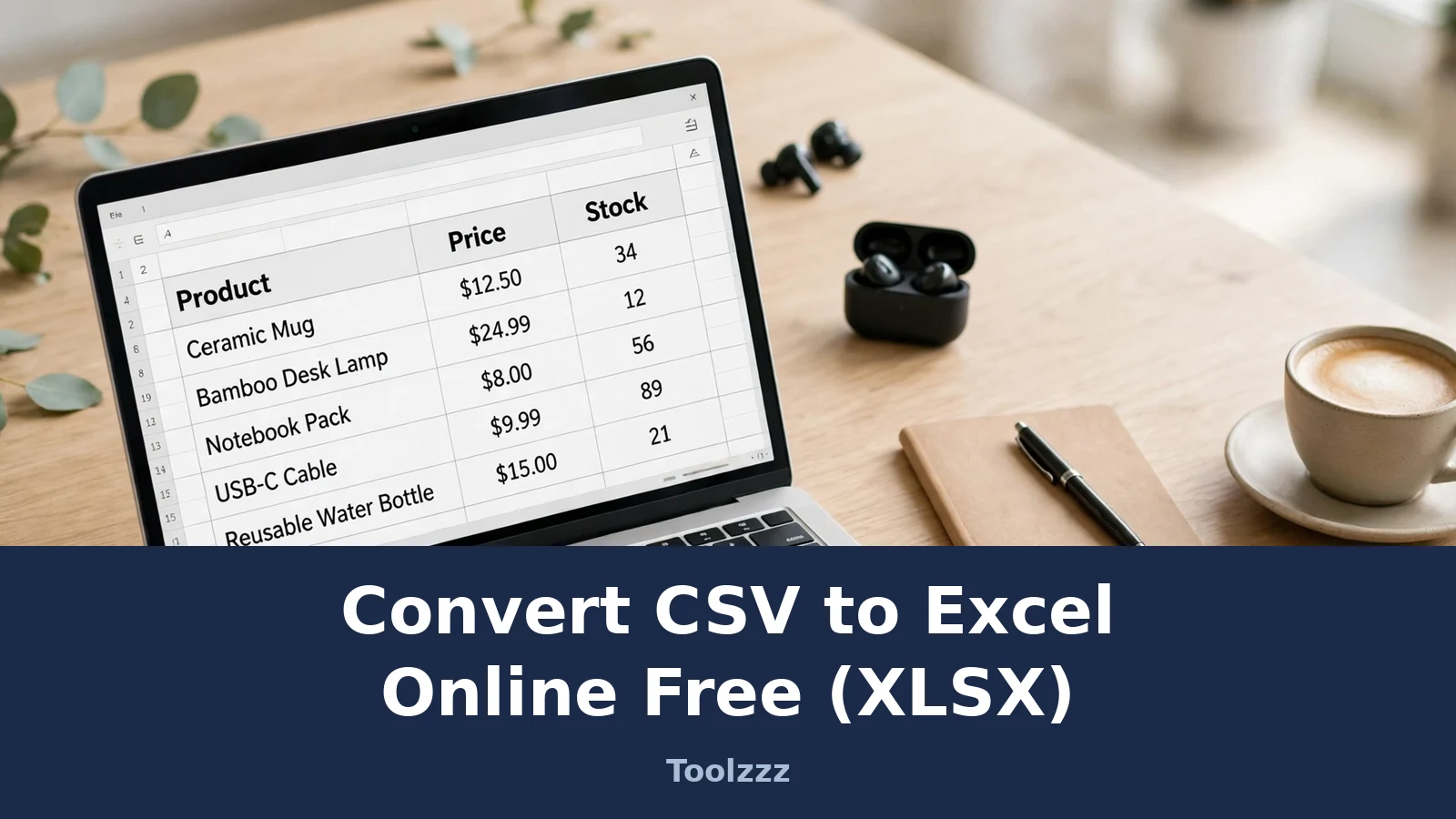
A spreadsheet exports as CSV. A colleague asks for Excel. Between those two facts sits a small, fiddly job: turn plain text rows into a real workbook, without breaking the numbers on the way. It is the kind of job analysts, shop owners and students hit every week, and it takes under a minute when the tool does the parsing for you.
This guide does the job on a real file, on the Toolzzz converter, and shows every step. You will see the exact CSV that went in, the exact workbook that came out, and the settings that shaped it. It also compares the free converters Google recommends, so you can judge which one fits your file, and covers the built-in Excel and Google Sheets routes for files you would rather not hand to a website at all.
To convert csv to excel online free, open the Toolzzz CSV to Excel converter, paste your CSV or upload the file, then press Download. You get a real .xlsx workbook with a bold, frozen header row, filter buttons and numbers stored as numbers. The conversion runs in your browser, so your data never leaves your device.
How do I convert CSV to Excel online free?
The quickest way is a free tool that runs in your browser. Here are the steps on the Toolzzz CSV to Excel converter, which needs no account and stores nothing on a server.
- Add your CSV. Paste it into the left box, or press Upload to open a .csv file from your device. You can also paste rows copied straight from a spreadsheet: copied Excel or Google Sheets cells arrive tab separated, and the tool reads those too.
- Check the options. Keep “First row is the header” ticked if your file has a header row. Leave the delimiter on Auto unless you know your file uses semicolons or tabs. Name the sheet if you want something other than Sheet1, and keep “Store numbers as numbers” ticked so prices and quantities stay calculable.
- Check the preview, then press Download. A preview of the first 50 rows appears on the right while you work, so you can see at once whether the columns split correctly. Press Download to save the workbook as converted.xlsx, then open it in Excel, Google Sheets, Numbers or LibreOffice.
There is no Convert button to press, and that catches people out the first time. The page builds the workbook as you type or paste, so the preview always matches the file you will download. If the preview looks wrong, fix the delimiter before you download, not after.
What did the worked example actually produce?
I ran a real shop stock list through the tool to check every claim on its page. The sample is a small product list: five products, four columns, six lines including the header. It is deliberately awkward in one place, since one price ends in a trailing zero, which is where most converters quietly change your data.
Here is the exact CSV that went in:
Product,Price,Stock,Category
USB-C Cable 2m,12.50,48,Accessories
Wireless Mouse,24.99,35,Accessories
Laptop Stand,39.00,12,Office
Notebook A5,3.75,120,Stationery
Desk Lamp,18.50,27,Office
The conversion was instant. The preview updated in the same moment as the paste, with no waiting and no queue. The preview footer read “6 rows, 4 columns, 5.2 KB XLSX”, and the downloaded file was converted.xlsx. I opened the downloaded file afterwards to check what was really inside it, rather than trusting the preview alone.
| Check | What the tool promised | What the file actually held |
|---|---|---|
| File size | 5.2 KB shown in the preview | 5,276 bytes, exactly as the preview said |
| Sheet name | Sheet1 by default | Sheet1, confirmed inside the workbook |
| Rows and columns | 6 rows, 4 columns | 6 rows, 4 columns, header plus five products |
| Header row | Bold and frozen | Bold, and the top row stays frozen while you scroll |
| Filters | AutoFilter buttons on each column | Filter buttons on all four columns |
| Column widths | Sized to fit the content | Widths set per column: 16, 8, 8 and 13 characters |
| Numbers | Stored as real numbers | 12.50 stored as the number 12.5, 39.00 stored as 39 |
| Opens in | Excel, Google Sheets, Numbers, LibreOffice | Opened cleanly as a valid .xlsx file |
One detail deserves an honest note. The preview showed the prices as 12.50 and 39.00, exactly as typed. The stored values are the numbers 12.5 and 39, because a number has no trailing zeros of its own. Excel therefore shows 12.5 and 39 until you format the column, for example as currency with two decimal places. The value is correct and you can add it up; only the display changes. If the trailing zeros matter to you, format the Price column in Excel after opening the file, or keep the prices as text by unticking “Store numbers as numbers” before you download.
I also tested a quoted comma, since that is where cheap converters break. I pasted the same sample with the first product changed to “USB-C Cable, 2m”, with the comma inside quotes. The preview kept it as a single Product cell, still four columns and six rows. A proper CSV parser follows the quotes; a tool that splits on every comma would have made five columns out of four, and that is a converter to avoid.
Why do leading zeros disappear, and how do I keep them?
This is the most common formatting problem in CSV to Excel conversion, and Google’s AI Overview flags it directly: basic converters may drop leading zeros from ZIP codes or IDs unless the file is imported carefully. A code like 00123 becomes 123, and a phone number like 07700 900123 can lose its first zero. The data looks fine until someone tries to use it.
The cause is simple. A CSV file stores everything as text, so 00123 arrives intact. The moment a converter or Excel reads it as a number, the leading zeros have no value and are dropped. The fix is to tell the tool, before conversion, that the column is text, not a number.
On the Toolzzz converter, untick “Store numbers as numbers” before you download. Every value then stays text, including your codes and ZIP codes, and nothing is retyped as a number. The trade off is that real prices and quantities also stay text, so you cannot add them up without converting them back in Excel. For a file that is mostly codes, that is the right trade. For a file that is mostly numbers with one code column, the better route is Excel’s own Text Import Wizard, where you can set one column to Text and leave the rest as numbers. That route is covered below.
Whatever tool you use, check the result before you send it on. Open the workbook, find one code with a leading zero, and confirm the zero is still there. It takes five seconds and saves an awkward correction later.
What if my file uses semicolons or tabs instead of commas?
Not every CSV uses commas. Exports from European software often use semicolons, because the comma is the decimal separator in many countries. Database exports and copied spreadsheet cells often use tabs. Google’s AI Overview warns about this too: files separated by semicolons or tabs may not split into columns cleanly.
The symptom is unmistakable. Instead of neat columns, everything lands in column A as one long line of text. The file is not broken. The converter is simply splitting on the wrong character.
On the Toolzzz converter, leave the delimiter on Auto and the tool detects it for you. If the preview still shows one column, pick the delimiter by hand: Semicolon for a European export, Tab for copied cells or a .tsv file. The preview updates at once, so you can see whether the columns split correctly before you download anything. The same rule applies in Excel and Google Sheets: if everything lands in column A, the delimiter setting is wrong, not the file.
Which free CSV to Excel converter should I use?
Google’s AI Overview names two tools for this job, Convanter and Impler.io, and says both process files locally in your browser without requiring uploads. I checked the other free converters that rank for the same query, and the table below uses only facts from each tool’s own page, checked at the time of writing.
| Tool | Price and limits | Where your data goes | Notable features |
|---|---|---|---|
| Toolzzz CSV to Excel | Free, no limits stated | Stays in your browser, never uploaded | Bold frozen header, AutoFilter, sized columns, custom sheet name, numbers as numbers |
| Impler.io | Free, no registration, no file size limit stated | Converted in your browser | One file at a time, simple one click conversion |
| TableConvert | Free, no sign up mentioned | Runs in your browser | Delimiter auto detection, editable table preview, download as .xlsx |
| Convertr | Free, no account, no watermark, files up to 1 GB | Uploaded to a worker, then deleted automatically after processing | Comma, semicolon, tab and pipe delimiters, local preview of a small sample |
| CoolUtils | Free online converter, files up to 50 MB | Uploaded for conversion | Auto detects comma, semicolon, tab and pipe delimiters, one file at a time |
| FreeConvert | Free, files up to 1 GB | Uploaded to FreeConvert servers | Batch conversion of several CSV files at once, files from your computer, Google Drive, Dropbox, OneDrive or a URL, separate CSV to XLS converter for the older .xls format |
Convanter, the other tool the AI Overview names, is described there as a free converter that processes files locally in your browser. I could not verify its own page limits in this run, so I will not state any. If you use it, check its page for the current limits before pasting a large or sensitive file.
For most files, the choice is simple. If the data is sensitive, use a converter that states plainly that nothing is uploaded, and check that promise on its own page before you paste. If the file is large, check the size limit first: a 50 MB ceiling is plenty for most exports, but a multi million row file needs a tool with no stated limit or a desktop route. If you only convert one file a month, any of these will do, and the fastest is the one that shows a preview before you download.
How do I convert CSV to Excel in Excel itself?
If you already have Excel, you may not need a website at all. Excel can open a CSV file directly, but that is the route that causes the formatting problems above, because Excel guesses the type of every column. The safer route is the Text Import Wizard, which lets you set the type of each column before the data lands in the sheet.
- Open Excel and go to Data, then From Text/CSV. Pick your file and click Import. A preview window appears showing the delimiter and a sample of the data.
- Confirm the delimiter is Comma. If everything sits in one column, the delimiter is wrong. Change it to Semicolon or Tab and watch the preview split into columns.
- Set the type of any sensitive column to Text. Click Transform Data if you need to set a column, such as a ZIP code or an ID, to Text first. This is the step that protects leading zeros.
- Click Load, then save as an Excel workbook. Use File, then Save As, and choose Excel Workbook (.xlsx) so the file keeps its formatting.
On older versions of Excel, the same wizard appears when you open a .txt file, and you can force it for a CSV by renaming the file extension from .csv to .txt before opening it. Microsoft’s own support page explains both routes, including the row and column limits: Excel allows up to 1,048,576 rows and 16,384 columns per sheet. Microsoft Support covers importing text and CSV files into Excel, and the Guru99 guide walks through the Text Import Wizard step by step, including how it handles other delimiters such as a slash or a pipe.
How do I convert CSV to Excel in Google Sheets?
Google Sheets is the best free option when you want to check the data in a browser before downloading it, and it needs no software installed. The steps are short, and the result is a real spreadsheet you can share or download.
- Open Google Sheets and create a new blank spreadsheet.
- Go to File, then Import. Upload your CSV file or drag it into the dialog, then set the separator type to Comma and click Import data.
- Check the sheet, then download it as Excel. Once the data looks right, go to File, then Download, then Microsoft Excel (.xlsx). The file downloads to your device and opens in Excel with the data intact.
Sheets has one setting worth knowing about. The import dialog has a checkbox labelled “Convert text to numbers, dates, and formulas”. With it on, Sheets helpfully turns your ZIP code into a number and your date into whatever your locale prefers. With it off, values land as text that matches the original file. For a file with codes or IDs, turn it off. For a file of plain numbers, leave it on.
The trade off is that your data passes through Google’s servers, since Sheets is a cloud app. That is fine for ordinary data, and it is the easiest way to share the result with a colleague. For a customer list or a payroll export, a browser only converter that never uploads the file is the safer pick.
Is it safe to convert a CSV with customer data online?
It depends entirely on where the conversion happens. Google’s AI Overview ends with a question that matters here: whether your file contains sensitive data, so the safest option can be picked. A customer list, a payroll export and a mailing list are all sensitive, even when they look boring.
There are two kinds of online converter. The first runs in your browser: JavaScript in the page reads the file, builds the workbook and saves it to your device, and nothing is sent to any server. The Toolzzz converter states this plainly on its page, and the worked example above confirms the file is built locally. The second kind uploads your file to a server, converts it there, and gives you a download link. Those tools usually delete the file afterwards, often within an hour or a day, but your data still left your device, and you are trusting their deletion promise.
The rule is simple. If the file holds names, emails, addresses, salaries or customer records, use a browser only converter, or use Excel or Google Sheets on your own machine. If the tool’s page does not say where the conversion happens, assume the file is uploaded. Never paste a file with passwords, bank details or medical records into any online converter, browser based or not.
What are the limits of a CSV to Excel conversion?
Every route has a ceiling, and it helps to know which one you will hit first. Excel itself allows 1,048,576 rows per sheet and 16,384 columns, and that limit applies however the file was made. A CSV with more rows than that cannot fit on one sheet, and the extra rows are left out, so split the file first if you are anywhere near that size.
The Toolzzz converter states no file size limit of its own: the limit is only your device memory. That is honest, and it is also a warning. A very large file can slow the browser tab or run it out of memory, so for a file with hundreds of thousands of rows, a desktop tool or Excel’s own import is steadier. Most exports are far smaller than that, and a shop list or a mailing export converts in under a second.
Three smaller limits catch people out. Sheet names can be up to 31 characters and cannot contain backslash, forward slash, question mark, asterisk, square brackets or colon, so keep the name short and plain. Dates stay as text, such as 2026-10-01, which Excel shows exactly as written rather than reformatting. And encoding matters: if names with accents show as strange characters, save the CSV as UTF-8 with BOM before importing, since Excel uses that marker to detect the encoding automatically.
What should I check before I send the file to a colleague?
Run through four quick checks, and the file you send will be the file you meant to send. First, count the rows and columns in the workbook and compare them with the CSV. The worked example above had six rows and four columns in both, and a mismatch means a delimiter or a quoted field went wrong somewhere.
Second, spot check the awkward values: one code with a leading zero, one price with a trailing zero, one date, and one name with a comma in it. If those four are right, the rest of the file usually is too. Third, decide what the recipient actually needs. If they want to work with the data in code rather than in a spreadsheet, our CSV to JSON guide converts the same kind of file into JSON objects instead. If they only need to read the table on a web page, the CSV to HTML Table tool turns it into a table for a page without any spreadsheet at all.
Fourth, if your file is mostly text rather than numbers, check how much text you are actually dealing with. The Toolzzz word counter counts the words, characters and sentences in pasted text, which helps when a CSV export turns out to be a wall of notes rather than a tidy table. Then send the workbook, not the raw CSV, so the recipient opens a formatted sheet with filters ready instead of a plain text file. You will find more free tools in the same style on the Toolzzz homepage, covering PDF, image, GIF, text and data jobs with no account and no install. If a column holds names in the wrong case, our guide to changing text case online shows how the Toolzzz converter fixes capitals, including Sentence case for a whole column pasted in at once.
How do I convert CSV to Excel online for free?
Paste your CSV into the Toolzzz CSV to Excel converter, keep the first row as the header, and press Download. You get a real .xlsx workbook with a bold, frozen header row, filter buttons and numbers stored as numbers. The conversion runs in your browser with no account and no install.
Will my numbers stay numbers in the XLSX file?
Yes, when Store numbers as numbers is ticked, which is the default. In the worked example, 12.50 was stored as the number 12.5 and 39.00 as 39, so both can be added up in Excel. Excel shows 12.5 until you format the column, since a stored number has no trailing zeros of its own.
Why do leading zeros disappear when I convert a CSV?
A CSV stores everything as text, so 00123 arrives intact. The moment a converter or Excel reads it as a number, the leading zeros are dropped because they have no value. Untick Store numbers as numbers on Toolzzz, or set the column to Text in Excel’s Text Import Wizard, to keep the code exactly as written.
Can I convert a CSV to Excel without uploading it?
Yes, if the tool runs in your browser. The Toolzzz converter builds the workbook with JavaScript in your tab, and the page states that your data never leaves your device. Check any other tool’s own page for the same promise before pasting sensitive data, and assume the file is uploaded if it does not say so.
What is the largest CSV file I can convert?
Excel allows 1,048,576 rows per sheet and 16,384 columns, and that ceiling applies however the file was made. The Toolzzz converter states no size limit of its own and is limited only by your device memory. For a file with hundreds of thousands of rows, Excel’s own import or a desktop tool is steadier than a browser tab.
How do I convert CSV to Excel in Google Sheets?
Open Google Sheets, create a blank spreadsheet, go to File, then Import, upload your CSV, set the separator to Comma and click Import data. Then go to File, then Download, then Microsoft Excel (.xlsx). Turn off Convert text to numbers, dates, and formulas in the import dialog if your file holds codes or ZIP codes.
