

A GIF is a short, silent animation that plays on a loop. It works in chats, emails, social posts, slides and web pages with no play button and no video player. You can make one from photos you already have, and you do not need an app, an account or a paid plan to do it. A free online maker turns your pictures into a looping GIF in under a minute.
Short answer: To make a gif online free, open the Toolzzz GIF Maker, add two or more photos, put them in order, set the frame duration to 500 ms, choose a width of 480 px, then press Create GIF and Download GIF. It runs in your browser, needs no account and adds no watermark.
This guide shows the steps on the Toolzzz tool, compares the free makers Google lists for this search, explains the settings that decide how your GIF looks and how big the file is, and ends with a real GIF made from three photos, with the exact sizes reported. Once your GIF exists, resize a GIF to fit Discord or Slack before you upload it anywhere.
What is a GIF, and what do you need to make one?
GIF stands for Graphics Interchange Format. CompuServe released it on 15 June 1987, and it is still the most widely supported animation format on the web. Each frame in a GIF can use up to 256 colours from its own palette, the file uses lossless LZW compression, and frames can carry a delay time and a transparent colour. That is the whole format, and those limits explain most of what a GIF can and cannot do. The Wikipedia page on GIF sets out the history and the format in full, including the 1989 update that added animation delays and transparency, and the 1995 Netscape change that made GIFs loop.
To make a GIF you need a starting point and a maker. The starting point is either a set of still images or a short video clip. Still images suit slideshows, before and after pairs, step by step demos and product angles. A video clip suits a short movement, a reaction or a moment from a longer recording. The maker takes your frames, sets how long each one shows, and saves one file that plays through them and loops.
Two or more images are enough. Each image becomes one frame, and the order you put them in is the order they play. Photos of different sizes are fine. Most makers fit every frame onto one canvas, so a tall portrait and a wide landscape can sit in the same GIF, though the result looks tidier when the pictures share a shape. A video clip works differently: the maker pulls frames out of the clip at a set rate, so a 3 second clip at 10 frames per second gives 30 frames.
GIFs have no sound, so they are not a replacement for video. They are also limited to 256 colours per frame, so smooth gradients, sunsets and skin tones can show banding, the stepped stripes where one colour jumps to the next. Flat graphics, logos, text and simple photos look best. For a long or detailed animation, a short video file is usually smaller and sharper, but a GIF plays everywhere a video cannot, inside an email or a chat message, with no player at all.
How do I make a GIF online free?
These are the steps on the Toolzzz GIF Maker, and the same steps work on most free makers. Nothing is uploaded: the tool builds the GIF in your browser, so your photos never leave your device.
- Add your images. Click the upload box or drop JPG, PNG, WebP or GIF images onto it. Add two or more. You can add more at any time with the Add more button.
- Put them in order. Use the arrows under each frame to move it left or right. The first image sets the canvas shape, so put your main picture first if the sizes differ.
- Set the frame duration. This is how long each frame stays on screen, in milliseconds. 500 ms is a good start for a slideshow where each photo should be looked at. For smooth motion, use 100 ms or less. The tool allows 20 to 3000 ms per frame.
- Choose the width and canvas. 480 px wide is plenty for chats and social posts. Pick a canvas shape if you need one: original, 1:1 square, 16:9 wide or 4:5 portrait. Square suits profile pictures and grid posts, 4:5 suits portrait feeds.
- Set the loop and background. Loop forever is the usual choice, so the GIF repeats until the viewer scrolls away. Loop once plays it a single time. Tick transparent background only if your images are PNGs with transparency, for a sticker effect.
- Press Create GIF, check the preview, then press Download GIF. Watch the preview play through every frame before you download. If a frame is out of order or the timing feels wrong, fix it now, because the downloaded file is final.
That is the whole process. There is no account, no email address and no watermark. The tool page lists unlimited frames, though very long GIFs need more memory on your device, and each frame gets its own optimised 256 colour palette.
Which free GIF maker should I use?
Google’s AI Overview for this search lists five free makers, and the top ranked guide from IONOS adds Giphy and Imgflip. The table below covers the Overview’s five plus Toolzzz, with what each one does, so you can pick by the job rather than by the advert. Features for LoveGIF, ToolFlic, Canva and Adobe Express are as listed in the Overview, checked 2026-11-18. LoveGIF’s own site could not be opened at write time, and VEED’s GIF maker page returned a not found error, so their rows rely on the Overview and the IONOS guide.
| Maker | Starts from | Best for | Sign-up |
|---|---|---|---|
| Toolzzz GIF Maker | Images (JPG, PNG, WebP, GIF) | Quick photo slideshows, unlimited frames, no upload, no watermark | No |
| LoveGIF | Multiple images | Combining images with custom resolution, speed and background colour | Not stated in the Overview |
| Ezgif | Images or a ZIP file | Reordering frames, per frame delays in centiseconds, resizing mismatched images | No |
| ToolFlic | MP4 or WebM clips, or 2 to 50 images (JPG, PNG, WebP) | Video clips and image sets in the browser, frame rate 4 to 24 fps, width and loop controls | Not stated in the Overview |
| Canva | Videos, images, templates, stock elements | A GIF inside a design, with templates and stock to start from | Canva account |
| Adobe Express | Video files | Turning a video into a GIF with size and quality options | Adobe account |
| VEED | Video clips | Trimming and splitting a clip, adding text, images or captions, then exporting as a GIF | Not stated in the Overview |
If you are starting from photos and want the fastest route, use a plain maker like Toolzzz or Ezgif and you are done in a minute. Ezgif is the strongest choice when your pictures are different sizes, because it can resize them to match, and when you want a different delay on each frame: its delay time is measured in hundredths of a second, and it warns against going below 2, because some browsers ignore very short delays and play them slower. The Ezgif GIF maker page also states its limits plainly: 200 MB total upload, files deleted 1 hour after upload, and a maximum resolution of 1920 by 1920 pixels.
If you are starting from a video, ToolFlic, Adobe Express and VEED all take clips. ToolFlic covers both starting points in one tool, which is handy if you sometimes have photos and sometimes have a clip. Canva is the right pick when the GIF has to sit inside a design you are already making, such as a social post or a flyer, rather than being a standalone file.
Two more names appear in the top ranked IONOS guide. Giphy has a large GIF archive and a free maker, but you need to create an account and log in before you can use it. Its maker turns a video file or a YouTube link into a GIF, with captions and stickers to decorate it. Imgflip makes GIFs from photos, videos and video links with text and stickers, lets you crop the clip and set a time range for text and images, and its basic features are free, but removing the watermark needs the paid Pro version. If a maker asks you to sign in or pay before it will save a clean file, that is the point to check a plain free maker instead.
What settings make a good GIF?
Three settings decide how your GIF looks: how long each frame shows, how wide the file is, and how many colours each frame keeps. Get those right and the GIF plays smoothly, looks clean and stays a sensible size.
Frame duration is the pace. It is stored per frame in hundredths of a second, so 100 ms is 10 frames per second and 500 ms is 2 frames per second. The right pace depends on what the GIF is for.
| Use | Frame duration | What it feels like |
|---|---|---|
| Fast animation, burst photos | 50 to 100 ms | Smooth motion, 10 to 20 frames a second |
| Step by step demo | 100 to 250 ms | Each step is readable, motion still flows |
| Photo slideshow | 500 to 1500 ms | Each photo gets a proper look |
| Before and after | 800 to 1500 ms | Time to compare the two images |
| Text on screen | 1000 ms or more | Long enough to read the words |
The Toolzzz tool page recommends the same ranges: 800 to 1500 ms for a photo slideshow, 300 to 600 ms for product angles, 60 to 120 ms for fast animation and 500 to 1000 ms for an email banner. One warning applies everywhere: do not set a delay below 20 ms. GIFs store delays in hundredths of a second, and browsers slow anything shorter than that down to 100 ms, so a value meant to be faster actually plays slower.
Width is the size on screen. 480 px wide is the sweet spot for chats, messages and social posts: sharp on a phone and quick to upload. For a GIF embedded in a blog post, 640 to 800 px looks better. Above 1280 px the file grows fast with little visible gain, because GIF is capped at 256 colours per frame anyway. The Toolzzz tool lets you set the width and offers canvas shapes of 1:1, 16:9 and 4:5 alongside the original shape.
Colours are the quality. A GIF frame can hold at most 256 colours, and fewer colours make a smaller file. Photos with lots of detail, gradients and skin tones compress least well, because the palette has to approximate shades it cannot hold exactly, which shows as banding. Flat graphics and logos compress best. Toolzzz gives each frame its own optimised 256 colour palette, which keeps the colours of one photo from muddying the next. If your GIF still looks rough, drop the colour count to 128 or 64 and check the preview: on a simple graphic you will barely see the difference, and the file can shrink a lot.
Loop is how it ends. Loop forever is the default and the right choice for almost everything, because a GIF that stops after one play looks broken in a chat. Loop once suits a short announcement where a single play is the point. Toolzzz also offers looping 3 times. Pick the loop before you create the file, because the loop count is stored in the GIF itself.
How do I keep my GIF small?
GIF size grows with width times height times number of frames. Every frame is a full picture, so a long GIF at a large size becomes a heavy file fast. Three changes cut the size, in order of effect.
First, reduce the width. Halving the width cuts the pixels in each frame to a quarter, so a 480 px GIF is far smaller than a 960 px version of the same animation. Second, use fewer frames. A 3 second clip at 10 frames per second is 30 frames; the same moment at 5 frames per second is 15 frames and roughly half the size, and for a simple movement the difference is hard to spot. Third, lower the colour count from 256 to 128 or 64.
Watch the total before you share. Discord allows GIF files up to 8 MB for regular users and 50 MB for Nitro subscribers, according to Ezgif’s own FAQ, and many chat apps and email clients have limits of their own. If your GIF is over the limit, shrink the width first, then the frame count, then the colours. The worked example below shows what real numbers look like: three photos at 480 px wide and 500 ms a frame came to 263 KB, which is small enough to send anywhere.
If the GIF is still too big after all three cuts, the animation may simply be too long or too detailed for the format. At that point a short video is the better answer. Our guide to converting a GIF to MP4 shows how a video file can be 5 to 10 times smaller than the same animation as a GIF, with better colour and sound as well.
Worked example: a real GIF made with Toolzzz
To write this guide, I made a real GIF on the Toolzzz GIF Maker from three photos and checked the result. The three frames are real files: a wide Moraine Lake photo, a cropped portrait version of the same lake, and a phone photo of a mountain scene. They are different sizes and shapes on purpose, to show what the tool does with mismatched pictures.
| Frame | File | Size | Dimensions |
|---|---|---|---|
| 1 | Moraine Lake, wide | 1,520,767 bytes (1.45 MB) | 2048 by 1536 |
| 2 | Moraine Lake, portrait crop | 288,805 bytes (282 KB) | 1080 by 1350 |
| 3 | Phone photo, mountain scene | 3,165,563 bytes (3.02 MB) | 4032 by 3024 |
I uploaded the three pictures in that order, left the canvas on the first image, and used the settings below. The tool showed a preview that played through all three frames in order, then reported the result before I downloaded anything.
| Setting | Value used |
|---|---|
| Frame duration | 500 ms per frame |
| Width | 480 px |
| Canvas | First image (original shape) |
| Loop | Forever |
| Colours | 256 |
| Background | Not transparent |
The tool reported “GIF ready: 3 frames, 480 by 360 px, 269 KB”. The downloaded file was named toolzzz-animation.gif and measured 269,095 bytes, which is 263 KB. I checked the downloaded file itself: it holds 3 frames, each 480 by 360 pixels, each with a 500 ms delay, and a loop count of zero, which means loop forever. The whole loop lasts 1.5 seconds. Here is the actual GIF that was made.
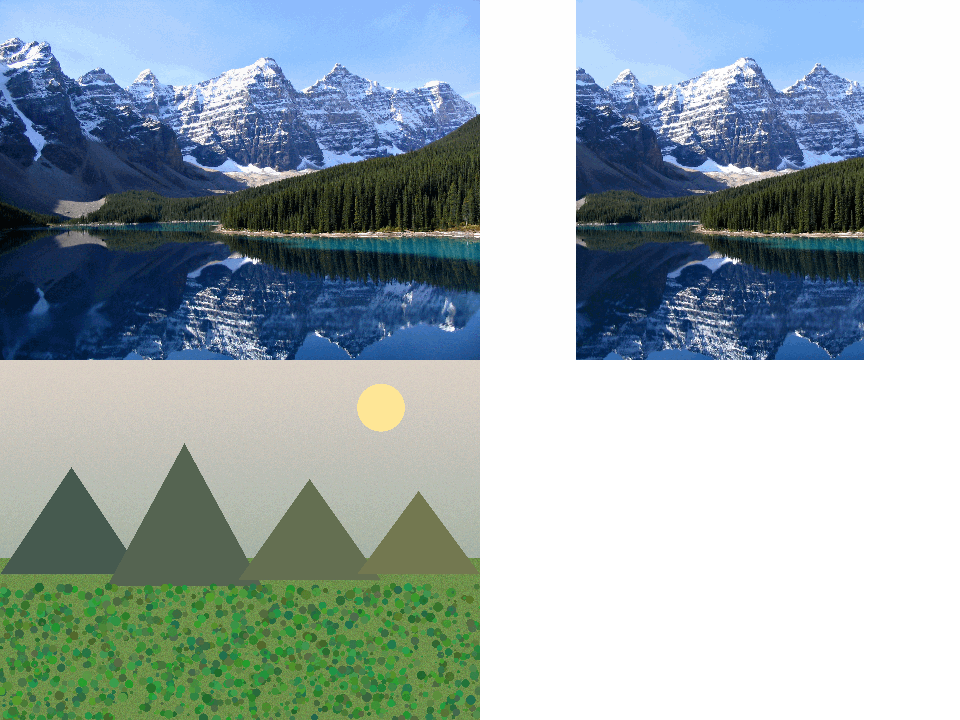
Two things in the result are worth noting. First, the output is 480 by 360, a 4:3 shape that matches the first frame, even though the second frame is a tall portrait picture. The tool fitted the portrait frame onto the first frame’s canvas rather than changing shape mid animation. Second, the three source photos add up to about 4.75 MB, and the finished GIF is 263 KB. That is not a fair like for like comparison, because the GIF is much smaller in pixels and holds only 256 colours per frame, but it shows why a GIF is a practical way to share a few photos as one moving file.
The same steps work for any set of pictures: holiday photos, product angles, screenshots of a process, or a before and after pair. Keep each frame on screen long enough to read, 500 ms or more for a slideshow, and check the preview before you download. If one frame looks squashed, it is usually because its shape differs from the first frame, so either crop the pictures to the same shape first or put the widest picture first. If the GIF is already made, crop the finished GIF to the shape you need instead.
How do I make a GIF from a video instead?
Starting from a video is a different job, and it has its own tool. You pick a short clip, trim it to the exact moment you want, choose a frame rate and a width, and the tool pulls frames out of the clip and builds the GIF. Keep the clip short, two to five seconds, because every extra second adds frames and file size. A frame rate of 10 per second is a good balance: smooth enough to follow and half the size of 20 per second.
Our guide to converting a video to GIF walks through that process with a real clip: a 3 second 640 by 360 video became a GIF of 480 by 270, 30 frames at 10 frames per second, and the GIF file was 7.1 times larger than the source video. That size gap is normal, and it is why short clips matter. If you have a video and want a GIF, use the video tool. If you have photos and want a GIF, use the GIF maker in this guide. Mixing the two starting points in one tool is possible on some makers, such as ToolFlic, but the settings that suit a clip do not suit a photo set, so one tool per starting point keeps the choices simple.
Where can I share my GIF?
A GIF plays almost everywhere, which is the reason the format has lasted since 1987. Paste it into a WhatsApp or Telegram chat and it plays in line with no tap. Post it on X, Facebook or Instagram and it loops in the feed. Drop it into a Slack channel and it plays for the whole team. Put it in an email and most email clients play it inside the message, which a video cannot do. Add it to a web page or a slide deck and it moves without a player.
Each place has its own limits. Discord takes GIFs up to 8 MB for regular users and 50 MB for Nitro subscribers, as Ezgif’s FAQ states, and Discord also turns short videos into GIF-like loops of its own. Slack accepts GIF uploads and plays them in line, but very large files are slow to load for everyone in the channel. WhatsApp compresses images it receives, so a GIF sent through WhatsApp may come out smaller and softer than the file you made. Email clients vary: most play GIFs, but Outlook on desktop has long shown only the first frame, so a GIF whose message sits in the last frame can be missed entirely.
Match the GIF to the place. For a chat or a social post, 480 px wide and under 1 MB is a safe size. For a Discord custom emoji, the file must be small and square, which is a different job with its own size presets. For a website or a blog post, 640 to 800 px wide is sharp without slowing the page. If your GIF is too big for the place you want to share it, shrink it with the size steps above, or turn it into a video. The Toolzzz home page lists the full set of free tools on this site, including the GIF maker used in this guide and the converters for the next step, if you want to resize or convert the result.
What if my GIF looks wrong?
Most GIF problems have a plain cause. A GIF that is too big usually has too many frames, too wide a canvas or too many colours: cut the width first, then the frame count, then the colours. A GIF that looks choppy usually has too few frames for the movement, or a frame duration that is too long: drop the duration to 100 ms or raise the frame rate on a video source. A GIF with stepped stripes on a sky or a face is showing the 256 colour limit: lower the width a little, accept the banding on photos, or use a video file instead for that clip.
A GIF that plays in the wrong order has its frames in the wrong order. Reorder them with the arrow buttons and check the preview before you download, because the order is fixed in the file. A GIF that will not loop has its loop set to once: change it to forever and create it again. A GIF that looks squashed has frames of different shapes fitted onto one canvas: crop the pictures to the same shape first, or make the widest picture the first frame so the canvas matches it.
A GIF that will not upload is usually over the size limit of the place you are sending it to. Check the limit first, then shrink the file with the steps above. A GIF that looks fine on your computer but blurry on a phone was probably made too small: 480 px wide is sharp on a phone screen, but a 320 px GIF stretched across a wide post will soften. Make it at the size it will be shown, or a little larger, and no bigger than it needs to be.
Can I find where a GIF came from?
Yes, and it is worth doing before you reuse a GIF you found online. A GIF passed around social media often loses its source, and the original maker may not want it reused. A reverse image search on the GIF finds where else it appears, which usually leads back to the creator or the original post. Our guide to reverse GIF search shows how to search with a GIF file and read the results, so you can credit the maker or check whether the GIF is free to use.
That check matters because not every GIF on social media is free to reuse. If the source is unknown, the copyright and usage rights are unclear, and reposting it can cause trouble. Making your own GIF from your own photos avoids the problem entirely, which is another reason to build the GIF yourself rather than downloading one from an archive.
Making a GIF is a small job with a clear payoff. Pick two or more photos, or a short video clip, choose a free maker that needs no account, set the timing to suit the content, and check the preview before you download. The GIF you get plays everywhere, needs no player, and costs nothing to make. Try it with three photos of your own, at 480 px wide and 500 ms a frame, and you will have a finished GIF in under a minute.
How do I make a GIF from photos for free?
Open a free GIF maker such as the Toolzzz GIF Maker, add two or more photos, put them in order with the arrow buttons, set the frame duration to 500 ms and the width to 480 px, then press Create GIF and Download GIF. It runs in your browser, needs no account and adds no watermark.
How long should each frame show?
It depends on the content. Use 50 to 100 ms per frame for smooth motion, 100 to 250 ms for a step by step demo, and 500 to 1500 ms for a photo slideshow or a before and after pair. Text on screen needs 1000 ms or more so people can read it. Do not go below 20 ms, because browsers slow shorter delays down.
How many images do I need to make a GIF?
Two images are the minimum, and each one becomes a frame. Two to ten photos suit a slideshow or a before and after pair. More frames make smoother motion, such as a burst of photos, but every extra frame adds to the file size, so keep the count as low as the animation allows.
Why is my GIF file so big?
A GIF stores every frame as a full picture, so size grows with width times height times number of frames. Shrink the width first, then use fewer frames, then lower the colour count from 256 to 128 or 64. If it is still too big, the animation may be too long for the format, and a short video file is the better choice.
Can I make a GIF on my phone?
Yes. Free GIF makers run in the browser on iPhone and Android, so you open the tool in Safari or Chrome, tap the upload box, choose photos from your library, set the timing and download the GIF. The steps are the same as on a computer, and no app is needed.
Do free GIF makers add a watermark?
The plain free makers do not. Toolzzz and Ezgif add no watermark and need no sign-up. Some makers do add one: Imgflip puts a watermark on free GIFs and removes it only on the paid Pro plan, and Giphy needs an account before you can use its maker. Check before you download.
