

Turning a short video into a GIF is one of the simplest format conversions you can do online, and it is free. A GIF plays automatically in chats, emails and documents, with no play button and no video player. The catch is that GIFs get large fast, so the settings you pick matter more than the tool you pick. If the GIF is already made and just too big, our guide to compressing a GIF online free shrinks it with three settings and real before and after sizes. If the GIF still comes out too big for where it is going, resize a GIF to the exact size Discord or Slack asks for. Everything on Toolzzz is free to use, and the converter on this page needs no account.
Short answer: To convert video to GIF online free, open Toolzzz Video to GIF, drop in an MP4, WebM or MOV file, set the start and end time to the 3 to 6 seconds you want, choose 10 frames per second and a width of 480 px, press Create GIF and Download GIF. Nothing is uploaded, and there is no watermark.
How do I convert a video to GIF online free?
The whole job takes under a minute when the clip is short. These are the exact steps on the Toolzzz converter, which runs entirely in your browser.
- Add your video. Click the upload box or drag an MP4, WebM or MOV file onto it. The file opens on your device. Nothing is uploaded to a server, so there is no waiting for a large phone video to travel anywhere.
- Pick the exact part. Enter a start and end time in seconds. You can set them to 0.1 s precision, so you can cut the clip to the precise moment you want. A 3 to 6 second slice works best for most uses.
- Set the frame rate and width. Choose 10 frames per second and a width of 480 px as a starting point. These two settings control the file size more than anything else.
- Choose the loop. Leave Loop on Forever for a reaction GIF or a demo that should keep playing. Turn it off if you want the GIF to play once and stop.
- Create and download. Press Create GIF, wait a few seconds while the tool reads the frames, then press Download GIF when the preview appears. The file saves to your Downloads folder.
That is the full process. No account, no email address, no app to install. The same steps work on Windows, Mac, iPhone and Android, because the tool is a web page and the conversion happens in your browser.
What settings should I use for video to GIF?
Three settings decide whether your GIF is small and smooth or huge and jerky: clip length, frame rate and width. The table below is the one the Toolzzz tool page recommends, and it matches what I found in my own test.
| Goal | Length | Frame rate | Width |
|---|---|---|---|
| Chat reaction | 2 to 4 s | 10 fps | 320 to 480 px |
| Product demo | 4 to 8 s | 10 to 15 fps | 480 to 640 px |
| Smooth motion | 2 to 5 s | 15 to 20 fps | 480 px |
| 3 to 6 s | 8 to 10 fps | 600 px |
Two rules of thumb cover most cases. First, keep the clip short. File size grows roughly in proportion to length, so a 12 second GIF is about four times the size of a 3 second one at the same settings. Second, start at 10 fps. Most viewers cannot tell 10 fps from 15 fps on a short loop, but 15 fps costs about 50 percent more frames, and therefore about 50 percent more file size.
Width matters just as much. Halving the width from 960 px to 480 px cuts the pixels in each frame to a quarter, and the file size drops sharply with it. A 480 px GIF looks fine in a chat window or an email, where it is shown small anyway.
My worked example: a real 3 second clip converted on Toolzzz
I tested the Toolzzz converter with a real video file so the numbers in this article are measured, not guessed. The source was a 3 second MP4 test clip, 640 by 360 px, recorded at 30 frames per second, with an H.264 video track and an AAC audio track. The file was 52,062 bytes, about 51 KB.
I uploaded it to the Video to GIF tool, set Start to 0 seconds and End to 3 seconds, left the frame rate at 10 fps and the width at 480 px, kept Loop on Forever and colours at 256, then pressed Create GIF. The tool read all 30 frames and showed the animated preview within a few seconds.
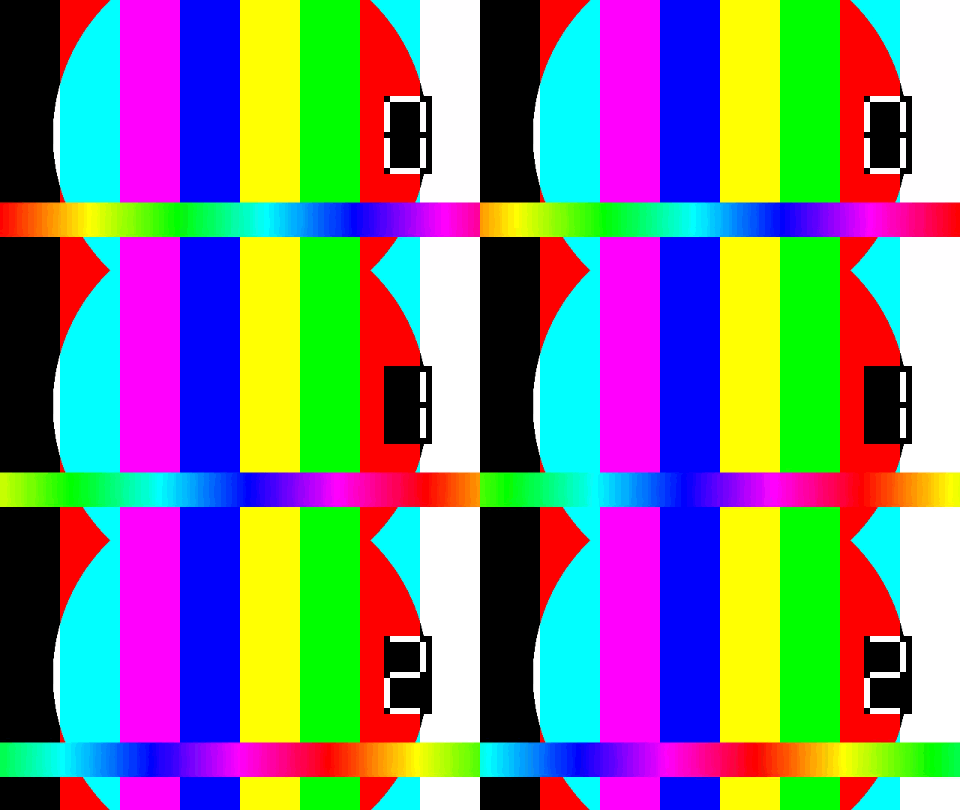
That is the actual GIF the tool produced, playing above. Here are the measured results.
| Setting or result | Value |
|---|---|
| Source video | MP4, 640 by 360 px, 3.0 s, 30 fps, 52,062 bytes |
| Clip used | Start 0 s, end 3 s (the full clip) |
| Frame rate | 10 fps |
| Output width | 480 px |
| Colours | 256 (the tool default) |
| Loop | Forever |
| Output GIF | 480 by 270 px, 30 frames, 100 ms per frame |
| Output size | 369,424 bytes (369 KB) |
| Size change | GIF is 7.1 times larger than the source MP4 |
| Audio | Dropped. GIFs have no sound. |
The most useful number there is the last-but-one. A 51 KB video became a 369 KB GIF, even though the GIF is smaller in pixels and runs at a third of the frame rate. That is normal, and the next section explains why. It is also why the settings table above matters: the same 3 second clip at 1080 px and 20 fps would have come out several megabytes, and would have been refused by some platforms. If you would rather start from still pictures than from a clip, our guide to making a GIF online free shows how to turn three photos into a looping GIF in under a minute.
Why is my GIF so much bigger than the video?
Video and GIF compress in completely different ways. A video codec like H.264 stores only what changes between frames, so a mostly static scene costs very little. A GIF stores every frame as its own picture, compressed with LZW, and each frame is limited to 256 colours. There is no inter-frame compression at all. That is why a small MP4 balloons into a much larger GIF, and why the gap grows with length, width and frame rate.
The 256 colour limit also explains why some GIFs look banded. A sunset, fog or a smooth gradient has thousands of shades, and the GIF palette has to approximate them with 256 colours per frame. The result is visible steps of colour, called banding. Good converters dither the image, breaking bands up with a fine speckle pattern, and the Toolzzz tool builds a fresh palette for each frame. Flat colours and high contrast scenes, like user interface demos, text and line art, compress and look far better than busy video.
If your GIF is still too large after conversion, change one thing at a time, in this order: shorten the clip, drop the width to 320 or 480 px, lower the frame rate to 8 or 10 fps, and then reduce the colours. Each step cuts the size a lot. If it is still too big, the clip itself is the problem, and a still image or a short muted video is the better format. Our guide to compressing an image to 100KB shows the same size-first thinking applied to still pictures.
What are the best free video to GIF converters?
Google’s AI Overview for this search names FreeConvert, Adobe Express, Canva, Ezgif and Imgflip among the free options, and all five are free to try. They differ in where the work happens and what controls they give you, so the best choice depends on your clip.
| Tool | What it offers | Where it runs |
|---|---|---|
| Toolzzz Video to GIF | Exact start and end to 0.1 s, 5 to 20 fps, 320 to 1080 px wide, loop control, 256 colours, 600 frame cap, no watermark | In your browser, no upload |
| FreeConvert | Says it accepts files up to 1 GB from a device, cloud storage or a URL, with start and end trimming, width, loop count, frame rate and compression controls | On its servers |
| Adobe Express | Free with no credit card required, for videos up to 1 minute, with trimming, aspect ratio choices and file size choices | On its servers |
| Canva | Works on desktop and mobile, supports MP4, MOV, MPEG, MKV and WEBM, with editing for text, captions, speed and transitions | On its servers |
| Ezgif | Detailed adjustments: frame rate, cropping, resizing and playback speed, for MP4, MOV, AVI and WebM | On its servers |
| Imgflip | Free Video to GIF mode: upload a video file or paste a video URL from YouTube or Vimeo, with text that moves with the video; free GIFs carry an Imgflip watermark | On its servers |
The practical difference is privacy and waiting. Server tools upload your whole video before they start, which takes a while on a large phone video and hands a copy of your clip to someone else. A browser tool reads the file on your device and never sends it anywhere, which is the safer choice for personal clips, unreleased work or anything with people in it. Server tools win when your browser cannot play the format, or when the video is so large that your device runs short of memory.
One more thing to check before you pick: the upload limit. FreeConvert says it accepts files up to 1 GB, and Adobe Express caps videos at 1 minute. Toolzzz has no file size limit of its own, because the limit is your device memory, and it caps a clip at 600 frames, which is 60 seconds at 10 fps. For the short clips GIFs are made for, none of these limits gets in the way.
Which video formats can I turn into a GIF?
Any video your browser can play can be turned into a GIF. In practice that means MP4 with H.264, WebM with VP8, VP9 or AV1, and MOV files from iPhone in Safari. Those three cover almost every clip a phone or a screen recorder produces.
iPhone videos need one extra check. Recent iPhones record in HEVC, also called H.265, and Chrome on Windows may not decode those files. If the upload box refuses your MOV file, record in Most Compatible mode on the iPhone, which uses H.264, or open the converter in Safari, which plays HEVC. The output is identical either way, because both formats are decoded to raw frames before the GIF is encoded.
Older formats like AVI, MKV and FLV are a mixed bag. Some browsers can play them and some cannot, so if your file will not open, convert it to MP4 first and then make the GIF. The GIF format itself is the same whatever you start from: a sequence of frames, at most 256 colours each, with no sound. The MDN guide to image types explains the GIF format and its limits in detail.
How do I keep a GIF under Discord, X and Slack limits?
Every platform caps uploads, and the cap is per file. A GIF that posts fine on one service can be refused on another, so pick your target size before you convert, not after.
| Platform | Upload limit | Safe GIF target |
|---|---|---|
| Discord, free account | 20 MB per file, raised from 10 MB in August 2026 | Under 5 MB, 480 px, 10 fps, under 4 s |
| Discord, Nitro Basic | 50 MB per file | Under 20 MB, 640 px, 10 to 15 fps |
| X, web upload | 15 MB for animated GIFs | Under 5 MB so it also works on mobile |
| X, mobile app | 5 MB for animated GIFs | Under 5 MB, 480 px, 10 fps |
| Slack | 1 GB per file | Under 5 MB keeps chats fast |
Discord’s limits come from its own File Attachments FAQ, which raised the free limit from 10 MB to 20 MB in August 2026, and X’s limits come from its Help Center page on posting photos or GIFs. X also caps GIFs at 1280 by 1080 px and 350 frames. The 5 MB mobile limit on X is the one that catches people out: a 12 MB GIF uploaded from a laptop will be refused on a phone, so targeting under 5 MB is the safe rule for anything you plan to share from mobile.
Discord custom emoji are a special case with a much smaller budget. A custom emoji must be 128 by 128 px and under 256 KB, which means a very short clip at low frame rate. That is a job for the resize controls, and we cover it in detail in our guide to resizing GIFs. For ordinary chat GIFs, the settings in the table above are the ones to use.
Can I convert a video to GIF on my phone?
Yes. The converter runs in your phone browser, so there is no app to install and no account to create. On iPhone, open the tool page in Safari, tap the upload box and pick the clip from your photo library or Files, set the start, end and frame rate, then press Create GIF and Download GIF. Safari saves the GIF to Downloads. Open Files, then Downloads, to find it, and use Save Image to add it to Photos.
On Android, open the page in Chrome, tap the upload box and pick the video from Gallery or Files. The result lands in Downloads and shows in Google Photos under Downloads. Long videos need a lot of memory on a phone, so keep the clip to a few seconds. A 3 second clip at 480 px and 10 fps is only 30 frames, and any modern phone handles that easily.
One tip for phone videos: trim the clip before you convert. A phone video is often a minute or more of footage around a two second moment, and converting the whole thing wastes time and makes a huge GIF. Set the start and end to the moment itself and leave the rest behind.
Does a GIF keep the sound from my video?
No. The GIF format has no audio channel at all, so the sound is dropped during conversion. My test clip had an AAC audio track, and the GIF that came out was silent, as every GIF is. If the sound matters, keep the clip as a video. A short muted MP4 loop is far smaller than the same clip as a GIF and keeps the audio, and most chat apps and social feeds play short MP4s inline now.
If you already have a GIF and want it back as a video with a player, convert it the other way. Our GIF to MP4 converter turns a GIF into an MP4 you can post where videos are accepted and GIFs are not, such as Instagram and TikTok. Going from video to GIF and back again loses quality each time, so keep the original video file and convert from that whenever you can. Our new guide to converting a GIF to MP4 walks through that reverse conversion on a real file, with the exact sizes before and after.
What is the difference between a GIF and a video?
A GIF is a sequence of still images that plays on its own. A video is a compressed stream that needs a player. That one difference explains why GIFs still exist: they autoplay everywhere, in every browser since 1995, every chat app, every email client and every GitHub README, with no play button and no player chrome. The GIF format has worked this way since 1987, which is why support for it is universal. An embedded MP4 needs a tap to play in many email clients and most comment boxes.
The price of that universality is size and colour. A GIF stores every frame separately in at most 256 colours, while a video stores only the changes between frames in millions of colours. The same 3 second clip is often five to ten times larger as a GIF than as an MP4, as my test showed. Animated WebP and short MP4 clips compress far better, but they do not autoplay in email or in a README, so GIF wins when compatibility matters more than size.
GIFs also have a second life as searchable images. If you have a GIF and want to find where it came from, or find the original video behind it, a reverse image search can trace it. Our guide to reverse GIF search shows how to search with a GIF frame and find its source.
Can I add text or captions to my GIF?
The Toolzzz converter makes a clean GIF from your clip, with no text added. If you want captions, add them before or after conversion. Canva is the tool Google’s AI Overview names for this: it supports text, captions, speed and transitions on desktop and mobile. Ezgif also lets you crop and resize after conversion, which helps when a caption needs room.
A simpler route is to burn the text into the video before you convert it, using your phone’s built-in editor or a video editor. That way the text is part of the frames and survives any converter. Keep captions short and large, because a GIF shown at 480 px wide leaves little room for small text, and text on a moving background is hard to read at 10 frames per second.
How do I make a GIF from photos instead of a video?
A GIF made from photos is a different job from a GIF made from a video. Instead of picking frames out of a clip, you arrange still images in order and set how long each one shows. That is what a GIF maker does, and it is the right tool for slideshows, stop motion and logo animations, where each frame is a separate picture.
If your photos are already in a video, use the converter on this page. If they are separate images, use a GIF maker and set the delay per image, usually 100 to 200 ms for a smooth slideshow. The same size rules apply: keep it short, keep it narrow, and keep the frame count low. A ten photo slideshow at 480 px wide is roughly the same size as a 3 second video GIF.
Frequently asked questions
How do I convert a video to GIF for free?
Drop the video into Toolzzz Video to GIF, set the start and end time to the seconds you want, choose 10 frames per second and 480 px wide, then press Create GIF and Download GIF. There is no account, no watermark and no upload, because the conversion runs in your browser.
How long should a video to GIF clip be?
Keep it between 3 and 6 seconds for most uses, and 2 to 4 seconds for a chat reaction. File size grows roughly in proportion to length, so a 12 second GIF is about four times the size of a 3 second one at the same settings, and long GIFs load slowly.
What frame rate should I use for a GIF?
Use 10 frames per second for chat reactions and most loops. It looks fine for most content and keeps the file small. Use 15 to 20 frames per second only for smooth motion, such as a product demo or a fast action clip, where the extra frames are visible.
Why is my GIF file so large?
GIFs store every frame as its own picture with at most 256 colours, and they have no inter-frame compression like video does. Shorten the clip, drop the width to 480 px or 320 px, lower the frame rate to 10 fps, and reduce the colours to shrink it.
Can I convert an iPhone video to GIF?
Yes. MOV files from iPhone work in Safari. In Chrome on Windows, HEVC videos may not play, so record in Most Compatible mode on the iPhone, which uses H.264, or open the converter in Safari. The GIF output is identical either way.
Is my video uploaded when I convert it online?
Not with Toolzzz. The video is read and converted in your browser, so no copy ever leaves your device. Many other converters upload your video to their servers first, so check the tool you use if the clip is private or unreleased.
