

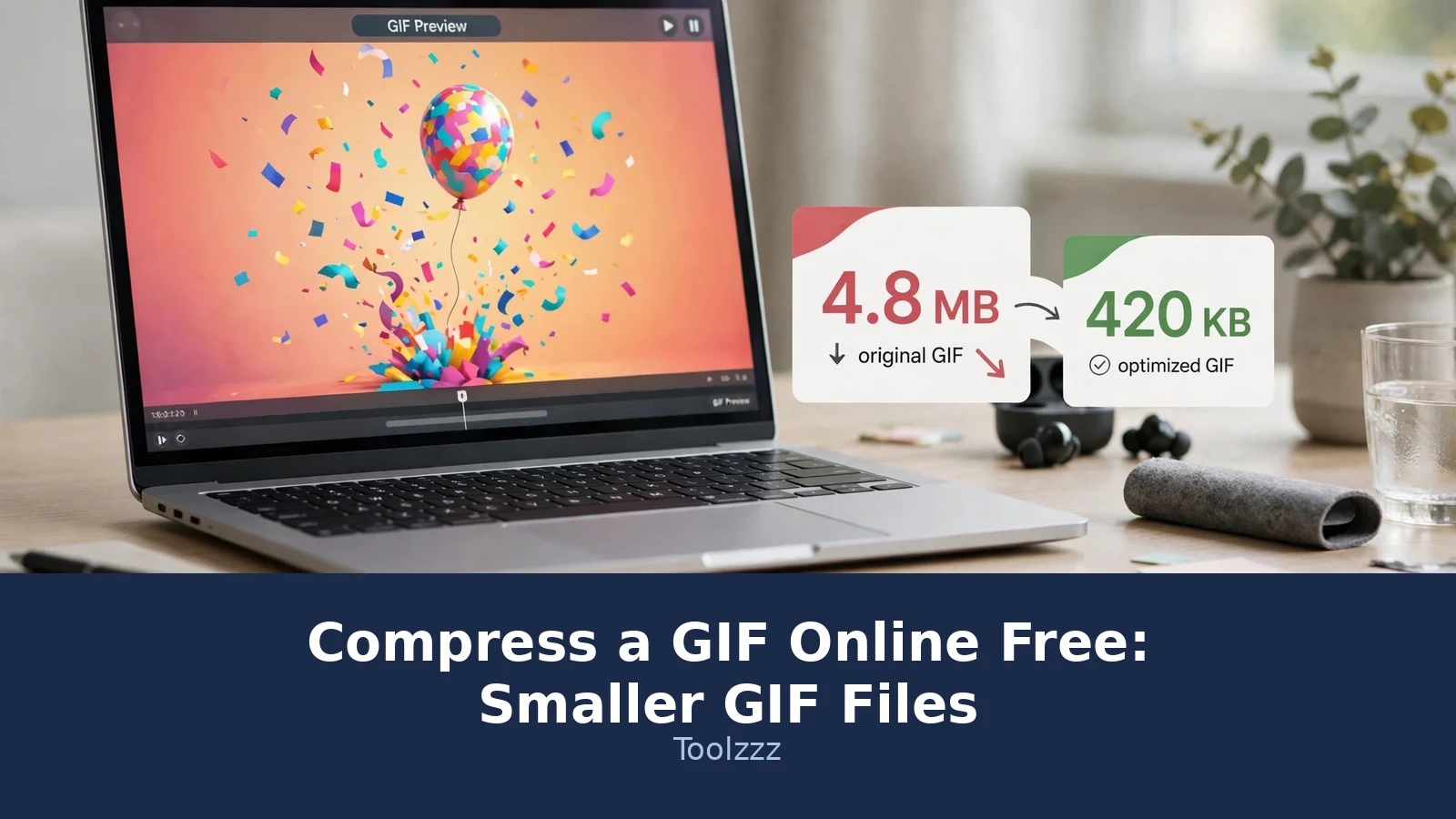
GIFs are heavy for what they are. A few seconds of animation can weigh more than the photo next to it, and that is why uploads fail, chats lag and pages load slowly. The good news is that a GIF has only three things you can shrink: its colours, its size and its frames. Change one of them and the file gets smaller. Change all three and it can drop by more than nine tenths.
Short answer: open the Toolzzz compress GIF tool, drop in your GIF, and pick fewer colours, a smaller size or fewer frames. On our test GIF the default setting cut the file by 25 percent, and combining all three levers cut it by 88 percent, from 956,978 bytes to 114,381 bytes, with the animation still playing.
How do you compress a GIF online free?
Start with the Toolzzz compress GIF tool. It runs in your browser, so your file is never uploaded anywhere. That matters more than it sounds: a GIF of a screen recording or a family moment stays on your own computer while the work happens.
Drop your GIF onto the page or click to choose it. Three dropdowns appear once the file loads. Colours, Size and Frames. That is the whole control panel. There is no quality slider, no lossy switch and no target size box, and the page is honest about that. You set the three dropdowns, the result updates after each change, and you download when you are happy with it. That is the whole job when you compress gif online free: three dropdowns, a preview, and a download.
The defaults are sensible. Colours starts at 128, Size at original size and Frames at keep every frame. With those defaults our test GIF fell from 956,978 bytes to 713,083 bytes, which the tool shows as 25 percent smaller. If that is enough, you are done in under a minute. If it is not, work through the three levers one at a time, checking the size after each change. The side by side preview plays the original and the compressed GIF together, so you can see what each change costs you in quality before you download anything.
One practical tip: compress the GIF before you share it, not after. Once a chat app or a social site has recompressed your GIF, the damage is baked in and shrinking it again will not bring the quality back. Keep your original file, compress a copy, and keep both until you are sure the small one looks right.
What actually makes a GIF file smaller?
A GIF stores a short animation as a stack of still frames, and every frame is a small picture with its own palette of colours. The file size comes from three things: how many colours each frame uses, how many pixels each frame holds, and how many frames there are. That is why the Toolzzz tool gives you exactly three controls, one for each.
Colours is the palette. A GIF frame can hold at most 256 colours, and the format was designed in 1989 when that was plenty. The GIF89a specification, which still defines the format today, sets that 256 colour limit and stores each frame delay in hundredths of a second. Fewer colours means less data per pixel, so the file shrinks. A cartoon or a logo with flat colours can drop to 32 colours and look the same. A photo with a smooth sky will show banding, which is the flat stripes you get when a gradient has too few steps.
Size is the pixel count. Halving the width and the height removes three quarters of the pixels in every frame, so this lever is usually the strongest single change. It is also the most honest one: a GIF shown at 320 pixels wide does not need to be stored at 640. Check where the GIF will actually be displayed before you decide. Most GIFs on the web are shown far smaller than they are stored.
Frames is the frame count. Dropping every second frame halves the number of pictures in the file, and dropping every third frame cuts it to a third. The catch is that the animation gets choppier, because each kept frame still plays for its original delay. The tool keeps the speed and the looping the same, so a GIF that looped forever still loops forever. It just has fewer steps in each loop.
How much smaller did each setting make our test GIF?
We wanted to compress gif online free with real numbers instead of promises, so we made a test GIF for this article: a 640 by 480 animation, 16 frames, with a yellow sun and a red ball moving over a patterned background. The original file was 956,978 bytes, which the tool shows as 935 KB. Then we ran it through the compress GIF tool once per setting, changing only one dropdown at a time, and downloaded each result to check the real size.
| Setting changed | Result | File size | Smaller by |
|---|---|---|---|
| Default: 128 colours | 640 by 480, 16 frames | 713,083 bytes | 25 percent |
| 64 colours only | 640 by 480, 16 frames | 518,712 bytes | 46 percent |
| 50 percent size only | 320 by 240, 16 frames | 308,409 bytes | 68 percent |
| Every 2nd frame only | 640 by 480, 8 frames | 354,309 bytes | 63 percent |
| Combined: 64 colours, 50 percent, every 2nd frame | 320 by 240, 8 frames | 114,381 bytes | 88 percent |
| Maximum: 32 colours, 33 percent, every 3rd frame | 211 by 158, 6 frames | 36,777 bytes | 96 percent |
Two things stand out. First, size beats colours. Halving the dimensions alone saved 68 percent, while halving the palette saved 46 percent. That matches what other GIF tools say on their own pages: width has the largest impact of any single change. Second, the levers multiply. No single lever got us under 300 KB, but combining all three took the same GIF to 114,381 bytes, which is 88 percent smaller, and the strongest combination reached 36,777 bytes, or 96 percent smaller.
Every result still animated. We checked each downloaded file: the default and colour only versions kept all 16 frames, the frame dropping version kept 8, and the strongest combination kept 6. The animation, the speed and the looping all survived, and the transparency in the original was kept too. Here is the combined result, the 114,381 byte version, playing as it came out of the tool:
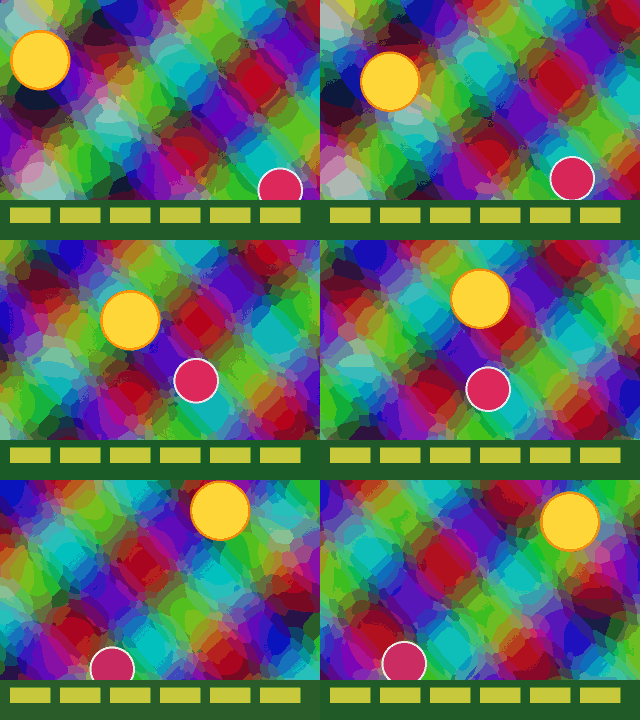
Notice the quality trade in the strongest version. At 32 colours and a third of the size, a photo style GIF starts to look posterised, with flat patches where smooth shading used to be. For a cartoon or a screen recording you may never notice. For a photo you will. That is why the table matters: it tells you which lever to pull first, and how far you can go before the picture suffers.
How do you get a GIF under Discord’s 256 KB emoji limit?
Discord is the place where GIF size hurts most, because a custom emoji has a hard limit. Discord’s own help pages say custom emojis must be under 256 KB in size, and the same limit applies to animated emojis. The help page we checked states no dimension requirement, so we will not quote one here. What matters is the 256 KB ceiling, and our test shows how to get under it.
None of the single levers got there. The best single result was 308,409 bytes at half size, which is still about 301 KB, above the limit. That is worth knowing before you try: if your GIF is near a megabyte, one change will not be enough, and you should plan on combining settings from the start.
The combined test did it comfortably. With 64 colours, half size and every second frame, the GIF came out at 114,381 bytes, which is about 112 KB, well under the 256 KB limit, and it still played smoothly with 8 frames at 320 by 240. If your GIF is bigger than our test file, push further: 32 colours, a third of the size and every third frame brought ours to 36,777 bytes. Between those two combinations, most GIFs will fit.
A word of caution about frame dropping for emoji. An emoji is tiny on screen, so a small size and a small palette barely show. Choppy motion does show, because an emoji loops endlessly in front of people. If the animation looks jerky after dropping frames, try cutting the size and the colours harder first, and drop frames only as a last resort. Cropping the GIF to a square first also helps, since it throws away edge pixels an emoji never shows. Our 112 KB version kept 8 of 16 frames and still read clearly, which is a good balance to aim for.
What do other GIF compressors offer that this one does not?
The Toolzzz compressor is deliberately simple: three dropdowns, no account, no upload. Other small tools on page one add features around the same three levers, and it is worth knowing what they are, because one of them might fit your job better. We read their own pages rather than taking their home page claims at face value.
| Tool | What it adds | What to know |
|---|---|---|
| GifRush | Presets called Light, Balanced and Strong, plus a lossy frame diffing option | Strong combines 64 colours, every 2nd frame and 75 percent scale for hard limits |
| EasyGIF | A measured table of what each change saves, plus dithering control | Reads up to 150 frames on a computer and 60 on a phone, with a 20 MB cap per GIF |
| ZipGIF | Smart Compress, a lossy strength slider, and batches of up to 20 GIFs | Claims a 37 percent average saving in its own tests, with the best at 69 percent |
| GifShrink | A target size mode that finds the best quality under 256 KB, 1 MB or 5 MB | Also offers lossless, balanced, strong and maximum levels, and batch uploads |
| Image Compressor | A target size in KB and levels from Light to Maximum | Processes animated GIFs on its server, unlike the browser only tools above |
Three gaps in the Toolzzz tool follow from that table. There is no lossy lever, so you cannot squeeze extra bytes by letting near identical pixels merge between frames. There is no target size mode, so you have to work out the combination yourself instead of typing 256 KB and letting the tool find it. And there is no batch mode, so you compress one GIF at a time. If you need any of those, GifShrink or ZipGIF will serve you better, and we would rather say that plainly than pretend otherwise.
What the Toolzzz tool does offer is privacy and simplicity. Because everything runs in your browser, the file never leaves your device, and there is no stated file size limit. Image Compressor, by contrast, says on its own page that animated GIFs go to its server because browsers cannot re-encode animation, and it caps files at 50 MB. If your GIF is personal or work related, that difference is worth more than a preset.
Does compressing a GIF change how it looks or plays?
Yes, in three specific ways, and each one maps to a lever. Fewer colours cause banding in gradients and flat patches in photos, though cartoons and logos often look identical. A smaller size makes the picture softer when it is shown large, but it is invisible at the size the GIF will actually be displayed. Fewer frames make motion choppier, and this is the change people notice first, because the eye is good at catching uneven movement.
What does not change is just as important. The speed of each frame stays the same, because the tool keeps the original frame delays, and the looping stays the same. A GIF that played once and stopped will still play once and stop. Transparency is kept too, so a GIF with a see through background does not gain a white box. The GIF format itself, defined by the GIF89a specification, stores those delays and the loop flag in the file, and a compressor that respects the format leaves them alone.
The honest way to judge quality is the side by side preview. Watch the original and the compressed GIF play together for a full loop. If you cannot tell them apart at the size the GIF will be shown, the compression is free. If you can, undo the last change and try a different lever. Colours are the cheapest lever for flat graphics. Size is the cheapest lever for anything shown small. Frames are the most expensive lever, because motion is the whole point of a GIF.
When should you convert a GIF to MP4 instead?
Sometimes compression is the wrong tool. A GIF stores every frame as a picture, so a long clip stays big no matter how hard you squeeze it. Video formats do it differently: they store the changes between frames, which is why the same animation as an MP4 is often a tenth of the size. If your GIF is longer than a few seconds, or it came from a video in the first place, converting it will beat compressing it every time.
We tested this on the sister site workflow in an earlier article, where a real GIF converted to MP4 came out 74.6 percent smaller with no visible change. The rule of thumb is simple: if the animation has to stay a GIF, because a chat app or a forum only accepts GIFs, compress it. If it just has to move, and the place you are posting accepts video, convert it. Our guide to converting a GIF to MP4 online free walks through that conversion with real file sizes.
There is one exception. A GIF with transparency, or a GIF used as a reaction image or an emoji, has to stay a GIF, because MP4 has no transparency and most chat apps will not accept a video as an emoji. In that case, compress with the three levers above and accept the trade. A slightly choppy emoji that uploads is better than a perfect one that does not.
How do you make a GIF smaller before you even compress it?
The best compression happens before the GIF exists. If you are making a GIF from a video, keep the clip short and the frame rate low. A three second clip at 10 frames a second is 30 frames; the same clip at 24 frames a second is 72, and every extra frame is data. Our guide to converting a video to a GIF online free uses a real three second clip and shows the size at each step, which is a good place to start.
If you are making a GIF from still images, use fewer images and keep them the same size. Mismatched sizes force the encoder to scale frames, and extra frames add weight for motion nobody asked for. Flat colours and simple shapes compress far better than photos, so a GIF built from a clean graphic will always beat one built from a busy photograph at the same settings.
Finally, check the dimensions before you record or export. A GIF that will be shown at 320 pixels wide does not need to be captured at 640, and a screen recording at full resolution is mostly wasted pixels. The companion guide to resizing a GIF online free covers Discord and Slack sizes in detail, and it is the right next read if your GIF is failing a platform limit. Shrinking at the source is free quality: every pixel you never capture is a pixel you never have to compress.
Compressing a GIF is not a mystery once you see the three levers. Colours, size and frames are all you have, and the table above shows what each one is worth on a real file. Start with the default, check the preview, and combine the levers only as far as the picture allows. Most GIFs will shrink by half without anyone noticing, and the stubborn ones will still fit under a 256 KB limit with all three levers working together. Once you know the three levers, you can compress gif online free for any limit, not just Discord’s. More tools and guides are on the Toolzzz homepage, and the compressor itself is free, with no sign up and no upload.
Can you compress a GIF without losing quality?
Not exactly, but you can often compress one without losing visible quality. The default setting re-encodes the GIF with 128 colours instead of 256, so a few pixels change, though most people will not spot it. Resizing is safer when the GIF is shown small, and dropping frames is the riskiest change, because choppy motion is easy to see.
Why is my GIF still too big after compressing it?
One lever is rarely enough for a big GIF. Our test file needed all three levers combined to fall below 256 KB, since the best single setting stopped at 301 KB. Check the dimensions: a GIF stored at twice the display size wastes most of its bytes. Photos and smooth gradients also compress far worse than cartoons and flat graphics.
Does compressing a GIF change its speed?
No, not on this tool. The frame delays and the loop setting are kept, so each kept frame plays for the same length of time. Dropping frames only shortens the loop: 8 frames instead of 16 finishes in half the time, even though every frame still plays at the original speed.
What is the smallest a GIF can go?
It depends on the picture, but our test shows the range. The strongest combination, 32 colours, a third of the size and every third frame, cut a 956,978 byte GIF to 36,777 bytes. Past that point the picture falls apart: colours turn to flat patches and motion turns to jumps. For long clips, MP4 beats any further compression.
Is it safe to upload a GIF to an online compressor?
It depends on the tool. The Toolzzz compressor runs entirely in your browser, so the file never leaves your device and closing the tab discards it. Other compressors upload your GIF to their servers, so check their privacy page before you use one. Never upload a GIF with personal details, passwords or private chats to a tool that uploads files.
What size does a GIF need to be for Discord?
Discord says custom emojis must be under 256 KB, and the same limit applies to animated emojis. Our test GIF reached 112 KB with 64 colours, half size and every second frame. A single lever was not enough: the best single setting stopped at about 301 KB, still over the limit.
