

Every photo your phone takes carries a hidden layer of information. You cannot see it when you look at the picture, but anyone who receives the file can read it: where the photo was taken, when it was taken, and which camera took it. That block of data is called EXIF data, and it travels with the photo wherever the file goes. This guide shows you how to strip it out before you share, using a free online tool and the built-in options on your own devices.
Short answer: To remove exif data from photo online, open the Toolzzz EXIF Data Remover, drop in your photo, and check the list of fields it found. Press Download clean photos to save a copy with the GPS location, camera model, date and lens data stripped out. The work happens in your browser, so the photo is never uploaded.
What is EXIF data, and what can a photo give away?
EXIF stands for Exchangeable Image File Format. It is a block of information your camera or phone writes into the photo file at the moment you press the shutter. The standard was built so photographers could keep track of their settings, and it does that job well. The problem is that the same block also records things you may not want to share.
A typical phone photo can carry the GPS coordinates of the place it was taken, accurate to a few metres, the date and time down to the second, the make and model of the phone or camera, the lens, the shutter speed, the aperture, the ISO, and the software that edited it. Some cameras also store their serial number and a small thumbnail copy of the image for quick previews. None of this shows on screen. You have to open the file details or a metadata viewer to see it.
That matters because a photo file is not the same as a photo on a screen. When you post a picture on a forum, attach it to a listing, send it by email, or drop it in a shared folder, the file goes as it is, hidden data included. A picture of a sofa for sale can reveal the exact coordinates of your living room. A photo of your child at a playground can reveal where your family spends its afternoons. The risk is not the picture. It is the data stapled to it.
Other kinds of metadata can sit beside EXIF. XMP holds edit history added by programs like Lightroom and Photoshop. IPTC holds author names and contact details added by photographers and agencies. Comments and embedded thumbnails can hold their own surprises. A good remover strips the whole set, not just the GPS tag, and that is what this guide tests.
How do I remove EXIF data from a photo online?
The quickest way is a browser tool that reads the file on your own device and never uploads it. That last point matters. Uploading a photo to a server to remove its location data sends the very thing you are trying to hide to someone else first, so pick a tool that works locally.
Here are the steps on the Toolzzz EXIF Data Remover.
- Open the tool page in any modern browser. There is no app to install and no account to create.
- Click the upload box, or drag one or more JPG, PNG or WebP photos onto it. A batch of photos is fine.
- Read the list the tool shows for each photo. It names the GPS coordinates, the camera, the lens, and the date, so you can see exactly what you are about to remove. If a photo carries GPS data, the tool warns you that the photo reveals where it was taken, and it shows a map link for the coordinates.
- Check the two options. Keep color profile (ICC) stays on so the colours look the same after cleaning. Keep photo upright stays on so a portrait photo does not come back sideways when its rotation data is removed.
- Press Download clean photos. One photo downloads as a single file, and several download together as a ZIP. The file name gains a clean suffix, so your original stays untouched.
That is the whole job. The tool page also says the work runs in your browser and your data never leaves your device, and the download is instant. You can check the result yourself by opening the cleaned copy in any EXIF viewer: it should show nothing at all. I did exactly that in the test below.
What did the Toolzzz tool remove from my photo?
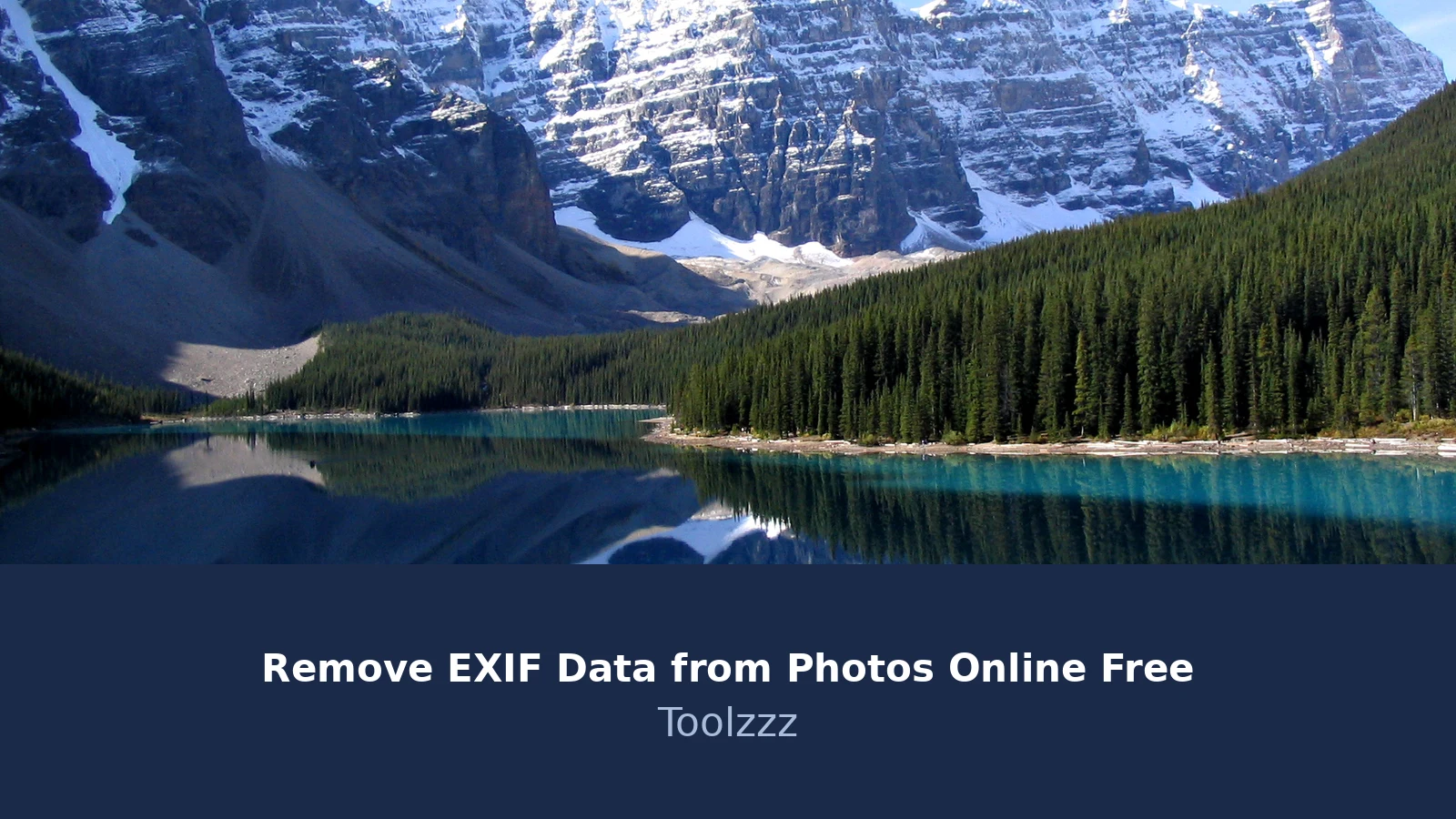
I tested the tool with a real photo of Moraine Lake in Canada, a 2048 by 1536 JPEG. Before the test I wrote a full set of standard EXIF fields into the file, the same fields a camera writes, including the lake’s real GPS coordinates, so the tool had genuine data to find and strip. The original file was 1,257,344 bytes. Here is what the tool showed after I dropped it in, and what was left after cleaning.
| Field | Before cleaning | After cleaning |
|---|---|---|
| Camera make | Canon | Removed |
| Camera model | Canon EOS R6 | Removed |
| Software | Adobe Lightroom 13.2 | Removed |
| Date taken | 2026:06:14 09:41:22 | Removed |
| Date modified | 2026:06:14 09:41:22 | Removed |
| Exposure | 0.004 (1/250 second) | Removed |
| F-number | 4 | Removed |
| ISO | 100 | Removed |
| Focal length | 24 mm | Removed |
| Lens | RF24-105mm F4 L IS USM | Removed |
| Altitude | 1885 metres | Removed |
| GPS | 51.32810, -116.18170, with a map link | Removed |
The tool flagged the photo with a warning that it reveals where it was taken, and the GPS coordinates linked out to a map pin at Moraine Lake. After I pressed Download clean photos, the page reported that one clean photo was saved. The cleaned file is called sample-with-exif-clean.jpg, and it is 1,256,845 bytes, which is 499 bytes smaller than the original. The picture itself is unchanged at 2048 by 1536, and I checked the cleaned file on my own computer: every EXIF section is empty, so the GPS coordinates, the camera model, the date, and the lens data are all gone. The only thing that shrank is the metadata block. The pixels were never touched.

Two details are worth noting. First, the tool kept the colour profile and the orientation, because both options were ticked, so the cleaned photo opens the right way up with the same colours. Second, the file lost less than 500 bytes, which tells you how small an EXIF block usually is. A phone photo can carry a much bigger block if it holds a large embedded thumbnail or a motion-photo video clip, so your own savings may be larger. The point is that cleaning costs you nothing in quality.
Which free EXIF remover should I use?
Google’s AI Overview for this topic names four online tools and a set of built-in steps, and I checked each named tool on its own page before writing this section. Two of the Overview’s claims needed correcting, and I have marked them in the table notes below. The Toolzzz tool is the one I tested, and it is the only row based on a run I performed myself.
| Tool | Where it runs | Formats | Free limits | Best for |
|---|---|---|---|---|
| Toolzzz EXIF Data Remover | In your browser | JPG, PNG, WebP | Free, no limits stated | A quick clean with a visible list of what was found |
| ExifRemove | In your browser | JPEG only | 25 MB per file, 50 photos or 200 MB per batch | Cleaning a batch of JPEGs |
| EXIF Remover (exifremover.com) | In your browser | JPEG, PNG, GIF, plus video and PDF | No limit stated on its page | Checking metadata in videos and PDFs too |
| Metadata2Go | Uploads to its servers | Photos, PDFs, videos, documents | 5 files per job free, 75 MB per file; 10 files when signed in | Non-photo files like PDFs and videos |
| VerExif | Uploads to its servers | Photos | 20 MB maximum upload | A quick look at what a photo carries, with GPS on a map |
| Pics.io | Free viewer and remover | Photos | Free, no account needed | Checking one photo fast |
| TinyPNGNow | In your browser | JPG, PNG, WebP | Free, no limits stated | A second no-upload option |
| Scanly | In your browser | JPG, PNG, WebP, HEIC, TIFF | Free, up to 50 files or a ZIP, 50 MB each | Removing GPS only while keeping the rest of the metadata |
Two corrections to the AI Overview are worth stating plainly. First, the Overview describes EXIF Remover as a tool that uploads files, but the tool’s own page says all processing happens in your browser and your files never leave your device. I have listed it as a browser tool, as its own page states. Second, the Overview’s Mac step says to open a photo in Preview and use the Inspector to view and strip metadata. Preview’s Inspector does show the metadata, and its GPS tab has a Remove Location Info button, but that removes the location only. The camera model, the date, and the other fields stay in the file. The built-in section below gives the correct Mac steps.
How to choose between them comes down to two questions. Does the tool upload your photo, and does it handle the file type you have? If privacy is the reason you are cleaning the photo, a browser tool is the safer pick, because the file never leaves your device. If you need to clean a PDF or a video, you need Metadata2Go or EXIF Remover, since a photo-only cleaner will not accept those files. That is also the question the Overview ends with, and the table above answers it: photos go to a browser tool, and PDFs and videos go to Metadata2Go.
How do I remove EXIF data without an online tool?
You do not always need a website. Every major platform has a built-in way to drop at least the location data, and the steps below are the ones each platform documents. They are worth knowing for the photos you share every day, because the share sheet on your phone is often faster than opening a tool.
On Windows
Right-click the photo in File Explorer, choose Properties, and open the Details tab. At the bottom you will see Remove Properties and Personal Information. Windows then offers two choices: create a copy with all possible properties removed, or remove selected properties from the file. Pick the copy option if you want to keep the original untouched. The copy is the file you share.
On Mac
For a photo stored as a file, open it in Preview, choose Tools, then Show Inspector, and open the GPS tab. Click Remove Location Info, then save the file. That removes the location only, so the camera model and the date stay in the file. For a photo in your library, open Photos, choose File, then Export, and untick Location Information in the export options. The exported copy carries no coordinates, and the original in your library keeps them. To strip every field on a Mac, the free command-line program ExifTool is the usual answer, and its documentation is on the ExifTool website.
On iPhone and iPad
Apple gives you three separate controls, and they do different things. To leave the location out of one share, select the photo in Photos, tap Share, tap Options, and turn Location off. That applies to the share you are preparing, not to the original, and you need to repeat it each time. To remove the location from a photo in your library, open it, tap the More button, choose Adjust Info, then Adjust Location, and tap No Location. To stop the camera recording locations in new photos, go to Settings, then Privacy and Security, then Location Services, then Camera, and choose Never. The change only affects photos taken after you make it.
On Android
In Google Photos, open the photo, swipe up to see its details, tap the location, and remove it. That edits the copy in your library. On Samsung phones, the share sheet has a Remove location data tick you can set before you send. You can also stop the problem at the source: open your camera app settings and turn off location tags, so new photos carry no coordinates at all. The Toolzzz tool page gives the same advice, and it is the simplest habit of the lot.
Why is the GPS location in a photo such a risk?
A GPS tag is not a vague area. It is a pair of numbers that points at a spot a few metres wide, and anyone can paste those numbers into a map. That is the whole risk in one sentence, and it plays out in ordinary situations, not just in spy stories.
Selling something from home is the most common case. A photo of a bike, a sofa, or a phone taken in your living room carries the coordinates of your front door when you upload it to a marketplace. A photo of a house or a flat for rent does the same for the property. Photos of children are the most sensitive of all: a picture at a playground, a school gate, or a sports field can show where your family spends time, and children cannot consent to that. Journalists and their sources face a sharper version of the same risk, since a photo can reveal where a source was standing.
Two quieter leaks catch people out. The first is the file name. A phone that names files by date, such as IMG_20261001, tells a reader when the photo was taken even after the metadata is gone, so rename the file if the date matters. The second is the embedded thumbnail. EXIF often holds a small preview copy of the image, and if you cropped a photo or painted over part of it in a program that did not update the thumbnail, the original frame can survive inside it. Stripping the whole EXIF block removes the thumbnail with it, which is one more reason to clean the file rather than just the GPS tag.
The fix is simple, and it is the habit this guide is built around: clean the photo before it leaves your device, and check the cleaned copy before you post it. Open it in any metadata viewer and confirm that nothing is listed. If you want to go further, read our guide on the image site about stopping your photos from appearing in reverse image search, which covers what a photo can reveal beyond its metadata.
Does removing EXIF data change the photo?
Not with a tool that works the way the Toolzzz one does. A JPEG is a chain of labelled blocks, and the metadata lives in blocks that sit before the picture data starts. Cutting those blocks out leaves the compressed image untouched, so the pixels are byte for byte the same and the quality does not change. The test in this guide proves the point: the cleaned file was 499 bytes smaller, the dimensions were unchanged, and the picture looks identical.
Two things can change, and both are optional. The colour profile is a small block that tells software how to display colours, and phones that shoot in a wide colour space need it, or the photo can look washed out. Keep it, unless you need to remove absolutely everything. The rotation tag is similar: phones often store a portrait photo sideways and mark it with an orientation tag. A good cleaner applies the rotation to the pixels first, or keeps the single tag, so the photo does not come back sideways. The Toolzzz tool does this with its Keep photo upright option, and it was ticked in my test.
Some cleaners work differently. They redraw the photo on a canvas and save a new JPEG, which does re-compress the image. That costs a little quality, usually invisible at high quality settings, but it is a real trade-off, and it is why the lossless point matters. If a tool page does not say whether it re-compresses, check the file size before and after: a lossless clean only removes the size of the metadata block, while a re-encoded file changes size by much more.
What about HEIC photos, PNG and WebP?
iPhone photos need one extra step. Since iOS 11, iPhones save photos as HEIC by default, and most EXIF removers do not accept that format. Convert the photo to JPG first, and the conversion itself usually drops the metadata, since converters do not copy EXIF into the new file by default. Our guide to converting HEIC to JPG online free walks through that step on the Toolzzz converter, including a real file converted on the tool.
PNG files store their metadata differently. The data lives in text chunks that can hold the author, the software, and AI image generation settings, plus an EXIF chunk and a modification time. A remover that handles PNG cuts those chunks out and leaves the pixels alone. WebP is similar: its EXIF and XMP chunks are removed, and the file header is corrected so the size still adds up. The Toolzzz tool accepts JPG, PNG and WebP, and it treats each format the way that format needs.
One thing no photo cleaner handles is a RAW file from a camera. RAW formats keep their metadata in the same structures as the image data, so they cannot be cut out as simply or as safely. For publishing, export the photo to JPEG and clean that. For an archive, the ExifTool command line is the right instrument.
Do WhatsApp, Facebook and email strip EXIF data for me?
Mostly, but not in the way people assume, and the gap is where photos leak. When you send a picture as a photo in WhatsApp or Messenger, the app usually re-compresses it and strips the EXIF data along the way. When you send the same picture as a file or a document, it goes byte for byte, coordinates included. Email, cloud drives, and file-sharing links behave the same way: the file you attach is the file the other person gets.
Social networks are inconsistent. Most big platforms strip EXIF from the public image, but each has its own rules, and those rules change over time. Some keep the data on the original upload, and some strip it only from the version they display. Forums, marketplaces, and smaller sites are the least predictable of all, and many keep the file exactly as uploaded.
The safe rule is to never rely on the platform. Clean the photo yourself before you send it, and the question of what the platform does stops mattering. That is also the answer to the most common mistake in this area: checking the photo in your gallery, seeing no location shown, and assuming the file is clean. Your gallery may hide the data. The file still carries it.
What should I check before I share a photo?
Make this a habit, not a one-off. It takes less than a minute once you know the steps, and it covers the leaks this guide has described.
- Open the photo in a metadata viewer or an EXIF remover and read what it carries. If it lists GPS coordinates, a camera model, or a date you would rather not share, clean it.
- Use a browser tool for the cleaning when privacy is the reason, so the photo never leaves your device. The Toolzzz homepage lists the site’s free tools, including the EXIF remover.
- Open the cleaned copy and check it again. It should list nothing at all, and the picture should look identical.
- Check the file name. A date in the name gives away the day the photo was taken, even with clean metadata.
- Remember that cleaning removes data, not pixels. If a face, a number plate, a street sign, or a document is visible in the picture itself, no metadata tool can hide it. Blur or crop that first.
- If the photo is large and you are sending it somewhere with a size limit, shrink it after cleaning. Our guide to compressing an image to 100KB online free shows how, with a real photo compressed on the Toolzzz tool.
EXIF data is useful when it stays with you. It lets you search your photos by place and date, and it helps photographers remember how they took a shot. It only becomes a problem when it travels with a photo to someone who should not have it. Strip it before you share, keep the original safe at home, and the photo you send is just a picture.
Frequently asked questions
How do I remove EXIF data from a photo online free?
Open the Toolzzz EXIF Data Remover, drop in your JPG, PNG or WebP photo, and read the list of fields the tool found, including GPS, camera and date. Press Download clean photos to save a copy with all of it stripped out. The work happens in your browser, so the photo is never uploaded, and it is free.
Does removing EXIF data reduce photo quality?
No, not with a tool that strips the metadata blocks without re-encoding the picture. The JPEG keeps the same pixels, so it looks identical, and in my test the cleaned file was only 499 bytes smaller. Keep the colour profile option on so the colours stay the same.
Can I remove GPS location but keep the date and camera details?
Yes, but a bulk remover strips the whole EXIF block at once. On a Mac, Preview removes the location only. On an iPhone, the Photos app can remove the location from a library item, or leave it out of one share. The Toolzzz remover strips everything, so use it for a fully clean copy.
Do WhatsApp and Facebook remove EXIF data?
Mostly, but not always. When you send a picture as a photo in WhatsApp or Messenger, the app usually re-compresses it and strips the EXIF data. When you send it as a file or document, it goes byte for byte, coordinates included. Social networks mostly strip EXIF from the public image, but their rules change, so clean the photo first.
How do I remove EXIF data from an iPhone photo?
Open the photo in Photos, tap Share, tap Options, and turn Location off to leave it out of that one share. To remove it from the library copy, tap More, choose Adjust Info, then Adjust Location, and tap No Location. For a full clean, use the Toolzzz EXIF Data Remover in Safari.
Is it safe to upload a photo to an EXIF remover?
It depends on the tool. A browser tool reads the file on your device and never sends it anywhere, which is the safest option when privacy is the reason you are cleaning the photo. A server tool uploads the file first, so the photo passes through someone else’s server. Check the tool page before you upload anything.
