

A PDF is a fine way to keep a document together, but it is a poor way to share a single page. You cannot paste a PDF page into a chat message, drop it into a slide, or post it on social media without extra steps. A JPG image has none of those problems. It opens anywhere, previews instantly, and uploads to almost every form and app.
That is why people convert PDF pages to JPG so often. A scanned letter becomes a photo you can send on WhatsApp. One page of a brochure becomes the picture in a listing. A certificate becomes an attachment a portal will actually accept. This guide shows you how to convert PDF to JPG online free, using the Toolzzz PDF to JPG tool, with a real four-page PDF converted step by step so you can see the exact file sizes before you try it yourself.
Short answer: To convert PDF to JPG online free, open the Toolzzz PDF to JPG tool, add your PDF, pick a quality such as Standard (150 DPI), and press Convert to JPG. Each page becomes one JPG image, and several pages download together in one ZIP. Your file never leaves your browser, and no sign-up is needed.
Why turn a PDF into JPG images?
A PDF holds pages in order inside one file. That is its strength, and it is also the reason it gets in the way. Most of the places you share things every day want images, not documents.
- Chats and email. A JPG previews inside WhatsApp, Messenger, and email. A PDF arrives as an attachment the other person has to open, and on a phone that extra tap is often enough for them not to bother.
- Forms and portals. Job applications, visa forms, school admissions, and insurance claims often ask for a photo of a document. Many of them accept JPG and reject PDF, or they cap uploads at a file size a scanned PDF easily passes.
- Slides and social media. A page from a report or a menu drops straight into a slide deck or a post as a JPG. As a PDF page it needs to be screenshotted first, which is slower and usually looks worse.
- Printing one page. If you only need page three of a twenty-page document, a JPG of that page prints exactly as it looks, with no risk of the printer running off the whole file.
- Old scans. Scanned letters and certificates are often saved as PDFs with nothing but a picture inside. Turning the pages into JPGs makes them searchable by image tools and easy to file alongside your photos.
None of this needs paid software. A free online converter does the whole job in under a minute, and the rest of this guide walks through it with real numbers.
How do I convert PDF to JPG online free?
Most online converters follow the same five steps. The Toolzzz PDF to JPG tool is the one used in this guide. It needs no sign-up, adds no watermark, and says on its page that PDF files up to about 200 MB are accepted. Your files are processed in your browser, so nothing is uploaded to a server.
- Open the Toolzzz PDF to JPG tool in your browser. It works on a phone, tablet, or computer.
- Add your PDF. Click the upload box and pick a PDF file, or drag the file onto it. A preview of every page appears, so you can see what you are about to convert.
- Pick a quality. Screen (96 DPI) makes small files for chats and email, Standard (150 DPI) is sharp on any screen and good for sharing, and High (300 DPI) is best for printing and zooming into small text.
- Choose your pages. Convert all pages, or switch to Choose pages and click only the ones you need. The tool counts your selection for you.
- Press Convert to JPG. One page downloads straight away as a JPG. Several pages arrive together in one ZIP file, numbered in order.
The JPG quality slider sits at 90 percent by default. That is a sensible middle ground. Lower it if the files come out too big, and raise it only if you can see compression marks in flat areas of colour.
Worked example: a real four-page PDF turned into JPGs
Guides that quote no real numbers are hard to trust, so here is the whole conversion with the exact figures. The test file is a real four-page brochure PDF about Moraine Lake, the same file used in our guide to compressing a PDF online free. It measures 1,111,827 bytes, or 1.06 MB, and the tool showed it as “sample-brochure.pdf, 4 pages, 1.06 MB” with a thumbnail preview of each page. Every page carries the same mountain photograph under a different heading, so the four JPGs should come out close in size. They did.
First, all four pages at Standard quality (150 DPI) with the JPG quality slider left at its default 90 percent. The tool confirmed “Downloaded 4 JPG images in one ZIP”. The ZIP file is called sample-brochure-jpg.zip and measures 1,415,767 bytes.
| Page | JPG file | Size | Dimensions |
|---|---|---|---|
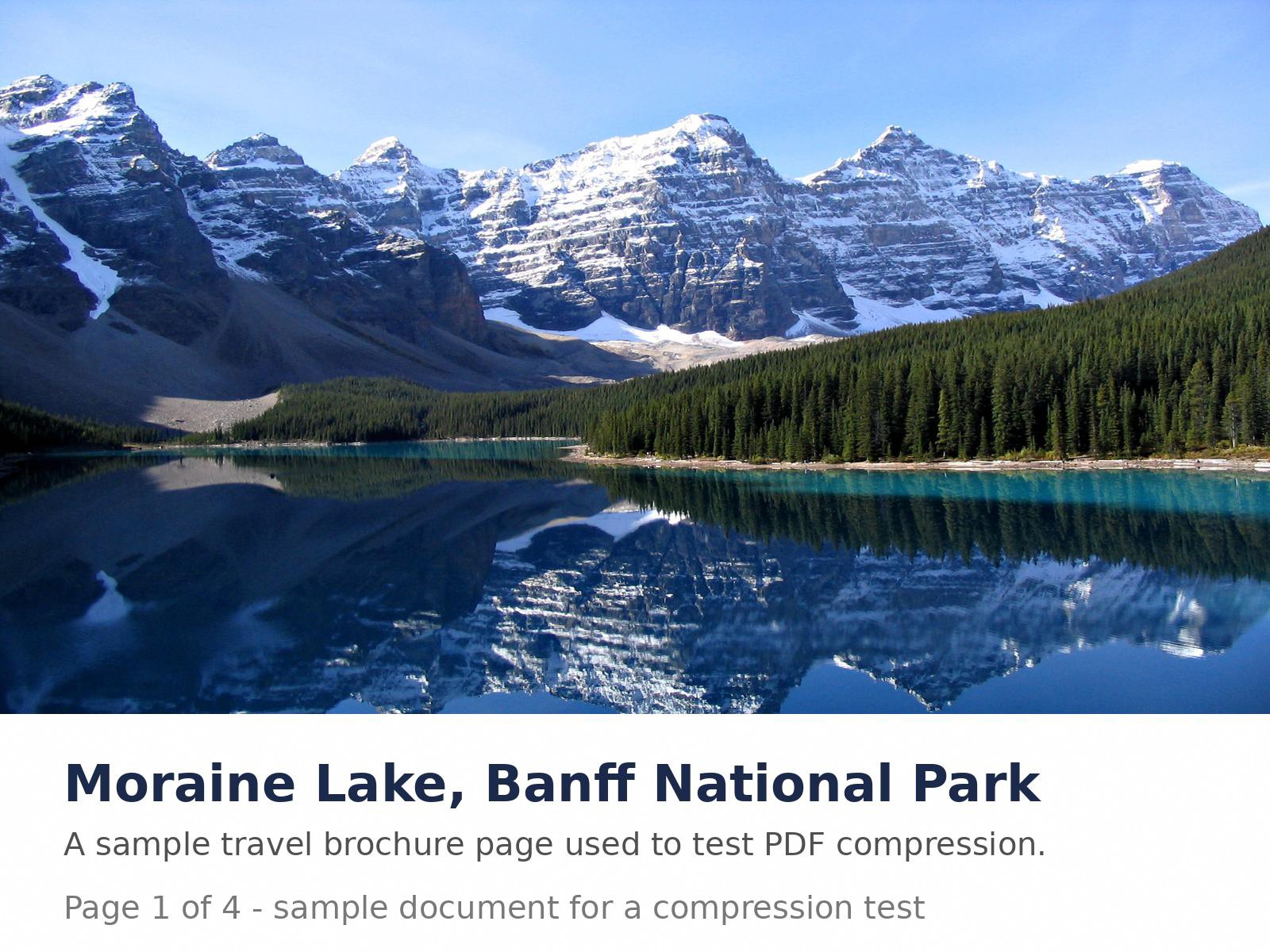
| Page 1, Moraine Lake, Banff National Park | sample-brochure-page-1.jpg | 351,200 bytes | 1600 x 1200 px |
| Page 2, Why this file is large | sample-brochure-page-2.jpg | 352,946 bytes | 1600 x 1200 px |
| Page 3, What compression does | sample-brochure-page-3.jpg | 356,699 bytes | 1600 x 1200 px |
| Page 4, Before and after | sample-brochure-page-4.jpg | 354,388 bytes | 1600 x 1200 px |
The four JPGs together measure 1,415,233 bytes, which is 27 percent larger than the 1,111,827-byte PDF they came from. That surprises people, but it makes sense once you look at what is inside the file. The photos in the brochure were already JPEG compressed inside the PDF, so turning whole pages into JPGs adds a fresh layer of image data around them: the white margins, the headings, and the page background all become pixels that need storing. Converting a PDF to JPG does not shrink it. If the file size is your problem, compress the PDF first instead.
Here is page one of the result, the actual JPG the tool produced at Standard quality:
Then a second run: only page one, at High quality (300 DPI), with the JPG quality slider still at 90 percent. The tool confirmed “Downloaded 1 JPG image”. That single file, sample-brochure-page-1.jpg, measures 1,150,834 bytes at 3200 by 2400 pixels. That is 3.3 times the size of the same page at Standard quality, which is exactly what you would expect when each side of the image doubles. The High version is the one to pick when the page will be printed or when someone needs to zoom into small print. For a chat message or a web page, it is far more than you need.
Which quality should I pick?
The Toolzzz tool offers three quality levels, and the right one depends on what happens to the image next. Picking High for everything wastes storage and upload time. Picking Screen for a page that will be printed leaves you with blurry text.
| Quality | A4 page becomes | Best for |
|---|---|---|
| Screen (96 DPI) | 794 x 1123 px | WhatsApp, email, website previews |
| Standard (150 DPI) | 1240 x 1754 px | Sharing, slides, social media |
| High (300 DPI) | 2480 x 3508 px | Printing, zooming into small text |
Those pixel figures assume an A4 page, and real PDFs do not always match. The brochure in our worked example has pages measuring 10.67 by 8 inches, not A4, so its Standard JPGs came out at 1600 by 1200 pixels instead of the 1240 by 1754 the tool page quotes for A4. The DPI setting still does the same job: it fixes how many pixels each inch of the page becomes. A page that is wider than A4 simply produces a wider image. If a form or a printer asks for exact pixel dimensions, check the size of the JPG you get rather than trusting the A4 figures on the tool page.
Higher DPI means sharper pictures but bigger files, and the jump is steep. Doubling the DPI from 150 to 300 quadruples the pixel count, and our test showed the file growing 3.3 times, from 351,200 bytes to 1,150,834 bytes for the same page. The JPG quality slider is a separate control. It decides how hard the image is compressed after the pixels are set. At 90 percent, the default, photos look clean. Dropping it to 75 or 80 percent trims the file noticeably and still looks fine on a screen. Below 70 percent, flat areas of colour start to show banding and text edges get fuzzy, so only go that low when a strict upload limit leaves you no choice.
A good rule is to match the quality to the destination. Screen for a chat message, Standard for a slide or a post, High for print or for a page with small text that someone will need to read closely. If you are not sure, run one page at Standard first and look at it at full size. It takes seconds, and it saves you from converting a fifty-page document twice.
What do the other free converters offer?
Google’s AI Overview for this search names four other converters alongside the steps above, and each one has a different trade-off. The table below uses only facts checked on each tool’s own page at the time of writing, plus what the Overview itself states. Two sites the Overview lists only as source cards, Clever AI Humanizer and JPG.now, have no point attached to them in the Overview, so they are not in the table.
| Tool | What it does | Account needed | Privacy |
|---|---|---|---|
| Toolzzz PDF to JPG | Every page becomes a JPG, or only the pages you pick; 96, 150, or 300 DPI; JPG quality slider; several pages download as one ZIP | No | Files processed in your browser, nothing uploaded |
| iLovePDF | Every page becomes a JPG, or extract all the images embedded inside a PDF | No, for the basic conversion | Files are uploaded to iLovePDF’s servers for conversion |
| Adobe Acrobat online | Full PDF pages become JPEG images in any browser; also converts to PNG and TIFF; extracting images from a PDF is a premium feature | No, to download; sign in to share or save | Files are handled on Adobe’s servers and deleted if you do not sign in to save them |
| Smallpdf | Full pages to high-resolution JPG for free; extracting individual images needs the Pro plan, with a free 7-day trial; save straight to Google Drive, Dropbox, or OneDrive | No, for full-page conversion | TLS encryption; files automatically deleted one hour after processing |
| Canva | Turns multi-page documents into separate page images, which you can download or edit directly, as described in the AI Overview; Canva’s own converter page returned a 403 error when checked, so its limits could not be verified | Not stated in the Overview | Not stated in the Overview |
| Drawboard PDF | Download your images individually or as a ZIP file, as described in the AI Overview; its converter page returned a 404 error when checked, so nothing further could be verified | Not stated in the Overview | Not stated in the Overview |
| FreeConvert | Files up to 1 GB; DPI presets of 150, 300 and 600; convert a page range or only some pages; files from your computer, Google Drive, Dropbox, OneDrive or a URL | Not stated | Uploaded to FreeConvert servers |
Two differences matter most. First, whole pages versus embedded images. iLovePDF and Smallpdf can pull out the photos that sit inside a PDF, which is what you want when you need the original photo rather than a picture of the whole page. Toolzzz converts pages, and its tool page points to its Extract Images from PDF tool for the other job. Second, where the file goes. Toolzzz converts in your browser, so the PDF never leaves your device. The other tools upload your file to their servers and delete it afterwards, which is fine for a brochure and the wrong choice for a passport scan or a medical letter. The Overview itself closes by offering privacy-focused browser options for readers who would rather not upload, and a tool that converts locally is exactly that option.
Should I use JPG or PNG for PDF pages?
JPG is the right default for pages that carry photos. It compresses photographic detail well, which is why the brochure pages in our test stayed around 350 KB each at Standard quality. PNG is the better choice for pages that are mostly text, lines, or logos. PNG compression is lossless, so sharp edges stay sharp, and it keeps transparency where JPG fills transparent areas with white.
The price of PNG is file size. A photo-heavy page saved as PNG can easily run several times larger than the same page as JPG. Our earlier guide to converting JPG to PNG online free showed the same effect in reverse: a 720 KB JPG became a 6.98 MB PNG. The same logic applies here. Use JPG for photos and mixed pages, PNG for text-heavy pages and diagrams, and never convert a JPG page to PNG hoping to gain quality. Once the detail is gone, changing format cannot bring it back.
What should I check after converting?
Open at least one JPG before you send it anywhere. A conversion can look right in the preview and still have a problem in the file.
- Read the smallest text. Open the JPG at full size and read the smallest print on the page. If it is fuzzy at Standard quality, run that page again at High.
- Check the page count. Make sure the ZIP holds one JPG per page and that the numbers run in order. A missing page is easy to miss until someone asks where it went.
- Look at the file sizes. Pages that are nearly identical should come out nearly the same size. In our test, the four pages landed within 6 KB of each other. A page that comes out far smaller than the rest may be blank or may have failed to render.
- Watch for white edges. A page with wide margins converts with those margins included. If the image looks small inside a sea of white, crop it, or check whether the PDF itself has oversized margins.
- Keep the original PDF. A JPG is a one-way trip. You cannot get the text, the links, or the original quality back from it, so keep the PDF until you are sure the images are right.
What if something goes wrong?
Most problems with PDF to JPG conversion have a plain cause and a quick fix.
The JPGs are bigger than the PDF. This is normal for photo-heavy documents, and our test showed it clearly: the four JPGs together were 27 percent larger than the source PDF. The PDF already held compressed photos, and the conversion re-saves the whole page, margins included, as a new image. Lower the JPG quality slider or pick Screen quality to trim the files. If the PDF itself is too big to upload anywhere, shrink it first. Our guide to compressing a PDF, linked in the worked example above, shows how.
The text looks blurry. The DPI is too low for the text size on the page. Convert that page again at High (300 DPI). If it is still blurry, the PDF itself may hold a low-resolution scan, and no converter can add detail that is not there.
A page comes out blank. Check the page in the PDF first. Some PDFs have blank pages by design, such as the back of a form. If the page has content in the PDF but renders blank, try converting just that page on its own, or open the PDF in another reader to confirm the page really holds what you think it does.
The ZIP will not open. The download may have been cut short. Download it again, and check that the file size matches what the tool reported. On a phone, open the ZIP with the Files app rather than the browser, which sometimes hands you the ZIP without a way to look inside it.
Colours look washed out. JPG has no transparency, so any transparent area in the PDF becomes white. That is expected. If the page relies on transparency, convert it to PNG instead, which keeps the transparent areas intact.
Converting a PDF to JPG is a small job, and it should stay one. Pick the quality that matches where the image is going, convert only the pages you need, check one image at full size before you send it, and keep the original PDF. The reverse trip works the same way: if you later need those images back inside a single document, our guide to converting JPG to PDF online free combines several photos into one PDF, with a real two-photo example and the exact file sizes.
How do I convert a PDF to JPG online free?
Open the Toolzzz PDF to JPG tool, add your PDF, pick a quality such as Standard (150 DPI), and press Convert to JPG. Each page becomes one JPG image. A single page downloads straight away as a JPG, and several pages arrive together in one ZIP file. No sign-up is needed, and your file never leaves your browser.
What DPI should I use when converting PDF to JPG?
Use Screen (96 DPI) for chats and email, Standard (150 DPI) for slides, social media, and general sharing, and High (300 DPI) for printing or zooming into small text. The pixel figures on the tool page assume an A4 page, so a PDF with different page sizes produces different pixel dimensions. Check one converted page before converting a long document.
Can I convert only one page of a PDF to JPG?
Yes. Switch the Toolzzz tool to Choose pages, click the page you want, and press Convert to JPG. That page downloads on its own as a single JPG instead of a ZIP. In our test, page one at High quality came out as one 1,150,834-byte JPG at 3200 by 2400 pixels. The rest of the PDF stays untouched.
Why are my JPG files in a ZIP file?
When you convert more than one page, the tool puts all the JPGs into a single ZIP so you get one download instead of dozens. Each JPG inside is named after the PDF with the page number added, in order. Open the ZIP to see the images. Converting a single page skips the ZIP and downloads the JPG directly.
Will converting a PDF to JPG make the file smaller?
Not usually. A PDF that already holds compressed photos often grows when its pages become JPGs, because the whole page, margins included, is re-saved as image data. In our worked example, four JPGs totalling 1,415,233 bytes came from a 1,111,827-byte PDF, which is 27 percent larger. Lower the JPG quality or pick Screen quality if size matters.
Is it safe to convert a PDF to JPG online?
It depends on the tool. The Toolzzz tool converts in your browser, so your PDF never leaves your device, which makes it the safest choice for private papers. iLovePDF, Adobe, and Smallpdf upload your file to their servers and delete it afterwards, which is fine for a brochure. Keep the original PDF until you have checked the JPGs.
