
Convert any image format in seconds
To convert an image, drop one or many files into Toolzzz Image Converter, choose the target under Convert to (JPG, PNG, WebP, BMP or ICO), adjust quality, background or icon sizes, and press Download. It reads 11 input formats including HEIC, AVIF, TIFF, SVG and PSD, and everything is converted in your browser with no upload.
- 11 input formats
- 5 output formats
- Multi-size ICO favicons
- Mixed batches + ZIP
- Quality and resize
- 100% free, no sign-up
- No upload
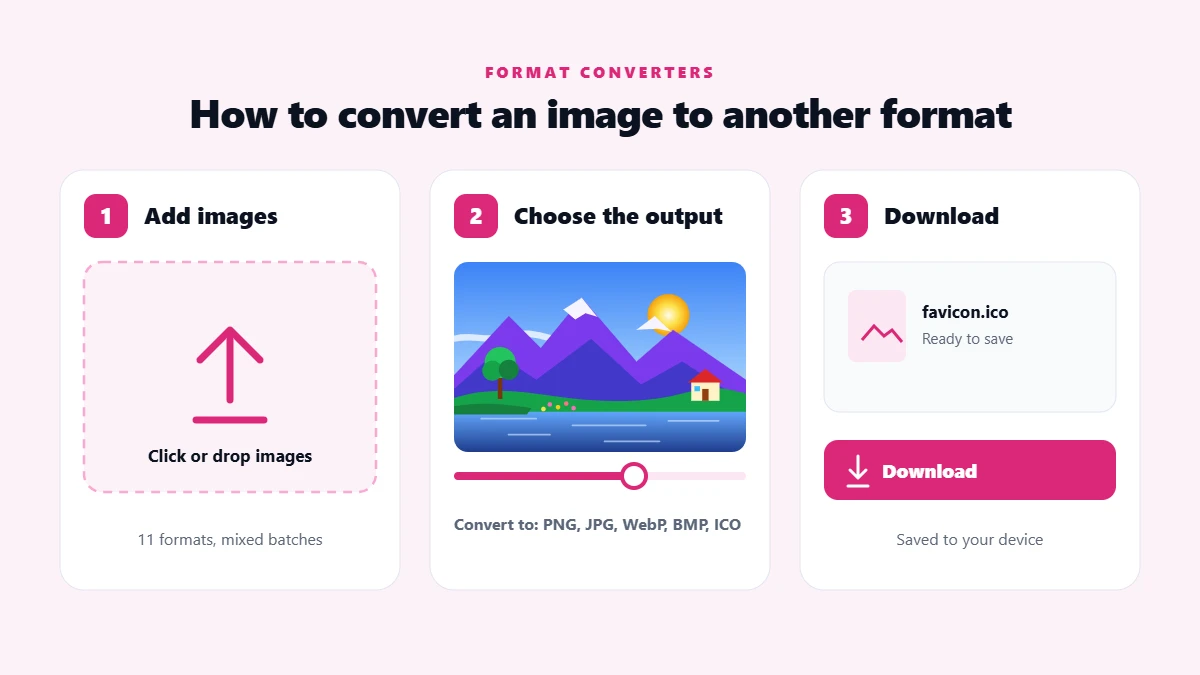
How to convert an image to another format
Different places need different image formats: JPG for photos, PNG for graphics and transparency, WebP for fast websites, ICO for favicons and BMP for older software. This all-in-one converter handles them all, even in mixed batches.
Add images
Click the upload box or drop any mix of JPG, PNG, WebP, HEIC, AVIF, GIF, BMP, TIFF, SVG, PSD or ICO files.
Choose the output
Pick JPG, PNG, WebP, BMP or ICO. Set quality, background color, icon sizes or a max size as needed.
Download
Press Download for one file or Download all (ZIP) for a batch.
Watch: convert any image format online
Popular reasons to use an image converter
Website favicons
Create a multi-size favicon.ico (16, 32, 48 and 256 px) from any logo.
iPhone photos
Turn HEIC photos into JPG or PNG that work everywhere.
Faster websites
Convert JPG and PNG to WebP to cut page weight.
Upload requirements
Meet portals that accept only a specific format such as JPG or PNG.
Design workflows
Convert SVG, PSD and TIFF assets into web-ready formats.
Legacy software
Export BMP files for older Windows apps, embroidery machines and industrial devices.
Supported formats
| Format | Open | Save | Notes |
|---|---|---|---|
| JPG / JPEG | Yes | Yes | Quality 10 to 100% |
| PNG | Yes | Yes | Lossless, transparency |
| WebP | Yes | Yes | Saving needs Chrome, Edge or Firefox |
| BMP | Yes | Yes | 24-bit, uncompressed |
| ICO | Yes | Yes | Multi-size favicon, 16 to 256 px |
| HEIC / HEIF | Yes | No | iPhone photos |
| AVIF | Yes | No | Browser decoding |
| GIF | Yes | No | First frame |
| TIFF | Yes | No | First page |
| SVG | Yes | No | Rendered at original size |
| PSD | Yes | No | Merged image |
Which image format should I use?
JPG is best for photos you share or print. PNG is best for screenshots, logos and anything with transparency or sharp text. WebP is the best all-rounder for websites: smaller than both and supports transparency. ICO is only for favicons and Windows icons. BMP is uncompressed and very large, so use it only when older software requires it.
Need vectors instead? Use Image to SVG to trace a logo, or SVG to PNG to export vectors at any size.
How to convert images online on Windows, Mac, iPhone and Android
No app to install. The tool works in any modern browser, so the steps are almost the same everywhere.
On Windows
- Open toolzzz.com/image-converter/ in Chrome, Edge or Firefox.
- Drag your images from File Explorer onto the upload box.
- Choose the output format under Convert to, then press Download.
- The new file is saved to your Downloads folder.
On Mac
- Open toolzzz.com/image-converter/ in Safari or Chrome.
- Drag the images from Finder or the Photos app onto the upload box.
- Choose the output format under Convert to, then press Download.
- Find the result in Downloads (Safari asks first if set to).
On iPhone and iPad
- Open toolzzz.com/image-converter/ in Safari.
- Tap the upload box and choose Photo Library, Take Photo or Choose File.
- Choose the output format under Convert to, then tap Download.
- Tap Download, then open it from the Files app and choose Save Image to add it to Photos.
On Android
- Open toolzzz.com/image-converter/ in Chrome.
- Tap the upload box and pick the images from your Gallery, Files or camera.
- Choose the output format under Convert to, then tap Download.
- The image appears in your Downloads folder and in Google Photos under Downloads.
Toolzzz vs. typical online image converters
| Feature | Toolzzz Image Converter | Typical online converters |
|---|---|---|
| Your files are uploaded to a server | Never. Converted in your browser | Usually |
| Input formats | 11, including HEIC, AVIF, PSD, TIFF | Often 5 to 8 |
| Multi-size ICO favicons | Yes, 16 to 256 px | Rare |
| Mixed-format batches + ZIP | Yes | Often one type at a time |
| Quality, background and resize | Yes | Partial |
| File size limit | None | Often limited |
| Watermark or sign-up | None | Common |
"Typical" describes common limits of free online services. Plans and limits differ between sites.
One converter for every image format
11 formats in
HEIC, AVIF, PSD, TIFF, SVG and all common web formats.
5 formats out
JPG, PNG, WebP, BMP and multi-size ICO.
Favicon maker
Pick the icon sizes you need and get a single .ico file.
Mixed batches
Drop different formats together and convert them all to one target.
Fine control
Quality, background color for transparency and max size.
Private
Every file is processed on your device.
Key terms explained
- ICO
- The Windows icon and favicon format that can hold several sizes in one file.
- BMP
- Bitmap, an uncompressed Windows image format.
- Raster image
- An image made of pixels, such as JPG, PNG or WebP, as opposed to vector SVG.
Frequently asked questions
How do I convert an image to another format for free?
Drop the image here, choose the output under Convert to and press Download. No sign-up and no watermark.
Which formats can I convert?
You can open JPG, PNG, WebP, HEIC, AVIF, GIF, BMP, TIFF, SVG, PSD and ICO, and save as JPG, PNG, WebP, BMP or ICO.
How do I make a favicon.ico?
Upload your logo, choose ICO, tick the sizes (16, 32, 48 and 256 are standard) and download.
Can I convert different formats at once?
Yes. Mixed batches are converted to the same output format and saved as one ZIP.
Can I convert to WebP on iPhone?
Safari cannot create WebP yet. Use Chrome on desktop or Android, or choose PNG or JPG.
Does converting reduce quality?
PNG, BMP and ICO are lossless. JPG and WebP use the quality you set.
Are animated GIFs supported?
The first frame is converted.
Are my files uploaded?
No. All conversions happen in your browser.