
Merge GIFs in seconds
To merge GIFs, drop two or more animated GIFs (and optionally still images) into Toolzzz Merge GIFs, put them in order with the arrow buttons, choose the Width and Fit (Fit, Fill or Stretch) for GIFs of different sizes, and press Create GIF. All frames keep their original timing. Still images are shown for the duration you set.
- Unlimited GIFs
- Mix GIFs and images
- Reorder parts
- Fit, fill or stretch
- Timing preserved
- 100% free, no sign-up
- No watermark
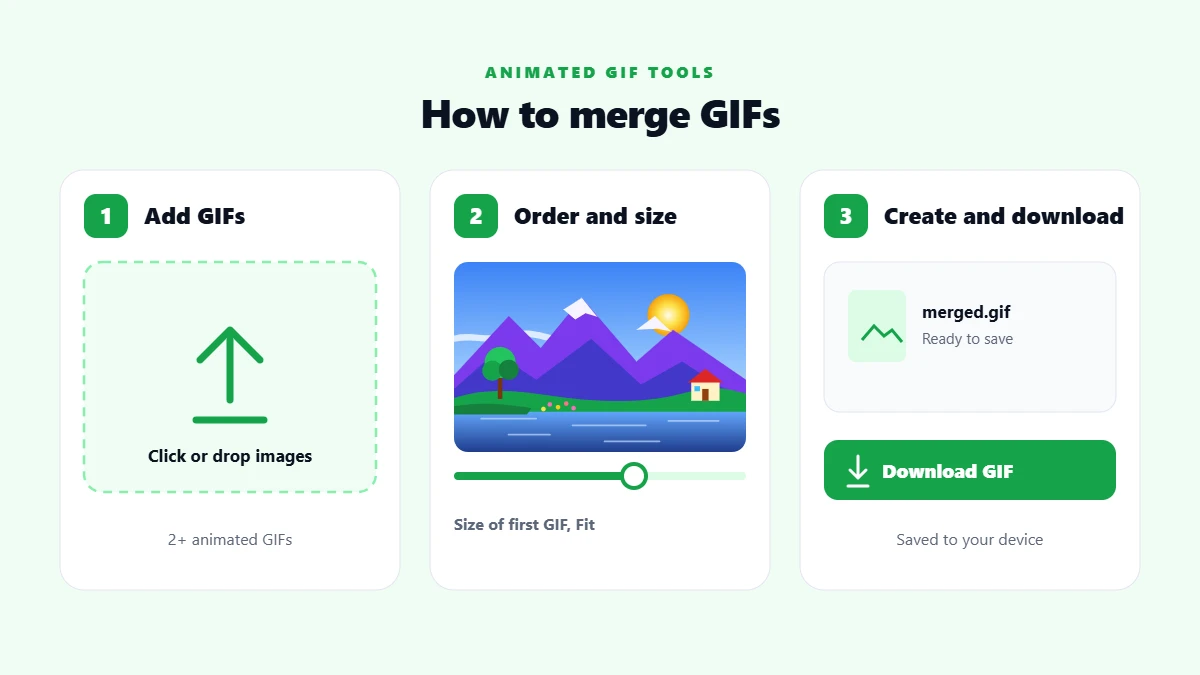
How to merge GIFs
Merging plays several animations one after another in a single GIF. It is useful for combining scenes, adding an intro or outro card, or building a sequence of reactions.
Add GIFs
Click the upload box or drop two or more GIFs. Add still images (JPG, PNG) for title or end cards.
Order and size
Use the arrows to reorder parts. The first GIF sets the shape; choose Fit, Fill or Stretch for the others.
Create and download
Press Create GIF and then Download GIF.
Watch: combine several GIFs into one
Popular reasons to merge GIFs
Build a story
Combine short scenes into one longer animation.
Title and end cards
Add a still title image before and a call to action after.
Reaction combos
Chain reactions or memes into one GIF.
Product feature reel
Join demos of several features into one product GIF.
Tutorial sequences
Merge step-by-step screen GIFs into one walkthrough.
Event highlights
Join party or holiday clips into one shareable loop.
Combining GIFs of different sizes
| Fit | What happens | Best for |
|---|---|---|
| Fit | Whole GIF visible, background fills the gaps | Mixed shapes |
| Fill | Fills the frame, edges may be cut | Similar shapes |
| Stretch | Stretched to the exact size | Same aspect ratio |
The canvas uses the shape of the first item. Put the GIF whose shape you want first.
Keep the merged GIF small
Merged GIFs can get large quickly because frames add up. Choose a smaller Width, reduce Colors to 128, and trim each part first with Trim GIF. For long sequences, convert the result to video with GIF to MP4.
How to merge GIFs on Windows, Mac, iPhone and Android
No app to install. The tool works in any modern browser, so the steps are almost the same everywhere.
On Windows
- Open toolzzz.com/merge-gifs/ in Chrome, Edge or Firefox.
- Drag your GIFs from File Explorer onto the upload box.
- Order the GIFs with the arrows, choose size and fit, then press Create GIF, then press Download GIF.
- The new file is saved to your Downloads folder.
On Mac
- Open toolzzz.com/merge-gifs/ in Safari or Chrome.
- Drag the GIFs from Finder or the Photos app onto the upload box.
- Order the GIFs with the arrows, choose size and fit, then press Create GIF, then press Download GIF.
- Find the result in Downloads (Safari asks first if set to).
On iPhone and iPad
- Open toolzzz.com/merge-gifs/ in Safari.
- Tap the upload box and choose Photo Library, Take Photo or Choose File.
- Order the GIFs with the arrows, choose size and fit, then press Create GIF, then tap Download GIF.
- Tap Download, then open it from the Files app and choose Save Image to add it to Photos.
On Android
- Open toolzzz.com/merge-gifs/ in Chrome.
- Tap the upload box and pick the GIFs from your Gallery, Files or camera.
- Order the GIFs with the arrows, choose size and fit, then press Create GIF, then tap Download GIF.
- The image appears in your Downloads folder and in Google Photos under Downloads.
Toolzzz vs. typical online GIF combiners
| Feature | Toolzzz Merge GIFs | Typical combiners |
|---|---|---|
| Your GIFs are uploaded to a server | Never. Merged in your browser | Usually |
| Number of GIFs | Unlimited | Often 2 to 5 |
| Mix in still images | Yes, with custom duration | Rare |
| Different sizes handled | Fit, fill or stretch | Often stretched |
| Original timing kept | Yes | Sometimes resampled |
| Watermark | None | Common |
| Sign-up required | No | Common |
"Typical" describes common limits of free online services. Plans and limits differ between sites.
Combine GIFs your way
Any number of parts
Join as many GIFs and images as you like.
Fit options
Fit, fill or stretch parts of different sizes.
Timing kept
Every frame keeps its original duration.
Still cards
Insert title and end images with a set duration.
Live preview
Watch the merged animation before creating it.
Private
No upload and no watermark.
Key terms explained
- Sequence
- Animations played one after another.
- Canvas
- The frame size of the merged GIF, taken from the first item.
- Letterboxing
- Empty bands added around an image to fit a different shape.
Frequently asked questions
How do I merge GIFs for free?
Drop two or more GIFs here, order them, press Create GIF and Download GIF.
Can I combine GIFs of different sizes?
Yes. Choose Fit, Fill or Stretch. The first item sets the shape.
Can I add a still image between GIFs?
Yes. Add JPG or PNG images and set their duration.
Can I put GIFs side by side?
This tool joins GIFs in sequence. Use Merge Images for side-by-side stills.
Does merging change the speed?
No. Every frame keeps its original timing.
Why is the merged GIF large?
Frames add up. Lower the width or colors, or trim the parts first.
Does it work on my phone?
Yes, in any modern browser.
Are my GIFs uploaded?
No. Merging happens in your browser.