

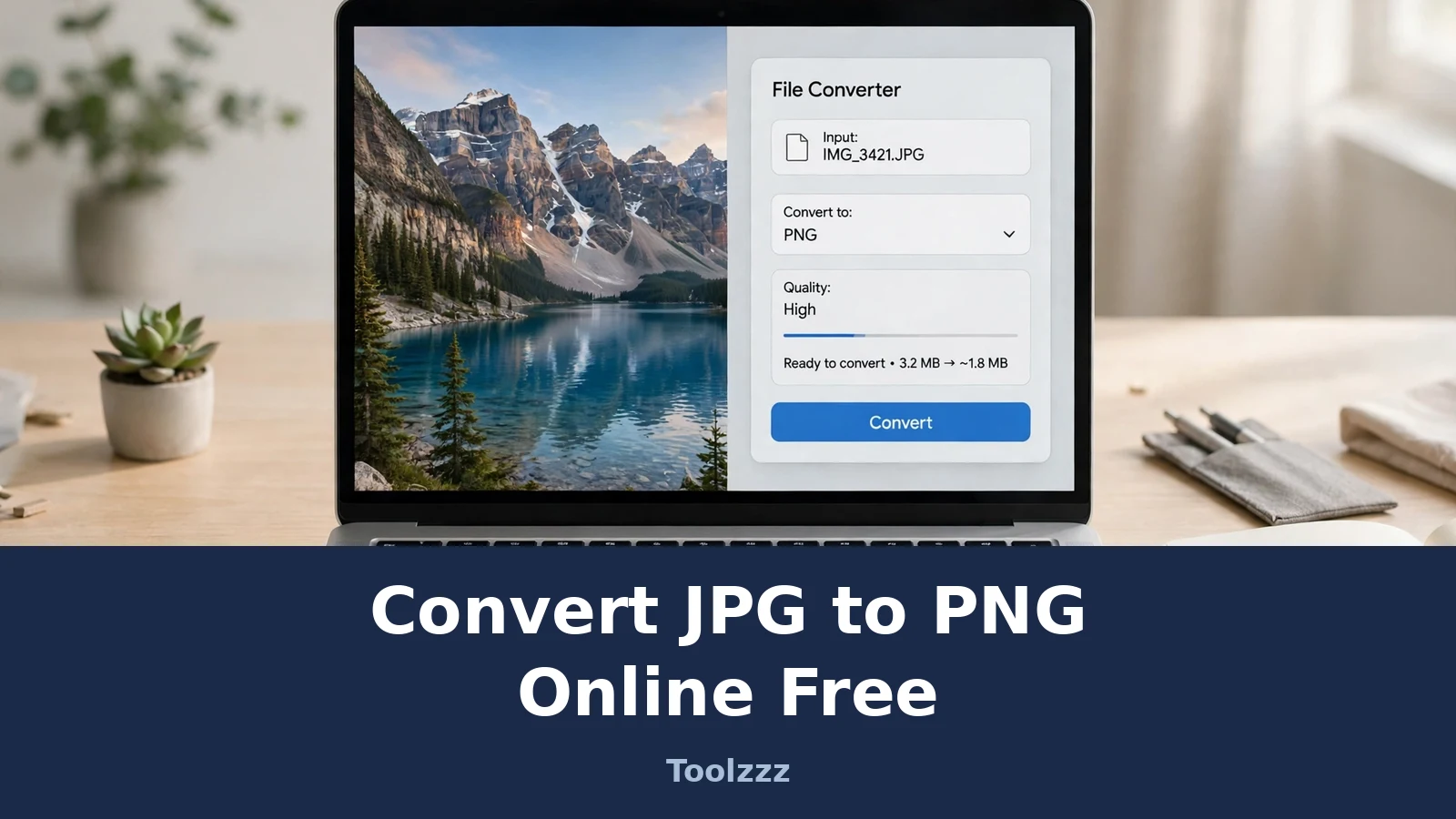
A photo from a phone or camera usually arrives as a JPG. It is small, it opens everywhere, and it is fine for sharing. Then a website asks for a PNG, or you need to edit the image again without adding new compression marks, and the JPG suddenly is the wrong file. The fix takes seconds, but it helps to know what the conversion does and does not do before you press download.
This guide converts a real photo on the Toolzzz converter and shows the exact result, including the file size surprise that catches most people out. It also compares the free converters Google recommends for this job, covers every device from Windows to iPhone, and explains when to keep the JPG instead.
To convert jpg to png online, open the Toolzzz JPG to PNG converter, drop your JPG files into the box, and press Download PNG. The conversion runs in your browser, so nothing is uploaded, and the PNG keeps every pixel exactly. A photo PNG is usually several times larger than the JPG, which is normal for a lossless file.
How do I convert JPG to PNG online free?
The quickest way is a free tool that runs in your browser. Here are the steps on the Toolzzz JPG to PNG converter, which needs no account and stores nothing on a server.
- Open the converter. Go to the Toolzzz JPG to PNG page in any modern browser. There is nothing to install and no sign-up form.
- Add your JPG files. Drag them onto the upload box, click to browse, or paste an image straight from your clipboard with Ctrl + V. The tool accepts .jpg, .jpeg and .jfif files, and you can add several at once.
- Check the size setting. The only setting on the tool is Max width / height, and it defaults to Keep original size. Leave it there if you want the full resolution, or pick 4096, 2048, 1920 (Full HD), 1280, 1080 or 512 px to shrink the image while it converts.
- Download the PNG. The conversion starts by itself as soon as the file is added, so there is no Convert button to press. Press Download PNG for one file, or Download all as PNG (ZIP) when you converted several.
- Check the result. Open the PNG and confirm the dimensions match the original. If the file is bigger than you expected, that is normal, and the next section shows just how big it can get.
That is the whole job. No email address, no watermark on the output, and no queue to wait in. The rest of this guide is about understanding the result, so you do not mistake a bigger file for a better picture.
What did the worked example actually produce?
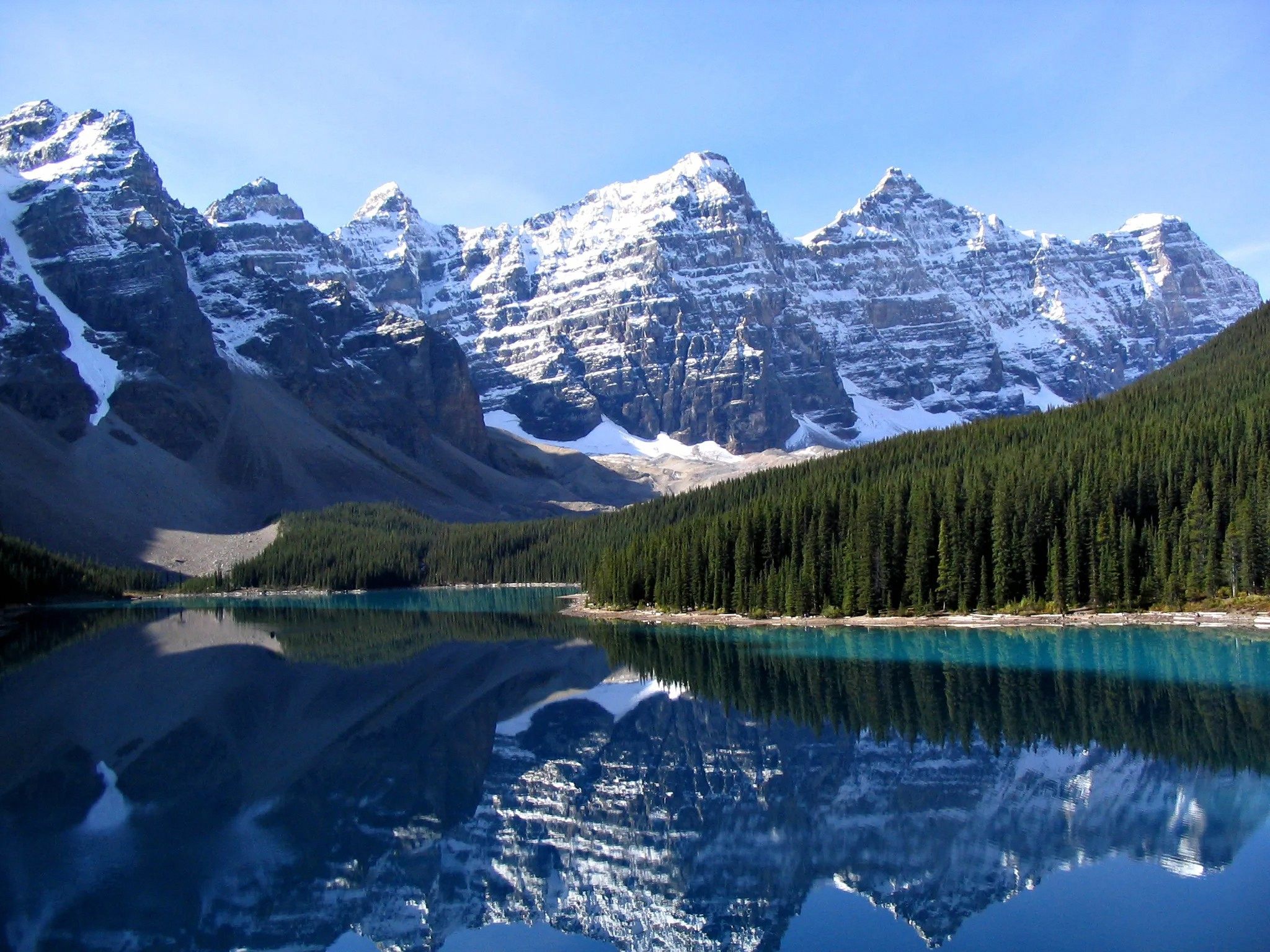
I ran a real photo through the tool to check every claim on its page. The sample is a mountain lake landscape, 2048 by 1536 pixels, saved as a JPG. It is the kind of detailed photo that makes PNG work hard, since every rock, tree and ripple has to be stored exactly.
Here is what went in and what came out, with the sizes taken from the tool page and the downloaded file itself:
| Check | Before (JPG) | After (PNG) |
|---|---|---|
| File name | worked-moraine.jpg | worked-moraine.png |
| File size | 720,959 bytes (704 KB) | 6,982,126 bytes (6.98 MB) |
| Dimensions | 2048 x 1536 px | 2048 x 1536 px, unchanged |
| Colour mode | RGB | RGBA, with an alpha channel ready |
| How much bigger | Original size | 9.68 times larger |
| Quality change | Already compressed once | No further loss, but no detail restored |
| Metadata | No EXIF data in this sample | No metadata chunks in the PNG |
The conversion itself was instant. The file converted the moment it was dropped in, and the tool showed a results row reading worked-moraine.jpg, 721 KB, 6.98 MB, with the summary “1 file converted to PNG, 721 KB to 6.98 MB”. The downloaded file measured 6,982,126 bytes, which matches the 6.98 MB shown on the page.
The picture below is the actual PNG the tool produced, so you can see the result for yourself. It looks identical to the JPG at normal viewing size, because the pixels are the same. The difference is in the file, not on the screen: the PNG stores every pixel exactly, while the JPG had already thrown away detail your eye barely notices.
One honest note on the metadata claim. The tool page says camera details and GPS location are not copied into the PNG. My sample photo carried no EXIF data at all, so I could not test the removal directly in this run. The output PNG holds no metadata chunks, which is consistent with the claim, but the claim itself comes from the tool page, not from a test on this file. If you convert a photo straight from a phone, check the output in your usual image viewer before you share it. A later test on a photo that did carry EXIF data is now in our guide to removing EXIF data from photos online free, which shows the full before and after table from the Toolzzz EXIF Data Remover. If the PNG still comes out larger than you need, resizing it first helps: our guide to resizing an image online free to exact pixels shows a real photo taken down to 800 by 600 with the exact file sizes.
Why is the PNG so much bigger than the JPG?
The short answer is that the two formats do opposite jobs. JPG is lossy: it throws away fine detail to keep files small, and once that detail is gone it never comes back. PNG is lossless: it stores every pixel exactly, so the file has to describe all the detail the JPG discarded. A detailed photo is the worst case for PNG, which is why my 704 KB JPG became a 6.98 MB PNG, nearly ten times larger.
That result is bigger than the typical figures the converters quote, and the reason is the photo itself. The Toolzzz page says a photo PNG is usually 3 to 6 times larger than the JPG. The other converters say much the same: jpg.now puts it at 3 to 5 times, and Enconvert says a 1 MB JPG photo may become a 4 to 6 MB PNG. My landscape, with rock texture, trees and water ripples in every corner, compresses poorly as a PNG, so it landed at 9.68 times. A plainer image, such as a screenshot or a logo on a flat background, would sit much closer to the quoted range.
The PNG format uses DEFLATE compression, the same family of compression behind ZIP files, and it never discards pixel data. That is what makes it right for editing and wrong for delivery. Every time you save a JPG again, it loses a little more quality. A PNG can be opened, edited and saved as many times as you like without any further loss. You pay for that safety with file size, so convert to PNG when you need a master copy to work from, not when you need the smallest file to send.
Does converting JPG to PNG improve quality or add transparency?
No, to both, and this is the misunderstanding that causes the most disappointment. Converting a JPG to PNG cannot restore detail that JPG compression already removed. The artefacts baked into the JPG, the blocky patches and the smudged edges, stay in the PNG. What the conversion does is stop further loss. From the PNG onwards, every edit and save keeps the pixels exactly as they are now.
Transparency works the same way. A JPG has no transparent pixels to carry over, so the PNG you get is fully opaque, with the same solid background as the original. What PNG gives you is an alpha channel, which is the part of the file that can store transparency. The Toolzzz tool page puts it plainly: the background stays as it is in the photo, and you remove the background afterwards in an editor. Enconvert says the same, and names Photoshop, Figma, GIMP and Canva as the editors to do it in.
So the order matters. Convert first, then edit. If your goal is a logo on a transparent background, convert the JPG to PNG, open the PNG in an editor, erase the background, and save it as PNG again. If your logo starts as a vector file rather than a JPG, our guide to converting SVG to PNG shows how to export it at the right size with the transparency kept. If you only need the picture itself, and it will never be edited again, the JPG you started with was already the right file.
Which free JPG to PNG converter should I use?
Google’s AI Overview names two tools for this job, Canva and a small converter called JPG to PNG Converter, and it also cites a YouTube video and Convertio. I checked the free converters that rank for the same query, and the table below uses only facts from each tool’s own page, checked at the time of writing.
| Tool | Price and limits | Where your files go | Notable features |
|---|---|---|---|
| Toolzzz JPG to PNG | Free, no limits stated, no sign-up | Stays in your browser, never uploaded | Batch convert with ZIP download, resize to 512-4096 px while converting, EXIF removed |
| Canva | Free standalone converter, no login needed for the tool; editor needs an account | Uploaded to your Canva account when you use the editor | Full design editor attached; transparent PNG export and size controls are Pro features |
| JPG to PNG Converter (Lovable) | Free, no registration, no limits stated | Converted in your browser, never uploaded | Single-file converter with a live preview, nothing else to configure |
| Enconvert | Free tier: files up to 5 MB, 100 conversions a month, no sign-up | Uploaded, processed, then deleted; download link stays active for 1 hour | Developer API for batch conversion, paid plans up to 150 MB per file |
| Pixlr | Free, no watermark stated | Uploaded for conversion | Batch of up to 20 files at 20 MB each, download all as a ZIP, built-in background remover |
| MyTinyImg | Free, no sign-up, no watermark, no daily limit | Converted in your browser, never uploaded | Batch convert with ZIP download, supports JPG, PNG, WebP, AVIF, BMP and HEIC input |
| SliceDraw | Free, no sign-up, no watermark, no limits stated | Converted in your browser, never uploaded | No quality slider, since PNG is lossless; adds the alpha channel for later transparency work |
| jpg.now | Free, 10 conversions a day, no sign-up | Uploaded, files deleted after 24 hours | Batch processing, quality and size options, works on mobile browsers |
| FreeConvert | Free, files up to 1 GB | Uploaded to FreeConvert servers | Files from your computer, Google Drive, Dropbox, OneDrive or a URL, optional resize and compression settings before download |
A few notes on the table. Enconvert’s own page is not consistent with itself: the upload box says files up to 5 MB, while the steps on the same page say up to 10 MB on the free tier. I used the 5 MB figure from the upload box, since that is the limit you actually hit. Canva’s converter page would not load in a plain text fetch, so its row rests on Canva’s own help page, which says transparent PNG exports and file-size controls are Pro features, and on the free plan’s 5 GB storage limit.
The Overview also cites Convertio, but only as a card with no point attached to it, and the page it cites is in French, so it is not in the table. The YouTube citation is a short mobile how-to video by GysticTutorials, which is covered in the device section below rather than the table.
For most jobs, the choice is simple. If the photo is private, use a converter that states plainly that nothing is uploaded, and check that promise on its own page before you convert. If you have a folder of images, pick one with batch conversion and a ZIP download. If you need to edit the result anyway, Canva’s editor is the reason to use Canva, and its converter is the way in.
How do I convert JPG to PNG on Windows, Mac, iPhone and Android?
The Overview closes by offering the best option for your device, so here is the device-by-device version. No app is needed on any of them: the tool works in any modern browser, and the steps are almost the same everywhere.
On Windows, open the Toolzzz converter in Chrome, Edge or Firefox, drag your JPG files from File Explorer onto the upload box, and press Download PNG. The new file lands in your Downloads folder. You can also do it without any website at all: open the image in Paint and use Save As, then PNG.
On Mac, open the converter in Safari or Chrome, drag the JPG files from Finder or the Photos app onto the upload box, and press Download PNG. Safari may ask first where to save the file, depending on your settings. The built-in route is Preview: open the image, then File, then Export, and choose PNG.
On iPhone and iPad, open the converter in Safari, tap the upload box, and choose Photo Library, Take Photo or Choose File. Press Download PNG, then open the file from the Files app and choose Save Image to add it to Photos. The YouTube video the Overview cites, “How To Convert JPG Into PNG On Mobile” by GysticTutorials, walks through the same job on a phone if you prefer to watch rather than read.
On Android, open the converter in Chrome, tap the upload box, and pick the JPG files from your Gallery, Files or camera. Press Download PNG, and the image appears in your Downloads folder and in Google Photos under Downloads.
One device warning is worth keeping. Photos taken on an iPhone are often HEIC files, not JPGs, and a JPG to PNG converter will not accept them. If your phone photo will not upload, convert it to JPG first. The Toolzzz HEIC to JPG guide shows that step on a real file, and then the JPG to PNG steps above work as normal.
Can I convert several JPGs to PNG at once?
Yes, and this is where the free tools differ most. The Toolzzz converter takes an unlimited number of files and downloads them all as one ZIP, which is the fastest route when a whole folder needs converting. MyTinyImg does the same, with a Download All button that zips the results together. Pixlr caps a batch at 20 files of 20 MB each, and also zips the downloads. jpg.now allows batch processing too, but counts each file against its 10 free conversions a day, so a folder of 12 images would use up the day and leave two for tomorrow.
Enconvert takes a different route: its free web tool converts one file at a time, and batch conversion goes through its developer API, which is built for hundreds of files at once. That suits a developer automating the job, not someone with a holiday folder. If you are converting by hand, a batch tool with a ZIP download will save you the most time, and the ZIP keeps the files together in one download instead of one file at a time.
Is it safe to convert private photos online?
It depends on where the file goes, and that is the question to ask before you upload anything personal. The safest converters never receive your photo at all. The Toolzzz converter, MyTinyImg, SliceDraw and the Lovable converter all process the image inside your browser, so the file never leaves your device and there is nothing on a server to leak, keep or delete. The Overview makes the same point in its Quick Notes: for sensitive images, look for tools that process files locally in your browser without uploading them.
The upload converters are honest about what happens instead. Enconvert processes your file on its server and deletes it after conversion, and the download link stays active for one hour. jpg.now deletes files after 24 hours. Canva stores the image in your account, within its 5 GB free storage limit. None of that is unsafe by itself, but a photo with a visible house number, a number plate or a child in it deserves the local route, where no copy ever exists anywhere else.
There is one more privacy detail the converters handle differently. A JPG from a phone can carry EXIF data, including the GPS location where the photo was taken. The Toolzzz tool states that camera details and GPS location are not copied into the PNG, and jpg.now advises stripping EXIF metadata before converting for the same reason. If you share photos online, removing that data is worth doing even when the conversion itself is the only job.
When should I keep the JPG instead?
Most of the time, for most photos. A JPG is the right file when the picture is finished and only needs to be seen: a photo on a web page, an attachment in an email, a picture message, or a social media post. In all of those places the smaller file loads faster, costs less data, and looks the same as the PNG to anyone viewing it.
Convert to PNG when the picture still has work ahead of it. That means an image you will edit again, a screenshot or diagram with text that must stay crisp, a logo or graphic that needs a transparent background later, or a master copy you want to archive without further loss. The PNG specification itself describes the format as a patent-free replacement for GIF built for exactly that kind of exact reproduction, and it has been the default screenshot format on Mac, Windows and iOS for years.
If the real problem is size rather than format, converting to PNG moves you in the wrong direction. A photo that is too big for a form or an upload limit needs to be smaller, not lossless. The Toolzzz guide to compressing an image to 100 KB shows how far a photo can shrink while staying usable, and the Toolzzz converter itself lets you pick a smaller Max width and height while it converts, which cuts the PNG down at the same time. Going the other way, from WebP back to JPG, is covered in the Toolzzz WebP to JPG guide, which is the route to take when a site will not accept a WebP file. If you want the smaller file instead of a PNG, our guide to converting JPG to WebP online free shows a real photo cut from 540 KB to 113 KB at quality 80.
What if the site I am uploading to still rejects the PNG?
First, check the reason. Most rejections are about file size, not format: a 7 MB PNG trips limits that a 700 KB JPG sailed under. The fix is to shrink the image before you convert, or convert with a smaller Max width and height. Dropping a 2048 px wide photo to 1280 px cuts the PNG size sharply, and for a web upload nobody sees the difference.
Second, check the format the site actually wants. Some forms say PNG but accept JPG as well, and some want a specific size in kilobytes rather than a format at all. If the limit is in kilobytes, compress the JPG to the target size first, then convert only if the form truly needs a PNG. And if the site needs transparency, remember that converting alone does not create it: the background has to be removed in an editor after the conversion, as the earlier section explains.
That is the full picture. Converting JPG to PNG is a one-minute job, and the only real decision is whether you need a lossless master or a small file. Pick the master when you will edit the image again, keep the JPG when you will not, and use a converter that keeps your photo on your own device either way. The Toolzzz homepage lists the rest of the free converters, including the image tools used in this guide, if the next job needs one.
Does converting JPG to PNG improve quality?
No. The PNG keeps the pixels exactly as they are in the JPG, so it stops further loss, but it cannot restore detail that JPG compression already removed. The artefacts in the original stay in the PNG. Convert from the highest quality JPG you have, and treat the PNG as a master copy for editing.
Will my PNG have a transparent background?
No, not by itself. A JPG has no transparent pixels, so the converted PNG keeps the same solid background. PNG supports transparency through its alpha channel, so you can remove the background afterwards in an editor such as Photoshop, GIMP, Figma or Canva, then save the PNG again.
Why is my PNG file so much bigger than the JPG?
PNG is lossless, so it stores every pixel exactly, while JPG throws away detail your eye barely notices. For photos, the PNG is usually 3 to 6 times larger, and a very detailed photo can reach nearly 10 times, as the worked example here did. Screenshots and graphics with flat colours stay much closer to the JPG size.
Can I convert JPG to PNG on my phone?
Yes. Open the Toolzzz converter in Safari on iPhone or Chrome on Android, tap the upload box, and pick the photo from your library or camera. Press Download PNG, then find the file in your Downloads folder or the Files app. No app is needed, and the conversion runs in the browser.
Is there a file size limit when converting JPG to PNG?
Not on the Toolzzz converter, which states no file size limit and converts in your browser, so the only limit is your device memory. Other free tools do set limits: Enconvert allows 5 MB files on its free tier, Pixlr allows 20 MB per file, and jpg.now allows 10 free conversions a day.
Can I convert several JPGs to PNG at once?
Yes. The Toolzzz converter takes an unlimited number of files and downloads them all as one ZIP file. MyTinyImg and Pixlr also offer batch conversion with a ZIP download, while Pixlr caps a batch at 20 files. Enconvert handles batches through its developer API instead of the web tool.
