
Add text to a GIF in seconds
To add text to a GIF, drop the animated GIF into Toolzzz Add Text to GIF, type your caption, pick Top, Center or Bottom, choose the Meme (Impact), Clean or Comic font, set size and colors, and press Create GIF. You can show the text on all frames or only from one frame to another. Everything runs in your browser.
- Meme, clean or comic font
- Top, center or bottom
- Text and outline colors
- Multi-line captions
- Show on chosen frames
- Live animated preview
- No watermark
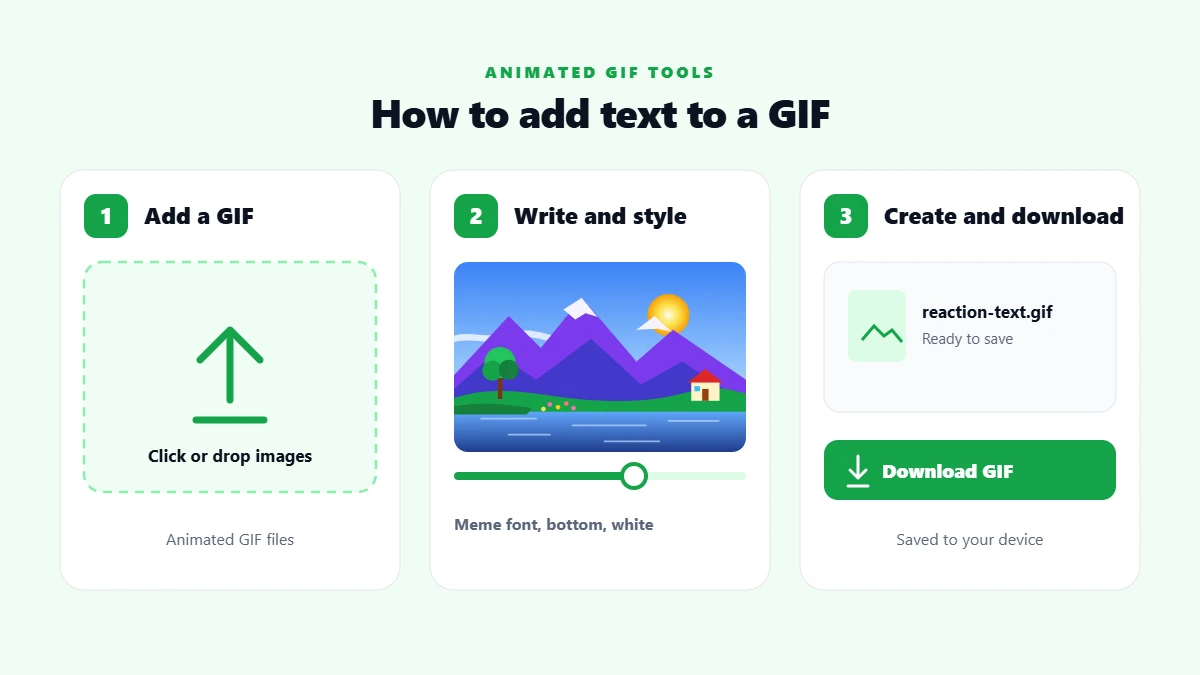
How to add text to a GIF
Captions turn a plain animation into a meme, a reaction or a clear explanation. A white Impact font with a black outline is the classic meme look and stays readable on any background.
Add a GIF
Click the upload box or drop an animated GIF.
Write and style
Type your text (press Enter for a new line), then choose position, font, size and colors. Limit the text to certain frames if needed.
Create and download
Press Create GIF and then Download GIF.
Watch: add meme text to a GIF
Popular reasons to add text to GIFs
Memes
Create classic top-and-bottom meme captions.
Reactions
Add a punchline to reaction GIFs for chats and comments.
Tutorials
Label steps in a screen-recording GIF.
Promotions
Add a price, discount or call to action to product GIFs.
Greetings
Write "Happy Birthday" or "Thank you" on a cute animation.
Subtitles
Add a short subtitle line to a silent clip.
Tips for readable GIF captions
- Use the Meme font with a black outline for text on busy backgrounds.
- Keep captions short: 2 to 6 words per line read best in a looping GIF.
- Use Top for the setup and add a second GIF for the punchline, or press Enter for two lines.
- Increase Text size for small GIFs (under 320 px wide).
- Use Show from frame to make the caption appear at the right moment.
Which fonts are used?
The Meme font uses Impact, the classic meme typeface installed on Windows and macOS (Anton or Arial Black are used as fallbacks). Clean uses bold Arial or Helvetica, and Comic uses Comic Sans MS. Because text is drawn into every frame, the result looks the same everywhere, even on devices without these fonts.
How to add text to a GIF on Windows, Mac, iPhone and Android
No app to install. The tool works in any modern browser, so the steps are almost the same everywhere.
On Windows
- Open toolzzz.com/add-text-to-gif/ in Chrome, Edge or Firefox.
- Drag your GIF from File Explorer onto the upload box.
- Type your text, choose position, font and colors, then press Create GIF, then press Download GIF.
- The new file is saved to your Downloads folder.
On Mac
- Open toolzzz.com/add-text-to-gif/ in Safari or Chrome.
- Drag the GIF from Finder or the Photos app onto the upload box.
- Type your text, choose position, font and colors, then press Create GIF, then press Download GIF.
- Find the result in Downloads (Safari asks first if set to).
On iPhone and iPad
- Open toolzzz.com/add-text-to-gif/ in Safari.
- Tap the upload box and choose Photo Library, Take Photo or Choose File.
- Type your text, choose position, font and colors, then press Create GIF, then tap Download GIF.
- Tap Download, then open it from the Files app and choose Save Image to add it to Photos.
On Android
- Open toolzzz.com/add-text-to-gif/ in Chrome.
- Tap the upload box and pick the GIF from your Gallery, Files or camera.
- Type your text, choose position, font and colors, then press Create GIF, then tap Download GIF.
- The image appears in your Downloads folder and in Google Photos under Downloads.
Toolzzz vs. typical GIF caption tools
| Feature | Toolzzz Add Text to GIF | Typical caption tools |
|---|---|---|
| Your GIF is uploaded to a server | Never. Edited in your browser | Usually |
| Text on chosen frames only | Yes | Rare |
| Outline color and toggle | Yes | Sometimes |
| Multi-line text | Yes | Sometimes |
| Live animated preview | Yes | Often static |
| Watermark | None | Common |
| Sign-up required | No | Common |
"Typical" describes common limits of free online services. Plans and limits differ between sites.
Meme-ready GIF captions in seconds
Classic meme style
Impact font, white fill and a black outline in one click.
Live preview
See the animated result update as you type.
Frame range
Show text only during part of the animation.
Any colors
Pick text and outline colors to match your brand.
Quality output
Per-frame palettes keep text edges sharp.
Private
Your GIF never leaves your device.
Key terms explained
- Caption
- Short text shown on top of an image or animation.
- Outline (stroke)
- A border around letters that keeps text readable on any background.
- Impact
- A heavy, condensed font that became the standard meme typeface.
Frequently asked questions
How do I add text to a GIF for free?
Drop the GIF here, type your text, press Create GIF and then Download GIF. No watermark.
How do I make a meme GIF?
Use the Meme font, white text, black outline and UPPERCASE. Put the text at the top or bottom.
Can I add two lines of text?
Yes. Press Enter in the text box to start a new line.
Can the text appear only at a certain moment?
Yes. Set Show from frame and to frame.
Can I change the text color?
Yes. Pick any text color and outline color.
Will the GIF lose quality?
No visible loss. Each frame is re-encoded with an optimized palette.
Does it work on my phone?
Yes, in any modern mobile browser.
Is my GIF uploaded?
No. Text is added in your browser.