
Record your screen as a GIF in seconds
To record your screen as a GIF, open Toolzzz Screen to GIF Recorder on a computer, choose frames per second and width, press Start recording, pick the entire screen, a window or a browser tab, and press Stop recording when done (or let it stop automatically). Then press Create GIF and Download GIF. The recording never leaves your computer.
- Screen, window or tab
- 5, 10 or 15 fps
- Auto-stop 10 to 60 s
- Width up to 1280 px
- No extension needed
- 100% free, no sign-up
- No watermark
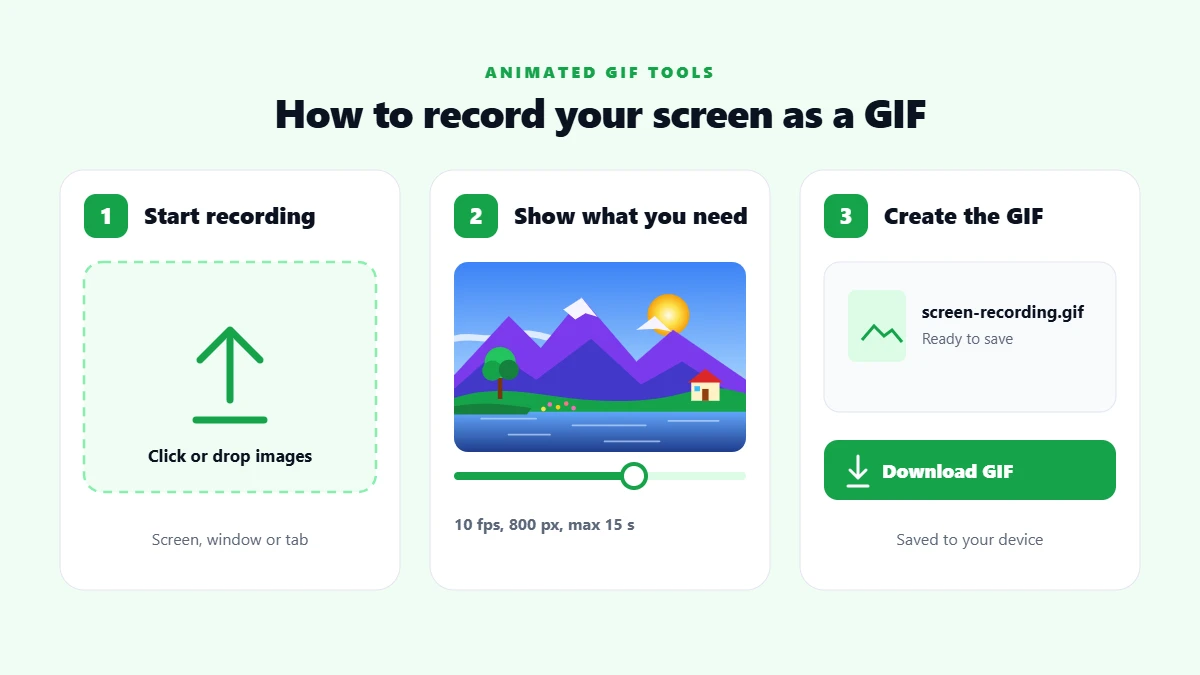
How to record your screen as a GIF
Screen GIFs are the fastest way to show a bug, a feature or a quick how-to. They play automatically in chats, tickets, docs and pull requests, with no video player needed.
Start recording
Press Start recording and choose an entire screen, a window or a browser tab in the browser dialog.
Show what you need
Perform the steps you want to capture. Press Stop recording or let it stop automatically.
Create the GIF
Press Create GIF, check the preview, then press Download GIF.
Watch: record your screen as a GIF without software
Popular reasons to record a screen GIF
Bug reports
Show exactly how to reproduce a bug in Jira, GitHub or Linear.
Product documentation
Add short animated walkthroughs to help centers and READMEs.
Feature announcements
Share a quick demo of a new feature on X, LinkedIn or Slack.
Customer support
Reply to tickets with a GIF that shows the exact clicks.
Design feedback
Record hover states, animations and interactions for review.
Teaching
Show keyboard shortcuts and quick tips to students and teammates.
Best settings for screen GIFs
| Recording | FPS | Width | Length |
|---|---|---|---|
| Bug report or UI click-through | 10 | 800 px | 5 to 15 s |
| Smooth animation or hover effect | 15 | 640 px | 3 to 8 s |
| Slow walkthrough | 5 | 1080 px | 15 to 30 s |
Record a single window or tab instead of the whole screen to keep the GIF small and readable.
Which browsers can record the screen?
The recorder uses the standard Screen Capture API, available in Chrome, Edge, Opera and Firefox on Windows, macOS, Linux and ChromeOS, and in Safari on macOS. Phones and tablets do not allow web pages to record the screen; use your phone's built-in screen recorder and then convert the video with Video to GIF.
On macOS, the first time you record, you may need to allow your browser in System Settings > Privacy & Security > Screen Recording.
How to record your screen as a GIF on Windows, Mac and Chromebook
No app to install. The tool works in any modern browser, so the steps are almost the same everywhere.
On Windows
- Open toolzzz.com/screen-to-gif-recorder/ in Chrome or Edge.
- Press Start recording and choose a tab, window or entire screen.
- Do the steps you want to show, then press Stop recording.
- Press Create GIF and Download GIF. The GIF is saved to Downloads.
On Mac
- Open toolzzz.com/screen-to-gif-recorder/ in Chrome, Safari or Firefox.
- If asked, allow the browser in System Settings > Privacy & Security > Screen Recording.
- Press Start recording, choose what to share and press Stop recording when done.
- Press Create GIF and Download GIF.
On Chromebook and Linux
- Open toolzzz.com/screen-to-gif-recorder/ in Chrome.
- Press Start recording and choose a tab, window or the whole screen.
- Press Stop recording when you are done.
- Press Create GIF and Download GIF.
On iPhone and Android
- Phones do not allow web pages to record the screen.
- Use the built-in recorder: Control Center > Screen Recording on iPhone or Quick Settings > Screen record on Android.
- Open toolzzz.com/video-to-gif/ and add the recording.
- Choose the part you need, then press Create GIF.
Toolzzz vs. typical screen recorders
| Feature | Toolzzz Screen to GIF Recorder | Typical recorders |
|---|---|---|
| Recording uploaded to a server | Never. Recorded in your browser | Often |
| Install or extension needed | No | Usually |
| Record a window or a single tab | Yes | Sometimes |
| Frame rate and width control | Yes | Partial |
| Watermark | None | Common on free plans |
| Time limit | Up to 60 s per recording | Often 5 to 30 s |
| Sign-up required | No | Common |
"Typical" describes common limits of free online services. Plans and limits differ between sites.
A screen GIF recorder that runs in your browser
No install
Works directly in your browser on Windows, Mac, Linux and ChromeOS.
Your settings
Frame rate, width, auto-stop time, loop and colors.
Private
Your screen never leaves your device, which is safe for internal tools.
Clean GIFs
Optimized palettes keep text and UI crisp.
Auto-stop
Set a maximum length so you never record too much.
Instant result
Create and download the GIF right after you stop.
Key terms explained
- Screen Capture API
- The browser feature that lets a web page record a screen, window or tab after you allow it.
- Frame rate
- How many frames per second are captured; 10 fps is ideal for UI recordings.
- Tab capture
- Recording only one browser tab, which hides everything else on your screen.
Frequently asked questions
How do I record my screen as a GIF for free?
Press Start recording, choose a screen, window or tab, stop when done, press Create GIF and Download GIF.
Do I need to install anything?
No. It works in Chrome, Edge, Firefox and Safari on a computer.
Can I record on my phone?
Mobile browsers do not allow screen recording. Use your phone's screen recorder and then Video to GIF.
Is there a time limit?
You can set auto-stop at 10, 15, 30 or 60 seconds.
Can I record sound?
No. GIFs cannot contain audio.
Why is the GIF large?
Lower the width or frame rate, record a smaller window, or reduce Colors to 128.
Is my recording uploaded?
No. The recording and GIF stay on your computer.
Why do I see a permission error on Mac?
Allow your browser under System Settings, Privacy and Security, Screen Recording, then restart the browser.