
Convert a video to GIF in seconds
To convert a video to GIF, drop an MP4, WebM or MOV file into Toolzzz Video to GIF, set the Start and End time (3 to 6 seconds works best), choose 10 frames per second and a Width of 480 px, and press Create GIF. Then press Download GIF. The video is processed in your browser, so it is never uploaded.
- MP4, WebM, MOV
- Exact start and end
- 5 to 20 fps
- 320 to 1080 px wide
- Loop control
- 100% free, no sign-up
- No watermark
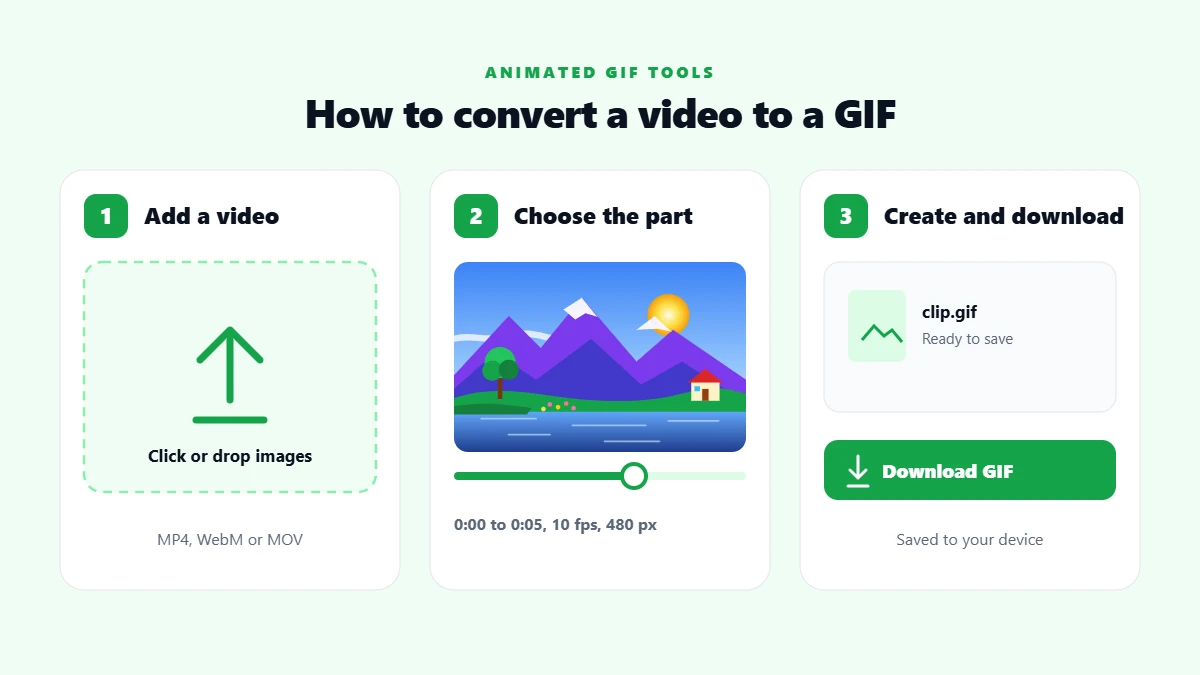
How to convert a video to a GIF
GIFs are perfect for short, silent loops: reactions, product demos, tutorials and highlights. Because GIFs store every frame as an image, the best results come from short clips with a modest frame rate and size.
Add a video
Click the upload box or drop an MP4, WebM or MOV file from your phone or computer.
Choose the part
Enter the Start and End time in seconds (use the player to find them). Pick frames per second and width.
Create and download
Press Create GIF. When the preview appears, press Download GIF.
Watch: turn a video clip into a GIF
Popular reasons to convert video to GIF
Reaction GIFs
Turn a funny moment into a reaction GIF for chats, Slack, Discord or X.
Product demos
Show a feature or product in action on landing pages and listings.
Software tutorials
Show a short UI interaction in documentation or support articles.
Email campaigns
Videos do not play in most email clients, but GIFs do.
Highlights
Loop a sports move, game clip or concert moment.
Personal moments
Turn a short video of family or pets into a shareable loop.
Best settings for video to GIF
| Goal | Length | FPS | Width |
|---|---|---|---|
| Chat reaction | 2 to 4 s | 10 | 320 to 480 px |
| Product demo | 4 to 8 s | 10 to 15 | 480 to 640 px |
| Smooth motion | 2 to 5 s | 15 to 20 | 480 px |
| 3 to 6 s | 8 to 10 | 600 px |
A clip is limited to 600 frames (for example 60 s at 10 fps) to keep your browser responsive.
Which videos are supported?
The converter reads any video your browser can play: MP4 (H.264), WebM (VP8/VP9/AV1) and MOV files from iPhone in Safari. iPhone videos recorded in HEVC play in Safari, but Chrome on Windows may not decode them; if that happens, record in "Most Compatible" mode or open the page in Safari.
GIFs have no sound. To share a clip with audio, keep it as a video, or shrink it with the Video Compressor.
How to convert a video to GIF on Windows, Mac, iPhone and Android
No app to install. The tool works in any modern browser, so the steps are almost the same everywhere.
On Windows
- Open toolzzz.com/video-to-gif/ in Chrome, Edge or Firefox.
- Drag your video from File Explorer onto the upload box.
- Set Start, End and Frames per second, then press Create GIF, then press Download GIF.
- The new file is saved to your Downloads folder.
On Mac
- Open toolzzz.com/video-to-gif/ in Safari or Chrome.
- Drag the video from Finder or the Photos app onto the upload box.
- Set Start, End and Frames per second, then press Create GIF, then press Download GIF.
- Find the result in Downloads (Safari asks first if set to).
On iPhone and iPad
- Open toolzzz.com/video-to-gif/ in Safari.
- Tap the upload box and choose Photo Library, Take Photo or Choose File.
- Set Start, End and Frames per second, then press Create GIF, then tap Download GIF.
- Tap Download, then open it from the Files app and choose Save Image to add it to Photos.
On Android
- Open toolzzz.com/video-to-gif/ in Chrome.
- Tap the upload box and pick the video from your Gallery, Files or camera.
- Set Start, End and Frames per second, then press Create GIF, then tap Download GIF.
- The image appears in your Downloads folder and in Google Photos under Downloads.
Toolzzz vs. typical online video to GIF converters
| Feature | Toolzzz Video to GIF | Typical converters |
|---|---|---|
| Your video is uploaded to a server | Never. Converted in your browser | Usually |
| Video size limit | None (your device memory) | Often 100 MB |
| Exact start and end time | Yes, to 0.1 s | Sometimes |
| Frame rate and width control | Yes | Partial |
| Watermark | None | Common on free plans |
| Waiting in a queue | No | Common |
| Sign-up required | No | Common |
"Typical" describes common limits of free online services. Plans and limits differ between sites.
Video to GIF without uploads or watermarks
Any browser video
MP4, WebM and MOV files open directly in your browser.
Precise control
Start, end, frame rate, width, loop and colors.
Quality GIFs
Every frame gets its own optimized color palette.
Private
Videos stay on your device, ideal for personal or unreleased content.
No queue
Conversion starts instantly on your own computer.
Free forever
No watermark, no account, no file size limit.
Key terms explained
- FPS
- Frames per second: how many images are captured from each second of video.
- Loop
- How many times a GIF repeats. Most GIFs loop forever.
- H.264
- The most common video codec, used by MP4 files.
Frequently asked questions
How do I convert a video to GIF for free?
Drop the video here, set the start and end time, press Create GIF and then Download GIF. No watermark.
How long can my GIF be?
Up to 600 frames, for example 60 seconds at 10 fps. Shorter GIFs (3 to 6 s) are much smaller and look better.
What frame rate should I use?
10 fps is a good balance. Use 15 to 20 fps for smooth motion and 5 fps for slideshows.
Why is my GIF so large?
GIFs store every frame. Reduce the length, width, frame rate or colors.
Does the GIF have sound?
No. The GIF format does not support audio.
Can I convert iPhone videos?
Yes. MOV files from iPhone work in Safari. In Chrome, HEVC videos may not play.
Does it work on my phone?
Yes, on iPhone and Android, but long videos need a lot of memory.
Is my video uploaded?
No. All processing happens in your browser.