
Trim a GIF in seconds
To trim a GIF, drop it into Toolzzz Trim GIF, enter the First frame and Last frame to keep (the preview and start time update instantly), and press Create GIF. Frames outside the range are removed and the timing of the remaining frames is unchanged. The GIF is processed in your browser.
- Frame-exact cutting
- Shows start time
- Live looping preview
- Timing preserved
- Smaller output files
- 100% free, no sign-up
- No watermark
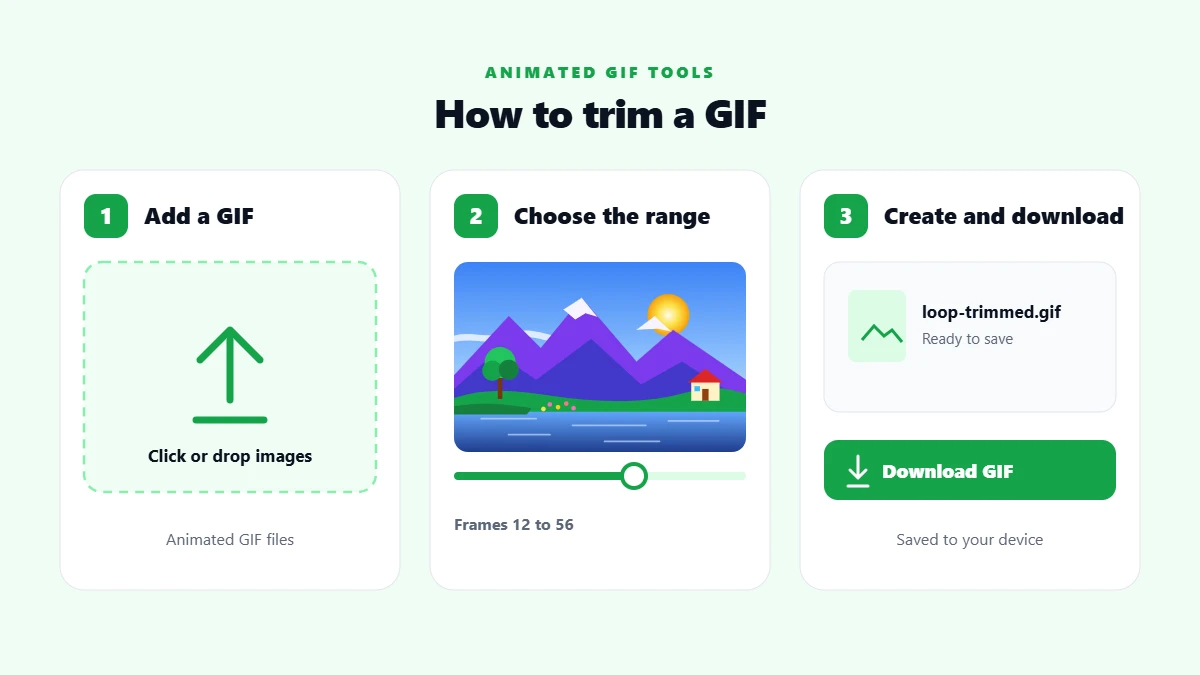
How to trim a GIF
Many GIFs start or end with frames you do not need. Trimming them makes the loop tighter and the file smaller, which matters for chats, emojis and upload limits.
Add a GIF
Click the upload box or drop an animated GIF.
Choose the range
Type the first and last frame to keep. The preview shows only that part, and the start time is displayed.
Create and download
Press Create GIF and then Download GIF.
Watch: cut the length of a GIF
Popular reasons to trim GIFs
Meet size limits
Cut frames so a GIF fits Discord, Slack or email limits.
Perfect loops
Find the frames where motion loops seamlessly.
Focus on the punchline
Remove slow build-ups from reaction GIFs.
Shorter tutorials
Remove waiting time from screen recordings.
Split a long GIF
Trim one long animation into several short ones.
Clean endings
Remove a blurry or black last frame.
How to find the right frames
- Use Extract GIF Frames to see every frame with its number and duration.
- For a seamless loop, choose a last frame that looks almost like the first one.
- The start time is shown under the range, so you can match a moment in seconds.
- Combine with Change GIF Speed to shorten a GIF without losing frames.
How much smaller will my GIF be?
File size scales roughly with the number of frames. Keeping half of the frames usually makes the GIF about half the size. For a bigger saving, also reduce Colors to 128 or resize with Resize GIF.
How to trim a GIF on Windows, Mac, iPhone and Android
No app to install. The tool works in any modern browser, so the steps are almost the same everywhere.
On Windows
- Open toolzzz.com/trim-gif/ in Chrome, Edge or Firefox.
- Drag your GIF from File Explorer onto the upload box.
- Set the First frame and Last frame, then press Create GIF, then press Download GIF.
- The new file is saved to your Downloads folder.
On Mac
- Open toolzzz.com/trim-gif/ in Safari or Chrome.
- Drag the GIF from Finder or the Photos app onto the upload box.
- Set the First frame and Last frame, then press Create GIF, then press Download GIF.
- Find the result in Downloads (Safari asks first if set to).
On iPhone and iPad
- Open toolzzz.com/trim-gif/ in Safari.
- Tap the upload box and choose Photo Library, Take Photo or Choose File.
- Set the First frame and Last frame, then press Create GIF, then tap Download GIF.
- Tap Download, then open it from the Files app and choose Save Image to add it to Photos.
On Android
- Open toolzzz.com/trim-gif/ in Chrome.
- Tap the upload box and pick the GIF from your Gallery, Files or camera.
- Set the First frame and Last frame, then press Create GIF, then tap Download GIF.
- The image appears in your Downloads folder and in Google Photos under Downloads.
Toolzzz vs. typical online GIF cutters
| Feature | Toolzzz Trim GIF | Typical cutters |
|---|---|---|
| Your GIF is uploaded to a server | Never. Trimmed in your browser | Usually |
| Frame-exact range | Yes | Often seconds only |
| Live preview of the range | Yes | Rare |
| Original timing kept | Yes | Yes |
| Color reduction | Yes | Rare |
| Watermark | None | Common |
| Sign-up required | No | Common |
"Typical" describes common limits of free online services. Plans and limits differ between sites.
Frame-exact GIF trimming
Frame numbers
Choose exactly which frames stay.
Start time
See when your trimmed part begins in seconds.
Live loop
Preview the trimmed loop before you save it.
Smaller files
Fewer frames mean a lighter GIF.
Same quality
Frames keep their look and timing.
Private
No upload and no watermark.
Key terms explained
- Trim
- Removing frames from the start or end of an animation.
- Frame number
- The position of a frame in the animation, starting at 1.
- Seamless loop
- A GIF whose last frame flows naturally into its first.
Frequently asked questions
How do I trim a GIF for free?
Drop the GIF here, set the first and last frame, press Create GIF and Download GIF.
Can I cut a GIF by seconds?
The tool works with frames, and shows the start time in seconds so you can match a moment.
How do I know which frame is which?
Use Extract GIF Frames to see numbered frames with durations.
Will trimming reduce the size?
Yes. Fewer frames make a smaller file.
Can I remove frames in the middle?
Trim keeps one continuous range. Trim twice and use Merge GIFs to join parts.
Does the speed change?
No. The remaining frames keep their original durations.
Does it work on my phone?
Yes, in any modern browser.
Is my GIF uploaded?
No. Trimming happens in your browser.