

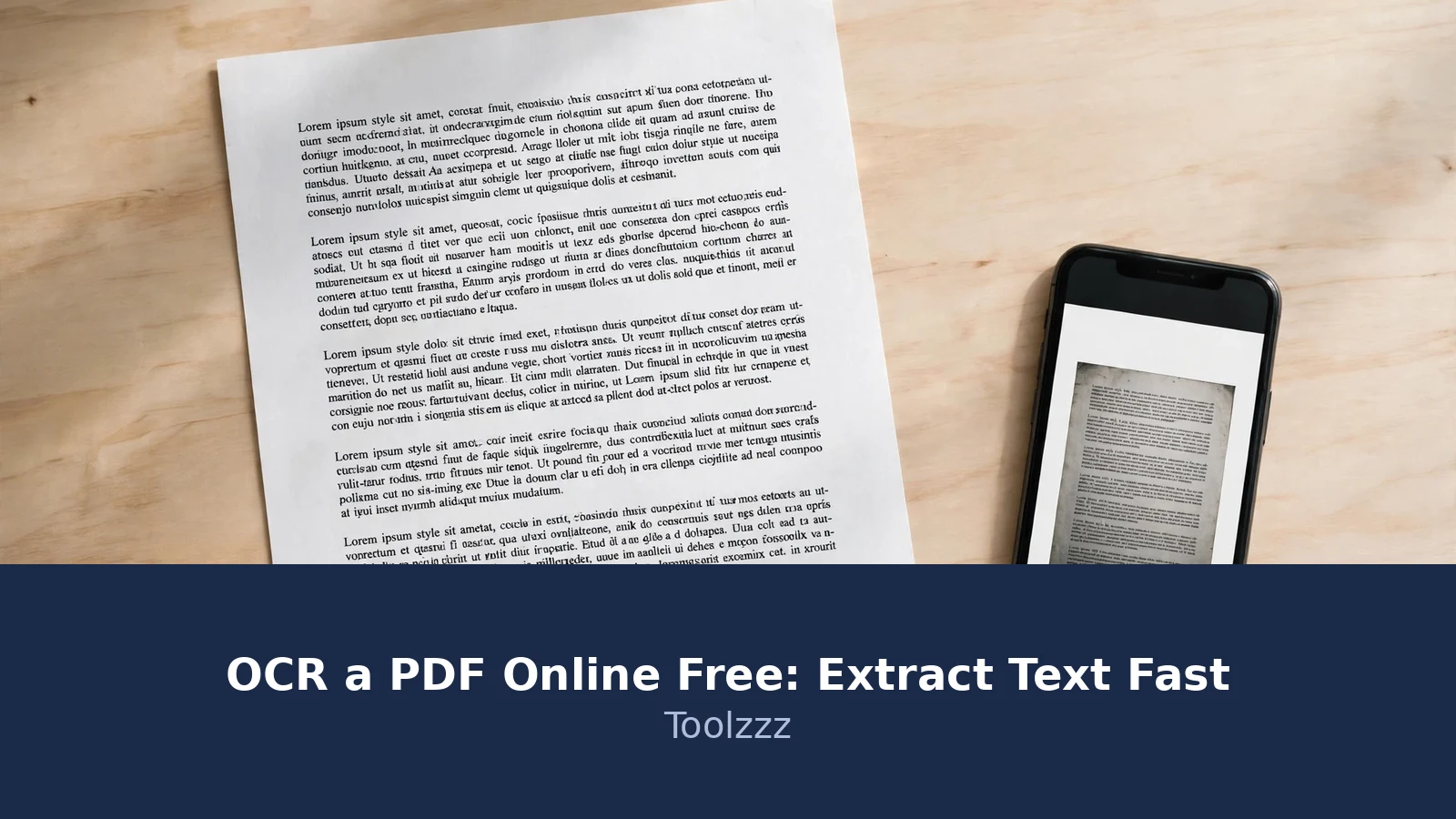
A scanned PDF looks like a normal document, but your computer sees it as a picture. You cannot search it, select the words, or copy a sentence from it. That is a problem when the file is a contract, an old letter, a receipt, or a page from a book that only exists on paper. If your PDF is a normal document with selectable text rather than a scan, you do not need OCR at all: convert the PDF to text directly.
OCR, short for optical character recognition, fixes that. It reads the letters in the scan and turns them into real text. This guide shows you how to OCR a PDF online for free, step by step, and it includes a real test: a scanned page of meeting notes run through the free OCR PDF tool on Toolzzz, with every word checked against the original.
Short answer: yes. Upload your scanned PDF to a free OCR tool, pick the document language, and press Start. The tool reads the letters in the scan and gives you back a searchable PDF or plain text you can copy. It takes under a minute for a one-page scan, and the best free tools need no sign-up.
How do I OCR a PDF online for free?
You need nothing installed. The whole job runs in your browser, and it takes five steps.
1. Open the OCR tool. Go to the Toolzzz OCR PDF page. There is no account to create and nothing to download. The page works on a computer, a tablet, or a phone.
2. Add your scanned PDF. Click the upload box and choose your file. You can also drop the file straight onto the box. If you only have photos of the pages instead of a PDF, you can add one or more JPG or PNG photos. Each photo becomes one page of the result.
3. Pick the language. Choose the language the document is written in. English is already selected, so most readers can leave it as it is. This step matters more than people expect. The OCR engine uses a dictionary for each language, so the right choice makes the reading much more accurate.
4. Choose your output. You get two choices: a searchable PDF or text only. A searchable PDF looks exactly like your scan, but it has an invisible layer of text on top, so you can search and copy from it. Text only gives you just the words as a TXT file, ready to edit. If you are not sure, keep Searchable PDF selected. It is the more useful result for most people.
5. Press Start OCR and download the result. Each page is read on your device, and the finished file downloads when it is done. The recognised text also appears below the pages on the tool page, so you can read it and copy it straight away.
The first run takes a little longer than later runs. The page downloads the OCR engine and the language data first, about 10 MB. After that, each page takes a few seconds. In the test below, the whole first run, including that download, finished in under a minute for a one-page scan.
How does OCR read a scanned page?
OCR software looks at the picture of a page and works out which shapes are letters. It compares those shapes against the patterns of a known alphabet, then uses the language dictionary to choose the most likely word when a letter is unclear. A clear, straight scan of printed text is easy for it. A tilted photo taken in poor light is much harder, because the shapes are distorted before the software even starts.
Many free OCR tools build on the open-source Tesseract engine, which has been developed and improved for years. Browser-based tools run that kind of engine inside your browser using WebAssembly, which is why your file never has to be uploaded anywhere. The reading happens on your own device.
What happened when I OCRed a real scanned PDF?
Guides often claim perfect results without showing any proof. So I made a real test. I created a one-page scanned PDF of meeting notes, as an image only, with no text layer at all. A quick check with a PDF reader confirmed it: the file contained zero selectable words before OCR. Then I ran it through the Toolzzz OCR tool with English selected and Searchable PDF as the output.
The input file was called scanned-notes.pdf. It was 229 KB, one A4 page, with 16 lines and 123 words: a title, a date line, three names, a three-point agenda, three key decisions, three action items, and a line about the next meeting. It also had the kind of detail OCR often gets wrong: the figure 1,250 pounds, the time 10:00, the room code 4B, and the time 3pm.
The result came back in under a minute, including the first-run download of the engine. The tool downloaded a new file called scanned-notes-searchable.pdf at 394 KB. Here is the before and after.
| Detail | Before OCR | After OCR |
|---|---|---|
| File name | scanned-notes.pdf | scanned-notes-searchable.pdf |
| File size | 229 KB | 394 KB |
| Pages | 1 | 1 |
| Searchable text | None, image only | Full text layer added |
| Time taken | Not applicable | Under 1 minute, first run |
Then I checked the recognised text word by word against the original page. The result was better than I expected: all 123 words came back correct. Every heading, every name, every date, and every figure matched. Sarah Jones, David Patel, and Emma Wilson were all spelled right. The figure 1,250 pounds, the date 1 December, the time 3pm, and Room 4B all came through exactly.
| What was on the page | What the OCR read | Correct? |
|---|---|---|
| Weekly Team Meeting Notes | Weekly Team Meeting Notes | Yes |
| Date: Tuesday 18 November 2026 | Date: Tuesday 18 November 2026 | Yes |
| Attendees: Sarah Jones, David Patel, Emma Wilson | Attendees: Sarah Jones, David Patel, Emma Wilson | Yes |
| 1. Review the October sales figures for the North region. | 1. Review the October sales figures for the North region. | Yes |
| 2. Plan the Christmas marketing campaign budget of 1,250 pounds. | 2. Plan the Christmas marketing campaign budget of 1,250 pounds. | Yes |
| The team agreed to launch the winter promotion on 1 December. | The team agreed to launch the winter promotion on 1 December. | Yes |
| The office will close early at 3pm on Christmas Eve. | The office will close early at 3pm on Christmas Eve. | Yes |
| – Emma to book the meeting room for next Tuesday at 10am. | – Emma to book the meeting room for next Tuesday at 10am. | Yes |
| Next meeting: Tuesday 25 November 2026 at 10:00 in Room 4B. | Next meeting: Tuesday 25 November 2026 at 10:00 in Room 4B. | Yes |
The only difference was formatting. The tool added extra blank lines between some lines, for example between agenda items and between the action items. The words were all right, but the spacing was looser than the original page. That is easy to tidy up when you paste the text into a document, and it does not affect the searchable PDF at all, because the text layer there sits invisibly behind the original image. Once the text is out of the scan, it can go anywhere, including into a code: our guide to making a QR code free online shows how to turn a link or a contact card into a scannable code in under a minute.
One clean test does not prove every scan will read perfectly. A sharp, straight scan of printed text is the best case, and this test was exactly that. Older or messier pages will score lower. But the test does show what the tool can do on a normal, well-scanned page: every word right, in under a minute, for free.
Should I choose a searchable PDF or text only?
It depends on what you want to do next. Both options start from the same reading, so the accuracy is the same either way. The difference is what you get back.
Choose Searchable PDF when you want to keep the document as it is. The file looks identical to your scan, but you can press Ctrl+F to find words in it, select and copy sentences, and let search engines and document systems index the content. This is the right choice for contracts, receipts, old letters, and anything you want to file away and find again later.
Choose Text only when you want the words themselves. You get a plain TXT file with just the recognised text, ready to edit in any word processor or notes app. This is the right choice when you need to quote a passage, rewrite a page, or paste the text into an email or a translation tool. You lose the original layout, but you gain text you can work with straight away.
If you are unsure, pick the searchable PDF first. You can always run the tool again and take the text-only version as well. It costs nothing extra, and the second run is fast because the engine is already downloaded.
Which free OCR tool should I use?
There are several good free options, and the right one depends on what matters most to you: privacy, languages, or output format. Here is how the main free choices compare.
| Tool | How it works | Standout point |
|---|---|---|
| Toolzzz OCR PDF | Runs in your browser, no upload | Free with no sign-up, no page limit, no watermark; 19 languages |
| PDF24 | Browser-based OCR | Creates searchable PDFs or PDF/A, removes artifacts and deskews pages; files stored temporarily with SSL encryption and auto-deleted |
| iLovePDF | Upload and convert online | Standard OCR with auto-rotation and deskewing; picking the document language improves accuracy |
| NewOCR | Upload and convert online | Supports 122 languages, layout analysis, and TXT, DOC, and PDF export, with no registration |
| LocalPDF | Runs in your browser with WebAssembly | No-upload option, so files are never sent to a server |
| Smallpdf | Upload and convert online | Drag and drop a scanned PDF to make it searchable or export plain text; the free plan has a daily task limit |
| ZypFile | Upload and convert online | Extracts text from scanned PDFs in several languages, right in the browser, with no software to install |
| Google Drive | Upload, then open with Google Docs | Upload the PDF to Drive and open it with Google Docs, which extracts the text for free; handy for quick, low-stakes conversions |
Adobe Acrobat also offers a free online OCR converter. It reads scanned PDFs well, but you need to sign in to an Adobe account to download or share the result. That sign-in step is the main difference from the tools above, which give you the file without an account.
When you choose, weigh three things. First, privacy: if the document is sensitive, pick a tool that reads it in your browser, like Toolzzz or LocalPDF, so the file never leaves your device. Second, size and page count: a long document suits a tool with no page limit. Third, output format: if you need an editable Word file, NewOCR exports DOC, while the others give you a searchable PDF or plain text. The Google AI Overview for this topic names the same tools and makes the same points, which is a good sign that these are the options most people actually use.
How can I get the most accurate OCR results?
OCR accuracy is mostly decided before the software starts. A good scan gives a good result, and a poor scan gives errors no software can fully fix. These tips make the biggest difference.
Set the matching language. This is the single easiest win. The engine checks its reading against a dictionary, so the wrong language turns good scans into guesses. If your document mixes two languages, pick the one used most and check the rest by hand.
Use straight, high-contrast scans. Scan at a good resolution with the page flat and square to the scanner. Aim for 300 DPI or higher when you can. If you are photographing a page instead, use daylight, hold the phone straight above the page, and keep shadows off the text. Dark or blurry patches are where letters get misread.
Fix sideways pages first. If a photo came out rotated, straighten it before you run OCR. A sideways page forces the engine to guess at letters it cannot see properly. Use the free Rotate Image tool to turn the page the right way up, then run the OCR.
Unlock password-protected PDFs first. An OCR tool cannot read a locked file. Remove the password with your PDF software before you upload the scan, or the conversion will fail before it starts.
Keep phone photos a sensible size. A photo straight from a phone camera can be several megabytes, which makes the page slower to load and process. If your scan is a photo, shrinking it first helps. The guide to compressing an image to 100KB shows how to cut a photo down without losing the detail OCR needs. The same size-first thinking applies to moving images: our guide to converting a video to GIF shows how to keep a short clip small enough to share. If the photo is a HEIC file from an iPhone, convert it to JPG first: our guide to converting HEIC to JPG online free shows how to do it in seconds, right in your browser, with nothing uploaded.
Check the result against the original. Even a 100 percent test like the one above is no excuse to skip proofreading. Read the recognised text once, side by side with the scan, and fix anything that looks wrong. Numbers, names, and dates deserve a second look, because a wrong digit in a date or a price is the kind of error that causes real trouble later.
When does OCR not work well?
OCR is very accurate on printed documents, but it has limits, and it is better to know them before you rely on it. Handwriting is the biggest one. Most free OCR engines are trained on printed letters, so handwritten notes are usually not recognised well, if at all. A neat, printed form will read cleanly. A page of cursive will not.
Low-quality scans are the next problem. Faded print, coffee stains, creases across the text, and pages photographed at an angle all cost accuracy. So do unusual layouts: tables with merged cells, text wrapped around pictures, and two-column pages can come out with the reading order mixed up. Layout analysis helps, and NewOCR lists it as a feature, but no free tool gets a complex layout right every time. If the text you extract is a table, our guide to converting CSV to JSON online free shows how to turn those rows into JSON objects once the text is clean.
Very small print and decorative fonts also cause trouble. If the letters are tiny or the font is fancy, the engine has less to work with, and similar letters get confused. A capital I, a lowercase l, and the number 1 are the classic mix-up. If your document is full of those, proofread the result with extra care.
Is it safe to OCR a PDF online?
It depends on where the reading happens. There are two kinds of online OCR tool, and they handle your file very differently.
Browser-based tools, like the Toolzzz OCR tool and LocalPDF, read the file on your own device. The file never leaves your computer, because the OCR engine runs inside your browser. That makes them the safest choice for sensitive documents: scanned IDs, contracts, medical letters, and financial papers. Close the tab and nothing remains except the file you downloaded.
Upload-based tools send your file to a server, read it there, and send the result back. The good ones say so clearly. PDF24, for example, stores files temporarily with SSL encryption and deletes them automatically. That is a reasonable setup for everyday documents, but it still means a copy of your file sits on someone else’s server for a while. For anything truly private, use a browser-based tool instead.
Whatever tool you pick, read its privacy note before you upload a sensitive file. Free tools that need no sign-up and keep no copy of your file are the safest combination. And as a rule, never OCR a document containing passwords, bank details, or identity numbers on a tool you have not checked first.
What if my PDF already has text?
Not every PDF needs OCR. Many PDFs already contain a real text layer, even if they look like scans. Before you run OCR, try selecting a sentence in your PDF reader. If you can highlight the words, the text is already there, and OCR would only waste your time.
For those files, use the free PDF to Text tool instead. It pulls the existing text out of the PDF instantly, with no reading step at all. OCR is only for the files where selecting text does nothing, which is how you know the page is just a picture of words.
One quick test saves the confusion. Open the PDF, press Ctrl+F, and search for a word you can see on the page. If the reader finds it, use PDF to Text. If it finds nothing, the page is a scan, and this guide is the one you need.
OCR turns a dead scan into a document you can search, copy, and use again. Pick a free tool that fits your document, set the right language, and check the result once against the original. On a clean scan of printed text, the whole job takes under a minute, and the text you get back is ready to work with. Start with the free tool on Toolzzz and try it on your own scan. Once the text is out of the scan, you can check its length the same way: our guide to counting words online free shows how to count the words in the extracted text. A searchable PDF can still be too big to send, so our guide to compressing a PDF online free shows how to shrink it before you attach it to an email or upload it to a portal.
Is it really free to OCR a PDF online?
Yes. Free OCR tools such as the Toolzzz OCR PDF tool, PDF24, iLovePDF, NewOCR, and LocalPDF read scanned PDFs without charging anything. Toolzzz needs no sign-up, has no page limit, and adds no watermark. Some tools ask you to sign in before you can download the result, so check that step before you start.
How long does OCR take for a scanned PDF?
A one-page scan takes under a minute on the first run, including the download of the OCR engine and language data, which is about 10 MB. Later runs are faster, at roughly 3 to 10 seconds per page. A long document with many pages will take longer, but the work is still measured in minutes, not hours.
Can I OCR a photo of a document instead of a PDF?
Yes. The Toolzzz OCR tool accepts JPG or PNG photos of document pages as well as scanned PDFs. Each photo becomes one page of the result. Photograph the page straight on in good daylight, with no shadows across the text, and straighten the photo first if it came out sideways.
Which languages can I OCR a PDF in?
The Toolzzz OCR tool works in 19 languages, including English, Arabic, Urdu, Hindi, Chinese, Spanish, French, and German. NewOCR supports 122 languages. Always pick the language your document is written in, because the OCR engine uses a dictionary for that language and the wrong choice lowers accuracy.
Will OCR work on handwriting?
Usually not well. Free OCR engines are trained on printed letters, so handwritten notes are often misread or missed entirely. Printed documents read accurately, as our test showed with all 123 words correct. For handwritten pages, type the text out by hand or use a tool built for handwriting.
What is the difference between a scanned PDF and a searchable PDF?
A scanned PDF is just a picture of a page, so you cannot search or copy its words. A searchable PDF looks exactly the same, but it has an invisible layer of real text on top of the image. You can press Ctrl+F to find words, select and copy sentences, and let document systems index the content.
