

A GIF is only useful if the right part of it is showing. A reaction GIF with the face tucked in one corner, a screen recording with the taskbar still in shot, or a wide clip squeezed into a square profile slot all have the same problem: the frame is wrong, not the moment. Cropping fixes the frame. It cuts away the edges you do not want and keeps the part that carries the joke, the face or the action.
Cropping a GIF is not quite the same as cropping a photo. A photo has one frame. A GIF has tens or hundreds of them, and a crop has to land on every frame in exactly the same place or the animation wobbles, flickers or loses the subject halfway through the loop. The good news is that a decent online cropper does that work for you. The bad news is that some croppers quietly flatten your GIF to its first frame and hand you back a still image. This guide shows you how to crop gif online free with the Toolzzz tool, with a real worked example, real file sizes, and the honest limits I found while testing it.
Short answer: To crop a GIF online free, open Toolzzz Crop GIF, drop in your GIF, drag the crop box over the part you want or pick a ratio such as 1:1, 9:16 or 4:5, then press Create GIF and Download GIF. The same crop is applied to every frame, the timing and loop are kept, and nothing is uploaded.
How do I crop a GIF online free?
That is the whole job when you crop gif online free with this tool: upload, frame, create, download. Here are the steps in full, using the Toolzzz Crop GIF tool.
1. Add your GIF. Open the tool page and click the upload box, or drag an animated GIF onto it. The tool reads the file in your browser and shows a live animated preview, with a frame counter such as “Frame 5 of 16”. My test file was confirmed on screen as “sample-640×480, 16 frames, 1.6 s” before I touched anything.
2. Frame the part you want. Drag the crop box to move it, and drag the corner handle to resize it. The tool shows the crop size in pixels as you drag, for example “Crop size: 432 x 432 px”. If you want an exact shape, pick one of the ratio presets instead: Free, 1:1, 16:9, 4:5 or 9:16. There is no box to type exact pixel coordinates into, so if you need a precise rectangle you set it by dragging and watching the readout.
3. Set the loop and colours if you need to. Two dropdowns sit beside the crop box. LOOP offers Forever, Play once or 3 times, with Forever selected. COLORS offers 256 (best), 128, 64 or 32 (smallest). Leave both alone for a normal crop. Reach for the colours dropdown only if the result comes out too big, which happened in my test and is covered below.
4. Create and download. Press Create GIF. The tool works through the frames one by one, showing “Encoding frame 12 of 16” as it goes, then reports “GIF ready: 16 frames” with the new size. Press Download GIF and the file lands in your Downloads folder. The download is named after your original file with “-cropped” added, so rename it straight away if you crop the same GIF twice, or the second download will overwrite the first.
To start again, press “Open another file”. To undo a crop box without reloading, press “Select the whole GIF”, which resets the box to the full frame.
What happened when I cropped the same GIF three ways?
I made a test GIF for this article: 640 x 480 pixels, 16 frames, 100 milliseconds per frame, looping forever, 26,148 bytes in total. It shows an orange ball moving left to right across a dark blue frame, with a red bar along the bottom and a frame counter in the top corner. I uploaded it once and cropped it three ways on the Toolzzz tool, one for each of the shapes people actually need: a square for a profile picture, a tall crop for a story, and a portrait crop for a feed post.
| Crop | Size kept | Frames | File size | Change |
|---|---|---|---|---|
| Original GIF | 640 x 480 | 16 | 26,148 bytes | Starting point |
| 1:1, profile picture | 432 x 432 | 16 | 592,346 bytes | About 23 times larger |
| 9:16, story | 243 x 432 | 16 | 336,964 bytes | About 13 times larger |
| 4:5, feed post | 243 x 304 | 16 | 197,859 bytes | About 8 times larger |
Every crop kept all 16 frames, the 100 millisecond timing and the forever loop. I checked each downloaded file on disk afterwards: 16 frames, 100 ms per frame, loop set to forever, and the exact dimensions above. The animation survived in all three cases, which is the lock this article had to pass. A cropper that flattens a GIF to one frame would have failed here, and this one did not.
Here is the square result, the actual file the tool produced:
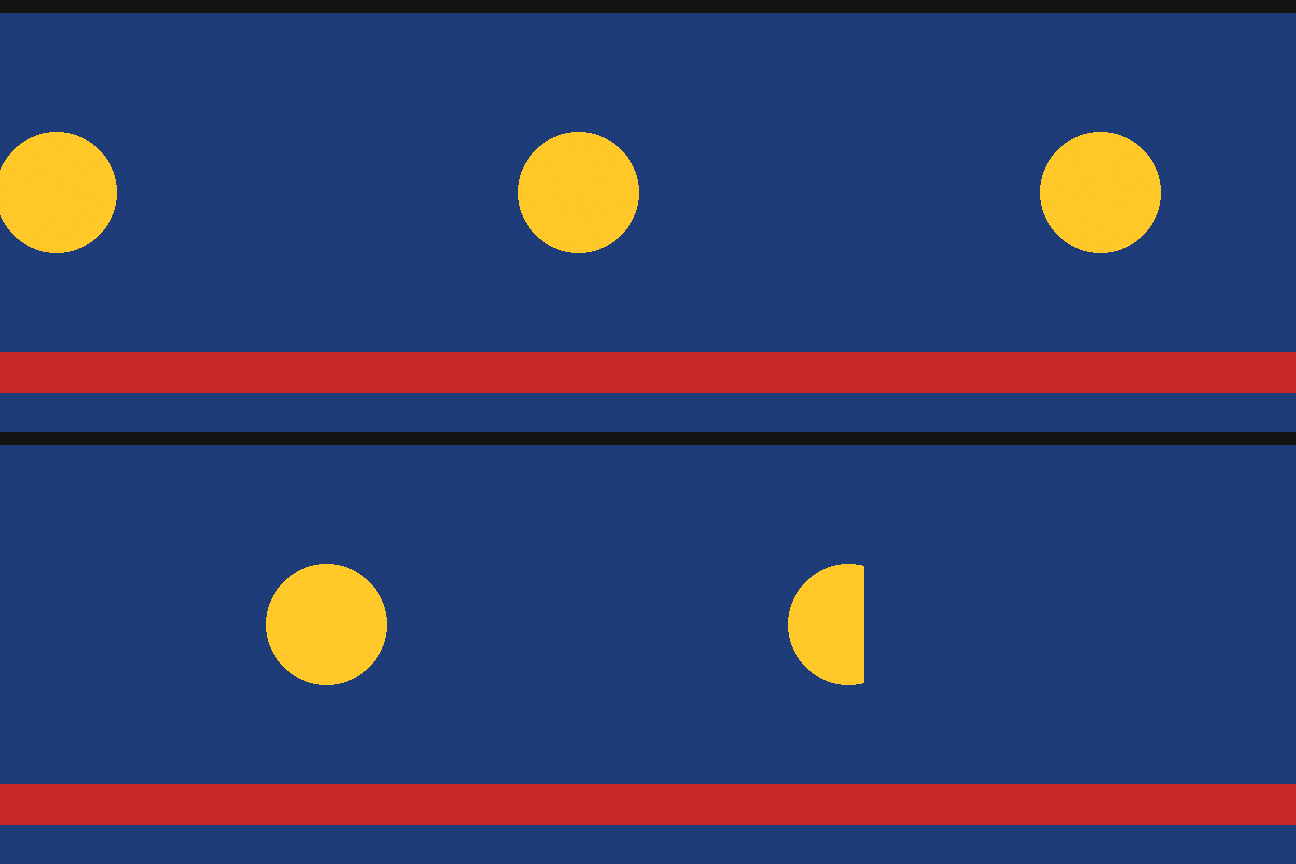
Two quirks are worth knowing before you crop. First, the 1:1 preset did not fill the frame. Its default box was 432 x 432 on a 640 x 480 GIF, when the biggest possible square is 480 x 480. The box was centred, so the ball stayed in shot, but if you want the largest square, drag the corner handle out until the readout says 480 x 480. Second, the presets remember the last box. When I switched from 9:16 to 4:5, the tool kept the 243 pixel width from the story crop, so the 4:5 result came out 243 x 304 instead of the full-height 384 x 480. Pick your ratio first, before you drag anything, or drag the box wider after switching. Neither quirk breaks the tool, but both are easy to miss if you trust the preset button alone.
Why did my cropped GIF get bigger instead of smaller?
This is the surprise in the table above, and it is worth a straight answer because the tool page itself says “Fewer pixels per frame means a lighter GIF”. In my test the opposite happened. The square crop kept fewer than half the pixels of the original, yet the file grew from 26,148 bytes to 592,346 bytes, about 23 times larger. That is not a mistake in the table. It is how GIF encoding works, and it catches a lot of people out.
The original GIF was small because it was heavily optimised. Most frames in it stored only the pixels that had changed since the previous frame, which for a ball moving across a flat background is a small patch each time. When the Toolzzz tool crops, it rebuilds every frame as a complete picture and then writes each one back in full, which is why the progress line reads “Encoding frame 12 of 16”. Sixteen full frames simply take more room than sixteen small patches, even though each frame is smaller. The same thing happens with most browser croppers that rebuild frames properly, and it is the price of a crop that does not flicker.
So cropping is for fixing the frame, not for shrinking the file. If the cropped GIF is over the limit where you want to post it, do one of these two things. First, try the COLORS dropdown on the crop tool itself: 64 colours instead of 256 makes a big difference on flat, cartoon-style GIFs, and 32 colours smaller still. Second, run the result through the compress GIF tool, which cuts colours, frames and size in a controlled way. In the earlier compression test on this site, a 640 x 480 GIF went from 956,978 bytes to 114,381 bytes by combining 64 colours with a smaller size and every second frame, so the two tools pair well: crop first for the shape, compress second for the size. If the GIF is still too big after that, resize it with the resize GIF tool before you give up on it.
Which ratio should I pick for Discord, Slack, X and Instagram?
Pick the ratio from the destination, not from the GIF. Each platform has its own shape and its own file limit, and cropping to the wrong one means the platform crops it again for you, usually badly. The table below uses the sizes published by GIF Cropper, the top-ranking GIF cropper for this search, which lists the current limits for each platform on its own page.
| Platform | Ratio | Pixel size | File limit |
|---|---|---|---|
| Discord emoji | 1:1 | 128 x 128 | 256 KB |
| Discord sticker | 1:1 | 320 x 320 | 512 KB |
| Slack custom emoji | 1:1 | 128 x 128 | 128 KB |
| X post, wide | 16:9 | Up to 1280 x 720 | 15 MB |
| X post, square | 1:1 | Up to 1080 x 1080 | 15 MB |
| Instagram square post | 1:1 | 1080 x 1080 | Feed plays video, not GIF |
| Instagram portrait post | 4:5 | 1080 x 1350 | Feed plays video, not GIF |
| Instagram story or reel | 9:16 | 1080 x 1920 | Feed plays video, not GIF |
A few notes on that table. Discord emoji is the tightest limit most people hit: 128 x 128 pixels and 256 KB, and Slack is stricter still at 128 KB for the same size. A cropped GIF straight off the tool will often be over 256 KB, as my own test shows, so crop to 1:1 first, then cut the colours to 64 or 32, and only then check the size. If it is still over, compress it. For Instagram, remember that the feed does not play .gif files at all. Crop to the right shape here, then convert the result to MP4 before you post, and the framing you chose carries over into the video. X is the generous one: 15 MB on the web, so a cropped GIF usually uploads as it is.
One more thing about pixel size. Cropping keeps the original pixel density, so a 1:1 crop of a 640 x 480 GIF is at most 480 x 480, not 128 x 128. That is fine. Crop for the shape, then resize to the exact pixel size the platform wants. The Toolzzz crop page says the same thing in its own guide section, and it is the right order: crop first, resize second, because resizing a cropped GIF is a clean scale, while cropping a resized one throws away detail you already paid for.
How does Toolzzz Crop GIF compare with other free croppers?
Google’s AI Overview for this search names four tools: Adobe Express, statico’s GIF tools, gif.webtech360.com and VEED, and sets out four steps that match the ones in this guide. All four are covered in the table below, along with the small single-purpose croppers that rank at the top of the ordinary results. The Overview also asks whether you need privacy, meaning no file upload, or extra edits such as trimming or text. That is the right question, because it splits the tools into two groups: browser croppers that never upload your GIF, and upload-based editors that do more but take your file onto a server.
| Tool | Upload or browser | Free limits | Ratios | Exact pixels |
|---|---|---|---|---|
| Toolzzz Crop GIF | Browser, no upload | No limit stated | Free, 1:1, 16:9, 4:5, 9:16 | Readout only, drag to set |
| GIF Cropper | Browser, no upload | Up to 100 MB | 1:1, 4:3, 16:9, 3:2, 9:16 | Yes, type X, Y, width, height |
| oMyImage | Browser, no upload | No limit stated | 1:1, 4:5, 16:9, 9:16, 4:3, 3:2 | Yes, type the box in pixels |
| uncrop.si | Browser, no upload | Up to 60 MB, 2,000 frames | Free, 1:1, 4:3, 16:9, 9:16 | Yes, type the box in pixels |
| VEED | Browser editor | Free plan, watermark on some exports | Presets under Settings | Drag corners, presets |
| Ezgif | Upload to server | Up to 200 MB, deleted after 1 hour | Square, 4:3, 16:9, 3:2, 2:1, golden ratio | Yes, type width and height |
| Adobe Express | Upload to server | Free plan | Common social presets | Drag handles |
| statico GIF tools | Browser, no upload | Up to 20 MB, 300 frames, 10 minutes | 1:1, 4:3, 16:9 | Yes, exact pixel coordinates |
Read the table by what you need. If privacy matters, pick a browser tool: Toolzzz, GIF Cropper, oMyImage, uncrop.si or statico all crop without uploading, and your GIF never leaves your device. If you need exact pixel coordinates typed in, Toolzzz is the odd one out in that group, because it only shows the crop size and you set it by dragging. GIF Cropper, oMyImage, uncrop.si and statico all take typed numbers. If you need more than a crop, VEED adds trimming, text and emojis, and Adobe Express puts the crop inside a full design tool with templates, but both work on uploads and both keep their best features behind a sign-in or a paid plan. Ezgif is the old reliable for quick work: it takes uploads up to 200 MB, deletes them after an hour, and adds an autocrop option that trims transparent pixels, but the interface is dated and your file does leave your device.
Where does Toolzzz win? It is the simplest of the browser group: open the page, drop the GIF, drag the box, press Create GIF. No account, no watermark, no stated file limit, and the loop and colours controls are right there instead of buried in a settings panel. Where does it lose? Two places, both stated plainly above: no typed pixel coordinates, and no circle crop. If either of those is a must, GIF Cropper is the closest alternative, with typed coordinates, platform sizes and a circle mask, also free and also in the browser.
One Overview tool is not in the table: gif.webtech360.com. The Overview describes it as local processing with no server upload and no watermarks, supporting pixel offsets and dimensions, but gives it no limit or feature that sets it apart from the tools above, so it is named here rather than given a row of its own. The fifth site the Overview cites, word.to, appears only as a source card with no point attached to it, so it is not covered either.
Can I crop a GIF into a circle?
Not with the Toolzzz tool, because it has no circle option anywhere on the page. The presets are rectangles only: Free, 1:1, 16:9, 4:5 and 9:16. That sounds like a gap until you check what the circle is for. Most of the time it is a profile picture, and Discord, Slack and X all crop a square picture into a circle themselves when they display it. For that job, crop to 1:1, keep the face in the middle of the square, and let the platform do the rounding. The square file stays a normal GIF and nothing is lost.
You only need a real circle file when the destination shows the raw image without masking it, and then you want the corners transparent rather than white or black. GIF Cropper offers a Circle mask for exactly that, with an option for a solid colour instead of transparency. Two warnings from its own guide are worth passing on. First, GIF transparency is either on or off, so a round edge is a hard edge and can look slightly jagged. Second, the circle guide, which just shows you where the platform will cut, is usually the better choice, and the mask is only for when you truly need transparent corners in the exported file.
What if the moving subject leaves the crop box?
This is the mistake that ruins more cropped GIFs than any wrong ratio. A crop box that fits the subject in the first frame can lose it by frame ten, because the subject moves and the box does not. The box stays in one place for the whole GIF, and every frame is cut by it. So before you press Create GIF, watch the full preview loop at least once and look at the frames where the subject is nearest the edge of the box.
In my test the ball travelled from the left side of the frame to the right, so a tight box around its starting position would have cut it off halfway through. The 1:1 default box was centred and wide enough that the ball stayed inside it for all 16 frames, which is why the result looks right. If your subject crosses the whole frame, you have three options: make the box wider and accept more background, pick a different moment by trimming the GIF first, or choose a ratio that follows the movement, such as a wide 16:9 box for something moving sideways. The make a GIF tool on this site is worth a look if the problem is the source itself: a GIF made from a few still images with a fixed subject crops far more cleanly than a busy screen recording.
A related tip: keep a margin around the subject. A face cropped tight to the edge looks fine at full size and terrible at 128 pixels, because the platform shrinks it and the edges eat into the subject. Crop tight enough to remove the clutter, loose enough that the subject never touches the border.
How do I crop a GIF on my phone?
The same steps work on a phone, and the tool page lists them for Windows, Mac, iPhone and Android. On iPhone, open the tool page in Safari, tap the upload box and choose Photo Library or Choose File. On Android, open it in Chrome, tap the upload box and pick the GIF from Gallery or Files. Then drag the crop box with your finger and press Create GIF, then Download GIF.
Two phone details matter. First, a finger is a blunt tool for a small box, so pick a ratio preset instead of dragging freehand, and use the pixel readout to check the size before you commit. Second, on iPhone the download goes to the Files app, not Photos. Tap Download, open the file from Files, then choose Save Image to add it to your photo library. On Android it appears in Downloads and in Google Photos under Downloads.
What can cropping not fix?
Cropping changes the frame, nothing else. It cannot make a blurry GIF sharp, because the pixels you keep are the original pixels, re-encoded once. It cannot change the speed: a GIF that plays too fast still plays too fast after cropping, because the frame delays are carried over untouched. It cannot rescue a GIF that is already too big, as the worked example above shows. And it cannot add anything: no text, no captions, no extra frames. For those jobs you need a different tool, and VEED is the one the Overview names for text and captions on top of a crop.
What cropping can do is real, and it is enough for most jobs. It removes black bars from GIFs made from films, cuts the taskbar out of a screen recording, pulls one face out of a group reaction GIF, and reshapes a wide clip into a square post or a tall story without stretching anything. Just remember the order that works: crop for the shape first, then resize for the exact pixels, then compress for the file limit. And keep the original file. A crop throws pixels away, and you cannot get them back from the cropped copy if the platform changes its sizes next year.
If you want to crop gif online free without installing anything or handing your file to a server, the Toolzzz tool does the job in about a minute, and the animation comes out the other side intact. The file may come out larger than it went in, so check the size before you post, and use the colours dropdown or the compressor if it is over the limit. That is the whole honest picture: a simple cropper that keeps every frame, with two gaps, no typed pixels and no circle, that only matter if your job needs them.
More GIF tools on this site: the Toolzzz homepage lists the full set, including the compressor and the resizer used in this guide.
How do I crop a GIF online free?
Drop your GIF into Toolzzz Crop GIF, drag the crop box over the part you want or pick a ratio such as 1:1, 9:16 or 4:5, then press Create GIF and Download GIF. The same crop lands on every frame, the timing and loop stay the same, and nothing is uploaded. It is free, with no sign-up and no watermark.
Does cropping a GIF keep the animation?
Yes. The same rectangle is cut from every frame, so the animation keeps playing with its original timing and loop. I checked this on a real test: a 16-frame GIF came out with all 16 frames, the same 100 millisecond delay on each one, and the loop still set to forever.
Why did my cropped GIF get bigger?
Because cropping rebuilds every frame as a complete picture. The original GIF stored only the pixels that changed between frames, while the cropped copy writes every frame in full. That is why my 26,148 byte test GIF came out at 592,346 bytes after a square crop. Cut the colours to 64 or compress the result to bring it down.
Can I crop a GIF into a circle?
Not with Toolzzz Crop GIF, which offers rectangles only. For a profile picture that is fine, because Discord, Slack and X crop a square picture into a circle themselves when they display it. Crop to 1:1, keep the face in the middle, and let the platform do the rounding.
What size should I crop a GIF for Discord emoji?
Crop it square at 1:1 and keep the file under 256 KB, with the picture at 128 by 128 pixels. Slack is stricter, with a 128 KB limit at the same size. Crop tight around the face, then drop the colours to 64 if the file is still over the limit.
Can I crop a GIF on my phone?
Yes. Open the tool in Safari on iPhone or Chrome on Android, tap the upload box and pick the GIF, then drag the crop box with your finger and press Create GIF and Download GIF. Use a ratio preset rather than dragging freehand, since a finger is a blunt tool for a small box.
