

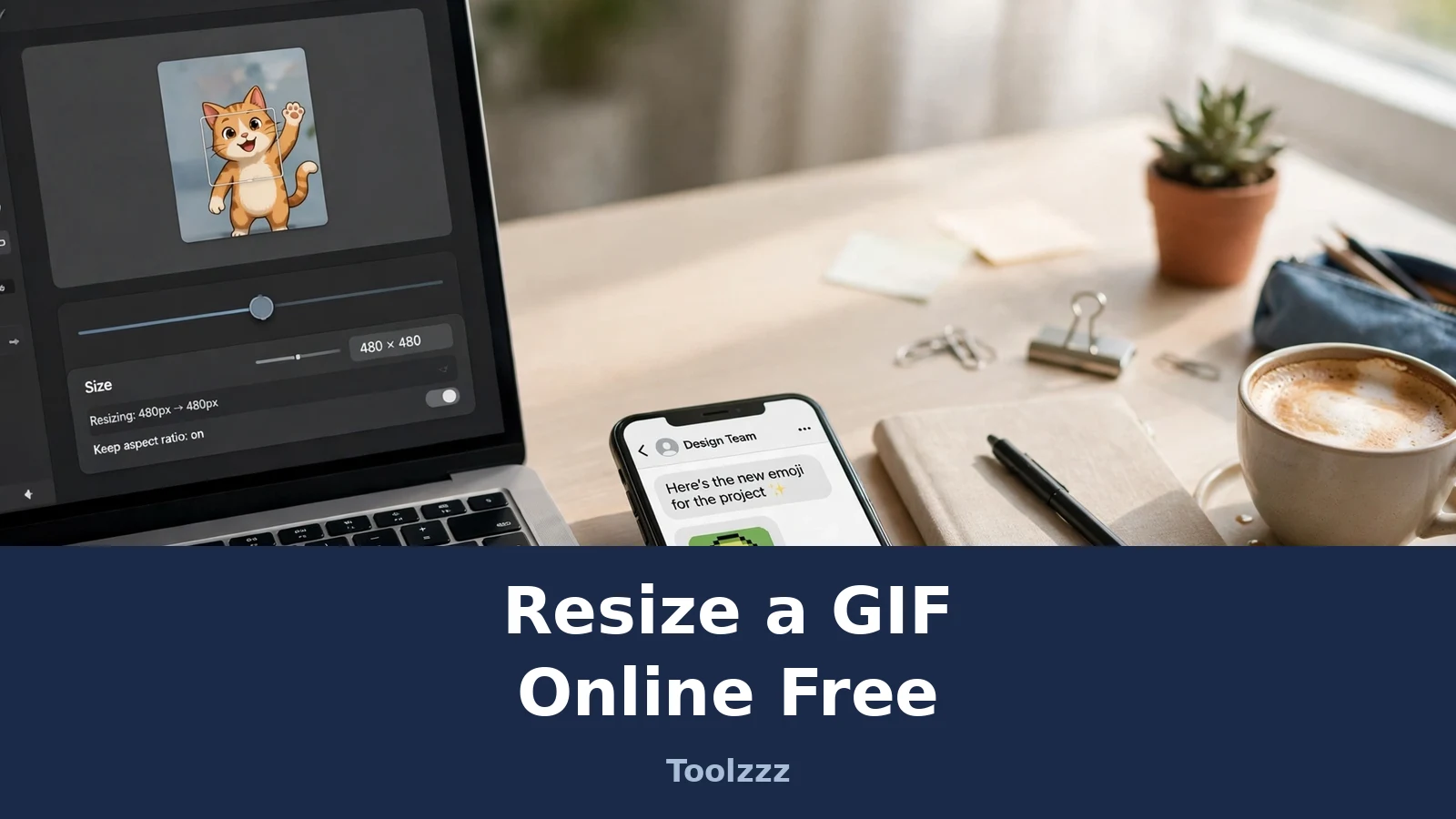
A GIF that will not upload is usually a GIF that is too big, not a GIF that is broken. Discord turns away custom emoji over 256 KB, Slack wants emoji under 128 KB, and a 3 MB reaction GIF eats mobile data for everyone who opens the chat. The fix is simple: make the picture smaller. When you resize a GIF online free, you change its pixel dimensions, and the file size falls with them.
This guide shows the steps on the Toolzzz Resize GIF tool, which runs entirely in your browser, so your GIF is never uploaded. You will also get the exact sizes Discord, Slack and Twitch ask for, a comparison of the free resizers Google lists for this search, and a real worked example: one 480 by 270 GIF resized three ways, with the exact file sizes reported. Everything on Toolzzz is free to use, with no account and no watermark.
Short answer: To resize gif online free, open the Toolzzz Resize GIF tool, drop in your GIF, click a quick size or type an exact width, keep Keep aspect ratio switched on, and press Create GIF, then Download GIF. Every frame is scaled and the original timing is kept, so the animation plays as before, only smaller.
How do I resize gif online free?
The whole job takes under a minute when you know the size you want. These are the exact steps on the Toolzzz tool, which resizes every frame in your browser.
Add your GIF. Click the upload box or drag an animated GIF onto it. The file opens on your device, and nothing is uploaded to a server, so there is no waiting for a large file to travel anywhere and no copy of your GIF sitting on someone else’s server.
Set the size. Click a quick size of 240, 320, 480 or 640 px, or type an exact width in the Width box. With Keep aspect ratio switched on, the height fills itself in, so the picture is never stretched. Untick it only when you need an exact width and height, for example a square emoji or a fixed banner slot.
Pick the colours and the loop. Colours runs from 256 (best) down to 128, 64 and 32 (smallest). Fewer colours mean a smaller file, and 128 colours still looks fine for most clips. Loop can stay on Forever, or you can set Play once or 3 times.
Create and download. Press Create GIF, check the live preview at the new size, then press Download GIF. The new file lands in your Downloads folder, and the original on your device is untouched.
That is the whole process. The settings that matter most are the width and the colour count, because those two decide the file size more than anything else.
What size should a GIF be for Discord?
Discord custom emoji must be under 256 KB in size, according to Discord’s own support page, and 128 by 128 px is the size that looks sharpest in chat. Every server gets 50 static custom emoji slots by default, and Nitro or Nitro Basic adds 50 more slots for animated ones, so an animated GIF emoji needs one of those animated slots.
Two things catch people out. First, the file size limit is a hard rejection, not a suggestion: a GIF even a few kilobytes over 256 KB will not upload, and Discord will not shrink it for you. Second, the shape matters. An emoji slot is square, so a wide clip resized to 128 px wide comes out 128 by 72, not 128 by 128. Discord scales it into the square slot, which can leave it looking small. For a true square emoji, crop the GIF to a square first with the Toolzzz Crop GIF tool, then resize it to 128 px.
For a GIF sent as a Discord message rather than an emoji, there is no fixed pixel size to hit. The file size limit for the message is the thing to respect, and a smaller GIF sends faster and plays sooner for everyone in the channel. Resizing a 480 px clip to 240 px roughly quarters the pixel data, which is usually enough.
What size should a GIF be for Slack?
Slack is stricter than Discord, and Slack’s help page for custom emoji sets out the upload steps. Its own upload dialog says square images under 128 KB with transparent backgrounds work best, and 128 by 128 px is the recommended size. That is half the file room Discord allows for the same kind of small square file, so a GIF that uploads fine as a Discord emoji can still be rejected by Slack.
Slack also treats shape more strictly than Discord does. Its help guides say a non-square image is stretched to fit the square emoji slot, which distorts the picture rather than resizing it cleanly. So for Slack, crop to a square first, then resize to 128 by 128, and only then worry about the file size.
Animated GIFs are allowed as Slack emoji, with the same 128 by 128 size and the same 128 KB ceiling, plus a limit of up to 50 frames per GIF. A long clip with hundreds of frames will need trimming before it fits, and fewer frames is the fastest way to cut the file size when the pixels are already right. Emoji show at 32 px or smaller in messages, so there is no visual reason to keep an emoji at 400 px wide. Resize it to 128 px before anything else.
Which GIF sizes do other platforms ask for?
Discord and Slack are the tightest limits most people meet, but they are not the only ones. The Toolzzz tool page lists the common sizes, and they are worth keeping in one place.
| Where the GIF goes | Pixel size | File size limit | Note |
|---|---|---|---|
| Discord custom emoji | 128 x 128 px | Under 256 KB | Animated emoji need a Nitro slot |
| Slack custom emoji | 128 x 128 px | Under 128 KB | Animated GIFs up to 50 frames |
| Twitch emote | 112 x 112 px | Set by Twitch | Square, like the other emoji slots |
| Email banner | 600 px wide | No fixed limit | Keep it light so mail clients load it fast |
| Blog or docs | 640 to 800 px wide | No fixed limit | Matches common content widths |
| Forum signature | 468 x 60 px | Set by the forum | Wide and short, so crop first |
Platform limits change from time to time, so check the current number in the app’s own help before you build a batch of files around it. The pixel size is only half of any upload limit. Most platforms also cap the file size, so the two usually go together: get the pixels right first, then check the bytes.
I resized a real GIF three ways: here are the results
The test file is the GIF made in our guide to converting video to GIF online free: a 3.0 second clip, 480 by 270 px, 30 frames, 369,424 bytes. I uploaded it to the Toolzzz Resize GIF tool three times, with different settings each time, and downloaded each result. Every download was still animated, with all 30 frames and the original timing intact.
| Setting | Output size | File size | Change |
|---|---|---|---|
| 240 px wide, 256 colours | 240 x 135 px | 160,269 bytes | 56.6% smaller |
| 128 px wide, 256 colours | 128 x 72 px | 84,542 bytes | 77.1% smaller |
| 240 px wide, 64 colours | 240 x 135 px | 104,396 bytes | 71.7% smaller |
The 128 px version is the Discord and Slack result: 84,542 bytes, which sits comfortably under Discord’s 256 KB cap and under Slack’s 128 KB cap. But note the shape. The clip is 16:9, so 128 px wide gives 128 by 72, not a square. For a square emoji, crop the clip to a square first, then resize to 128 by 128. The pixels and the file size would both be close to this result, because a square crop of the same clip carries a similar amount of picture data.
The colour test is the interesting one. Dropping from 256 colours to 64 at the same 240 px width cut the file from 160,269 bytes to 104,396 bytes, a further 34.9% smaller, with no change in dimensions at all. That is the lever to pull when the pixels are already right but the file is still over the limit. The byte counts above are exact, read from the downloaded files. The tool page itself shows rounded figures, 160 KB, 85 KB and 104 KB, which match once you allow for rounding.

One more thing the test shows: halving the width and the height removes roughly three quarters of the pixel data. The 240 px version kept about 43% of the original bytes, and the 128 px version kept about 23%. Resizing is the single cheapest size reduction available, because it costs nothing about the motion. The animation, the timing and the loop all survive.
Will resizing a GIF keep the animation?
Yes, when the tool resizes every frame together. The Toolzzz tool scales all 30 frames of our test GIF and keeps each frame’s delay, so the clip plays at the same speed as before, just at the new size. Resizing keeps the timing, so if the GIF is too fast or too slow, change the GIF speed first and resize it after. The loop setting is kept too, so a GIF set to loop forever still loops forever after resizing.
There are two things that can break this. Some resizers only scale the first frame and leave the rest, which produces a still image or a flickering mess. And enlarging a GIF cannot add detail that was never there, so a GIF resized up from 128 px to 480 px will look softer than the original. Downscaling keeps a GIF sharp because each frame is reduced with smoothing and then re-encoded with its own 256-colour palette. Upscaling is the direction to avoid.
Transparency survives resizing as well. A GIF with a transparent background keeps its transparent pixels, because the resize works on the picture data and not on the background. If your resized GIF suddenly has a white box behind it, the tool flattened the transparency, and you should try a different resizer.
How do I make a GIF smaller without ruining it?
Work through the levers in this order, and check the file size after each one. Stop as soon as the GIF fits, because every step costs a little quality.
Resize the pixels first. This is the biggest win. Halving the width and the height removes roughly three quarters of the pixel data, and our test showed a 56.6% file saving from a 480 px to 240 px resize alone. Pick the size the platform actually asks for, such as 128 px for an emoji, rather than guessing.
Drop the colours next. A GIF can use up to 256 colours per frame, but most clips look fine with 128 or 64. Our test cut a further 34.9% off the file by dropping from 256 colours to 64 at the same size. Flat colours and simple drawings survive this well. Photos with smooth gradients suffer first, so check the preview before you download.
Cut frames and shorten the clip. A 10 second clip has more than three times the frames of a 3 second clip, and every frame costs bytes. Trim the start and end to the moment that matters, and drop the frame rate to 10 frames per second if the motion still reads clearly. Fewer frames is also the fix when Slack’s 50-frame emoji limit is the thing blocking you.
Crop empty edges. Screen recordings often carry wide margins of nothing. Cropping those away before resizing means the resize works on the real picture, not on blank space, and the file gets smaller twice over.
If the GIF is still too big after all four steps, the format itself is the problem. Converting a GIF to MP4 online free shrinks the same clip far more, because video compression is built for moving pictures in a way GIF never was. A GIF that will not fit as an emoji often works fine as a short MP4 in a message, and our test clip shrank by 74.6% when converted.
What is the difference between resizing and compressing a GIF?
Resizing changes the dimensions. Compressing changes how much data each frame keeps. They are different jobs, and they stack: resize first, then compress what is left.
Resizing a 480 px GIF to 240 px removes pixels, and the file gets smaller because there is less picture to store. Compressing the same GIF keeps the pixels but stores them more cheaply, for example by using 64 colours instead of 256, by dropping duplicate frames, or by optimising the palette across the whole animation. Our test did both: the 240 px resize saved 56.6%, and the colour drop on top saved a further 34.9%.
People mix the two up because most tools do both at once. The Toolzzz Resize GIF tool is a resizer with a colour control built in, so one pass does both jobs. A dedicated GIF compressor, such as the Toolzzz Compress GIF tool, goes further on the compression side without changing the dimensions. Use the resizer when the GIF is the wrong size for its slot, and the compressor when the size is right but the file is still too heavy.
Which GIF resizer should I use?
Google’s AI Overview for this search names three free tools, and the steps it gives match what every good resizer does: upload the GIF, enter new dimensions or a percentage, keep the aspect ratio locked, then resize and download. Here is how they compare, with the Toolzzz tool alongside them.
| Tool | Free limit | How you size it | Privacy | Extras |
|---|---|---|---|---|
| Toolzzz Resize GIF | No file size limit stated | Quick sizes or exact pixels, aspect lock | Runs in your browser, nothing uploaded | Colour reduction 256 to 32, loop choice, live preview |
| Ezgif | 200 MB, animated up to 1920 px | Exact pixels or percentage | Files deleted 1 hour after upload | Aspect controls, canvas change, coalesce for flicker |
| GIFGIFs.com | 50 MB | Percentage or exact pixels | Not stated on its resizer page | Max 5x enlargement, JPG converts to GIF |
| RedKetchup | Not stated on its resizer page | Crop and resize with aspect presets | Not stated on its resizer page | Frame controls, speed, background fill, export to GIF, WebP, APNG or MP4 |
Ezgif is the most capable of the three named tools, and it is the top organic result for this search. Its 200 MB limit and 1920 px ceiling for animated images cover almost any GIF, and its coalesce option fixes GIFs that flicker or show strange artefacts after resizing, though it can make the file much larger and runs slowly. Its files are uploaded to its servers and deleted an hour later, which is fine for a meme and less fine for anything private.
GIFGIFs.com is the simplest of the three: fast and watermark-free, with a choice of percentage or exact pixels, files up to 50 MB, and a cap of 5x enlargement to stop quality falling apart. RedKetchup adds the editing around the resize: rotation and flipping, frame controls, speed changes, background fill, and export to GIF, WebP, APNG or MP4, which the AI Overview notes. Canva, Adobe Express and iLoveIMG also appear in the results, but they are general design tools or multi-file converters rather than dedicated GIF resizers, so they are not in the table.
The reason to pick the Toolzzz tool is the privacy and the platform sizes. Nothing is uploaded, so a GIF with people in it never leaves your device, and the quick sizes and the Discord and Slack numbers on the page take you straight to the size you need without a second search. Ezgif wins when you need the extra controls, such as coalesce or a canvas change.
How do I resize a GIF on my phone?
No app to install. The tool works in any modern browser, so the steps are almost the same everywhere, and the tool page sets them out for each device.
On iPhone and iPad. Open toolzzz.com/resize-gif/ in Safari. Tap the upload box and choose Photo Library, Take Photo or Choose File. Pick a quick size or type the width, then press Create GIF, then tap Download GIF. Tap Download, then open it from the Files app and choose Save Image to add it to Photos.
On Android. Open toolzzz.com/resize-gif/ in Chrome. Tap the upload box and pick the GIF from your Gallery, Files or camera. Pick a quick size or type the width, then press Create GIF, then tap Download GIF. The image appears in your Downloads folder and in Google Photos under Downloads.
On Windows and Mac. Open the tool in Chrome, Edge, Firefox or Safari. Drag your GIF from File Explorer or Finder onto the upload box, pick a size, press Create GIF, then Download GIF. The result saves to your Downloads folder.
One phone tip: check the file size before you send the GIF anywhere. Phones show the pixel size in Photos, but not always the byte size, so open the downloaded file in Files or a file manager and confirm it is under the platform limit, 256 KB for Discord emoji and 128 KB for Slack emoji, before you try to upload it.
Why did Discord reject my GIF?
Most rejections come down to one of four things, and each has a different fix.
It is over 256 KB. This is the common one. Resize to 128 px, drop the colours to 128 or 64, and trim the clip. If it is still over, cut frames or convert the clip to MP4 for a message instead of an emoji.
It is not square. Discord emoji slots are square, and a wide GIF scaled into one can look small or get cropped oddly. Crop the GIF to a square first, then resize to 128 by 128.
The animated slots are full. A server gets 50 animated emoji slots only with Nitro or Nitro Basic. Without it, an animated GIF has nowhere to go, even when the file itself is fine.
Slack rejected it instead. Slack’s ceiling is 128 KB, half of Discord’s, and it also caps animated emoji at 50 frames. A GIF that passes Discord can still fail Slack, so resize for the stricter limit when the same emoji goes to both places. Slack also stretches non-square images, so a square crop matters even more there.
If the GIF looks blurry after resizing, you probably enlarged it rather than shrinking it, or you dropped the colours too far for a photo-like clip. Go back to the original file, resize down only, and keep 256 colours unless the file size forces you lower. And if a GIF flickers after resizing in another tool, Ezgif’s coalesce option exists for exactly that fault, though it can make the file much larger.
A GIF that fits its slot loads fast, plays smoothly and never gets rejected. Resize it to the size the platform asks for, check the bytes before you upload, and keep the original file safe so you can resize it again for the next place it needs to go. The Toolzzz Resize GIF tool does the whole job in your browser, free, with no account and no watermark, and the GIFs you make with the Toolzzz GIF Maker resize just as cleanly as the one tested here.
How do I resize a GIF for free?
Open the Toolzzz Resize GIF tool, drop in your GIF, and click a quick size such as 240 px or type an exact width. Keep Keep aspect ratio switched on so the picture is not stretched, then press Create GIF and Download GIF. It runs in your browser, needs no account, adds no watermark, and your file is never uploaded.
Does resizing a GIF keep the animation?
Yes, when the tool scales every frame together. The Toolzzz tool keeps each frame and its delay time, so the clip plays at the same speed as before, only smaller. Our test GIF kept all 30 frames through three different resizes. The loop setting is kept too, so a GIF set to loop forever still loops forever.
What size should a GIF be for a Discord emoji?
Use 128 by 128 px and keep the file under 256 KB, which is the limit on Discord’s own support page. Crop the GIF to a square first, then resize to 128 px, because a wide clip resized to 128 px wide comes out rectangular. Animated emoji also need one of the 50 animated slots that come with Nitro.
What size should a GIF be for a Slack emoji?
Use 128 by 128 px and keep the file under 128 KB, which is half the room Discord allows. Slack stretches non-square images to fit its square emoji slot, so crop to a square first. Animated GIFs are allowed with the same size and file limit, plus a cap of up to 50 frames per GIF.
Why is my resized GIF still too big for Discord?
Discord rejects any custom emoji over 256 KB, even by a few kilobytes, and it will not shrink the file for you. Drop the colours from 256 to 128 or 64, trim the clip shorter, or cut frames. If it is still over, converting the clip to MP4 for a message shrinks it far more than any GIF setting.
Can I make a GIF bigger by resizing it up?
Yes, you can type a larger width and the tool will scale the GIF up, but it will not gain detail and will look softer. A GIF resized up from 128 px to 480 px looks blurry next to the original. Only resize down for sharing, and keep the original file safe for the next size you need.
